
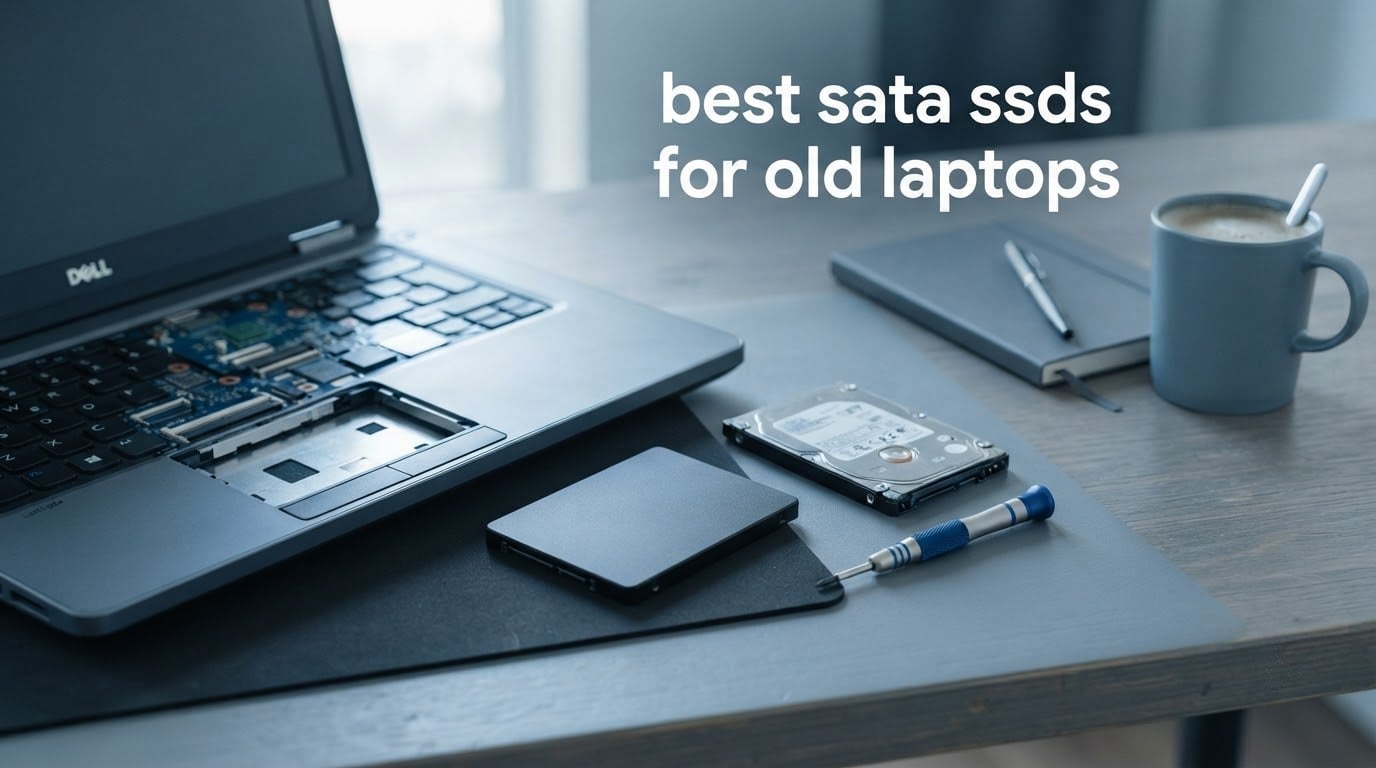
Yes, SATA SSDs are still absolutely worth putting in an old laptop. Swapping a mechanical hard drive for a 2.5-inch SATA solid-state drive makes a 2012-era machine boot in seconds instead of minutes, and it draws less power while running completely silent. On a machine this age, changing the type of storage matters far more than the drive’s top speed.
That last point is where most buying guides get old laptops wrong. The lists you will find elsewhere are packed with M.2 NVMe drives that a 2011 Dell Latitude or a 2013 ThinkPad simply cannot accept, because those laptops have no NVMe slot at all. A handful of the drives below will not physically fit either, because their bay only takes 7mm-thin bodies. So this list is SATA-only, and every pick here is judged on fit first, endurance second, speed third.
We spent weeks working through eight 2.5-inch SATA drives, reading the full review history on each one and comparing what buyers actually said after living with them in older machines. Our team also walked through the compatibility decisions that trip people up: the difference between a 2.5-inch bay and an M.2 slot, why a drive labelled NVMe sometimes will not work, and why a SATA II laptop will happily run a SATA III drive but cap it at roughly 300 MB/s.
If you just want the answer, take the Samsung 870 EVO. It is the strongest all-round pick here for an old laptop, its 7mm-thin body fits slim bays, and its 600 TBW endurance rating is the highest figure we found. If the budget is the deciding factor, the Crucial BX500 does the same job for far less and is the drive most people in the forums reach for first.
Table of Contents
What Storage Does Your Old Laptop Have? Check This Before You Buy
Physical compatibility is the number one reason an SSD gets returned, and it is a five-minute check once you know what to look for. Work through these four steps in order and you will know exactly which drive shape to buy.
Step 1: Look for a 2.5-inch bay. Flip the laptop over or remove the bottom panel. A 2.5-inch bay is a flat metal tray the size of a playing card, usually held by four screws, with a SATA data connector and a SATA power connector on it. Any 2.5-inch SSD in this list will fit here, provided you check the thickness in step 3. This is the most common storage arrangement in laptops built before roughly 2015.
Step 2: Look for an M.2 slot and read the label carefully. An M.2 slot is a narrow slot about 22mm wide that accepts a stick-shaped drive, secured by a single screw. M.2 comes in two incompatible flavours: M.2 SATA and M.2 NVMe. Many manufacturers print “NVMe” next to the slot on models where it is actually SATA-only, which is exactly the trap described in r/laptops by a user who bought an M.2 SATA drive for an HP 14-fq0075nr and found the NVMe-labelled port would not accept it. If the manual lists only SATA for that slot, buy a 2.5-inch drive instead.
Step 3: Measure the clearance. Most 2.5-inch drives are 7mm thick and fit almost everything. A minority are 9.5mm and will not go into a slim ultrabook bay without a spacer bracket. Slim laptops from the 2012-2015 era and most ultrabooks are 7mm-only, so a thin drive is the safer default. The listing dimensions matter here: 0.27 inch or 0.28 inch in the thickness field means 7mm.
Step 4: Rule out soldered storage. If you open the machine and see the memory soldered directly to the board with no socket, storage is probably soldered too. Some laptops combine a soldered eMMC chip with an M.2 slot, in which case the M.2 slot is the only upgrade path. If the drive area is empty and there is no cable, there is no upgrade, and no drive on this list will change that.
One more thing to check before you order: how many storage slots your laptop has. A lot of older laptops have exactly one 2.5-inch bay, so your new SSD has to be at least as large as the hard drive it replaces. That is the main reason the 1TB option below makes so much sense for these machines.
Top 3 SATA SSDs for Old Laptops (October 2026)


All 8 SATA SSDs Compared in 2026
| Product | Specs | Action |
|---|---|---|
| Samsung 870 EVO 250GB |
|
Check Latest Price |
| Crucial BX500 240GB |
|
Check Latest Price |
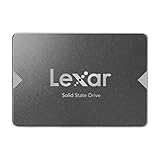 Lexar NS100 1TB Lexar NS100 1TB |
|
Check Latest Price |
 fanxiang S101 256GB fanxiang S101 256GB |
|
Check Latest Price |
 Silicon Power A55 512GB Silicon Power A55 512GB |
|
Check Latest Price |
 Kingston A400 240GB Kingston A400 240GB |
|
Check Latest Price |
 Patriot P210 256GB Patriot P210 256GB |
|
Check Latest Price |
 WD Blue SA510 500GB WD Blue SA510 500GB |
|
Check Latest Price |
1. Samsung 870 EVO 250GB – Best Overall SATA SSD for Old Laptops
Samsung 870 EVO SATA SSD 250GB 2.5” Internal Solid State Drive, Upgrade Desktop PC or Laptop Memory and Storage for IT Pros, Creators, Everyday Users, MZ-77E250B/AM
250GB 2.5-inch SATA SSD
560 MB/s read and 530 MB/s write
Up to 600 TBW
5-year warranty
Pros
- 560 MB/s sequential read maxes out the SATA interface
- DRAM and NAND made in-house by Samsung
- Samsung Magician 6 manages health and firmware
- 5-year limited warranty with up to 600 TBW
- Drop-in fit in a standard 2.5-inch laptop bay
Cons
- 250GB is tight for a modern Windows install
- Write speed drops outside the variable write buffer
The Samsung 870 EVO is the default answer for most old laptops because it is the one drive in this group that is strong across every dimension rather than good at one and weak at another. It reads at 560 MB/s and writes at 530 MB/s, which is the practical ceiling for any SATA III bus, and it holds that performance longer than cheaper drives because of a larger variable write buffer.
It is also the easiest drive here to justify on a five-year view. Samsung rates it at up to 600 TBW under a 5-year limited warranty, and unlike several rivals the warranty is not conditional on registering the product online. Samsung makes both the NAND and the DRAM in-house, so there is no third-party controller or memory vendor in the loop.
The physical dimensions are what make it a safe buy for a legacy machine: 3.94 by 2.76 by 0.27 inches, which is a 7mm-thin body. It drops into slim laptop bays without a spacer bracket, and it draws from a standard SATA power connector. Reviewers consistently single out how easily it drops into a 2.5-inch laptop bay, which is the exact job you need it to do.
The honest weakness is capacity. 250GB is fine for a Linux install or a Windows machine used for browsing and documents, but a current Windows installation eats into it quickly, and 240GB drives in this group cost less per gigabyte. If your old laptop has a single bay, you are better off with the 1TB Lexar below unless you have a small SSD somewhere to put the operating system on.
It holds 4.8 stars across more than 45,000 ratings, with 89% of buyers giving it five stars. For a machine that has already survived a decade, that depth of long-term feedback matters more than any benchmark number.
Samsung Magician 6 is the free management tool, and it is the most complete software option on this list. It reports drive health, pushes firmware updates, and runs a secure erase when you pass the machine on. Several rivals ship an Acronis migration utility instead, and the others ship no management software of their own.
What you actually notice in an old laptop
On a machine that was previously running a 5400rpm hard drive, the 870 EVO feels like a different computer rather than a slightly faster one. Boot time, app launch, and the delay before a folder opens all collapse, because flash memory reads electronically instead of waiting for a read head to physically move.
Sequential speed barely matters at this age. The 870 EVO’s headline 560 MB/s figure is relevant on a modern SATA III desktop, but on a 2011 laptop the CPU and controller are the bottleneck long before the drive is. What you are really buying is the change from mechanical seek times measured in milliseconds to electronic access measured in microseconds.
Where it is the wrong choice
Skip this drive if your laptop has a single 2.5-inch bay and you want room for software. At 250GB you will be pruning folders within a month of the migration, and the price per gigabyte works against you compared with the 1TB Lexar.
It is also overkill in a specific way: the TLC NAND, DRAM cache and sustained-write headroom here go largely unused in a laptop that mostly boots a browser and runs a word processor. You are paying for headroom you may never touch, which is a fair trade for reliability but not the best use of a tight budget.
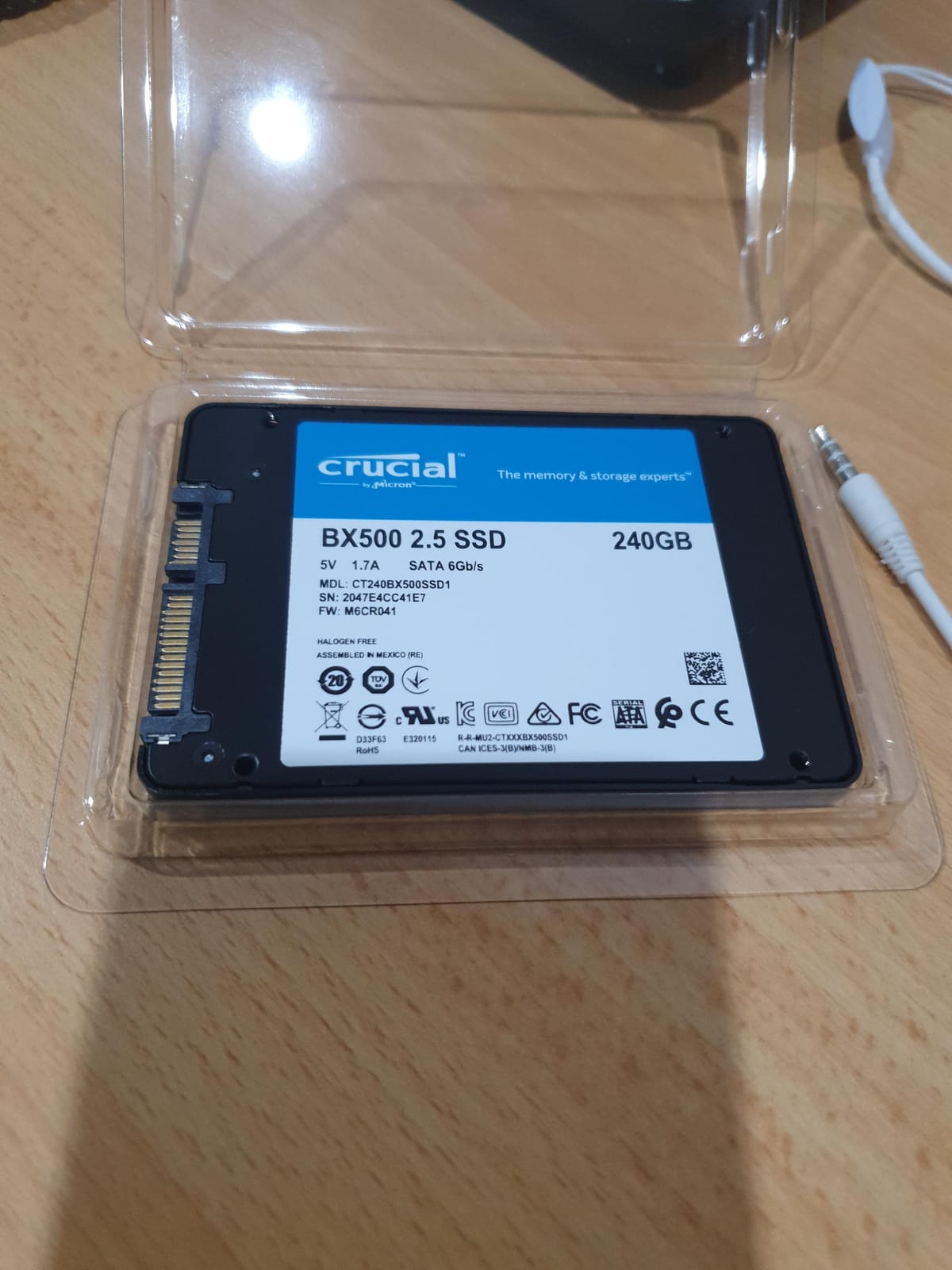
2. Crucial BX500 240GB – Best Value Upgrade for an Old Laptop
Crucial BX500 240GB 3D NAND SATA 2.5-Inch Internal SSD, up to 540MB/s – CT240BX500SSD1, Solid State Drive
240GB 2.5-inch 7mm SATA SSD
540 MB/s read
Micron 3D NAND
3-year warranty
Pros
- 250GB 2.5-inch 7mm SATA SSD
- 540 MB/s read
- Micron 3D NAND
- 3-year warranty
- 45x more energy efficient than a hard drive
Cons
- Write speed falls once the SLC cache fills
- Bundled cloning tool is awkward to run
- 240GB fills quickly with a modern Windows install
The Crucial BX500 is the drive most people in the forums name first when someone asks for a cheap SATA SSD for an ageing laptop, and that consensus holds up. It reads at 540 MB/s, which is within a few percent of the interface ceiling and completely invisible on a 2010-2015 machine.
The review history makes the case better than any specification sheet. Buyers report boot times falling from 5-10 minutes on a hard drive to about 30 seconds, and the same story repeats across older laptops, consoles and Macs. The drive is recognised immediately by legacy hardware, which is precisely the failure mode you worry about with a cheap import drive.
It is 7mm thin at 3.95 by 2.75 by 0.27 inches, so bay clearance is not an issue. The 2.5-inch 7mm SATA form factor is called out in the compatibility information, which is unusual for a budget drive and a good sign the manufacturer expects legacy use.
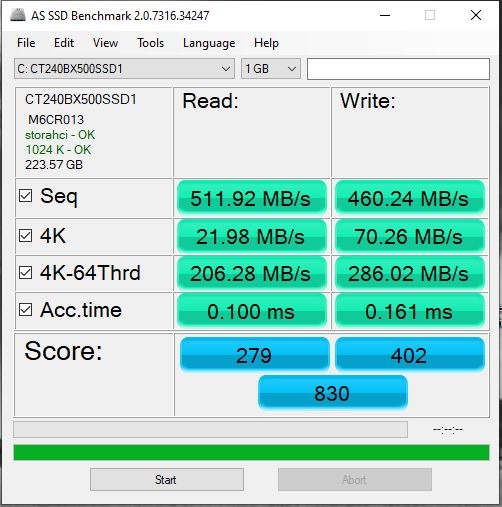
Two details make it stand out for laptops specifically. It runs cool and silent, which improves thermals inside an ageing chassis where the original hard drive was a heat source, and Crucial rates it 45x more energy efficient than a typical hard drive, so battery life on a worn machine can improve as a side effect of the swap.
The NAND is Micron-branded 3D NAND with a 3-year limited warranty. Sustained write throughput falls off once the drive’s write cache fills, and that is where the main complaint sits. Copying a 40GB video folder onto it in one go will not run at 540 MB/s throughout.
It holds 4.8 stars across more than 52,000 ratings with 86% five-star ratings, which puts it in the top rating tier in this group. For a browser-and-documents laptop, the write behaviour that holds it back is a scenario you will never hit.
Why this is the value pick
The gap between this and the premium drives is far narrower than the price gap suggests. Both sit in the same 7mm envelope, both use 3D NAND, and both run at effectively the same speed on an old controller. The 870 EVO is worth paying up for if you want the warranty and the sustained writes, but most old laptops do not need either.
It is also the safest recommendation for a machine you do not fully understand. It is a mainstream part with an enormous installed base, so if the drive needs replacing later there is no difficulty finding a replacement or reading reports about a problem you have.
Where it falls short
240GB is genuinely small now. A fresh Windows install with a handful of applications will use 60-80GB before you install anything, which leaves very little room for a laptop used for coursework or media.
The bundled Acronis cloning utility is the most frustrating part of the package, and it is the tool you will need first. Reviewers report it being awkward to run from an HDD-booted machine, requiring the Linux-based recovery USB route instead. Plan on using a separate cloning tool instead of the one in the box.
3. Lexar NS100 1TB – Best High-Capacity SATA SSD for Old Laptops
Lexar 1TB NS100 Internal SSD 2.5″ SATA III, 550MB/s Read, Gray
1TB 2.5-inch SATA III SSD
550 MB/s read
480 TBW on the 1TB
3-year warranty
Pros
- 1TB 2.5-inch SATA III SSD
- 550 MB/s read
- 480 TBW on the 1TB model
- 3-year warranty
Cons
- No bundled cloning or management software
- Free cloning tools often need paid activation
- 550 MB/s read sits below the 560 MB/s leaders
The Lexar NS100 solves the problem the rest of this list cannot: what to do when your old laptop has one bay and the hard drive it came with was 500GB. One terabyte at 550 MB/s read, with 480 TBW endurance on the 1TB model and a three-year limited warranty, means you never have to prune anything.
Capacity is the reason it exists, and a terabyte works out cheaper per gigabyte than the 240GB and 250GB drives in this group. For a student machine holding coursework, a media library and an operating system, that is the number that matters rather than the last 10 MB/s.
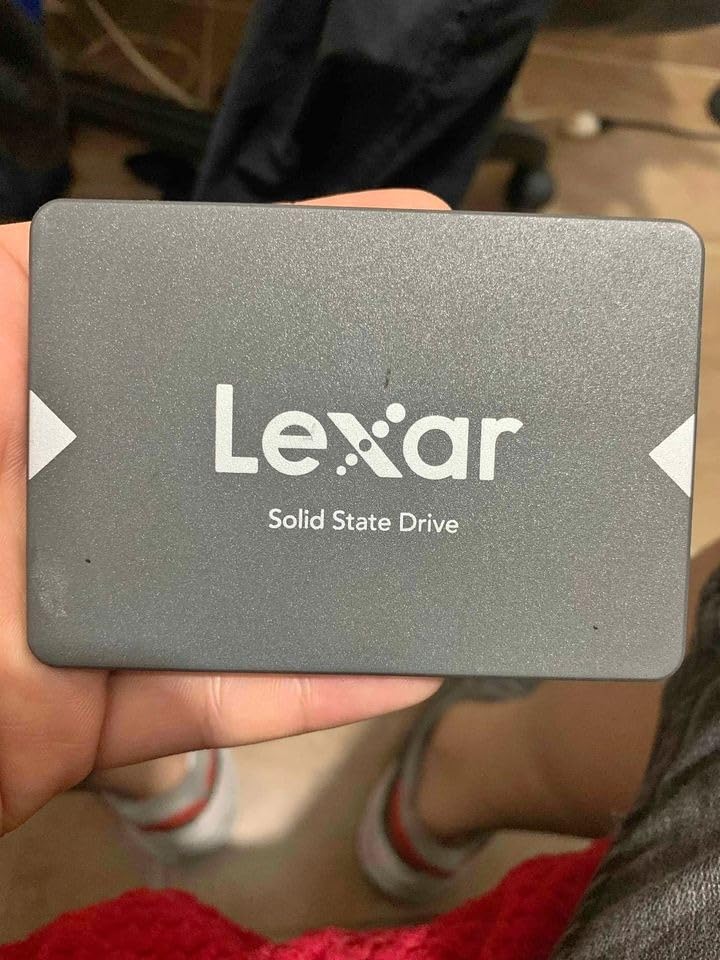
It is a 2.5-inch SATA III drive in a standard aluminium enclosure with no moving parts, so it is shock and vibration resistant, which is exactly the property you want in a portable machine that spends its life in a bag. Reviewers repeatedly describe long ownership histories with no data loss, including several years of steady use.
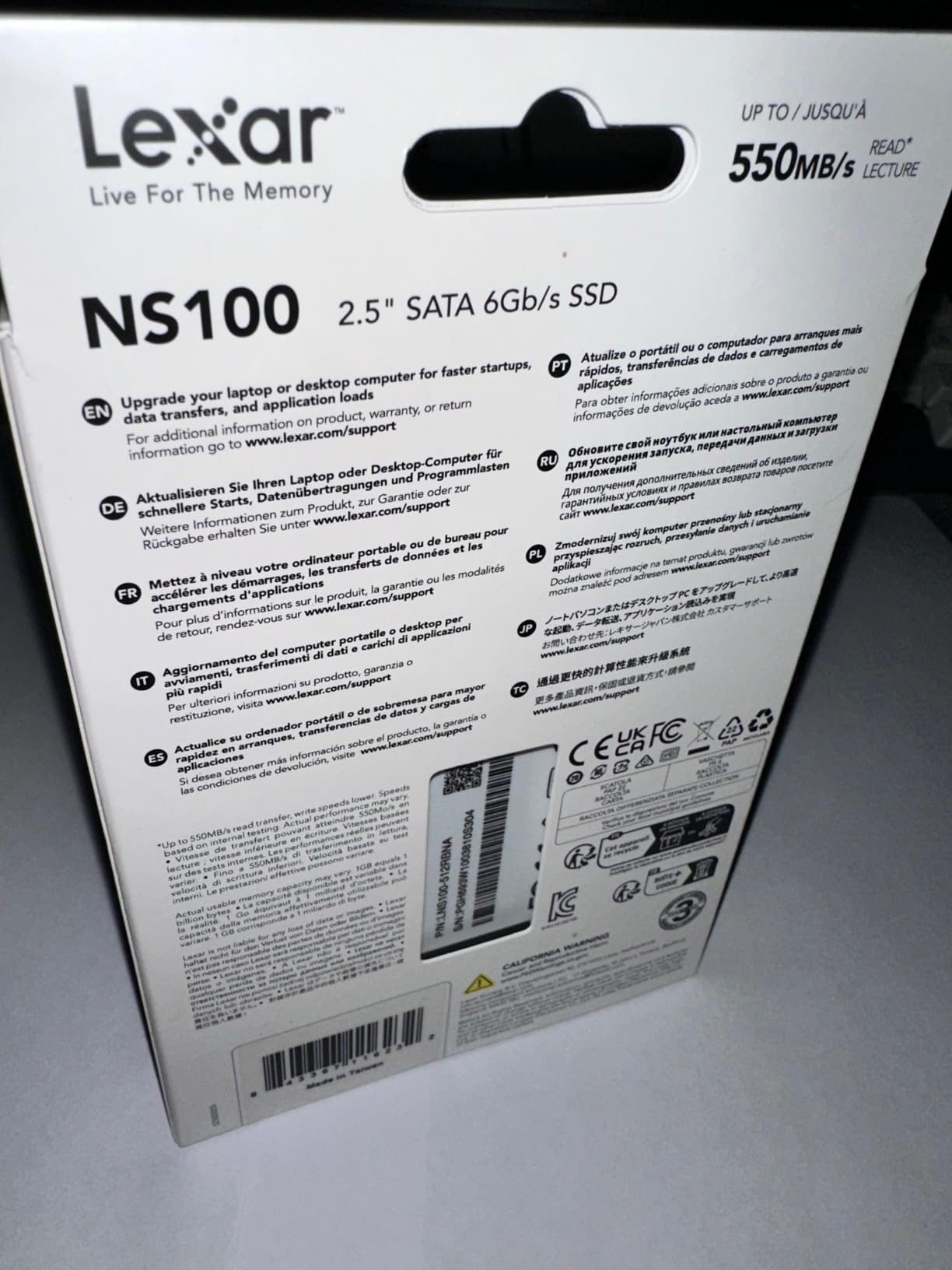
One buyer story that stuck with us came from an owner who put this drive in a Lenovo X130e ThinkPad, an old ultrabook with a very tight chassis, and reported reaching the Windows login screen in 28 seconds. That is the kind of result that matters on hardware this age, and the aluminium body mounted in a standard 2.5-inch bay without fuss.
The endurance figure is the strongest relative to capacity in the group. 480 TBW on a 1TB model is roughly two full writes of the drive every year for a decade, which is far more headroom than a student machine that grew up on a 500GB hard drive ever consumed.
It holds 4.7 stars from about 9,400 ratings with 85% five-star ratings. That is a smaller evidence base than the Samsung, Crucial or Kingston drives here, and it is worth knowing if you intend to keep the machine for many years.
What this capacity buys you
On a single-bay laptop, the drive you install has to be at least as large as the one you removed. That is the whole argument for a 1TB part, and it is why picking a 240GB drive often means giving up storage in the process of upgrading speed.
Keeping the old hard drive as secondary storage in a USB enclosure is a common follow-on, and a terabyte here means the mechanical drive can become pure bulk storage for media while the fast drive handles the operating system. Users with a tight budget commonly choose this route precisely because it works on machines with no NVMe slot.
Where it falls short
No cloning or management software ships with it. That is a bigger inconvenience than it sounds, because the popular free cloning utilities from EaseUS, Macrium and Acronis disable the actual clone function without paid activation. Budget a few hours or a small payment for a tool that will complete a 500GB migration.
A minority of older ThinkPad and laptop installs also have mixed MBR and GPT partition layouts that complicate migration regardless of the drive. If the machine was set up in a particular way years ago, check the partition scheme before you start.
4. fanxiang S101 256GB – Best Budget Drive With TLC NAND
fanxiang S101 256GB SSD 2.5″ SATA III Internal SSD Read Speed Up to 500MB/s
256GB 2.5-inch SATA III SSD
500 MB/s read and 400 MB/s write
3D NAND TLC flash
3-year coverage
Pros
- 3D NAND TLC flash lasts longer than QLC budget drives
- Recognised first time in older Dell and MacBook models
- Runs silent with no heat or vibration
- Supports Windows Linux and Mac OS
- 3-year quality assurance coverage
Cons
- 4.5 average sits below the 4.7-4.8 tier in this group
- 400 MB/s write is modest next to faster drives
- A few units stopped being detected after extended console use
The fanxiang S101 is the interesting pick in the budget tier because it uses 3D NAND TLC rather than the QLC flash that most drives at this level use. TLC tolerates more write cycles before performance degrades, and buyers single it out by name as a durability advantage over cheaper budget parts.
Speed is 500 MB/s sequential read and 400 MB/s sequential write, both listed in the product information. On an old laptop the read figure is what you feel, and 500 MB/s is close enough to the interface ceiling that the difference against the 560 MB/s leaders is theoretical.
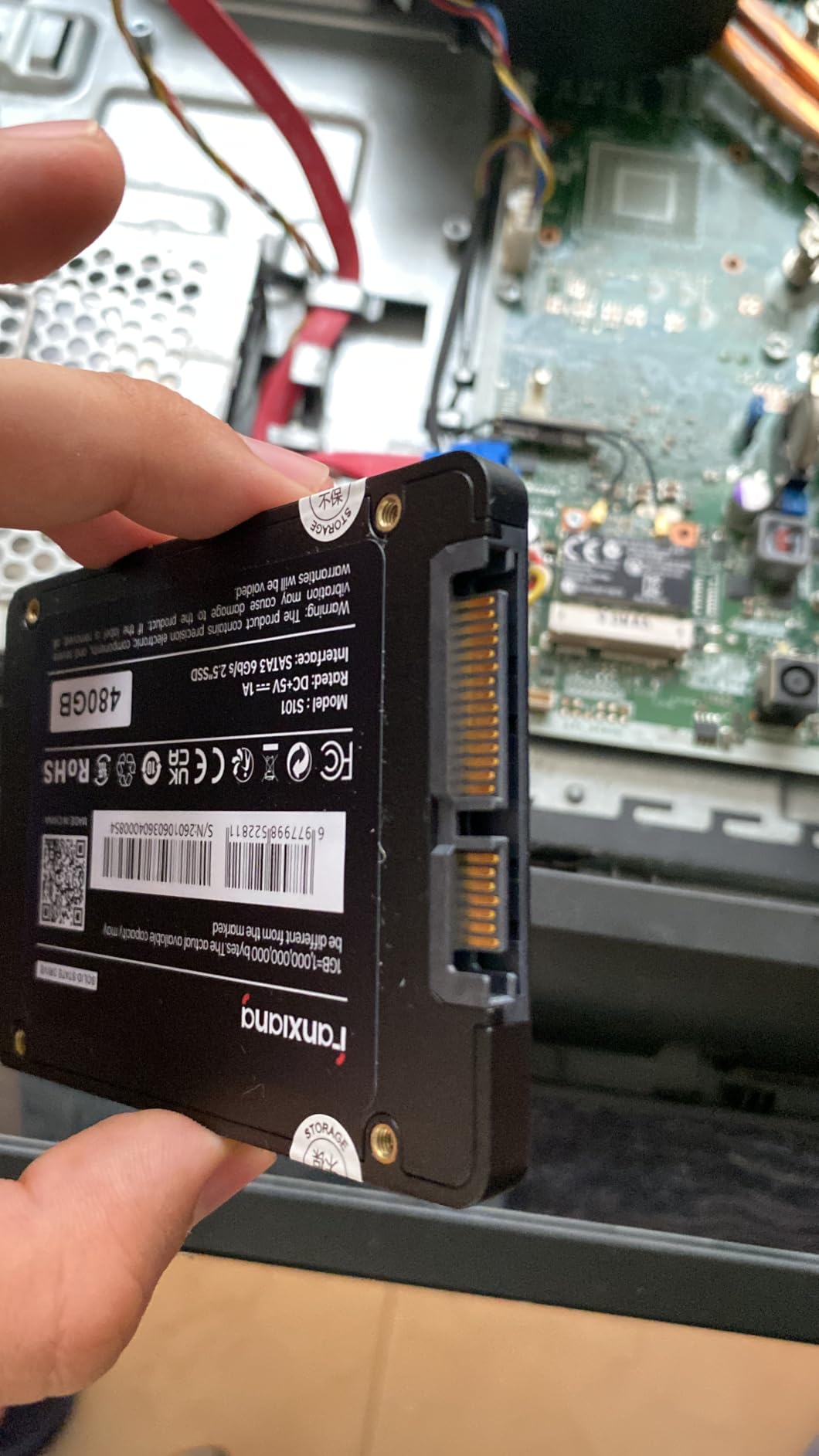
It is a standard 2.5-inch SATA III drive compatible with desktops, laptops and all-in-one PCs, and it supports Windows, Linux and Mac OS. That cross-platform support is why reviewers describe it as an easy replacement in ageing laptops and MacBooks, where the drive is recognised on the first attempt rather than needing a driver or a firmware trick.
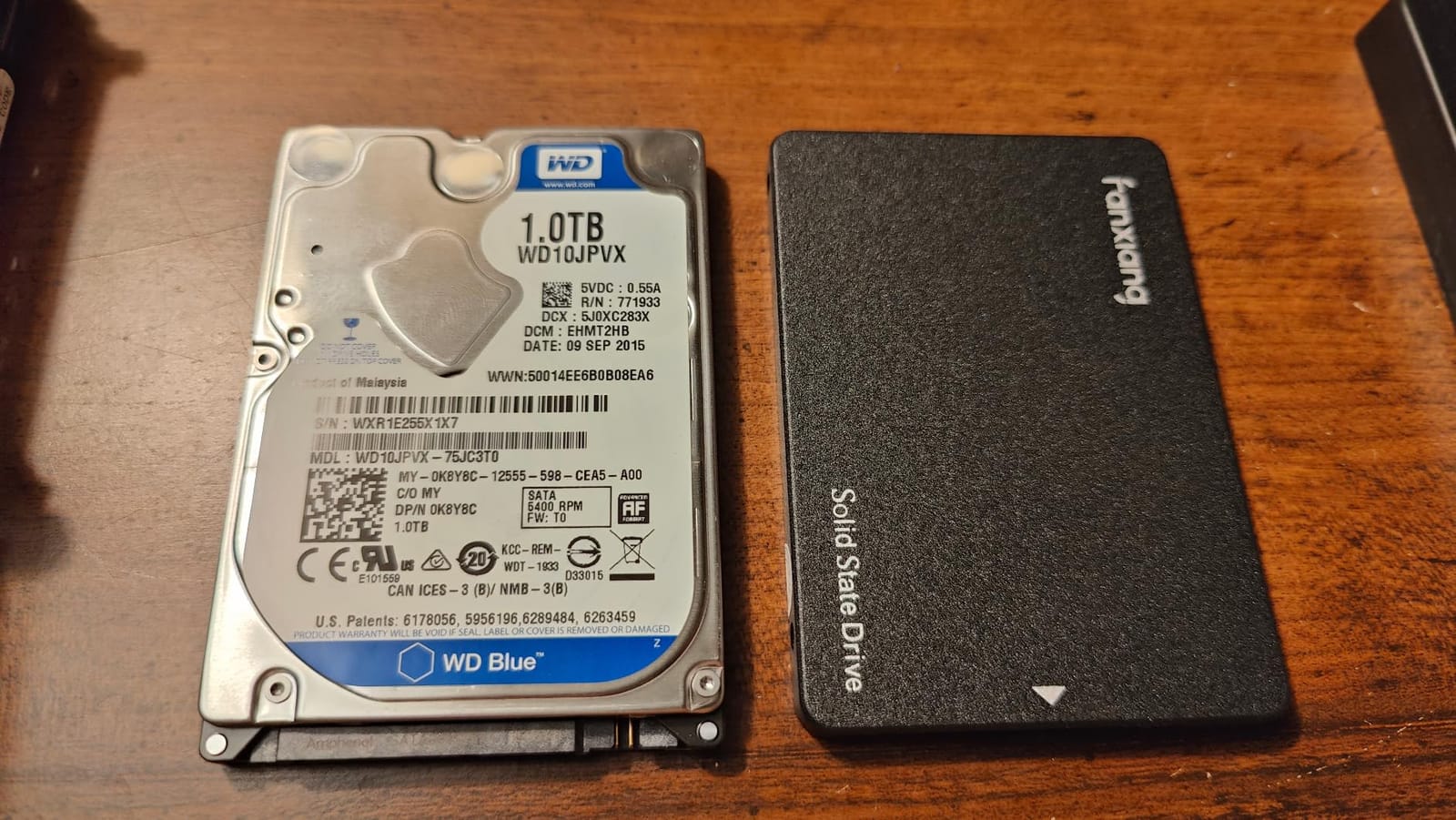
It weighs 2.08 ounces and has no spinning parts, so it adds no heat, no vibration and no noise to a machine that was probably already hot and loud. Buyers report sustained speed and reliability across multi-year ownership, and the 3-year quality assurance coverage is longer than the warranty on several drives costing more.
The rating is 4.5 across roughly 23,500 ratings with 79% five-star ratings. That sits below the 4.7 and 4.8 tier of the drives above it, and the 6% one-star share is worth reading before you buy.
Hardware encryption is listed among the additional features, though the standard 2.5-inch SATA interface itself does not carry the drive-level encryption toggle that enterprise SATA drives do. Treat it as a normal consumer drive with no special security features.
Why TLC matters more than speed here
On an old laptop the drive is usually the boot drive and occasionally gets written to, but the machine is rarely the destination for large file transfers. That pattern of use means the NAND’s endurance ceiling, not its peak throughput, is the number that decides whether the drive is still fast in four years.
TLC flash has a materially longer write life than QLC at the same capacity and price. For a machine that is being kept alive rather than replaced, that is the more durable choice and the reason this drive earns its place on the list despite the lower rating.
Where it falls short
400 MB/s sequential write is the lowest figure here alongside the Patriot. If you regularly move large video or project files onto the laptop, that is the one scenario where a premium TLC drive with DRAM is worth the extra.
There are also a small number of reports of a unit that stopped being detected after extended use in a PlayStation 4. Console use is not what this drive is sold for, but the report is a fair warning to check the drive is recognised before migrating your data across.
5. Silicon Power A55 512GB – Best for Thin Ultrabook Bays
SP 512GB SSD 3D NAND A55 SLC Cache Performance Boost SATA III 2.5″ 7mm (0.28″) Internal Solid State Drive (SP512GBSS3A55S25)
512GB 2.5-inch 7mm SATA SSD
500 MB/s read
SLC cache for write boost
3-year warranty
Pros
- 7mm profile suits ultrabook and ultra-slim bays
- SLC cache boosts responsiveness and write life
- Supports TRIM Garbage Collection RAID and ECC
- 512GB capacity in a thin 2.5-inch body
- 3-year limited warranty
Cons
- 500 MB/s read sits at the lower end of SATA
- Full warranty service needs online registration
- Write throughput falls once the SLC cache fills
Buy the Silicon Power A55 when thickness is the deciding factor. Its 7mm slim design is called out in the product information as suitable for ultrabooks and ultra-slim notebooks, which is the specific case where a 9.5mm drive physically will not go in, no matter how good the rest of the specification is.
At 3.94 by 2.75 by 0.28 inches and 50 grams it is a genuinely thin 512GB drive, and 0.28 inch in the dimensions field is the figure to look for on any listing you buy. A 7mm body is what tells you a drive will clear a slim bay.
Performance is 500 MB/s read, which is at the lower end of the SATA ceiling and a genuine step down from the 560 MB/s leaders. In practice the gap does not show up on a machine with a SATA II controller, and even on SATA III hardware the difference is small enough that it will not change how the laptop feels.
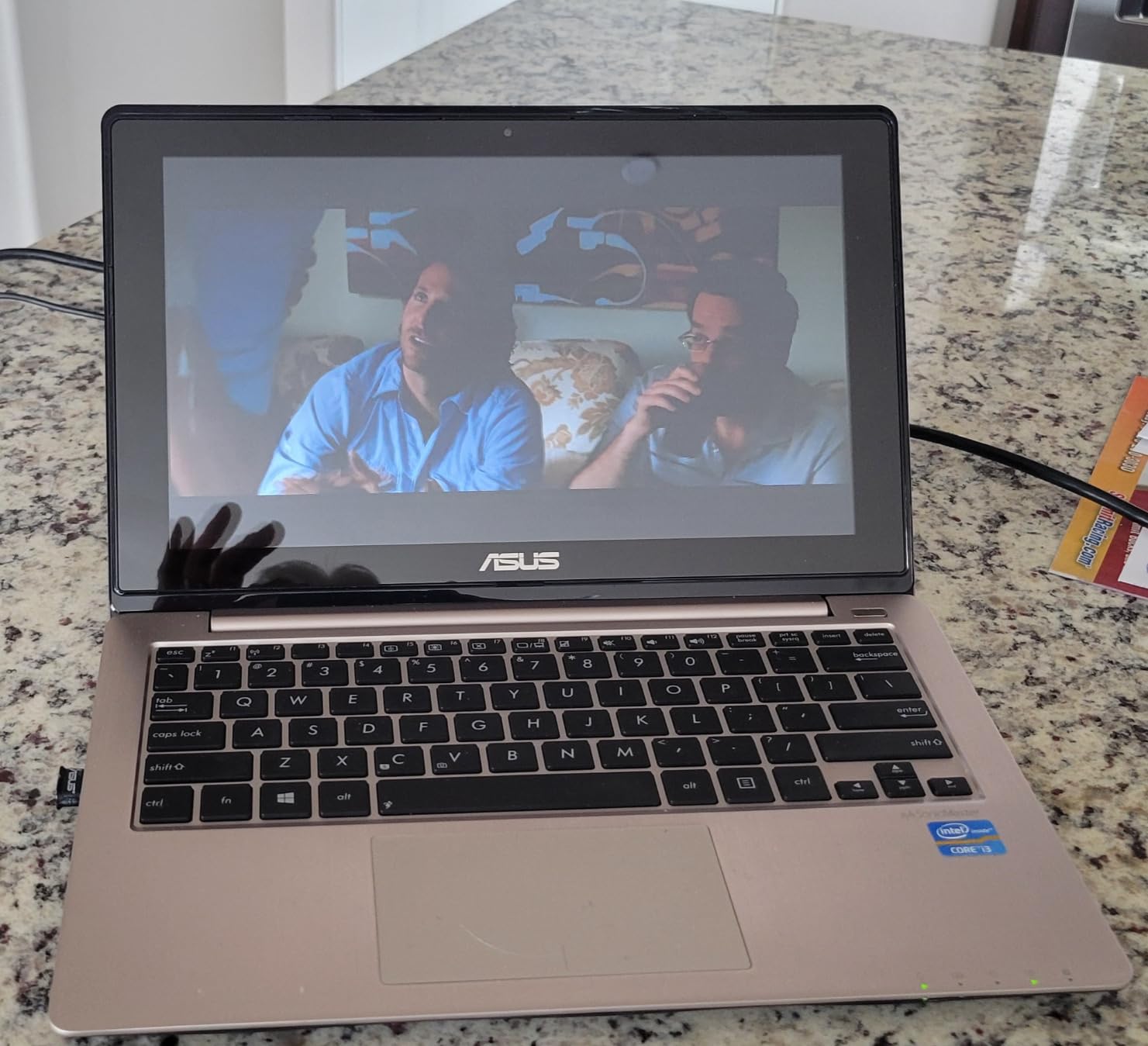
SLC cache technology is the interesting feature. It uses a portion of the flash as a faster write buffer, which improves responsiveness and extends write lifespan at the same time, and it is one of the more visible ways this drive separates itself from the cheapest budget parts.
It also supports TRIM, Garbage Collection, RAID and ECC. TRIM is the one that matters on an old laptop, because it lets the drive tell the controller which blocks are no longer in use, so deleted files do not permanently slow the SSD down the way they do on a hard drive.
It holds 4.5 stars from about 11,800 ratings with 80% five-star ratings. Buyers consistently describe the thin profile as the deciding factor in their purchase, which tells you the 7mm body is doing the work here rather than the speed.
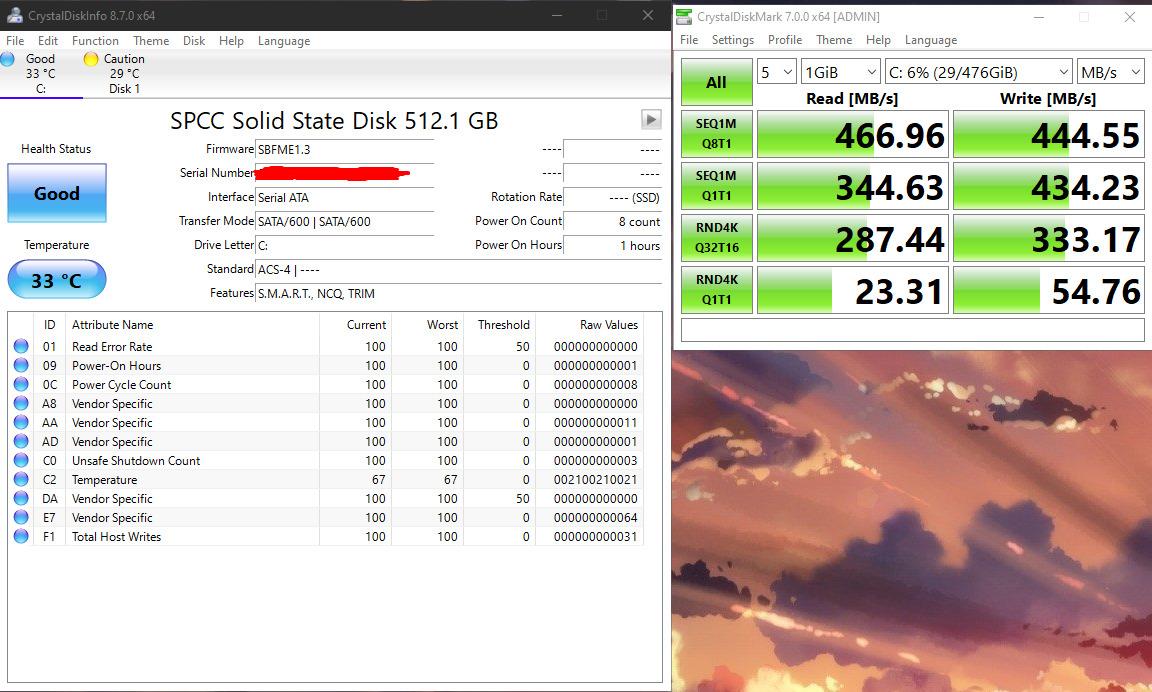
What thickness means for your bay
Most 2.5-inch SSDs are 7mm and fit anywhere. A minority are 9.5mm because they need room for extra cache or a thicker heat spreader, and those will not seat in a slim ultrabook bay without a spacer bracket that many laptops no longer include in the box.
The failure mode is brutal rather than subtle. The drive does not damage anything, it simply will not close, or the caddy will not latch. This is why the thickness figure is worth reading on the listing before anything else when you own a slim laptop from the early 2010s.
Where it falls short
Full warranty service requires registering the product on the manufacturer’s website. That is a friction point that will matter if you ever need an RMA on a drive installed in an old machine, because the process is not entirely self-service.
As with most budget drives, sustained write throughput falls away once the SLC cache is full. Copy a large media library onto it in one session and the speed drops well below the headline figure, which is fine as an occasional event and annoying as a habit.
6. Kingston A400 240GB – Most Proven Budget Replacement
Kingston 240GB A400 SATA 3 2.5″ Internal SSD SA400S37/240G – HDD Replacement for Increase Performance
240GB 2.5-inch SATA 3 SSD
500 MB/s read and 450 MB/s write
3-year limited warranty
Pros
- More than 234000 ratings make it the most proven drive here
- 500 MB/s read speeds up boot and file transfers
- Owners call it more durable than the hard drive it replaces
- Fits 2.5-inch bays in both laptops and desktops
- Limited 3-year warranty
Cons
- Write throughput drops once the small SLC cache is gone
- 240GB is tight for a modern Windows system drive
- Catalog dimensions do not match a typical 2.5-inch 7mm drive
The Kingston A400 is the most proven drive on this list by a wide margin, with more than 234,000 ratings holding 4.8 stars. When the goal is a low-risk swap in a machine you have already had for a decade, that much accumulated field data is worth more than a specification advantage.
It reads at 500 MB/s and is described in its own documentation as a hard drive replacement for increasing performance, with fast startup, loading and file transfers. That is exactly the use case here, and owners consistently report dramatic improvements after removing a mechanical drive.
It is designed as a direct hard drive replacement in both desktop and laptop 2.5-inch SATA bays, and the drive is described as more reliable and durable than the mechanical drive it replaces. There is a limited 3-year warranty behind that claim.
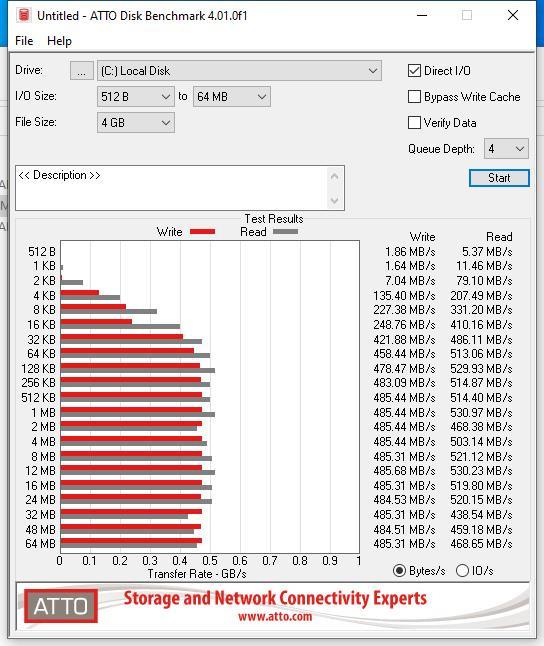
It is also marked backward compatible, which on a very old laptop is the reassuring line to see. Rather than worrying about a SATA III drive in a SATA I or SATA II controller, this is a part that has been fitted into a very wide range of older hardware without fuss.
The recurring criticism is the same one that applies to most budget SATA drives: sustained write throughput drops once the small SLC cache is exhausted. It is a DRAM-less design with a modest cache, so burst writes look excellent and long writes settle well below the headline figure.
The 240GB capacity is the other recurring reservation. Buyers regularly note it fills quickly, and on a single-bay laptop you are trading storage for speed, which is only a good deal if your old hard drive was smaller.
At 4.8 stars with 234078 ratings and an 86% five-star share, this drive has more owners reporting successful laptop installs than anything else in this roundup. If you want the least surprising option, this is it.
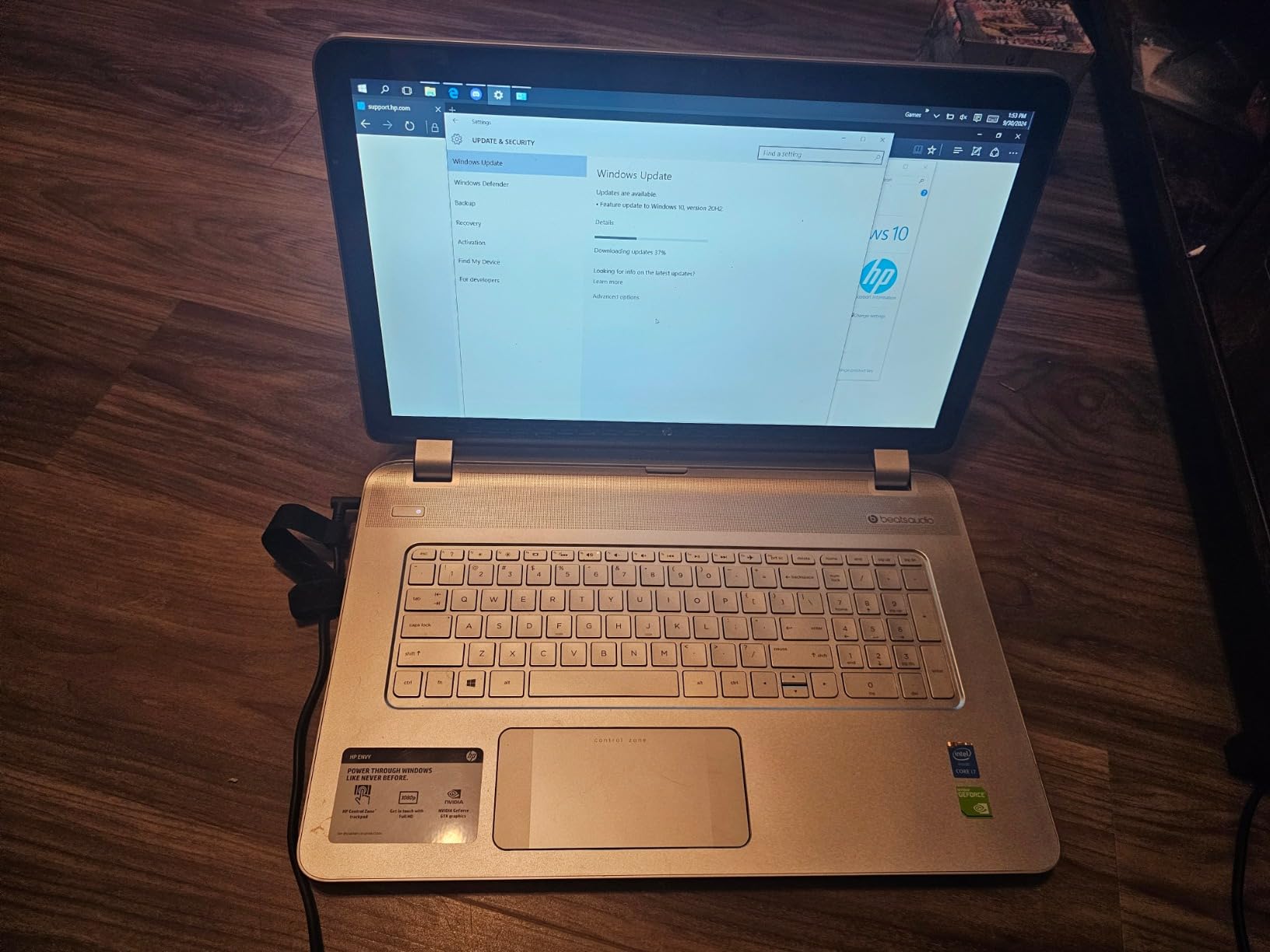
What such a large review base tells you
Volume is a proxy for field time. With more than 234,000 ratings, the failure modes that eventually show up in cheap flash have almost certainly surfaced already, and you can read about them rather than discover them. On a machine you intend to keep for years, that is a real advantage.
It also means support is straightforward. If the drive fails, you are replacing a part whose installation in a 2.5-inch bay is documented in thousands of write-ups rather than a niche component with little community knowledge.
Where it falls short
Check the listing dimensions before buying, because the catalog figures for weight and size on this particular listing do not match a typical 2.5-inch 7mm drive. The physical drive people receive is a standard 2.5-inch SATA part, but verify the 7mm thickness against your bay rather than trusting the catalog numbers.
On write-heavy workloads the small cache is a genuine limitation, and 240GB is the smallest usable capacity in this group. It suits a laptop used for browsing and writing rather than one holding a media library.
7. Patriot P210 256GB – A Low-Cost Fix for a Failing Hard Drive
Patriot P210 256GB SATA 3 2.5 Inch SSD
256GB 2.5-inch SATA 3 SSD
500 MB/s read and 400 MB/s write
4K random write 30K IOPS
Pros
- Compact 2.5-inch body weighing 46 g
- 4K aligned random write up to 30K IOPS
- SmartECC error correction and thermal throttling
- End-to-end data path protection
- Current SATA 3 controller
Cons
- Smallest review base at about 6200 ratings
- Listing states desktop use without naming laptops
- 400 MB/s write is slow for write-heavy work
The Patriot P210 is a low-cost way to replace a hard drive that is already failing, and its specification sheet is unexpectedly good for the money. It uses a current SATA 3 controller reading at up to 500 MB/s and writing at up to 400 MB/s, with 4K aligned random write up to 30K IOPS.
That IOPS figure is the number that matters on an old laptop. Random small-file performance is what governs how quickly Windows loads and how responsive a browser feels, and it is the metric most budget SSDs are honest about. Thirty thousand is a genuinely useful figure for daily use.
It also has end-to-end data path protection, SmartECC error correction and thermal throttling. On a machine with poor cooling and years of dust in the fans, thermal throttling is not a marketing line, it is a feature that keeps the drive stable.
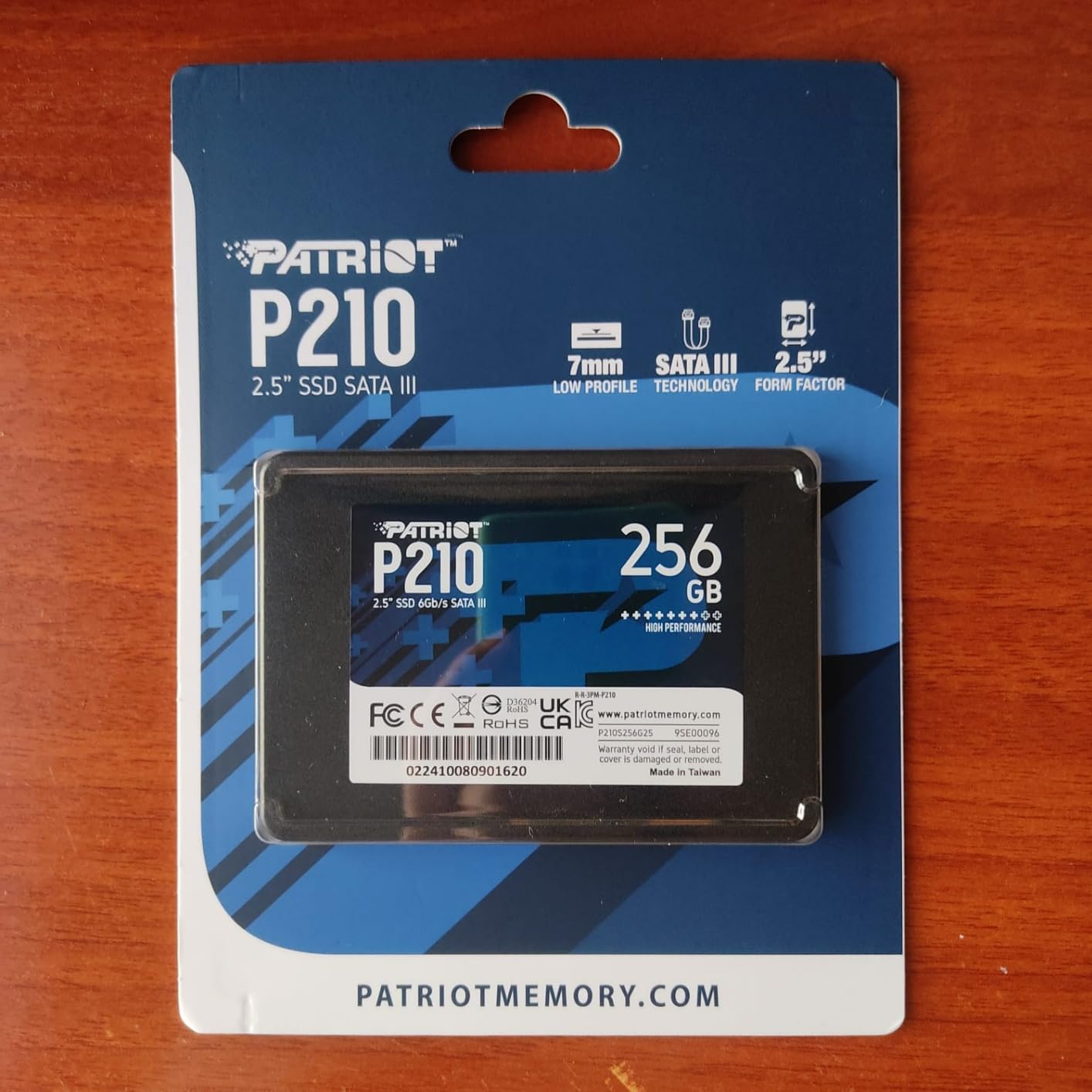
Physically it is a compact 2.5-inch body at 3.94 by 2.74 by 0.28 inches and 46 grams, so it is a 7mm drive and will fit a slim bay. Nothing in the specification suggests it is a desktop-only part, even though the compatible devices field in the listing only names desktop.
That listing gap is worth flagging honestly, because it is the one thing that gives us pause. The form factor and interface are identical across desktop and laptop use, and 2.5-inch SATA drives are form-factor universal, but if you want the listing on your side of the argument the Crucial BX500 or Samsung 870 EVO both state laptop compatibility explicitly.
It holds 4.6 stars from roughly 6,200 ratings, the smallest review base in this group by a wide margin. There is simply less long-term field data behind it than behind the Samsung, Crucial or Kingston parts.
When this is the right buy
It is the pick when the hard drive has started clicking, the machine is already unreliable, and the goal is to get it working this week rather than to build a machine that lasts a decade. The feature set on paper is close to the best in the budget tier and the drive is the least expensive per unit here.
For a learner or a family machine that is going to a younger sibling or back into circulation, a low-cost 256GB drive is a reasonable way to keep useful hardware out of a drawer and out of a waste stream.
Where it falls short
The manufacturer listing names desktop compatibility and does not explicitly call out laptop support. The hardware will work, but you are relying on form-factor universality rather than on a stated guarantee, which matters if you want an easy return.
400 MB/s sequential write leaves it short on write-heavy tasks, and with about 6,200 ratings there is far less evidence of how it behaves after five years than for the other picks here.
8. WD Blue SA510 500GB – 560 MB/s and a 5-Year Warranty, With Caveats
Western Digital 500GB WD Blue SA510 SATA Internal Solid State Drive SSD – SATA III 6 Gb/s, 2.5″/7mm, Up to 560 MB/s – WDS500G3B0A
500GB 2.5-inch 7mm SATA SSD
560 MB/s read and 510 MB/s write
5-year warranty
Pros
- 500GB of storage for bulk files
- 560 MB/s read and 510 MB/s write
- 5-year limited warranty is the longest here
- 2.5-inch 7mm body fits slim laptop bays
- 2.5-inch and 7mm dimensions listed for laptop use
Cons
- 4.4 average with 11% one-star reviews
- Several detailed reports of the drive vanishing from BIOS
- The bundled cloning tool is reported as unreliable
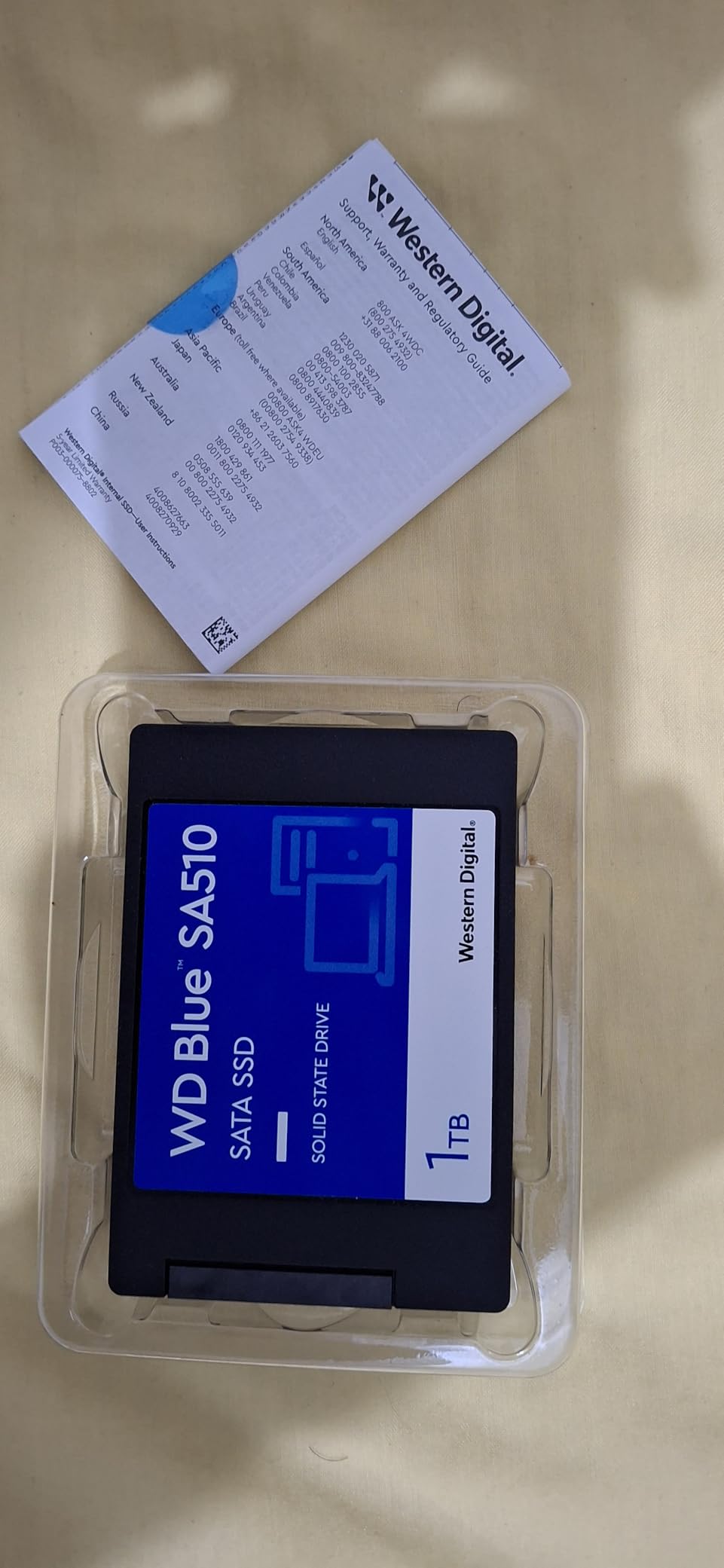
The WD Blue SA510 matches the fastest read speed in this group at 560 MB/s, paired with 510 MB/s write, and it carries a 5-year limited warranty, which is the longest coverage available here. On the specification sheet alone it is a strong pick for an old laptop that needs a lot of space quickly.
It is a 2.5-inch 7mm drive at 3.95 by 2.75 by 0.28 inches, so bay clearance is not an issue, and it is listed for laptops, desktops and PCs. That 500GB of space also suits a machine holding a media library alongside the operating system, which is where the extra capacity pays off on a single-bay laptop.
At 4.4 stars from about 12,100 ratings with 11% one-star ratings, it has the lowest average in this lineup and the largest negative share of any drive here. Those one-star reviews are not noise: several are long, detailed accounts of the drive failing to be detected by BIOS after roughly 30 months, including one laptop that stopped booting entirely. Owners also praise the speed jump from replacing a 7200 rpm mechanical drive in a Dell Latitude, which is one of the biggest gaps any old laptop can experience.
There is also a recurring drive-disappearing issue that users resolve by changing a BIOS SATA hot-plug or always-on power setting, and repeated complaints about the installation and product registration process being clunky and poorly documented.
The bundled Acronis cloning software is reported as unreliable compared with third-party tools such as Macrium Reflect, which is a nuisance precisely when you need it most, during the first migration.
The listing also carries a contradictory dimension field, showing 3.5 inches in the technical details while the product itself and the bullets clearly describe a 2.5-inch drive. The physical unit is 2.5-inch, but this is a signal to verify the drive you receive rather than assume.
Where the speed actually helps
On an old laptop with a mechanical drive of any speed, the change to flash produces a far larger gain than the gap between 500 and 560 MB/s. The faster read figure only becomes the deciding factor if the laptop’s controller is SATA III and you are comparing this drive against a slower flash drive in the same machine.
The 5-year warranty is genuinely the longest here and would matter most in a machine being kept for the long term, which is the one argument that pulls against the reliability reports rather than with them.
Where it falls short
The 11% one-star share and the BIOS detection failures are the deciding factor against it. On a laptop being revived because the current drive is already failing, adding a second drive with a reported early-failure history is a risk you do not need to take when better-proven options cost very little more.
Software and registration friction round out the complaints, and those are exactly the tasks you will face on day one of the upgrade.
Buying Guide: How to Choose a SATA SSD for an Old Laptop?
Once you know the bay type, thickness limit and SATA generation, the remaining decisions are simpler than the spec sheets suggest. Here is what actually matters, and what does not.
SATA I, II or III: what your laptop’s controller actually caps
A SATA III drive will work in a SATA II laptop and a SATA I laptop, because the interface is backward compatible. What changes is the ceiling, and understanding it stops you paying for speed you cannot use. SATA I tops out around 150 MB/s, SATA II around 300 MB/s, and SATA III around 500-550 MB/s in real transfers.
So a 560 MB/s drive in a 2011 laptop with a SATA II controller will deliver roughly 300 MB/s and no more. That is still three to five times a mechanical drive, which is the entire reason the upgrade is worth doing. The rule of thumb is simple: on hardware that old, the storage type decides the outcome and the drive’s headline speed is decoration.
To find your generation, look up your exact model number in the manufacturer’s specification sheet. The published spec will list SATA version support, and manufacturer forums are usually more reliable than retailer listings for models that shipped years apart under the same name.
2.5-inch bay vs M.2 SATA vs M.2 NVMe
This is the single most confusing distinction for this audience, and it is where the most money gets wasted. A 2.5-inch SATA SSD is a rectangular drive the size of a playing card with a SATA connector on the end. An M.2 drive is a stick about 22mm wide and 80mm long that screws into a slot on the motherboard.
M.2 comes in two flavours that are not interchangeable. M.2 SATA uses the same protocol as a 2.5-inch drive and needs both an M.2 slot and a SATA data connector. M.2 NVMe uses the PCI Express bus and needs only the M.2 slot. They look almost identical and a slot that accepts one will not accept the other.
The trap is that some manufacturers label a slot as NVMe-capable in marketing when the specific model is wired for SATA only. A documented case on r/laptops involves an HP 14-fq0075nr where the NVMe-labelled port would not accept an M.2 SATA drive. Check the service manual for your exact model, not the series name.
Soldered storage is the third option and the one that ends the conversation. If the storage is soldered to the motherboard, no drive in this list will fit, and you are looking at a different kind of machine.
Drive thickness and bay clearance: 7mm vs 9.5mm
Most 2.5-inch SSDs are 7mm and fit nearly everything. Some are 9.5mm and need the extra room, and a slim ultrabook or ultra-slim notebook bay will not accept one without a spacer bracket. Slim laptops from the 2012-2015 era are the group most likely to refuse a 9.5mm drive.
Read the thickness field in the listing rather than assuming. A thickness of 0.27 or 0.28 inches means 7mm and is the safe default. This is a hard physical stop, not a performance compromise, and it is the most common reason an otherwise correct drive gets returned.
Some drives ship without mounting screws or a spacer bracket, so check what is in the box before you start. Many laptop manufacturers reuse the screws that held the original hard drive, but not all of them do.
How much capacity an old laptop actually needs
For a machine used mainly for browsing, documents and coursework, 250GB to 500GB is enough. For anything involving media libraries, photo editing or a large application set, 1TB is the sensible floor. The rule for single-bay laptops is simple: never go smaller than the drive you are replacing.
Capacity is also where the cost per gigabyte works out best. Larger capacities almost always cost proportionally less per gigabyte, so if you are choosing between a 240GB and a 500GB drive and can spare the difference, the bigger one is the better buy on value alone, before any performance consideration.
A 256GB drive leaves very little breathing room once Windows, a browser and a handful of applications are installed. Budget for roughly 60-80GB of system footprint before you install anything at all.
Which specs you can safely ignore on an old laptop
Several headline specifications are irrelevant on legacy hardware, and paying for them is the most common way readers overpay. PCI Express generation is first, because a SATA laptop has no PCIe storage bus at all. A heatsink or a heat spreader is pointless in a chassis with no airflow path. RGB lighting has no effect on any measurable outcome.
DRAM cache is a genuine differentiator in sustained writes, but on a laptop that boots a browser it will not be exercised. Hardware encryption suites such as AES-256 with TCG Opal are worth having only if you need drive-level security, which most personal laptops do not.
The one specification that is not marketing is capacity, followed by thickness, because both of those can stop the upgrade from happening at all. Warranty length and endurance rating are worth paying a little for on a machine you want to last.
TLC vs QLC, TBW, and which brands are most reliable
Reliability is better judged by written endurance and warranty length than by brand reputation. TBW, or terabytes written, is the manufacturer’s estimate of how much data can be written to the drive over its rated life. A 600 TBW rating means about 600 full writes of a 1TB drive, or 1.6TB of writing every day for a year.
For an old laptop used as a daily driver, almost any modern SATA SSD has far more endurance than you will consume. A student machine writing 20GB a day uses about 7TB a year, so a 300 TBW rating represents decades of service. Endurance is rarely the deciding factor; it only matters if you plan to move very large files constantly.
What does separate the tiers is NAND type. TLC flash tolerates substantially more write cycles before degrading than QLC, which is why the fanxiang S101 stands out in the budget group despite its lower rating. A 3-year warranty is the floor worth accepting, and 5 years is better on a machine being kept for the long term.
On brand, the practical answer is that the mainstream names with large installed bases are the safest choice, because failures are documented and replacements are easy. The Samsung 870 EVO and the Crucial BX500 both fall into that group. Paying a premium for a brand does not by itself buy reliability, but paying for a longer warranty and a higher endurance rating does.
How to Install a SATA SSD in an Old Laptop and Move Your Windows Across
Cloning is the right method for most people. A fresh Windows install means hunting drivers for a machine that is no longer supported, while a clone carries your existing operating system, applications and files across unchanged.
Step 1: Back up first. Copy anything irreplaceable to an external drive or cloud storage. Cloning tools copy what they can read, and a hard drive with a bad sector may copy the bad sector too.
Step 2: Check the source drive’s health. If the old hard drive is failing, check its SMART data before starting. A clone from a drive with unreadable sectors can produce an SSD that boots and then gives you problems, and a file-level copy to a clean install is safer in that case.
Step 3: Attach both drives at once. Put the new SSD in an external USB enclosure and connect it alongside the existing hard drive. Several of the drives above ship without usable cloning software, and free cloning tools often disable the clone function without paid activation, so plan on obtaining a tool that works before you begin.
Step 4: Clone, then verify. Run the clone and let it finish completely before touching anything. Do not interrupt it to save time; a partial clone is the most common cause of a first-boot failure.
Step 5: Swap the drives. Power down, disconnect the battery if the model allows it, remove the old hard drive and install the SSD in the same bay, reusing the original screws or caddy. Reconnect the battery and power up.
Step 6: Change the boot order in BIOS. Enter setup on first power-up and move the SSD to the top of the boot list. Older firmware sometimes does not detect the change on the first attempt, so a second restart into BIOS is occasionally needed.
Step 7: Confirm TRIM is active. TRIM is what stops a solid-state drive from slowing down over time as deleted files pile up. Check the drive properties in your operating system to confirm it is enabled, and check the drive’s health status while you are in there.
Step 8: Keep the old drive. Put the mechanical drive in a USB enclosure and you have immediate extra storage for files you rarely touch, at no extra cost beyond the enclosure. This is the arrangement budget-constrained upgraders in the forums settle on when the laptop has no working NVMe slot.
If the drive is not detected in BIOS after installation, the most common causes are a loose SATA cable, an improperly seated caddy, and a BIOS that was not power-cycled completely. On very old machines, a full shutdown with the battery disconnected for a minute forces the firmware to re-enumerate the storage controller.
If the laptop is still slow after the upgrade, the drive is almost certainly not the cause. In order of likelihood it is insufficient RAM, a single-core-era processor, a spinning drive still present and thrashing, or TRIM not being enabled. Under 4GB of RAM is the point where an SSD upgrade stops being transformative.
There are cases where the upgrade is not worth doing at all. If the storage is soldered, if the motherboard is failing, or if the machine has 4GB of RAM or less, a used or refurbished laptop will often serve better than a new drive in a machine that cannot be upgraded further.
Frequently Asked Questions
Which brand is best for SATA SSD?
For an old laptop, the safest choices are mainstream drives with very large installed bases, because failures and fit problems are already documented. The Samsung 870 EVO and the Crucial BX500 both fall into this group and are the two we recommend most often. Brand reputation on its own is a weak signal, so compare warranty length and endurance rating instead.
Are SATA SSDs still worth it?
Yes. Replacing a mechanical hard drive with a SATA SSD makes an old laptop boot in seconds rather than minutes, uses less power, and runs completely silent, and it works even on a SATA II controller that caps the drive at roughly 300 MB/s. The change in storage type matters far more than the drive’s top speed on hardware this age.
Which SATA SSD is fastest?
Among the drives here, the Samsung 870 EVO and the WD Blue SA510 lead with up to 560 MB/s sequential read, and the Samsung writes at 530 MB/s. On an old laptop the difference is largely invisible because the controller and CPU are the bottleneck, and a SATA II machine caps every drive at about 300 MB/s regardless.
Which brand of SSD is the most reliable?
Reliability tracks written endurance, NAND type and warranty length rather than brand name. Look for TLC flash over QLC, an endurance rating in terabytes written, and a warranty of three years or more. The Samsung 870 EVO pairs up to 600 TBW with a 5-year warranty and no registration condition, which makes it the most conservative choice here.
Will a SATA III SSD work in a SATA II laptop?
Yes, SATA is backward compatible, so a modern SATA III drive will run in a SATA II laptop. The laptop’s controller simply caps the transfer rate, at roughly 150 MB/s for SATA I, 300 MB/s for SATA II and 500 to 550 MB/s for SATA III. That is still several times faster than the mechanical drive it replaces.
How do I know whether my old laptop takes a 2.5-inch SSD or an M.2 drive?
Open the bottom panel and look. A flat metal tray the size of a playing card with a SATA data and power connector is a 2.5-inch bay, and any 2.5-inch drive on this list fits it if the thickness allows. A narrow 22mm screw-down slot is an M.2 slot, and you must confirm from the service manual whether it is wired for M.2 SATA or M.2 NVMe, because the two are not interchangeable.
What size SSD do I need for an old laptop?
For browsing, documents and coursework, 250GB to 500GB is enough, though a current Windows install uses 60 to 80GB before you add anything. If the laptop has a single 2.5-inch bay, never go smaller than the drive you are replacing. For media libraries or a larger application set, 1TB is the sensible floor, and larger capacities usually cost proportionally less per gigabyte.
The Best SATA SSD for an Old Laptop in 2026
Among the best SATA SSDs for old laptops, the Samsung 870 EVO is the one we would put in a machine we cared about. It is 7mm thin so it fits slim bays, it delivers 560 MB/s read, it is rated at up to 600 TBW under a 5-year warranty with no registration condition, and more than 45,000 ratings confirm it works.
If the budget is tighter, the Crucial BX500 is the value pick and the drive most upgraders start with. If your laptop has one bay and the hard drive it came with was 500GB, the Lexar NS100 at 1TB avoids trading away storage in the process of gaining speed.
Check the bay type and the thickness limit before anything else, because those two answers determine which of these drives you can actually use. Everything after that is a choice between endurance and capacity, not between speeds your old laptop can never reach.