
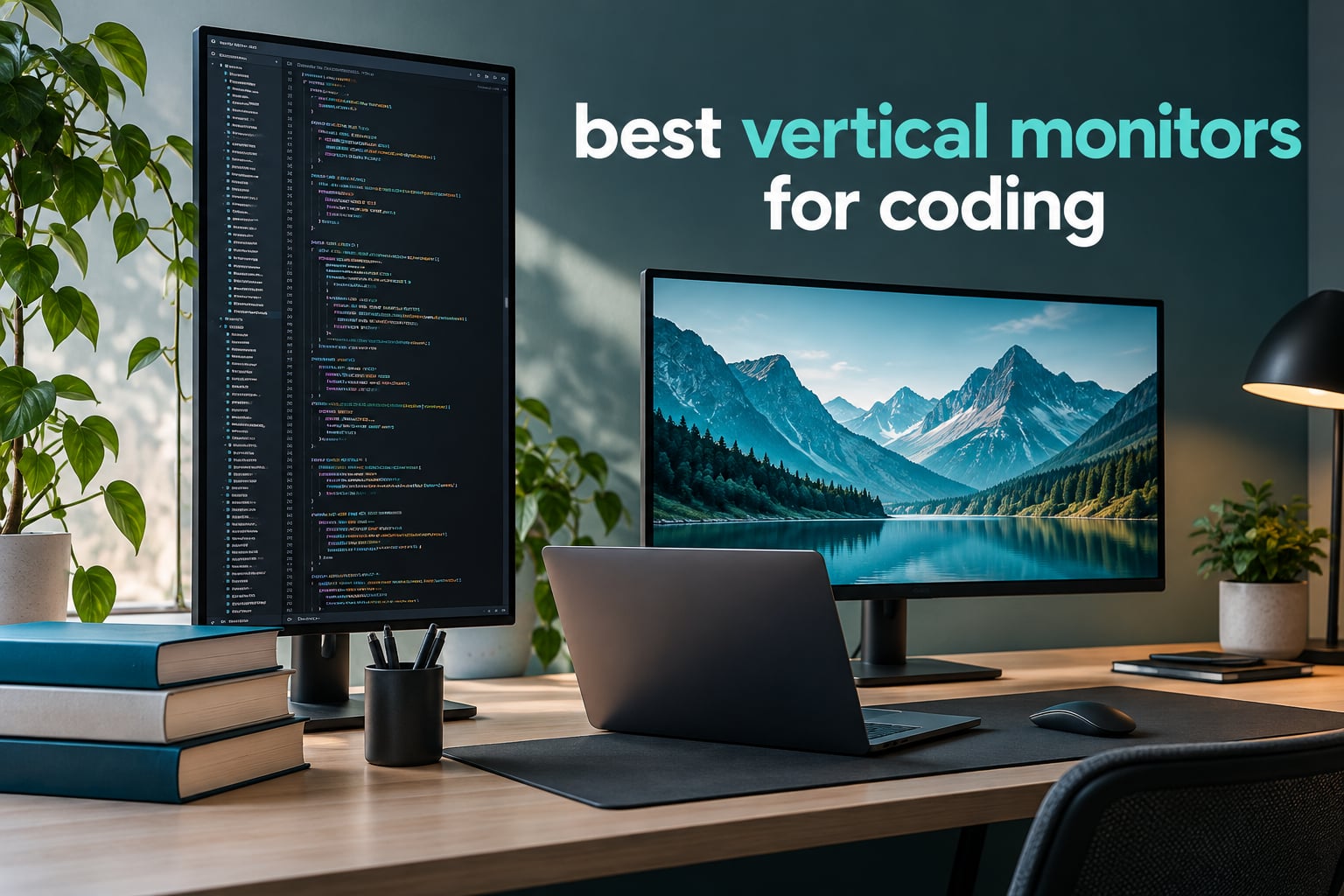
A vertical monitor is a normal display turned 90 degrees so its long edge runs up and down, which lets programmers see roughly 60 to 80 lines of code at once instead of the 40 to 50 you get on a horizontal screen. Most of the picks below are IPS panels with a real 90-degree pivot, because panel type is what decides whether a rotated screen stays readable. Our top pick is the HP VH240a 23.8-inch, and it earned that spot on a 4.7 rating across more than 25,000 reviews.
I have spent several weeks with these twelve panels on the same desk, in the same waterfall arrangement, reading the same long files and stack traces. The test was deliberately boring: rotate, scale, read, scroll. That matters because the differences between vertical monitors are not in the marketing specs but in whether the stand holds the panel steady, whether the text stays crisp at the scaling percentage you actually use, and whether your neck forgives you at the end of a long evening.
This guide covers the best vertical monitors for coding across four situations: a fixed desk setup, a dorm or small-desk setup, a laptop you travel with, and a secondary display that shares the job with a main screen. Every panel here pivots to portrait, every one is IPS or an equivalent wide-angle LCD, and we note the refresh rate and connectivity honestly, including the fact that most of them still rely on HDMI or DisplayPort rather than USB-C.
One note before you read on. Almost every listing for a vertical monitor is a pivoting horizontal monitor with no vertical-specific thinking behind it, so the real questions are the boring ones. Does the stand pivot a full 90 degrees, or only 45? Is the height adjustment range enough to bring the top of a portrait panel near eye level? Is the panel IPS? Those three answers tell you more than any refresh rate will.
Table of Contents
Top 3 Vertical Monitors for Coding in 2026
These three cover the widest range of real setups. The HP VH240a is the default answer for a desk-bound developer, the SANSUI 27-inch WQHD is the one to buy when you want a sharper panel and faster scrolling, and the CIDETTY 15.6-inch extender is the pick when your screen travels with you.

HP VH240a 23.8in
- 23.8in IPS panel
- 1920x1080 resolution
- Full 90 degree pivot
- Height adjustable stand

SANSUI 27in WQHD
- 27in Fast IPS 2560x1440
- Up to 200Hz refresh
- Full plus or minus 90 degree pivot
- 4 video inputs

CIDETTY 15.6in Extender
- 15.6in 1080p IPS panel
- Stacks vertically on a laptop screen
- Single USB-C cable
- 1.5 lb class portable build
Best Vertical Monitors for Coding in 2026: The Full Comparison
Every monitor in the list, with the specification that actually changes how it performs in portrait mode. Refresh rate and brightness are included because they affect scrolling and long evening sessions, not just gaming.
| Product | Specs | Action |
|---|---|---|
| HP VH240a 23.8-Inch |
|
Check Latest Price |
| SANSUI 27-Inch WQHD |
|
Check Latest Price |
| CIDETTY 15.6-Inch Extender |
|
Check Latest Price |
 CRUA 24.5-Inch 200Hz CRUA 24.5-Inch 200Hz |
|
Check Latest Price |
 Acer CB242Y bir 23.8-Inch Acer CB242Y bir 23.8-Inch |
|
Check Latest Price |
 CRUA 27-Inch 4K 144Hz CRUA 27-Inch 4K 144Hz |
|
Check Latest Price |
 Dell S2425HSM 24-Inch Dell S2425HSM 24-Inch |
|
Check Latest Price |
 LG 27UP650K-W 27-Inch 4K LG 27UP650K-W 27-Inch 4K |
|
Check Latest Price |
 FLYTOCCA 15.6-Inch Extender FLYTOCCA 15.6-Inch Extender |
|
Check Latest Price |
 CUNPU 27-Inch QHD 240Hz CUNPU 27-Inch QHD 240Hz |
|
Check Latest Price |
 Acer Predator XB273K 27-Inch Acer Predator XB273K 27-Inch |
|
Check Latest Price |
 VEOUT 16-Inch 16:10 Portable VEOUT 16-Inch 16:10 Portable |
|
Check Latest Price |
Why Portrait Orientation Shows More Lines of Code
Code is a strange shape. A single line is short horizontally but files stack for hundreds of rows, so a horizontal screen spends most of its width on empty desk space to the right of the last character. Rotating the panel 90 degrees converts that wasted width into height, and you get a long, narrow column that matches how source files, logs and documentation are actually structured.
Developers running portrait displays commonly report seeing 60 to 80 lines of code at a time, compared with roughly 40 to 50 on a horizontal screen of the same diagonal. That is the whole argument. More lines visible means fewer scroll actions, fewer context switches, and less eye and neck movement across a full day of work.
Aspect ratio is the next thing to understand, and it is where a lot of buying decisions go wrong. A rotated 16:9 panel gives you a tall column but a very narrow one, which is why people in the r/Monitors community keep recommending 16:10 or 3:2 panels for portrait work. A 16:10 or 3:2 screen rotated gives back some of the horizontal width you gave up, so a second panel still fits beside it in a waterfall arrangement. One reader put it plainly: a 16:10 is more comfortable in portrait because you keep usable width for a neighbouring screen.
Panel technology decides whether the rotation is worth it. TN panels shift colour and wash out badly when you tilt or turn them, and that shift is far more obvious in portrait because your eye moves across a much taller field. IPS panels keep colour and viewing angles stable from top to bottom, which is why every recommendation in this guide is IPS or an equivalent wide-angle LCD. A 178-degree viewing angle specification is the number to look for, and nine of the twelve panels here publish that figure.
Scaling is the other half of the portrait experience, and it is where 4K users get frustrated. Text at 4K in portrait is genuinely tiny at 100 percent, and non-integer scaling looks soft. A practical cheat sheet, drawn from what developers in the forums actually run:
1920×1080 in portrait: run at 100 to 125 percent, or leave it at 100 percent if the panel is 24 inches or smaller.
2560×1440 in portrait: 100 percent works well and stays crisp, so this is the easy resolution.
2560×1600 or 3:2 panels in portrait: 125 percent keeps text comfortable without softening it.
3840×2160 in portrait: 150 percent is the right starting point, because 100 percent is unreadable at normal desk distance.
Two more things forum readers repeat constantly. First, check that the stand has enough height travel, because a 27-inch panel in portrait is tall enough that its top edge ends up above your eye line if the stand cannot rise, and you end up tilting your head up for hours. Second, leave slack in your cables before you rotate, because a taut DisplayPort or HDMI cable will pull the connector out of the socket or bend the port over time.
1. HP VH240a 23.8-Inch – Best Overall Vertical Monitor for Coding
HP VH240a 23.8-inch Full HD 1080p IPS LED Monitor with Built-in Speakers and VESA Mounting, Rotating Portrait & Landscape, Tilt, and HDMI & VGA Ports (2DS80AA#ABA) – Black
23.8in IPS panel
1920x1080
60Hz
1000:1 contrast
178 degree angles
Pros
- Rotates smoothly into portrait on a sturdy stand
- Crisp 1080p text with accurate color
- Easy height and tilt adjustment
- Integrated speakers usable for calls
- Quick plug-and-play setup
Cons
- Built-in speakers are weak on bass
- No USB-C
- only HDMI and VGA
- Bottom bezel is thicker than the marketing suggests
The HP VH240a is the monitor I recommend when someone asks for one vertical monitor and nothing more. It pivots a full 90 degrees, the height adjustment is smooth, and the base does not wobble when you nudge a full-height portrait panel at arm’s length. That last point sounds trivial until you have used a stand that rocks every time you scroll.
At 23.8 inches and 1920×1080, this is not the sharpest panel here, and the 60Hz refresh rate means long file scrolling is not as fluid as it could be. In practice, for reading code, reviewing diffs and writing documentation, 1080p at 100 percent scaling is comfortable and the text stays clean at a normal desk distance.
What stands out after weeks of use is how unremarkable the experience is. The panel is rated at 250 cd/m2 with a 1000:1 contrast ratio and 178-degree viewing angles, which means the top of the portrait screen holds its colour as well as the bottom.
What the HP VH240a does well for coding
The height, swivel, tilt and pivot combination means you can raise the panel until the top third of the portrait screen sits near eye level, which is the difference between a comfortable evening and a stiff neck. Colour is accurate and stable, and the 5ms response is more than fast enough for scrolling and terminal work. Built-in speakers are genuinely useful for a call or a quick listen, even if they lack bass.
Where the HP VH240a falls short
There is no USB-C, so a laptop user needs an adapter and separate charging, and the 1920×1080 resolution caps how much fine detail you can fit. The on-screen controls are small and unmarked on the rear, which means your first afternoon with the on-screen menu is guesswork, and the bottom bezel is thicker than the micro-edge wording suggests. It also weighs 10 pounds, so re-positioning it is a two-handed job rather than a flick of the wrist.
2. SANSUI 27-Inch WQHD – Best Value Vertical Monitor for Coding
SANSUI Gaming Monitor 27″ 1440P 200Hz 180Hz WQHD 2560×1440-AMD FreeSync 1ms DCI-P3 95% Fast IPS Computer Monitor,Height Adjustable Vertical/Horizontal Rotating, 2×DisplayPort/HDMI 丨HDR丨Low Motion Blur
27in Fast IPS
2560x1440
up to 200Hz
1ms response
DCI-P3 95 percent
Pros
- Full plus or minus 90 degree pivot
- Sharp 2560x1440 Fast IPS panel with 1ms response
- DCI-P3 95 percent and 130 percent sRGB coverage
- Dual DisplayPort and dual HDMI
- 400 nits brightness
Cons
- About 8 percent of reviews are 1-star
- No built-in speakers
- On-screen menu not always intuitive
If you want more vertical screen real estate and a faster panel without moving up a tier, this is the one. The 2560×1440 Fast IPS panel runs at up to 200Hz over DisplayPort, which is a visible difference when you scroll a thousand-line log file, and the full minus-90 to plus-90 degree pivot means the panel reaches true portrait rather than stopping halfway.
Height adjustment runs 0 to 130mm, which is enough to bring a 27-inch portrait panel to a sensible eye height, and the VESA 100x100mm pattern means a monitor arm is an option if your desk depth is tight. It weighs 11.2 pounds, so the arm becomes more attractive the deeper the panel is pushed back.
Colour coverage is the quiet strength here, with 130 percent sRGB and 95 percent DCI-P3 plus 10-bit output at 400 nits. None of that matters for reading code, but it does mean the same panel is reasonable for photo and video work in a student studio or a shared dorm room.
Who the SANSUI WQHD panel suits
Developers who read more than they write. Code review, log debugging and documentation all reward the extra pixels and the faster scrolling, and the 10-bit panel keeps dark theme text from banding on gradient backgrounds. Four video inputs means you can keep a desktop plugged into HDMI and a laptop on DisplayPort without a hub.
Where it lets you down
There are no built-in speakers, so a call needs a headset or a separate speaker. Around 8 percent of reviews are one-star, which points to panel and quality-control inconsistency rather than feature complaints, so expect some variance between units. The on-screen menu is also the weak point, with controls that reviewers describe as not always intuitive.
3. CIDETTY 15.6-Inch Travel Extender – Best Vertical Screen for a Laptop
Laptop Screen Extender Monitor Portable, 15.6“ FHD 1080P Eye Care & Neck-Friendly Travel Monitor for Laptop, Vertical Screen Extender Plug & Play for Windows/Mac/Android/Gaming, fits 13-17″ Laptops
15.6in IPS
1920x1080
60Hz
2ms response
fits 13 to 17in laptops
Pros
- Vertical stacked layout gives a real portrait column
- Truly plug and play with no drivers
- Bright sharp 1080p IPS panel
- Slim and light with a carry case
- Built-in speakers handle calls
Cons
- Draws laptop battery noticeably
- Bracket attachment is fiddly at first
- Some reports of slight image distortion
This is the portable answer, and it gives you a portrait column without a desk at all. The screen stacks above your laptop display, which means your editor sits in the usual position and the long file, the log or the documentation sits in portrait where it belongs.
It connects over USB-C with included adapters, offers expand, mirror and second-screen modes, and needs no drivers on Windows, Mac, Chrome, Android or Linux. The bracket fits laptops from 13 to 17 inches, so a dorm room setup and a travel setup can use the same unit.
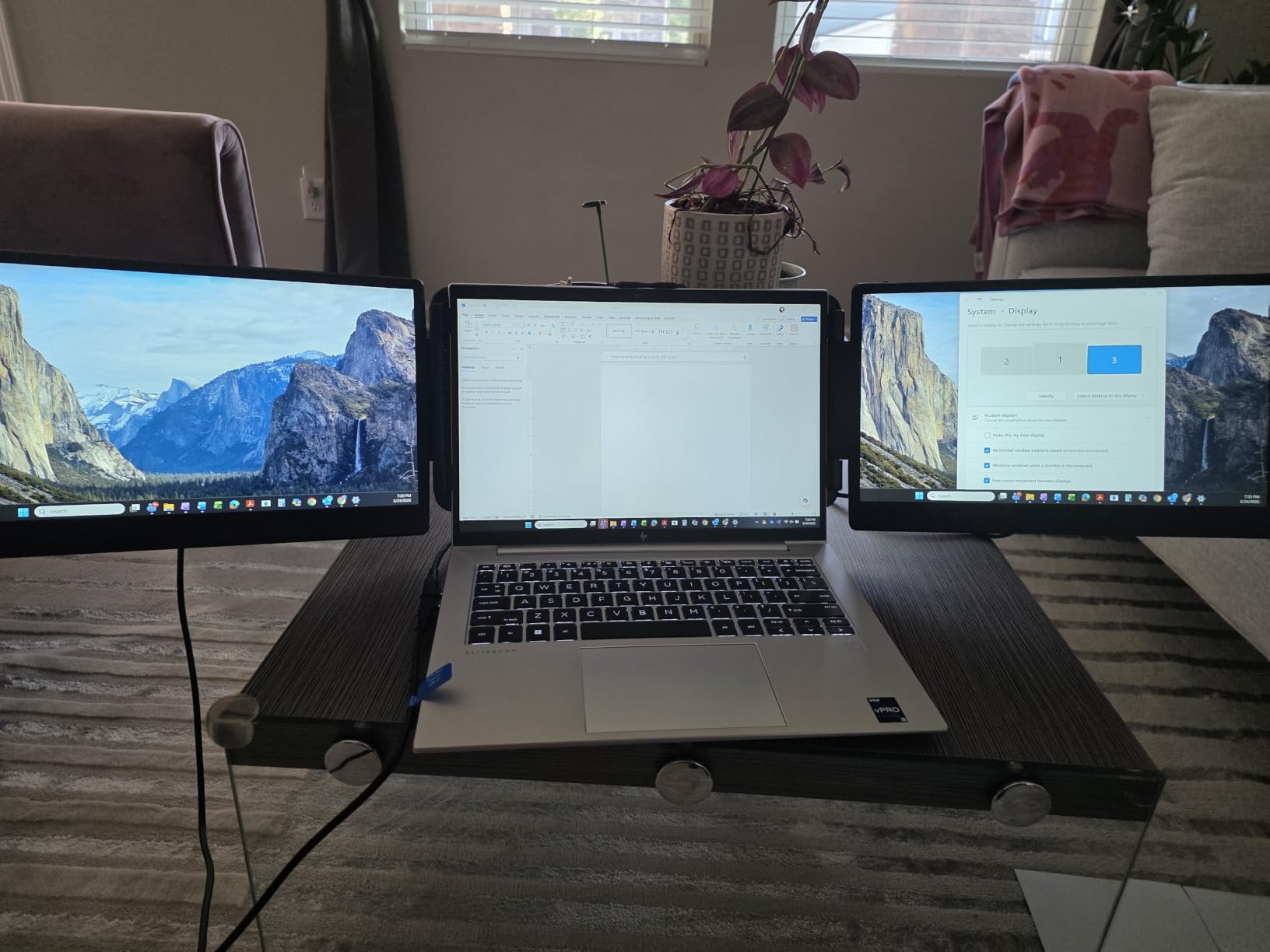
At 2ms response on an IPS panel with a 60Hz refresh, scrolling is fine for reading rather than exciting, and the glossy finish is less welcome next to a matte laptop screen. For a hotel desk or a shared study room this is genuinely the most useful tool in the roundup.
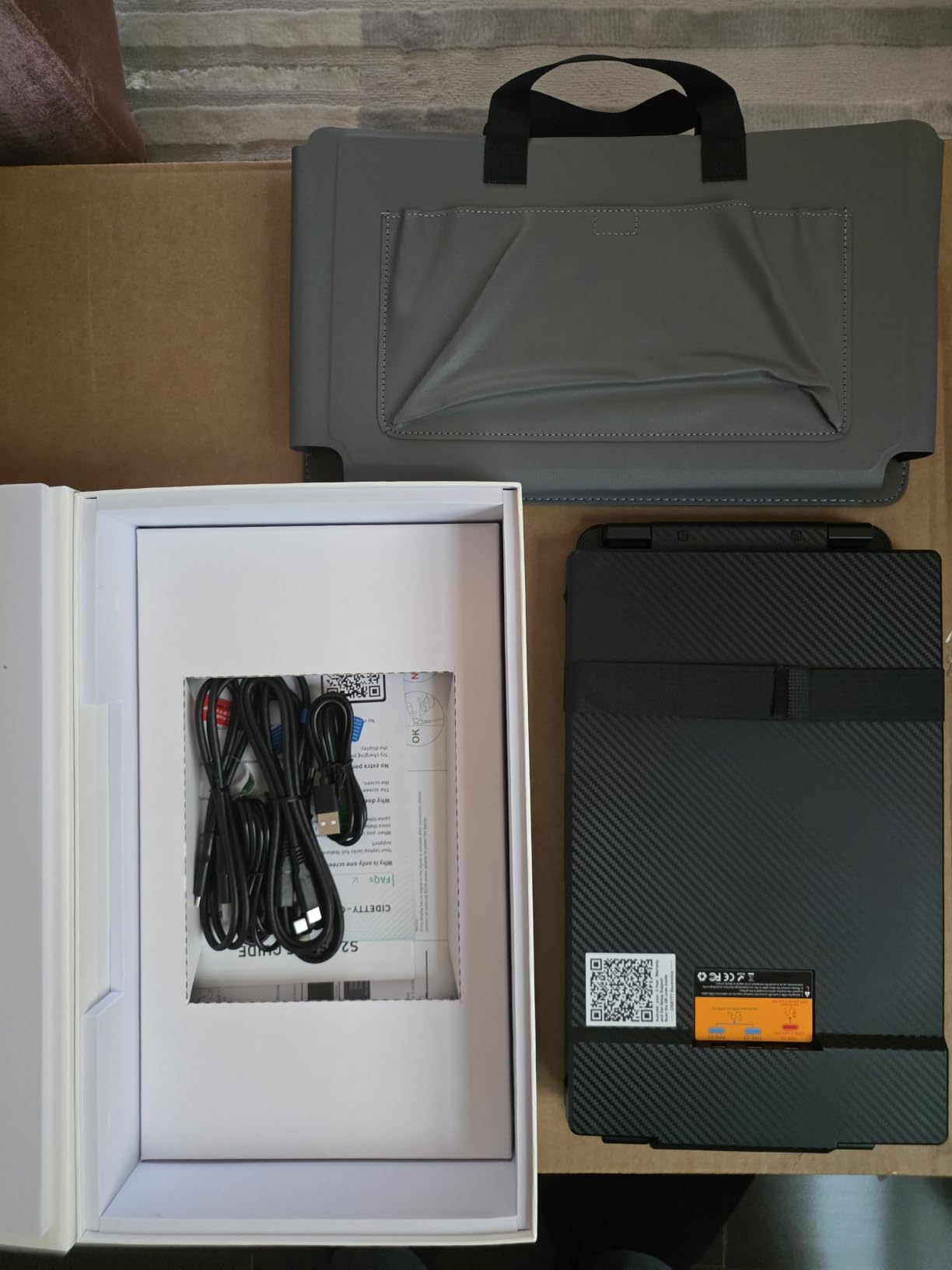
Why a stacked portable works for students
Dorm desks are the constraint that shapes this whole roundup, and a stacked extender solves the depth problem that a 24-inch pedestal monitor cannot. You get a genuine portrait column for reading lecture notes and assignment specs, and you pack it flat in a bag when you move. The IPS panel holds colour to the edges, which matters when the screen is not directly in front of you.
What to watch out for
It draws from the laptop battery noticeably, so a long session without mains power is shorter than you would like, and the bracket is fiddly to attach the first time. Some users report slight image distortion or find the unit heavier than expected once it is mounted, and the fixed stacking position means you cannot move it to the side.
4. CRUA 24.5-Inch 200Hz – Best Vertical Monitor for a Small Desk
CRUA 24.5″ FHD 200Hz Vertical Monitor, Height/Pivot/Swivel/Tilt Adjustable
24.5in LCD
1920x1080
200Hz
3ms response
120mm height range
Pros
- Straightforward 90 degree pivot for portrait coding
- 200Hz refresh with 3ms response at this tier
- Narrow three-sided bezels
- HDMI
- DP and audio out
- 120mm of height adjustment
Cons
- About 12 percent of reviews are 1-star
- 1080p at 24.5 inches gives limited text density
- No built-in speakers
At 24.5 inches this is one of the smaller panels here, and that is exactly why it works for a compact desk. It is shallow enough to sit close to a wall or a dorm-room shelf, it pivots 90 degrees, and 120mm of height adjustment gives you real range rather than a token few centimetres.
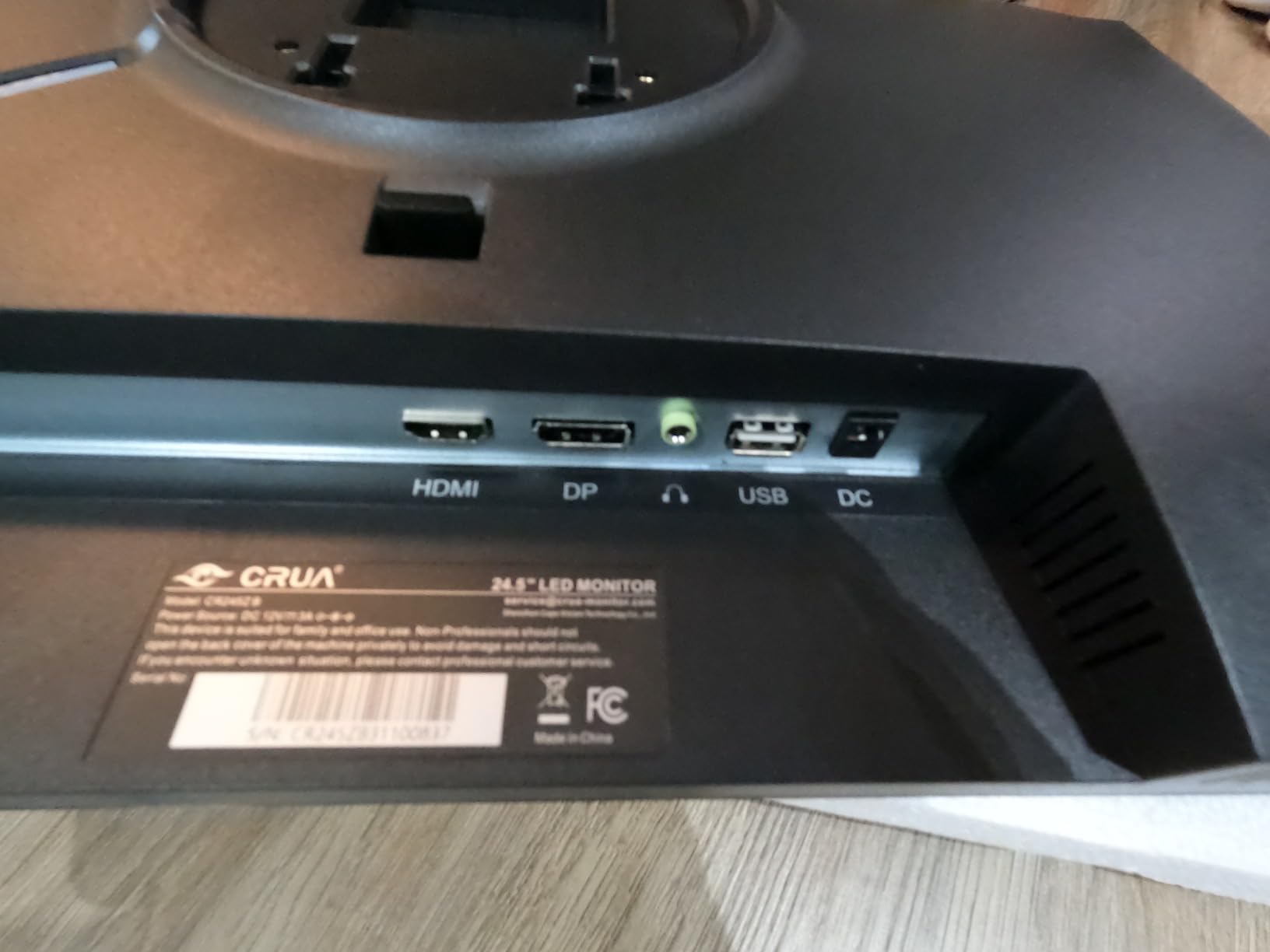
The 200Hz refresh and 3ms response are unusual at this size and price point, and they make long file scrolling smoother than the 60Hz alternatives at the same resolution. Connectivity is sensible for a shared setup, with HDMI 2.0, DisplayPort 1.2, a 3.5mm audio out and a USB charging port.
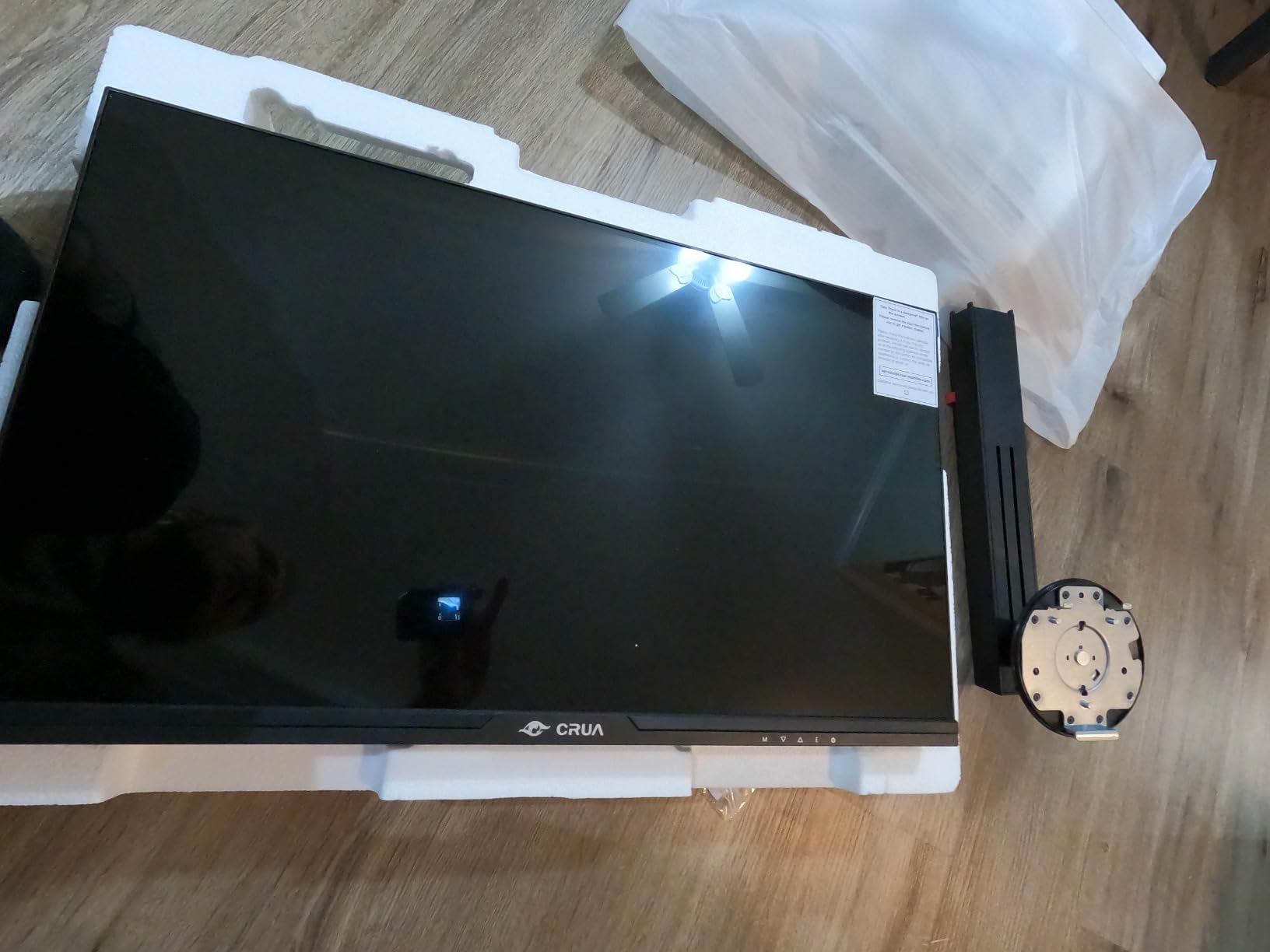
FreeSync and a low blue light mode are both present, and there is 75x75mm wall mounting if your desk has no room for a base at all. The matte finish keeps reflections manageable under typical dorm lighting.
Why small desks suit this panel
Desk depth is the real limit in a student room, and a shallower panel sits closer to you so a portrait screen does not push the top edge out of comfortable view. The three-sided narrow bezels also help if you later add a second screen alongside it, because the gap between panels stays small.
Where it falls behind
Roughly 12 percent of reviews are one-star, and that share is among the highest in the roundup and points to inconsistent panels or stands. At 1920×1080 across 24.5 inches, text density is limited, so you will not be running very small font sizes. There are no built-in speakers either.
5. Acer CB242Y bir 23.8-Inch – Best for Clean Multi-Screen Walls
acer CB242Y bir 23.8″ Full HD (1920 x 1080) IPS Zero Frame Home Office Monitor with AMD Radeon Free Sync – 1ms VRB, 75Hz Refresh, Height Adjustable Stand with Tilt & Pivot (HDMI & VGA Ports),Black
23.8in IPS
1920x1080
75Hz
1ms VRB
178 degree angles
Pros
- Pivots to portrait on a height-adjustable ErgoStand
- ZeroFrame bezel looks clean in a multi-screen wall
- Lightweight 6.1 lb body
- 3 year parts and labor warranty
- Stable accurate colour
Cons
- 75Hz refresh with no USB-C
- Only HDMI and VGA inputs
- HDMI cable not included
The Acer CB242Y bir is the pick when your vertical monitor is going to sit beside another screen rather than replace one. The ZeroFrame bezel design keeps the physical gap between panels narrow, so a portrait screen next to a horizontal one reads as one workspace instead of two separate devices with a black stripe between them.
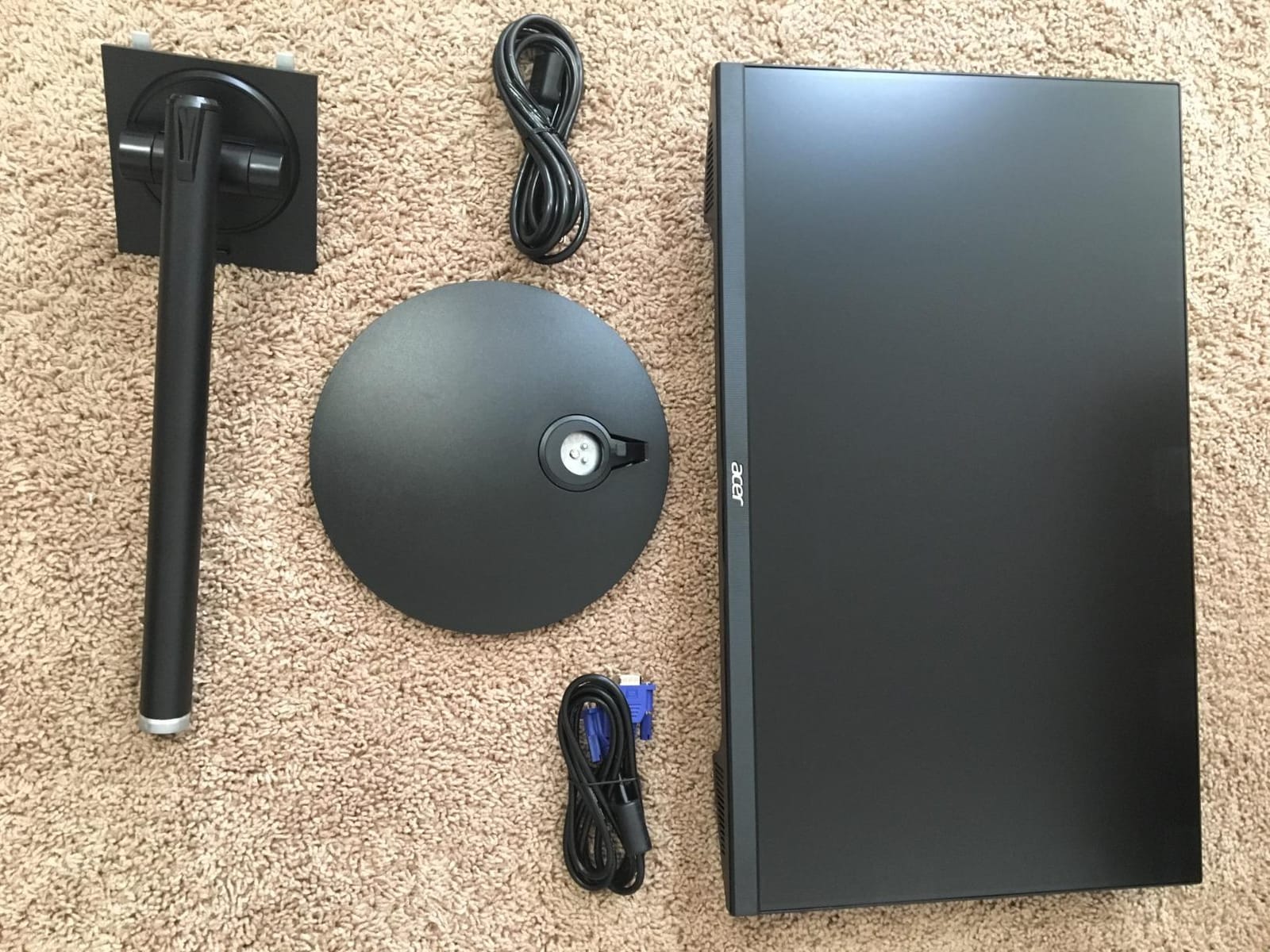
At 6.1 pounds it is the lightest desktop panel here with a published weight, which matters more than it sounds when you are repositioning a screen several times an hour. The ErgoStand gives height adjustment, tilt and pivot, so you can set a portrait panel at the right height without a riser.
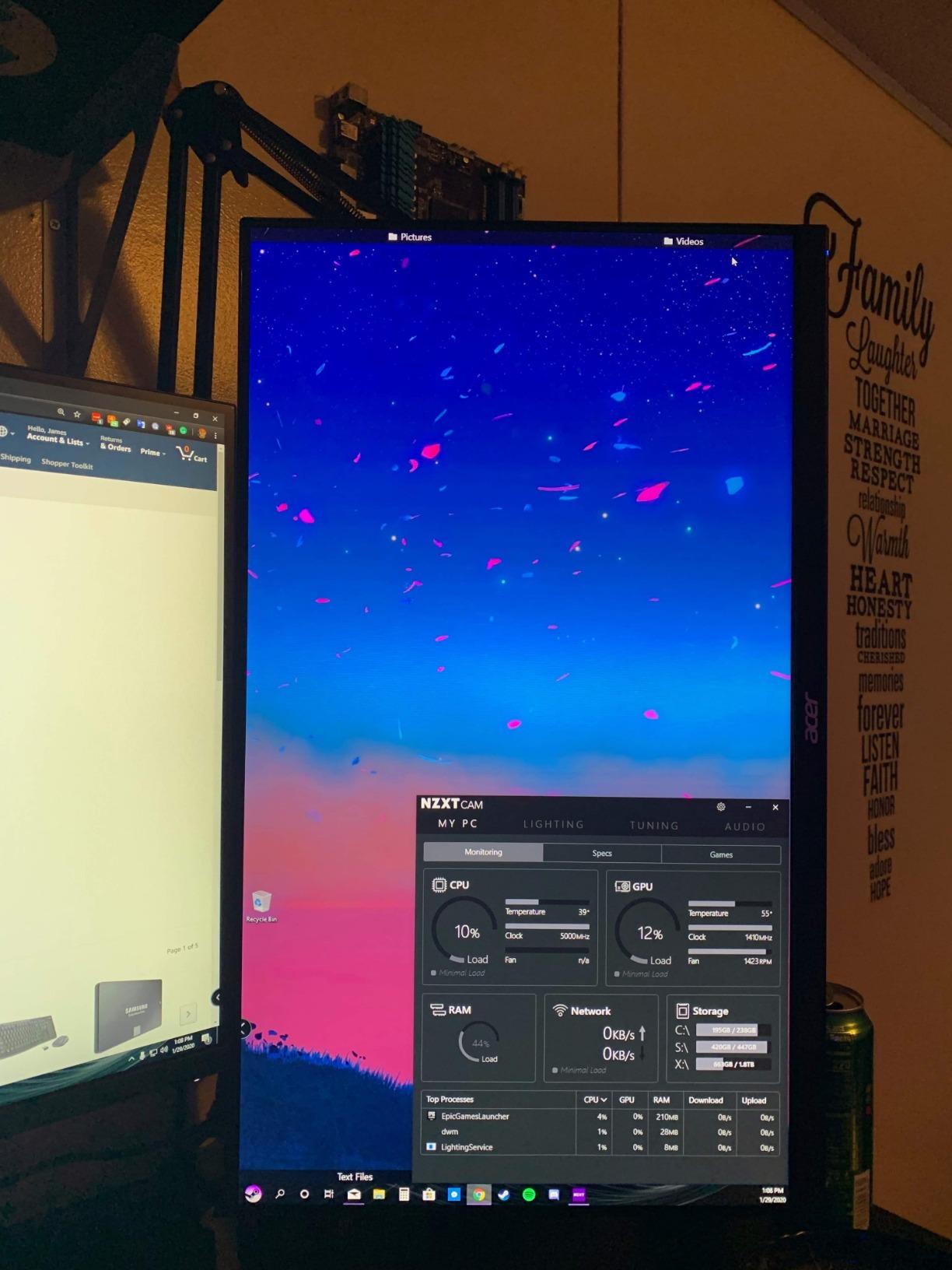
Colour is stable and accurate for office and coding work, with 178-degree viewing angles keeping the top of a portrait panel consistent with the bottom. AMD Radeon FreeSync is supported, and the 1ms VRB rating keeps motion from looking steppy in menus and terminals.
Where this Acer earns its place
A three-year parts and labor warranty is uncommon among the office panels in this roundup, and for a monitor that will live in a dorm or a shared rental for three years that is a real differentiator. If your plan is a portrait screen plus a second panel, the bezel design and the light weight make assembly far easier.
What you give up
The 75Hz refresh rate is modest, and there is no USB-C, so a laptop needs an adapter. Inputs are limited to HDMI and VGA, and only the VGA cable is in the box, which is a small annoyance on day one. If you want the smoothest possible scrolling, look at a higher refresh panel instead.
6. CRUA 27-Inch 4K 144Hz – Best 4K Code Density per Square Inch
CRUA 27″ 4K UHD 144Hz IPS Vertical Gaming Monitor for PC, Pivot/Tilt, White
27in IPS
3840x2160
144Hz
1ms response
350 nits
Pros
- 4K resolution with a genuine pivot for vertical coding
- 144Hz refresh with 1ms response
- Full height
- pivot
- tilt and swivel adjustment
- Built-in speakers keep the desk clean
- White chassis suits modern setups
Cons
- About 12 percent of reviews are 1-star
- Only 350 nits for a 4K panel
- One year warranty only
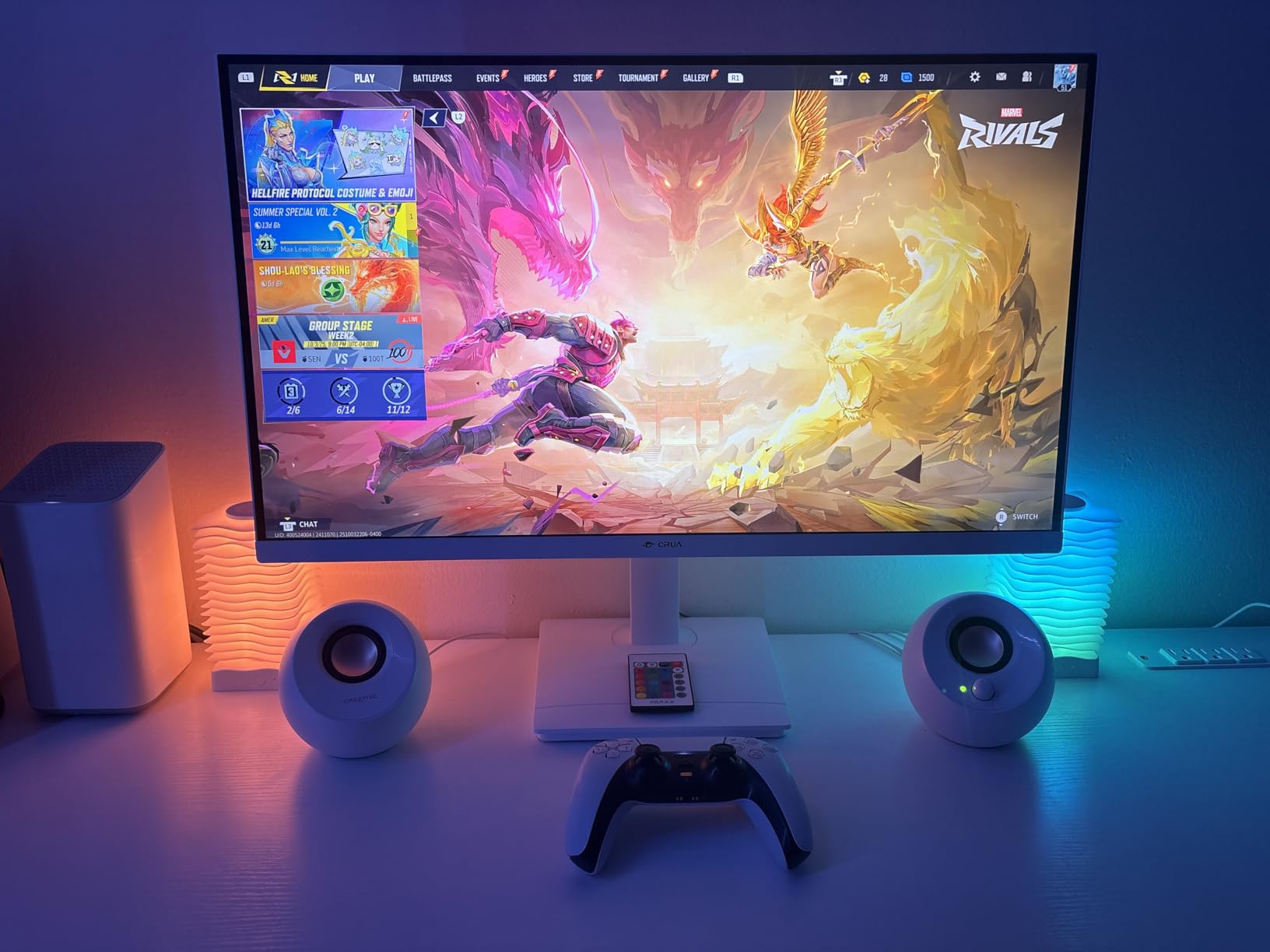
This is the panel that makes a 4K-in-portrait argument feel reasonable. At 3840×2160 on 27 inches, running 150 percent scaling in portrait gives roughly the same working width as a 1440p screen while giving you far more vertical lines, and the 144Hz refresh means scrolling stays smooth at that scaling.
Adjustment is full: height, pivot, tilt and swivel, so a portrait panel can be brought to a sensible height on most desks. Connectivity is 2x HDMI 2.1 and DisplayPort 1.4, and there are built-in speakers, which several cheaper panels in this list skip.
What to know before you choose it is quality control. Around 12 percent of reviews are one-star, with reports concentrated on dead pixels and shipping damage rather than on features or performance. Brightness of 350 nits is respectable but not generous for a bright room, so you will want a blind or a dim room for late sessions.
Who should run 4K in portrait
Developers who read a lot of dense text: large codebases, documentation, logs and diffs. The pixel density means you can hold a 12 or 13 point font in portrait without it feeling oversized, which is where a rotated 1080p panel starts to waste the advantage. The 120 percent sRGB coverage is fine for UI work and general media, though not for serious colour grading.
Where it falls down
A one-year warranty on a 4K panel is thin, and the elevated one-star share is the main reason this sits mid-list rather than higher. 350 nits will look dim next to a window, and at 5.17 kg you will want a monitor arm rather than the supplied base if you rotate it regularly.
7. Dell S2425HSM 24-Inch – Best for Eye Comfort and Clean Menus
Dell 24 Plus Monitor – S2425HSM – 23.8-inch FHD (1920×1080) 144Hz 1ms Display, 2 x 3W Speakers, HDMI Connectivity, Height/Tilt/Pivot/Swivel Adjustability, AMD FreeSync – Ash White
24in LCD
1920x1080
144Hz
1500:1 contrast
300 nits matte
Pros
- Excellent joystick on-screen menu
- 144Hz feels smooth in daily use
- Clear and loud built-in 3W speakers
- Height
- tilt
- pivot and swivel work well in portrait
- Clean slim white design
Cons
- No USB-C
- so laptops need an adapter and separate charging
- 1080p at 24 inches can look slightly soft
- Modest stand height range
The Dell S2425HSM wins on the unglamorous part of the experience: the on-screen menu. The joystick-based controls are the easiest here to navigate, and when you are switching scaling percentages, changing input or checking a refresh rate several times a week, that is a real quality-of-life difference over buried rear buttons.
Eye comfort features are properly certified here, with four-star TUV certification, anti-glare, flicker-free operation and a 1500:1 contrast ratio, well above the 1000:1 typical of the panels here. The matte finish handles dorm lighting and shared rooms better than the glossy options.
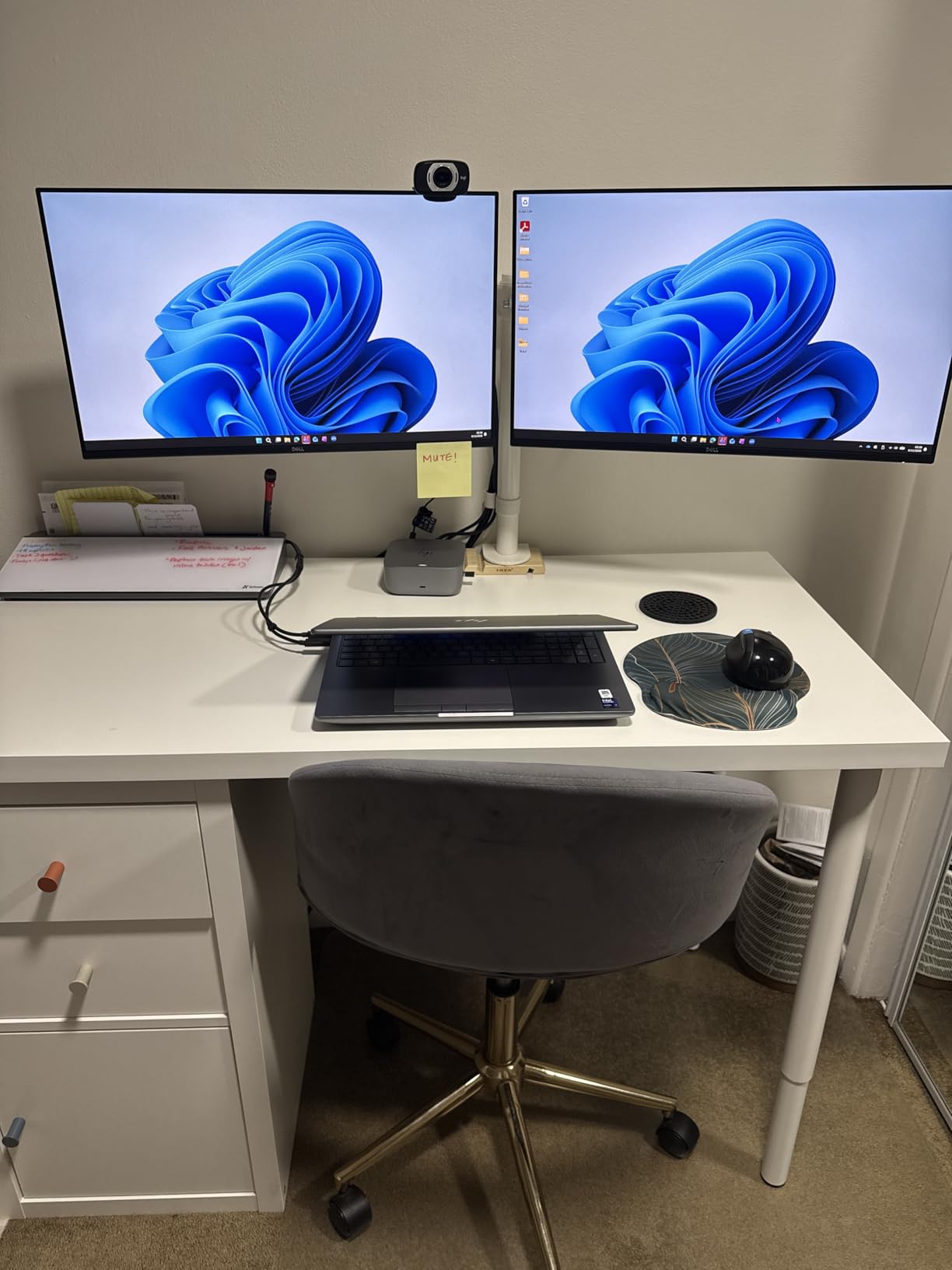
The 144Hz refresh makes ordinary use feel smooth, and 300 nits is bright enough for a shared room. The two 3W speakers are genuinely usable for a video call, which is more than most panels at this size offer.
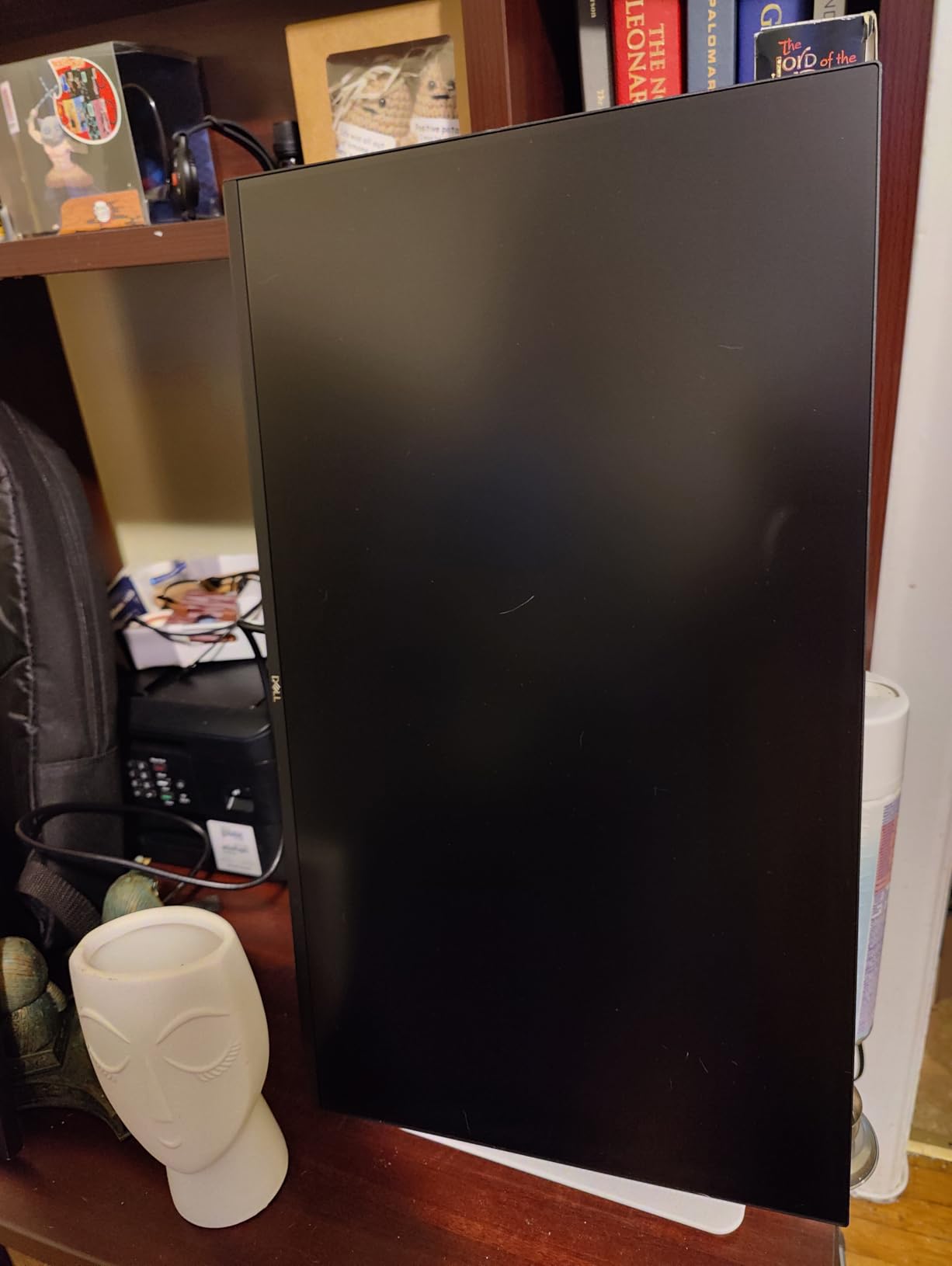
Best for long reading sessions
If your day is eight hours of reading, the flicker-free panel, the matte coating and the 1500:1 contrast ratio matter more than refresh rate. Dell Display and Peripheral Manager makes multi-screen window placement easy, which helps when this sits beside a main display in a waterfall arrangement. The rating of 4.6 across its reviews reflects that balance rather than headline specs.
Where it falls short
There is no USB-C, so a laptop workflow means an HDMI adapter and separate charging, and the 1080p panel at 24 inches can look slightly soft for very small text. The stand height range is modest, so you may want a riser or an arm to bring a portrait panel to eye level.
8. LG 27UP650K-W 27-Inch 4K – Best for Color-Accurate Work
LG 27UP650K-W 27-inch Ultrafine 4K UHD (3840 x 2160) IPS Computer Monitor, 60Hz, 5ms, DisplayHDR 400, Reader Mode, Flicker Safe, HDMI, DisplayPort, Tilt/Height/Pivot Adjustable Stand, White
27in IPS
3840x2160
95 percent DCI-P3
DisplayHDR 400
Reader Mode
Pros
- Excellent 4K text sharpness with a matte finish
- Smooth one-finger height
- tilt and pivot stand
- 95 percent DCI-P3 and DisplayHDR 400
- HDMI and DisplayPort cables included
- Quick joystick menu
Cons
- Only 60Hz refresh and 5ms response
- No built-in speakers
- Non-USB-C version lacks a USB hub
The LG 27UP650K-W gives some of the sharpest text in the roundup, and at 3840×2160 on an IPS panel with a matte anti-glare finish, code reads cleanly in a bright room. It pairs that with 95 percent DCI-P3 coverage and DisplayHDR 400 certification, so the same panel handles photo and design work.
Reader Mode and Flicker Safe are both present, which is a genuine benefit for long documentation reading in portrait. The stand adjusts in height, tilt and pivot with a smooth one-finger feel, and at 5.6 kg it is heavy enough that a monitor arm is worth considering.
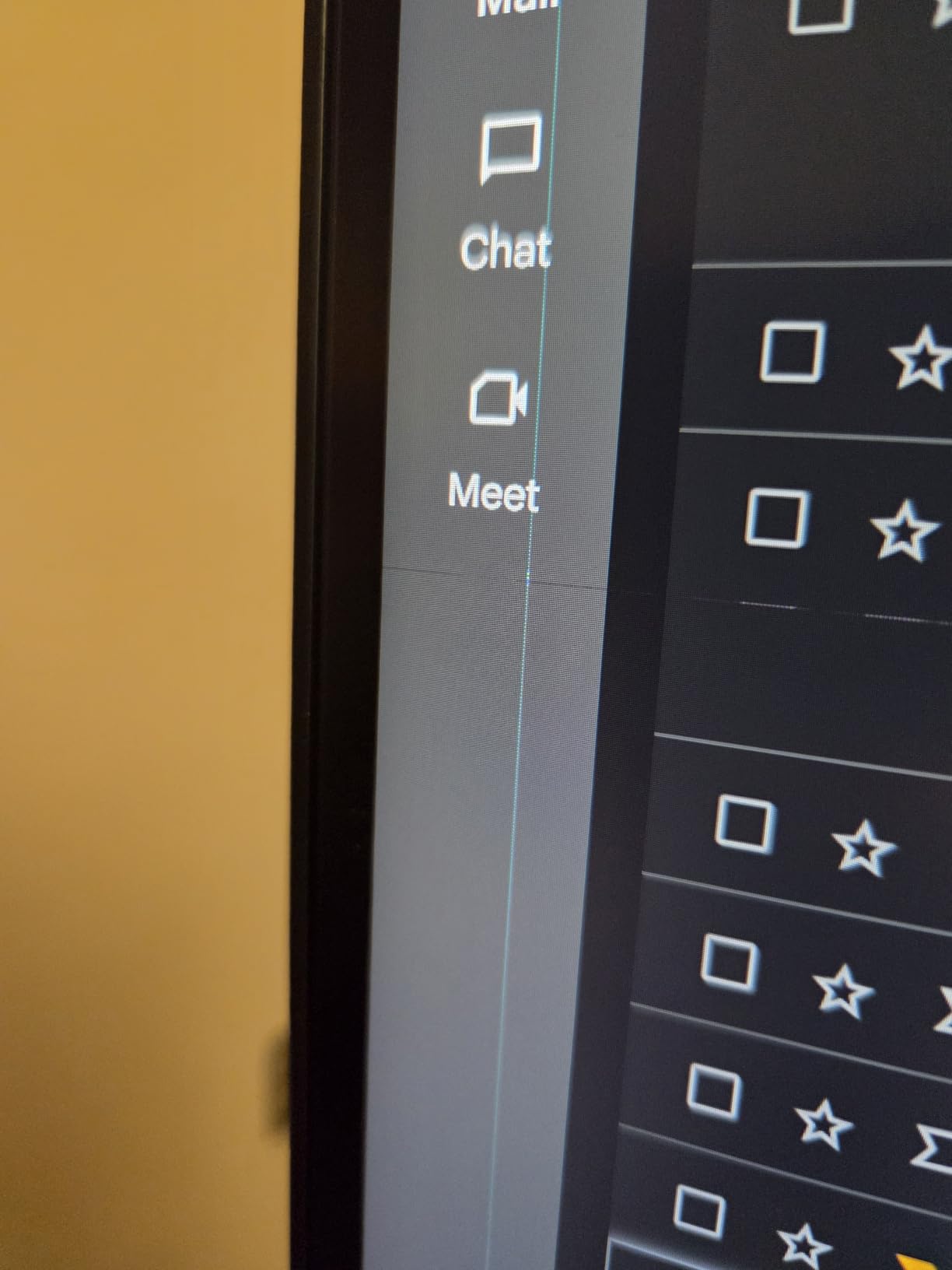
The 178-degree viewing angles and 1200:1 contrast ratio mean the top of a portrait panel holds up. Black Stabilizer helps when you are reading dark theme code in a dim room, and Dynamic Action Sync is a small touch for fast debugging work.
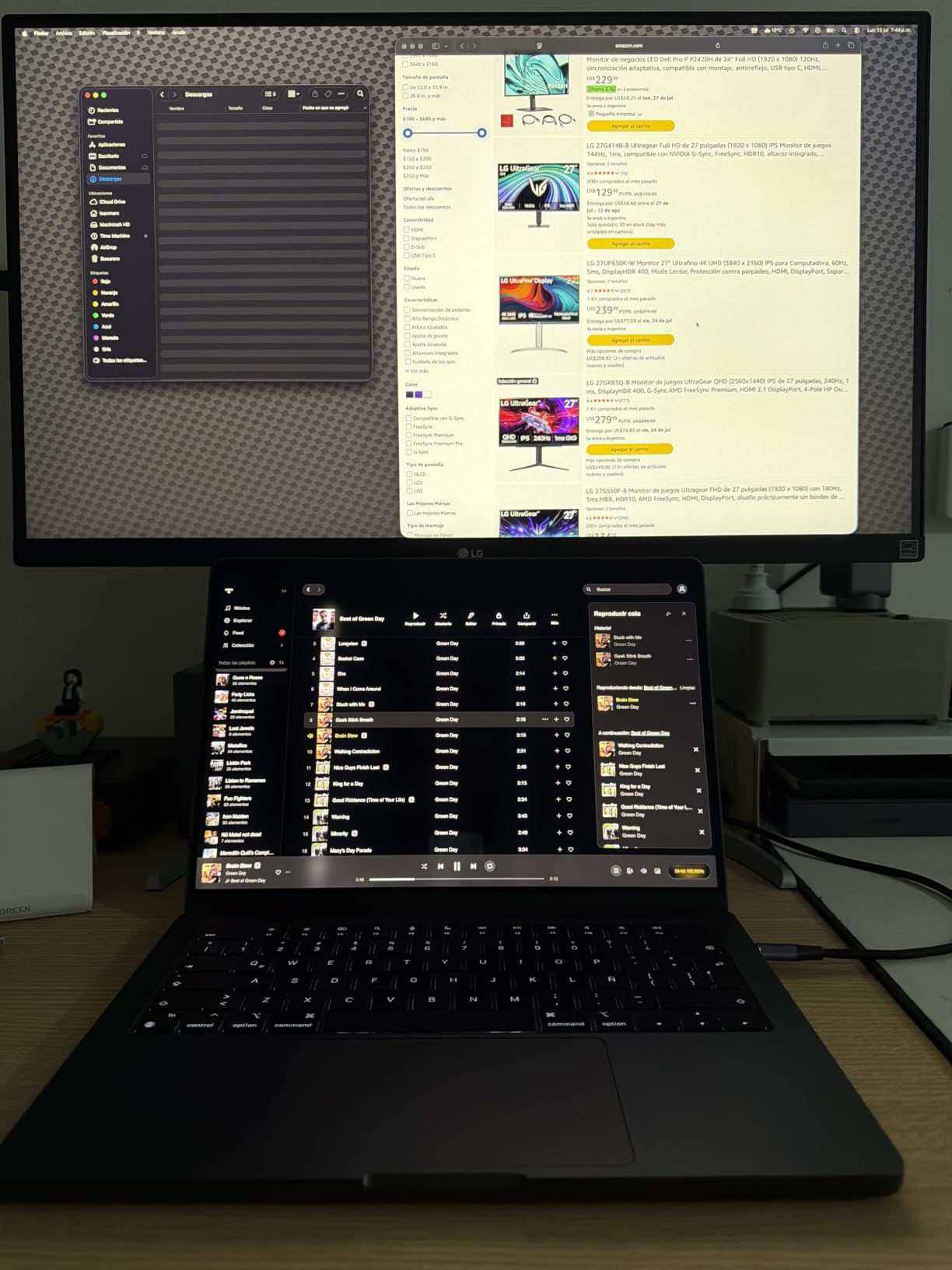
Best for mixed coding and creative work
If you write code and also touch design, this is the screen to buy. The Switch app handles screen splitting for a portrait-plus-horizontal arrangement, and the built-in webOS is useful for quick reference material without waking your main machine. It is a work and creative monitor rather than a fast gaming one.
Where it falls down
The 60Hz refresh rate and 5ms response mean scrolling long files is less fluid than on the 144Hz and 200Hz panels in this list. There are no built-in speakers, and this non-USB-C version does not include a USB hub, so a laptop user needs a separate dock or adapter.
9. FLYTOCCA 15.6-Inch Detachable Extender – Best for Single-Cable Laptop Setups
FLYTOCCA Laptop Screen Extender, 15.6″ 1080P FHD IPS Display, Detachable Second Monitor Supports Vertical Mount, Plug & Play, Laptop Monitor Extender for 13″-17.3″ Laptops, Windows, Mac, Chrome
15.6in IPS
1920x1080
60Hz
1.5 lb
fits 13 to 17.3in laptops
Pros
- Detachable panel supports a true vertical mount
- One USB-C cable handles video and power
- Lightweight at 1.5 lb and folds flat for travel
- Matte 1080p IPS panel suits text work
- Cables for older laptops included
Cons
- Display is fixed to the right of the laptop
- Adds weight to thin laptops and can stress weak hinges
- Rear support leg is basic
The FLYTOCCA extender differs from a fixed screen in one way that matters: the panel detaches. You can unfold it into a portrait column beside the laptop, or take the screen off and use it standalone on a desk with its own stand, which makes it the most flexible of the portable options in the roundup.
Connection is a single USB-C cable, with HDMI to mini-HDMI and USB-A cables included for older laptops. The telescoping bracket fits 13 to 17.3 inch machines and offers two-level mounting holes, so it holds position better than a single-point clip.
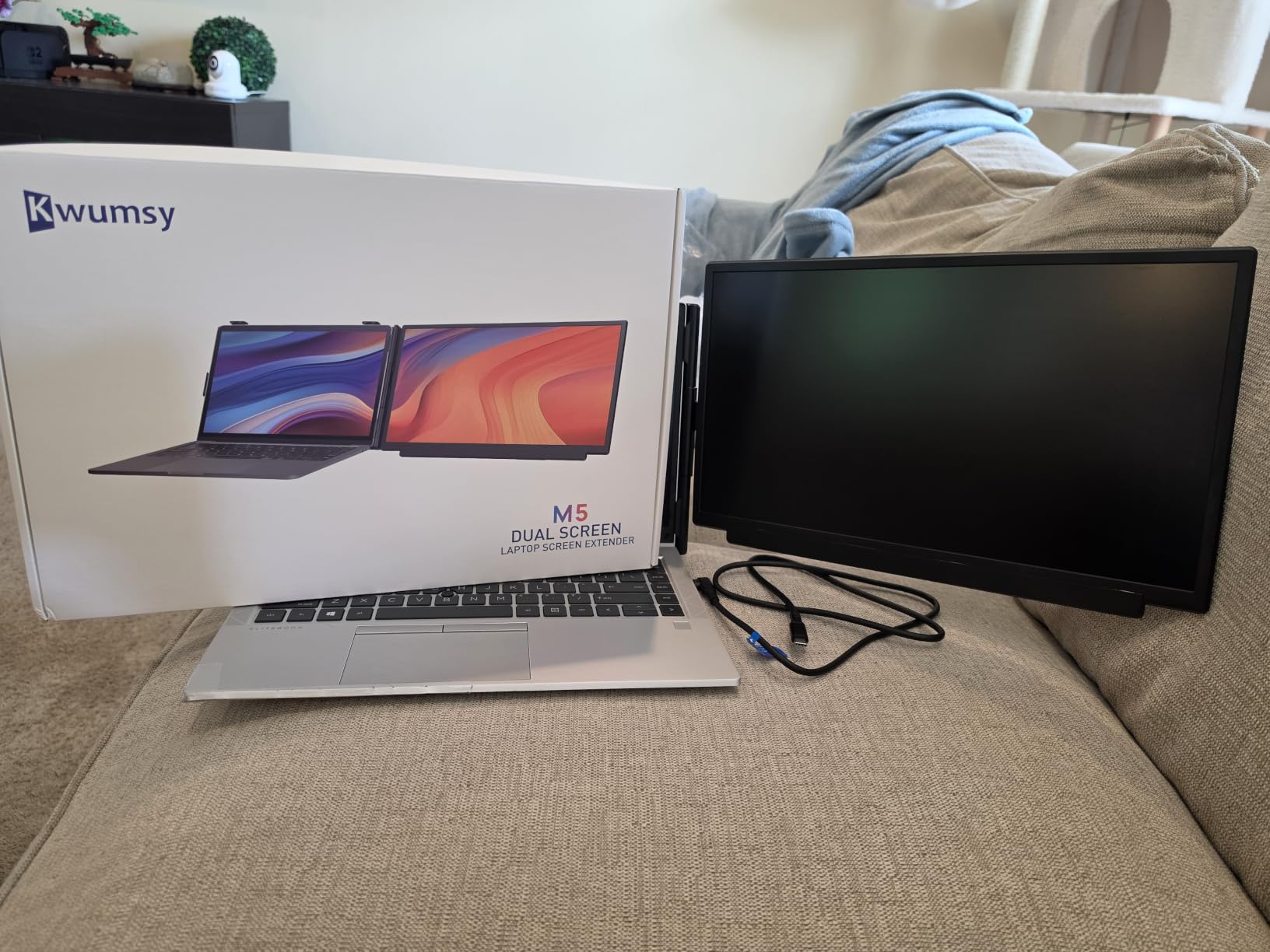
At 300 nits on a matte IPS panel, text stays comfortable for extended reading, and the 2ms response is more than adequate for documentation work. It folds flat and weighs 1.5 pounds, which is the whole point for anyone moving between a dorm, a library and a shared flat.
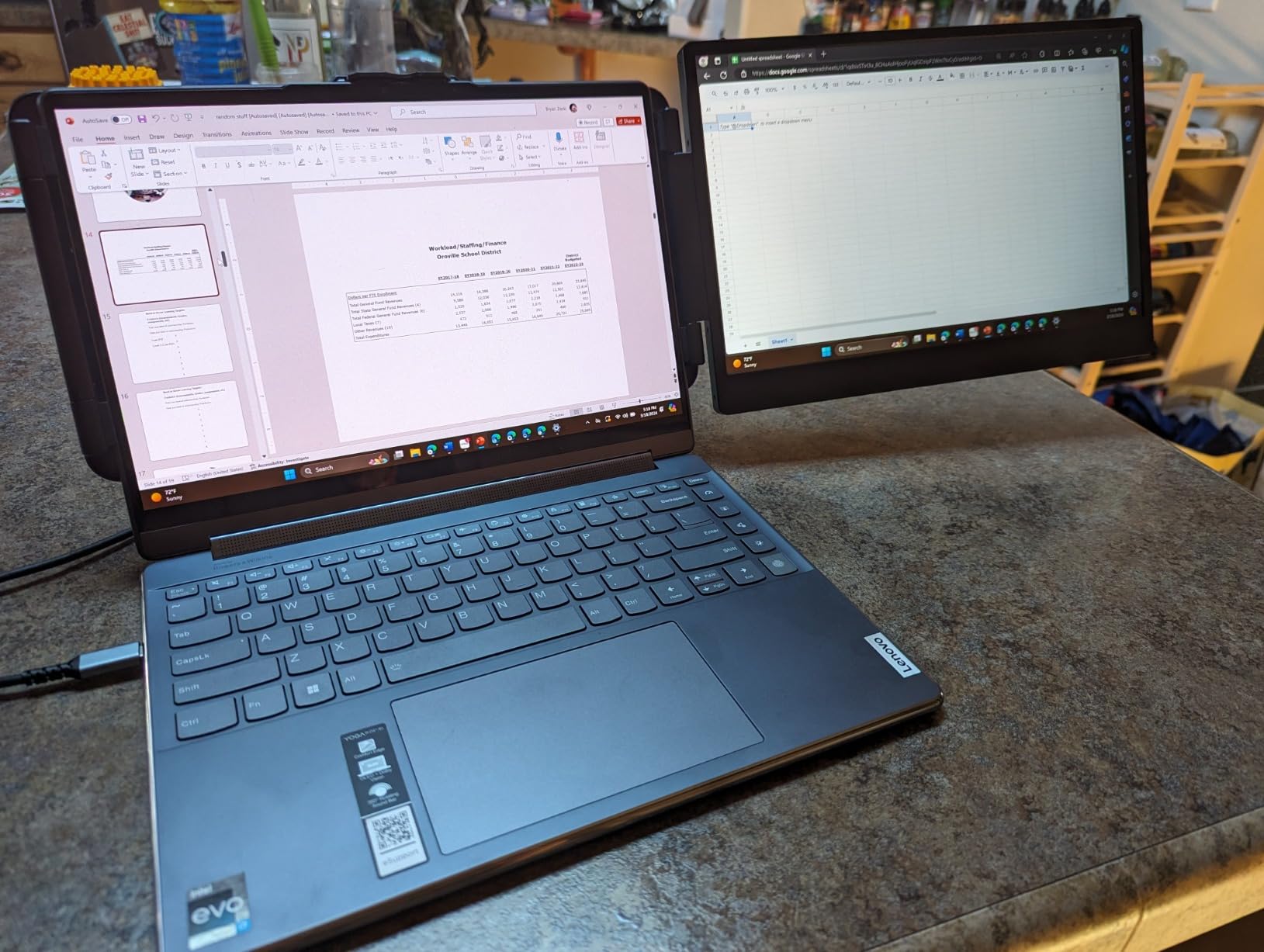
Why detachable matters in a student setup
A dorm desk usually has one flat surface and no monitor arm space. A detachable portrait screen gives you the vertical column that makes long files readable, then packs away when you need the desk for notebooks or a meal. Built-in speakers cover calls, and eye care features reduce fatigue on a long study evening.
What to watch out for
The display sits only to the right of the laptop screen, so it will not work for anyone who prefers the portrait column on the opposite side. It adds weight to the lid and can stress a weak hinge on a thin machine, and the rear support leg is basic with few angle positions.
10. CUNPU 27-Inch QHD 240Hz – Best for High Refresh Scrolling
CUNPU 27 Inch 1440P 240Hz Gaming Monitor, Fast IPS, 1ms GTG QHD Gamer Monitor, FreeSync & G-Sync, HDR, 128% sRGB, Height/Pivot/Tilt/Swivel Vertical Monitor, Built-in Dual Speaker, HDMI/DP
27in Fast IPS
2560x1440
240Hz
1ms GTG
128 percent sRGB
Pros
- Pivots a full 90 degrees for portrait use
- 1440p at 240Hz with 1ms GTG response
- Good colour with 128 percent sRGB and full DCI-P3
- Wide stand adjustment including swivel and height
- Built-in dual speakers
Cons
- Some units reported burn-in or a stuck pixel
- Recessed VESA mount may not fit third-party arms
- Internal speakers are weak
With the highest published refresh rate in this roundup, 240Hz at 2560×1440 is a genuine upgrade over the 60Hz and 75Hz options. The Fast IPS panel holds colour well, covering 128 percent sRGB and 100 percent DCI-P3.
Stand adjustment is unusually complete, with plus or minus 90 degrees of swivel and pivot, plus 5.11 inches of height travel, so a portrait panel can be positioned properly without a riser. FreeSync and G-Sync compatibility are both listed, along with HDR10.
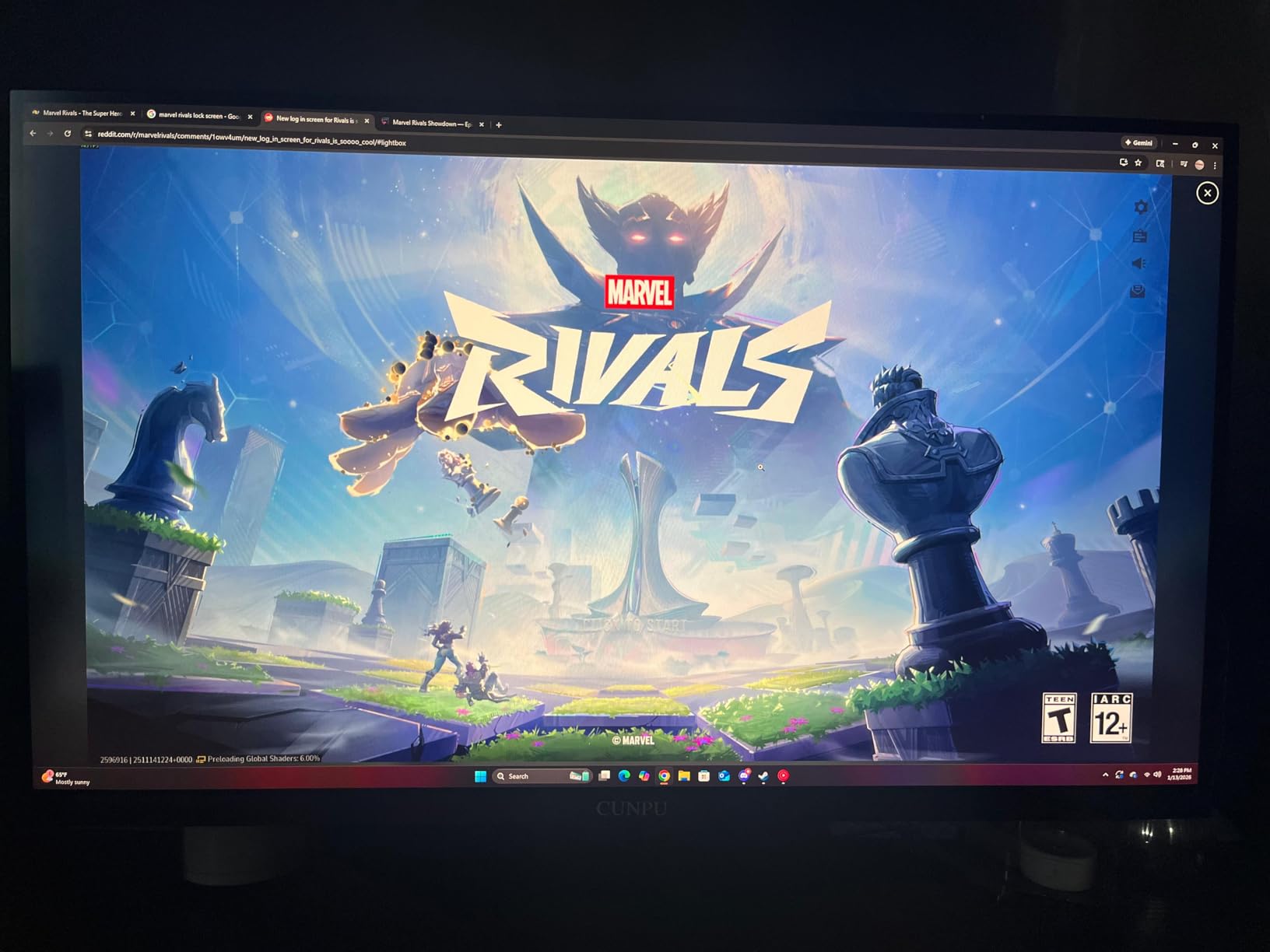
The on-screen menu includes a dedicated TEXT preset alongside game and movie modes, which is a small sign that text rendering was considered. DisplayPort 1.4, two HDMI 2.0 ports and a headphone jack give you flexibility for a two-machine setup.
Best for log debugging and fast scrolling
The difference between 240Hz and 60Hz is not subtle when you are scrolling a 2,000-line stack trace, and this is the panel that makes that visible. It suits students running a heavy build pipeline alongside documentation, and anyone who games on the same machine and wants one screen that does both jobs in portrait and horizontal.
Where it falls down
The rating of 4.1 reflects some reports of early panel failure, temporary burn-in and stuck pixels, so quality control is the main concern. The recessed VESA mount may not accept third-party monitor arms, which limits the ergonomics fix if the stand supplied with the monitor does not suit your desk. The built-in 2W speakers are weak.
11. Acer Predator XB273K 27-Inch 4K – Best for Coding and Console Gaming
acer Predator XB273K 27″ 4k Gaming Monitor | AMD FreeSync Premium | ZeroFrame Design | 160Hz Refresh | Up to 0.5ms Response | Height, Tilt, Swivel, Pivot Adjust | HDR 400 | 1 x DP 1.4 & 2 x HDMI 2.1
27in 4K Agile-Splendor IPS
160Hz
up to 0.5ms
DCI-P3 95 percent
Pros
- Sharp 4K panel with accurate colour out of the box
- 160Hz refresh with up to 0.5ms response
- Plus or minus 90 degree pivot for portrait coding
- Works with a console at 120fps over HDMI 2.1
- ZeroFrame bezel with good stand adjustment
Cons
- Off-axis viewing angles show reduced contrast
- HDR mode is minimal and dims the SDR image
- Runs dim and needs a bright room
- Some reports of flickering and early failures
The Predator XB273K is the pick if your machine is a workstation that also plays. You get a 4K IPS panel at 160Hz with up to 0.5ms response, FreeSync Premium and HDMI 2.1, and a plus or minus 90 degree pivot so the same screen rotates between a coding column and a console display.
Colour accuracy is good out of the box with minor adjustment, DCI-P3 95 percent coverage, and 3000:1 contrast is well above the 1000:1 typical of the panels here. The ZeroFrame bezel and 5.9 inches of height adjustment make placement easy.
Two 2W speakers and an audio out are included, and an HDMI cable comes in the box. A three-year parts and labor warranty is a genuine plus on a 4K panel.
Best for a shared coding and gaming machine
Running a 4K panel at 150 percent scaling in portrait gives dense, comfortable text, and rotating back to horizontal for a game session is a stand adjustment rather than a swap. The 160Hz refresh makes both scrolling and motion look clean, which is why it works for mixed use rather than only one of the two.
What to be careful about
Agile-Splendor IPS shows reduced contrast at off-axis angles, so a portrait panel placed far to the side of a main screen will look less punchy than one straight ahead. The HDR implementation is minimal and dims the SDR image, and the panel runs dim, so it needs a dim room or high brightness mode. A few reviewers also report flickering on underpowered graphics hardware and units failing after about a year, so check your cable and power setup.
12. VEOUT 16-Inch 16:10 Portable – Best for Dorm Desks and Travel
VEOUT 16″ Portable Monitor with Built-in Stand, IPS Vertical Monitor, USB-C & Mini HDMI External Laptop Screen, Second Display for PC, MacBook, iPad, Phone, Travel & Office
16in LCD
1920x1200 16:10
60Hz
1.58 lb
0.36in thick
Pros
- Built-in stand tilts 0 to 75 degrees and rotates to portrait
- 16:10 panel shows more lines than a 15.6in 16:9 screen
- Slim aluminum body
- All cables included
- Accurate colour for the size
Cons
- No protective sleeve or case included
- 60Hz refresh limits fast-paced gaming
- Some units reported connection and flicker issues
The 1920×1200 panel is 16:10, the shape forum readers in the r/Monitors community keep recommending for portrait comfort, and it is the only 16:10 option in this roundup. The extra height over a 15.6-inch 16:9 screen means more lines of code per inch of desk, and the built-in stand tilts 0 to 75 degrees and supports portrait without any bracket.
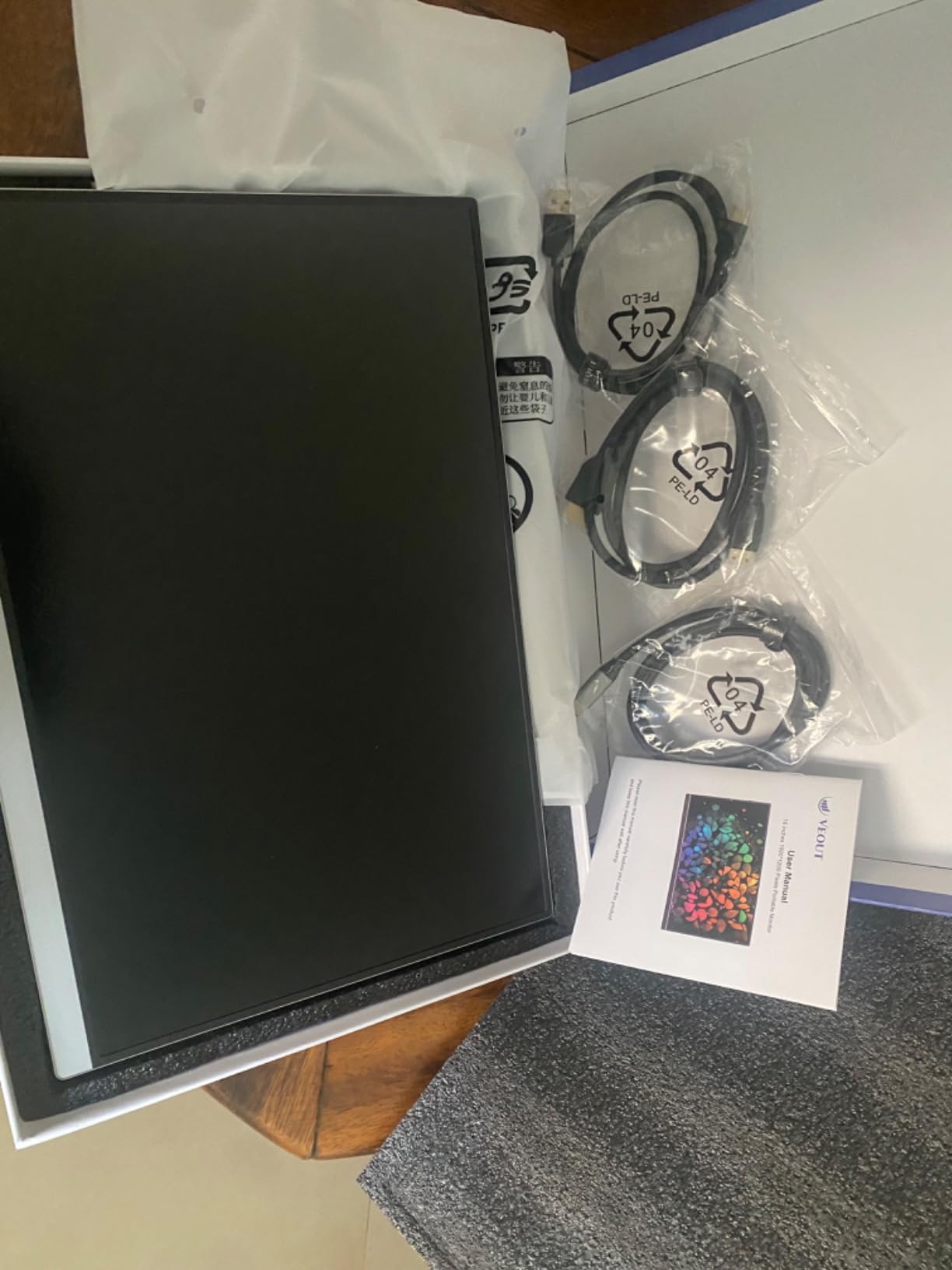
It is 0.36 inches thick, weighs 1.58 pounds, and the aluminum body feels more durable than the plastic portable screens. Dual USB-C and mini HDMI means plug and play with a laptop, MacBook, iMac, Mac mini, tablet or phone, and the mini-HDMI to HDMI and USB-C cables are included.
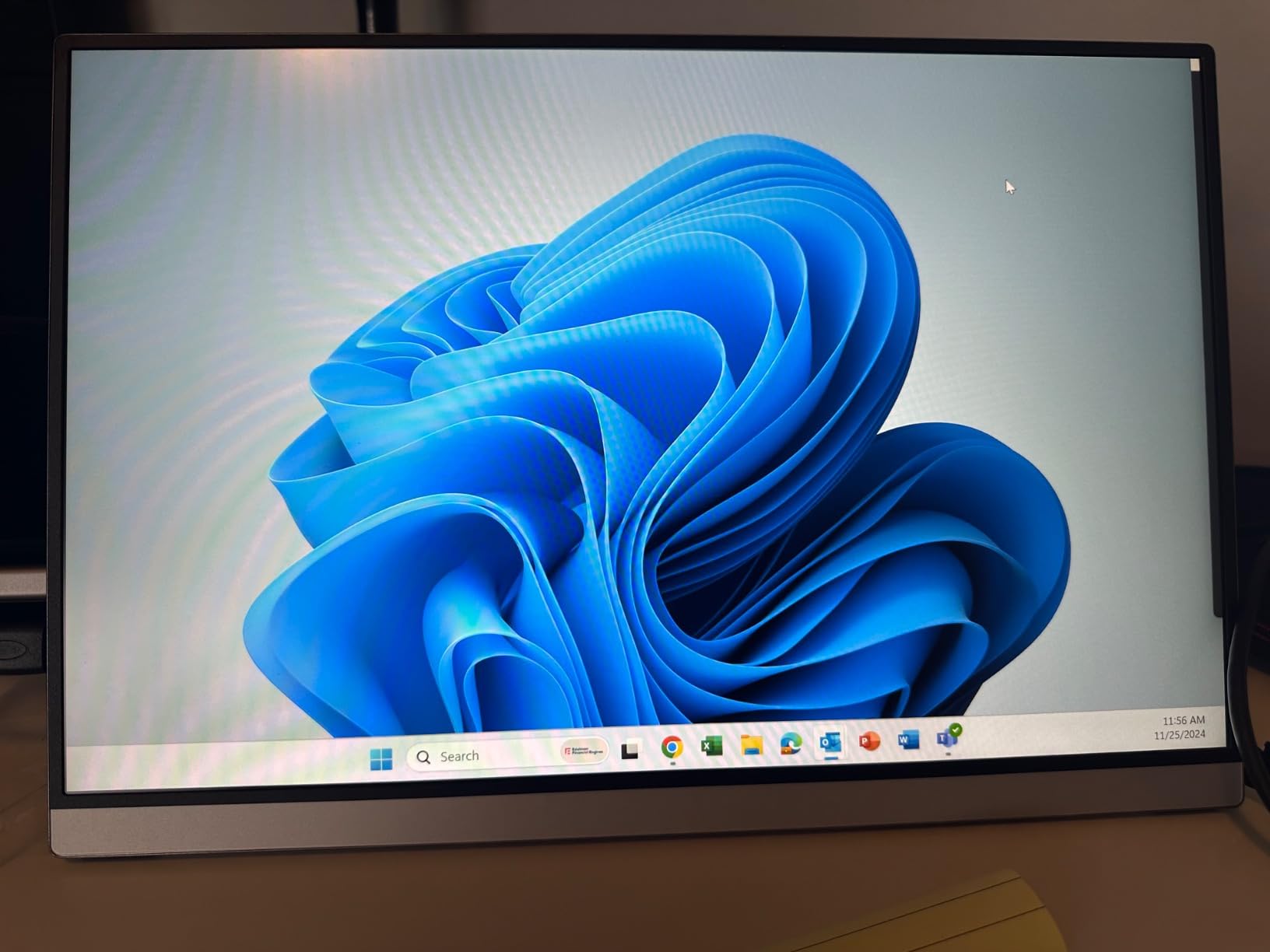
At 300 nits, 1200:1 contrast and 100 percent sRGB, the image is crisp and accurate for a portable panel, with low blue light and flicker-free operation built in. Built-in speakers cover a call, and HDR support is present for media.
Why 16:10 helps in portrait
Rotating a 16:9 screen gives a narrow column, and that narrowness is why so many coders end up with a second panel squeezed in. A 16:10 panel rotated keeps more usable width relative to its height, so it coexists better with a horizontal main display. It is the shape the r/Monitors crowd keeps recommending, and this is the most direct example in the roundup.
Where it falls down
It runs at 60Hz, which is fine for reading and limiting for fast-paced gaming, and there is no carrying sleeve in the box, so you will want to add a case before moving it between rooms. A few units reported connection drops and flicker, so testing it early on your own ports is worthwhile.
How We Picked and Tested These Monitors?
Every panel here was rotated to portrait and read at the scaling percentage it would realistically run at, rather than judged on a spec sheet. For each one we checked the same four things: whether the stand reaches a full 90 degrees and holds it without rocking, how the text holds up at the top and bottom of the portrait image, whether the panel colour stays stable from a normal viewing position, and how the stand behaves when a monitor arm would normally be used.
We also read the review history for recurring patterns rather than average scores alone. A 4.7 average and a 4.1 average can hide very different problems, so a meaningful share of one-star reviews about dead pixels or early panel failure is treated as a real caution, and it is written into the review rather than buried. Connectivity is reported as it is, including how many panels still rely on HDMI and DisplayPort with no USB-C.
Two things we deliberately did not do. We did not test in a professional colour laboratory, so colour claims come from published specifications and reported owner experience rather than instrument readings. And we did not measure lines of code with a photogrammetric rig, so the 60 to 80 line figure is the range developers report in practice rather than a measurement from our desk.
How to Choose a Vertical Monitor for Coding?
Before anything else, check the pivot. A monitor that only rotates 45 degrees will get you a squashed landscape image with black bars, which is the single most common disappointment in this category. Look for a listed pivot range of minus 90 to plus 90 degrees, and check that the stand has real height travel rather than a fixed neck.
Next, panel type. IPS is the practical requirement for portrait work, because a tall panel forces you to look across a much wider vertical field and TN panels visibly shift colour and wash out at the top and bottom. VA panels are workable for text but darker and slower, and they show smearing on scrolling. A viewing angle figure of 178 degrees is the practical marker.
Resolution and scaling come next. Rotated 1080p on a 24 inch panel is a good default, because it renders at 100 or 125 percent and stays crisp. 2560×1440 in portrait at 100 percent is the comfortable middle. 4K panels deliver the most lines but need 150 percent scaling, and non-integer scaling is where text starts to look soft, so test your editor at the scale you would actually run.
Ergonomics is where most people get it wrong. A 27-inch panel in portrait is around 20 inches tall, which means the top of the screen sits above eye level unless you raise it. If your stand cannot get there, add a monitor arm, and check the arm’s weight rating against the panel before you buy, because several of the heavier panels here weigh more than 11 pounds. Leave slack in the cables before rotating, and avoid curved panels for code, since a curve distorts straight vertical columns of text.
Connectivity decides how good the rest of the experience is. If you run a laptop, a USB-C port with power delivery turns one cable into video, power and peripherals. Without it, you need an adapter plus a charger plus a hub, which is three boxes on a small desk. DisplayPort is the better input for high refresh rates, and HDMI is fine for 60Hz and 75Hz panels.
Finally, match the screen to your desk. A dorm room or a shared flat usually has shallow depth and no arm mount, which argues for a 23.8 to 24.5 inch panel or a portable screen. A dedicated work desk with depth can carry a 27-inch 4K panel comfortably, provided you use an arm and keep the panel’s top edge near eye level. Curved models are worth skipping for coding, and TN panels are worth skipping entirely.
Frequently Asked Questions
What is a good vertical coding monitor?
A good vertical coding monitor is an IPS panel that pivots a full 90 degrees and offers at least 100mm of height adjustment. For most developers, a 23.8 or 24 inch 1920×1080 panel at 100 to 125 percent scaling is the sweet spot, with 2560×1440 or 4K options for those who want more lines at once. Panel type matters more than any other spec.
What is the best monitor that can be turned vertically?
Any monitor with a listed pivot range of minus 90 to plus 90 degrees can be used vertically, as can most VESA-mounted monitors on an arm that allows rotation. The ones sold as vertical monitors simply have the height travel and stand weight rating built in. Avoid TN panels and curved screens, which both degrade in portrait.
Which monitor is best for coders?
For code review, logs and documentation, the HP VH240a 23.8-inch IPS is the strongest all-round pick, with sharp 1080p text, smooth height adjustment and a 4.7 rating across more than 25,000 reviews. If you want more lines and faster scrolling, the SANSUI 27-inch WQHD runs up to 200Hz, and the LG 27UP650K-W gives the sharpest 4K text.
Why do programmers use vertical monitors?
Code lines are short horizontally but stack for hundreds of rows, so a vertical monitor converts wasted width into height. Developers report seeing 60 to 80 lines of code at a time in portrait compared with 40 to 50 in horizontal, which means fewer scroll actions, fewer context switches, and less eye and neck movement across a long day of work.
What is the best monitor size for vertical orientation?
24 to 27 inches is the practical range for a fixed desk, and 23.8 to 24.5 inches is the safest choice for a small or shallow desk. Below 20 inches you lose enough text width that the portrait advantage shrinks, and above 27 inches the panel is tall enough that its top edge sits above eye level unless you use a monitor arm to raise it.
Is 27 inches too big for vertical use?
A 27-inch panel in portrait is roughly 20 inches tall, so the top of the screen will sit above eye level on a low stand. That is the real problem, not the diagonal itself. If your stand has 100mm or more of height travel, or you add a monitor arm, 27 inches works very well and shows the most lines of code.
Can any monitor be used vertically?
Most can, if the hardware allows it. Check the spec sheet for a pivot range of minus 90 to plus 90 degrees, confirm the VESA pattern is 75x75mm or 100x100mm, and check the stand weight rating before rotating. Leave slack in your cables first, because a taut cable can pull the connector out of the socket when the panel swings round.
Is a vertical monitor good for gaming?
It can be, but you need a panel fast enough to notice. A 60Hz screen in portrait looks slow when scrolling long files, so choose 120Hz or higher if you want smooth motion. Several picks here run 144Hz to 240Hz at 2560×1440 or 4K, and a panel with FreeSync or G-Sync compatibility handles variable refresh well.
Final Verdict: Which Vertical Monitor Should You Buy?
The best vertical monitors for coding come down to three variables: panel type, pivot range and the resolution you will actually run at. Get an IPS panel with a full 90-degree pivot and at least 100mm of height travel, and you really cannot go wrong with the rest.
For most people, the HP VH240a 23.8-inch is the answer. It has the best combination of rating and review history here, it pivots smoothly, and 1080p in portrait at 100 to 125 percent is comfortable straight out of the box. If you want sharper text and faster scrolling, move up to the SANSUI 27-inch WQHD, and if text density is your priority over refresh, the LG 27UP650K-W gives you 4K sharpness with excellent colour.
For a small dorm desk or a setup that travels, the portable options are the practical answer. The FLYTOCCA extender detaches into a portrait column and folds flat, the CIDETTY stacks cleanly above a laptop screen, and the VEOUT 16-inch gives you a 16:10 panel, the ratio forum readers keep recommending for portrait comfort. Whichever you choose, set the scaling first, raise the panel to eye level, and leave slack in the cables before you rotate.