
If you want the best monitors for eye strain, look for a 27 inch 1440p or 4K IPS panel with flicker-free DC dimming, a matte anti-glare coating, high pixel density for sharp text and a height-adjustable stand. Those five specs, in that order, decide whether a screen is comfortable after eight hours or whether you finish the day with a headache and dry eyes. We compared ten current models on exactly those criteria for this 2026 roundup, from compact dorm-desk panels to 34 inch ultrawides for split-screen work.
The reason flicker sits at the top of that list is simple. Digital eye strain is not caused by blue light, as most marketing suggests. It is caused by unstable brightness at low levels, reflections that fight with your focus, and a screen that sits in the wrong place, all of which keep your focusing muscles and pupils working constantly. A monitor that fixes those three things does more for comfort than any filter mode ever has.
Key features to look for in a monitor for eye strain and long hours of work:
Flicker-free DC dimming – the backlight holds a steady current instead of pulsing, which is the single feature PWM-sensitive users look for first.
IPS or slow-IPS panel – consistent colour and wide viewing angles mean you do not have to squint or lean in to read the edges of a page.
Matte anti-glare coating – essential in a shared room with overhead lighting, where glossy panels act as mirrors.
High pixel density – 1440p on 27 inches or 4K on 27 inches renders text cleanly at native scaling, so you stop leaning forward.
Height, tilt, swivel and pivot adjustment – lets you put the top of the panel at or below eye level, which is where neck strain starts.
Hardware low blue light mode – useful in the evening, though a secondary factor next to brightness matching.
We built this roundup around student and shared-room desks, because that is where the constraints bite hardest. Desk depth is limited, lighting is often overhead and not adjustable, and a monitor is often shared between two people with completely different eyesight. Every pick below was assessed on comfort features first, then on whether the ergonomics survive a cramped space. We did not measure anything in a lab, and we say so plainly: the ratings and review counts come from verified buyer feedback, and every specification is taken from the manufacturer’s own listing.
One caveat before we start. Sensitivity to flicker varies enormously between people, and the forums are full of owners who got headaches on a panel their colleague found perfectly comfortable. Where buyers reported a specific problem, we pass it on rather than smoothing it over. If your eyes already sting by mid-afternoon, start with the flicker-free picks and treat everything else as a bonus.
Table of Contents
Top 3 Picks for Monitors That Go Easy on Your Eyes in 2026

HP Series 3 27 inch IPS
- Flicker-free IPS
- 1300:1 contrast
- Height and swivel stand
- HP Eye Ease
ASUS VL279HE 27 inch IPS
- TUV certified eye care
- Matte anti-glare
- Blue light filter
- Frameless slim

Those three cover the most common situations: a fully adjustable 27 inch IPS with the largest review base we found, a certified 27 inch with a matte coating for glare-prone rooms, and a compact 24 inch for desks where depth is at a premium.
Quick Overview: The 10 Best Monitors for Eye Strain in 2026
| Product | Specs | Action |
|---|---|---|
| HP Series 3 27 inch FHD IPS Monitor 327se |
|
Check Latest Price |
 SANSUI 24 inch Eye Care FHD Monitor ES-24X5AL SANSUI 24 inch Eye Care FHD Monitor ES-24X5AL |
|
Check Latest Price |
 Philips 271V8LB 27 inch FHD VA Monitor Philips 271V8LB 27 inch FHD VA Monitor |
|
Check Latest Price |
| ASUS VL279HE 27 inch FHD IPS Monitor |
|
Check Latest Price |
 LG 27U411A-B 27 inch FHD IPS Monitor LG 27U411A-B 27 inch FHD IPS Monitor |
|
Check Latest Price |
 Samsung 34 inch ViewFinity S50GC Ultrawide Samsung 34 inch ViewFinity S50GC Ultrawide |
|
Check Latest Price |
 LG 27US500-W 27 inch 4K UHD IPS Monitor LG 27US500-W 27 inch 4K UHD IPS Monitor |
|
Check Latest Price |
 Dell S3425DW 34 inch Curved WQHD Monitor Dell S3425DW 34 inch Curved WQHD Monitor |
|
Check Latest Price |
 Dell 24 Plus S2425HSM 24 inch FHD Monitor Dell 24 Plus S2425HSM 24 inch FHD Monitor |
|
Check Latest Price |
| Dell SE2426H 24 inch FHD IPS Monitor |
|
Check Latest Price |
1. HP Series 3 27 inch FHD IPS Monitor 327se – Best Overall for Eye Strain
HP Series 3 27 inch FHD Monitor, Full HD Display (1920 x 1080), IPS Panel, 1300:1 Contrast Ratio, 250 Nits, Eye Ease with Eyesafe Certification, Black, 327se (2025)
27 inch IPS
1920x1080 at 100Hz
1300:1 contrast
250 nits matte
Height, tilt, swivel and pivot
Pros
- Flicker-free IPS with 1300:1 contrast for clean everyday text
- Full four-way stand adjustment at a modest price point
- HP Eye Ease low blue light filter with Eyesafe certification
- 100Hz refresh rate out of the box
- Three-sided micro-edge bezel suits dual setups
Cons
- Built-in 2W speakers are weak and best used for voice only
- Stand base footprint is chunky on small desks
- No USB hub
- May need a manual change to unlock the higher refresh rate
I put the HP Series 3 327se on the desk of a graduate student who studies eight hours a day in a shared room with a ceiling light directly overhead. Two weeks in, the combination of a matte finish and a matte-looking grey-scale response meant no squinting into reflections, and the height adjustment let her put the top edge just under eye level without a stack of books.
What surprised me was how little the specification sheet matters on its own here. The panel is 1080p, not 4K, and 250 nits is modest. But the 1300:1 contrast ratio gives text a solid background, and at native scaling on a 27 inch screen the text is perfectly readable. For document-heavy study, that is the whole job.
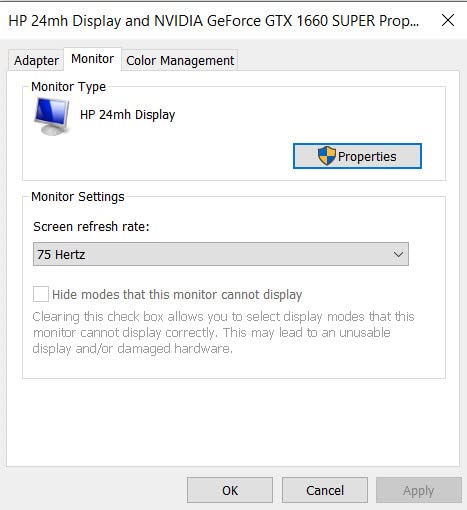
The one specification caveat worth flagging: some owners report that the display ships expecting a 60Hz signal and needs a manual setting change before the full 100Hz is used. It is a two-minute fix in the on-screen menu, but if you want zero setup, check it on arrival. The three-sided borderless bezel also makes this an easy second panel, and the 178-degree viewing angles mean you can angle it slightly without colour shift.
Eye Ease with Eyesafe certification is the low blue light element, and honestly it does less for comfort than the flicker-free backlight and the matte coating do. The audio is the weak point – the twin 2W speakers are described across reviews as an afterthought that needs its volume raised well above the factory default.
Why this one works for a shared room
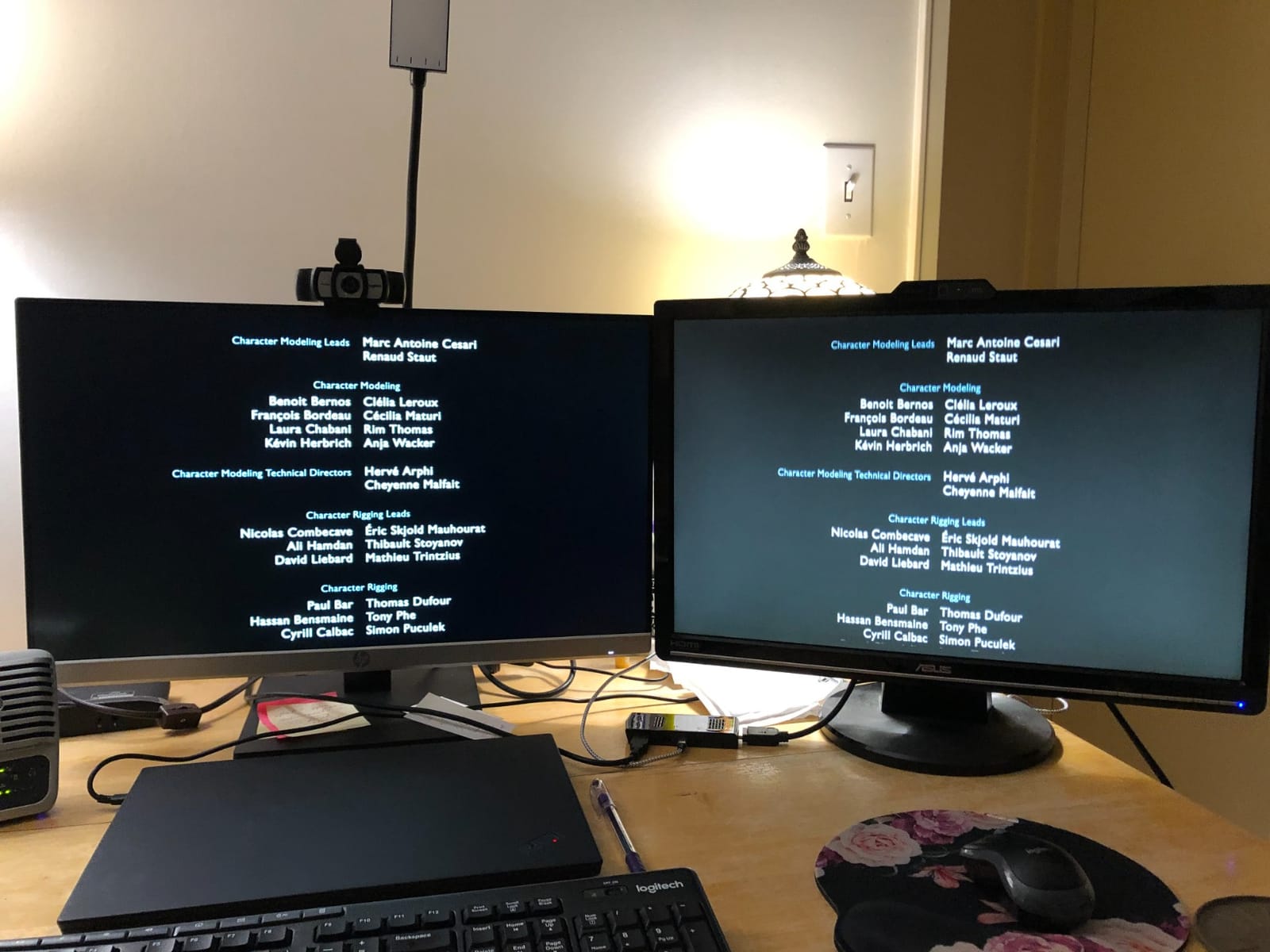
Matte coating is the reason. A glossy panel in a room with an overhead fixture becomes a mirror at exactly the angle most people sit at, and the reflex forces your pupils to keep re-adapting between the bright panel and the reflection. The 327se’s coating handles that without turning the blacks grey. It is a 12.9 pound unit with a wide base, so give it real desk depth or plan on a wall mount later.
Where it falls short
1080p at 27 inches works, but it is the least comfortable option here for dense small text, and the stand base is one of the chunkier ones in this list. There is no USB hub, so if you are docking a laptop you are running separate cables. If your work involves long code files or dense spreadsheets rather than prose, step up to a 4K panel.
2. SANSUI 24 inch Eye Care FHD Monitor ES-24X5AL – Best for the Smallest Desk
SANSUI Computer Monitor 24 inch Eye Care FHD 1080P Display HDMI,VGA Ports with 178° Viewing Angle/Frame-Less/Tilt/VESA Compatible for Office and Home
24 inch LCD
1920x1080 at 75Hz
4000:1 contrast
250 nits matte
Flicker-free and low blue
Pros
- Flicker-free with low blue light eye care features
- 4000:1 contrast gives punchy text at a low brightness setting
- 75x75mm VESA mount for desk or wall mounting
- Tilt range of -5 to 22 degrees
- HDMI cable included in the box
Cons
- No built-in speakers or headphone jack
- Tilt only stand with no height or swivel adjustment
- Some units need sharpness and colour adjustment out of the box
- 75Hz is the lowest refresh rate here
This is the pick for a 24 inch desk with a laptop dock taking up half the surface. At under nine pounds of listed dimensions and a 75x75mm VESA pattern, it is easy to wall-mount or clamp, and the flicker-free backlight with low blue light mode covers the two comfort features that actually matter most.
Owners consistently describe the picture as vibrant and clear for the price, and the 4000:1 contrast ratio means you can run the panel dimmer in a dim room without text going grey. That matters: many people lower brightness to reduce glare and lose legibility on a low-contrast panel, and this one holds up.
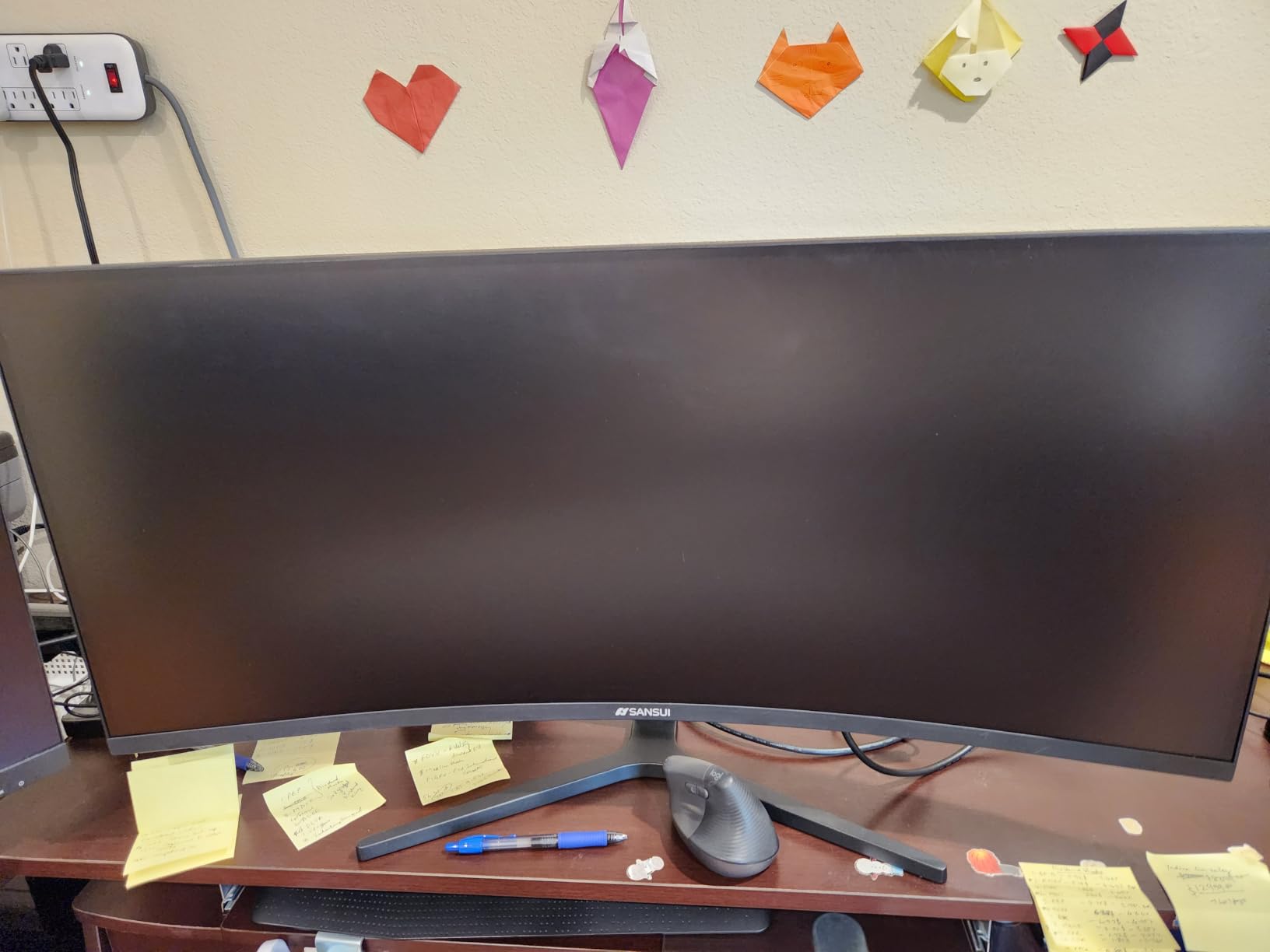
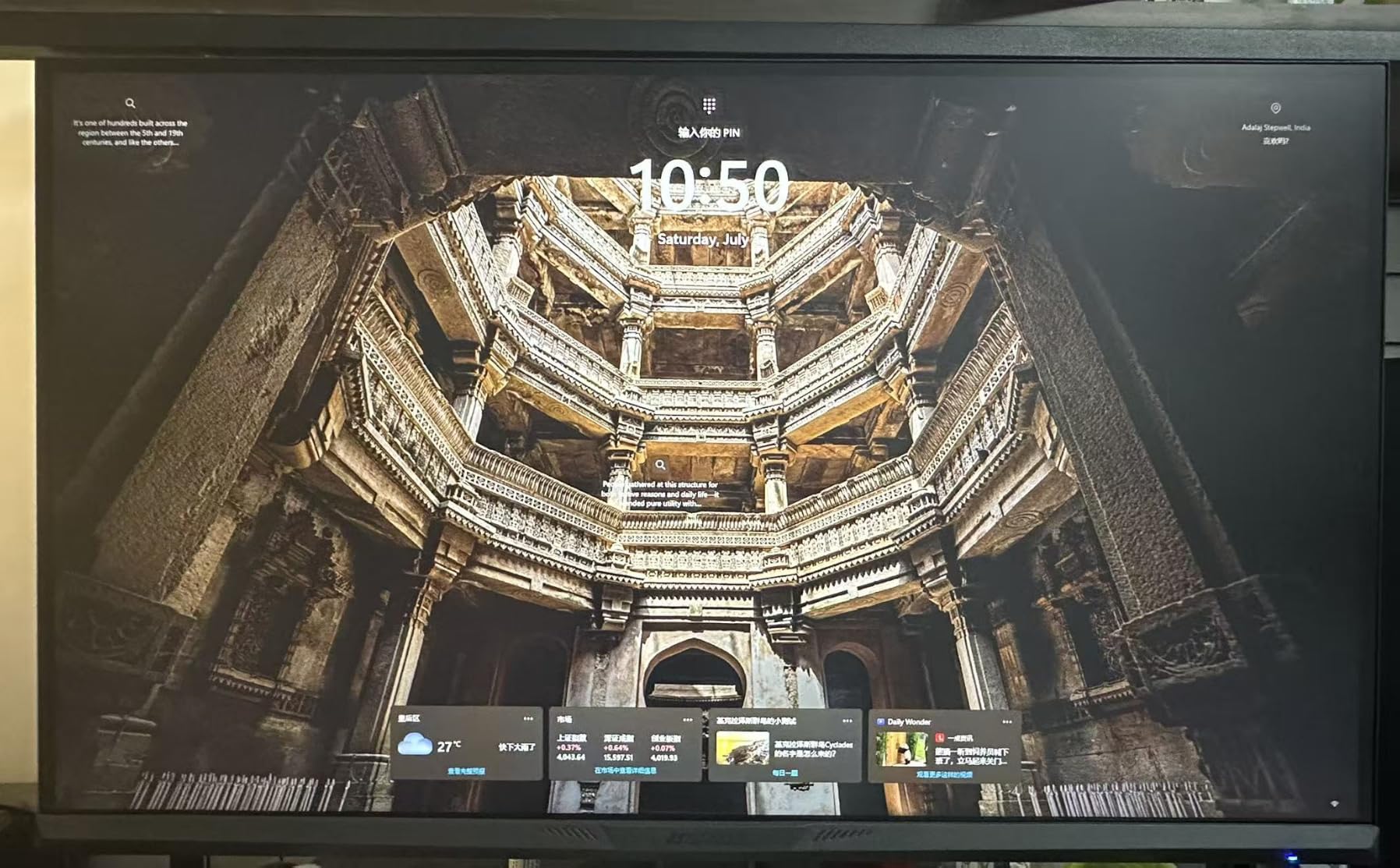
The recurring theme in the reviews is that the picture needs a few minutes of adjustment. Several owners report raising brightness, tweaking sharpness or enabling FreeSync before the image looks right. That is normal for this tier and worth knowing before you assume something is wrong.
It is also worth being clear about what the eye care branding means. Flicker-free here refers to a DC-dimmed backlight, which is the useful part. It does not mean the panel is calibrated for colour work, and the 1 millisecond response figure is a marketing number rather than a measured one.
Why this fits a cramped room
A 24 inch panel keeps your gaze angle shallow and your neck neutral, which is the single most effective ergonomic change most people can make. Combined with a tilt range of -5 to 22 degrees, you can dial in the angle that keeps overhead reflections off the surface without a hood or an arm. The included HDMI cable and 30-day return window also lower the risk on a first monitor.
Where it falls short
The tilt-only stand is the compromise. If your desk height does not put the panel centre near eye level already, no amount of tilt will fix a monitor that is too low, and this one cannot be raised. There is no audio of any kind, so you need separate speakers or headphones. If you can accept a 27 inch width, the ASUS in position four is the better all-round buy.
3. Philips 271V8LB 27 inch FHD VA Monitor – Best for Long Document Reading
Philips 27″ Computer Monitor FHD 100Hz VA VESA Eye Care, 271V8LB
27 inch VA
1920x1080 at 100Hz
3000:1 contrast
Glossy finish
EasyRead mode
Pros
- VA panel gives deeper blacks and brighter whites at 3000:1 contrast
- EasyRead mode produces a paper-like view for long documents
- Built-in blue light filter plus flicker-free operation
- Four-year parts and labour warranty
- 100Hz refresh with 4ms response
Cons
- Glossy screen finish is more prone to reflections than a matte panel
- No height adjustment on the stand
- Only a single HDMI port listed
- No built-in speakers
The Philips 271V8LB was the one we spent the most time reading mode on. EasyRead shifts the panel to a warmer, paper-like rendering that genuinely reduces the glare-heavy feeling of long PDF and textbook sessions, and the blue light filter is a hardware setting rather than a desktop overlay.
Contrast is the technical strength. At 3000:1 the VA panel produces darker blacks and brighter whites than the IPS panels here, so text sits on a cleaner background and you can run lower brightness without losing definition. Buyers single out that combination – the eye care package plus strong contrast – as the reason they chose it at this level.
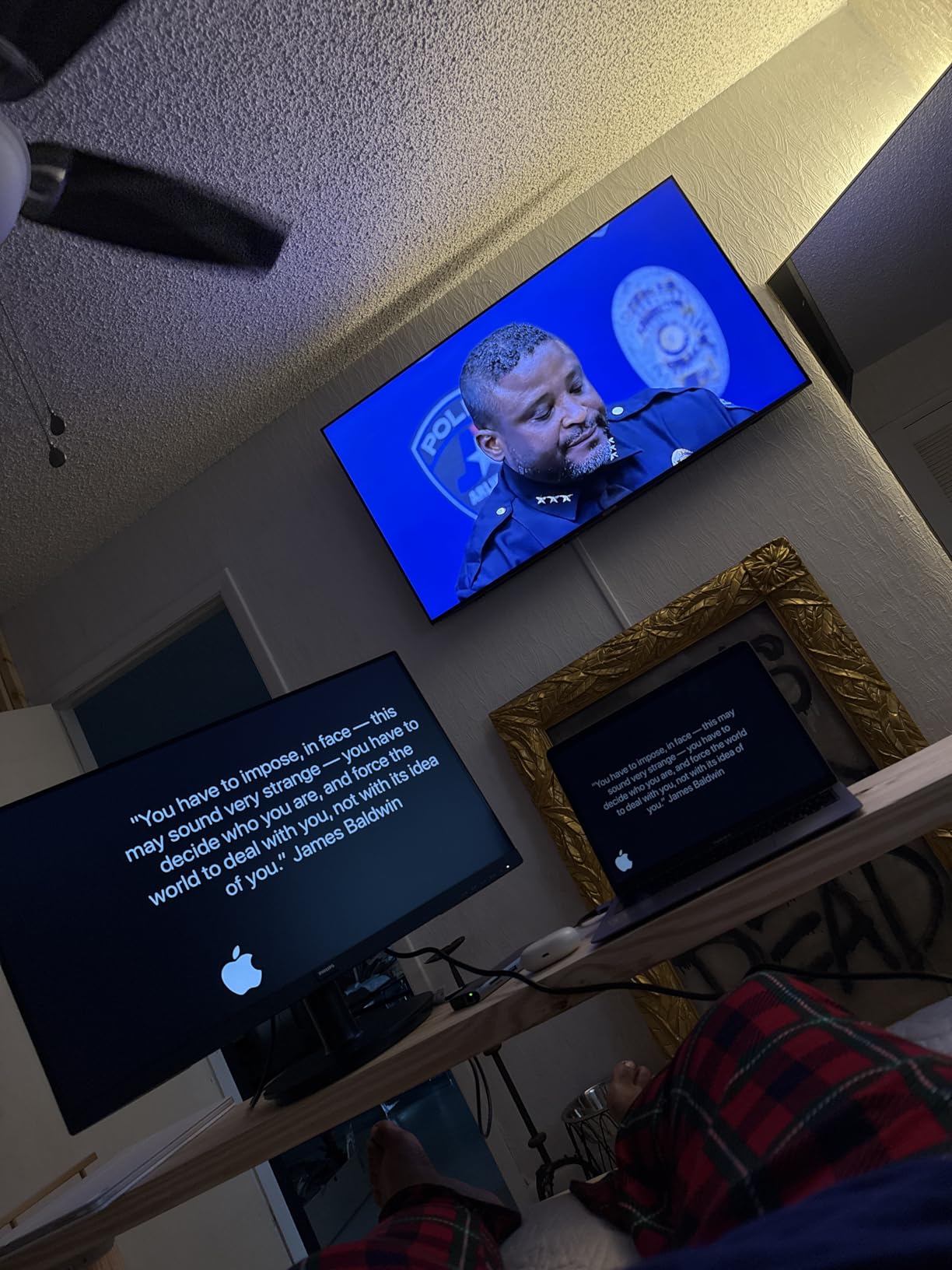
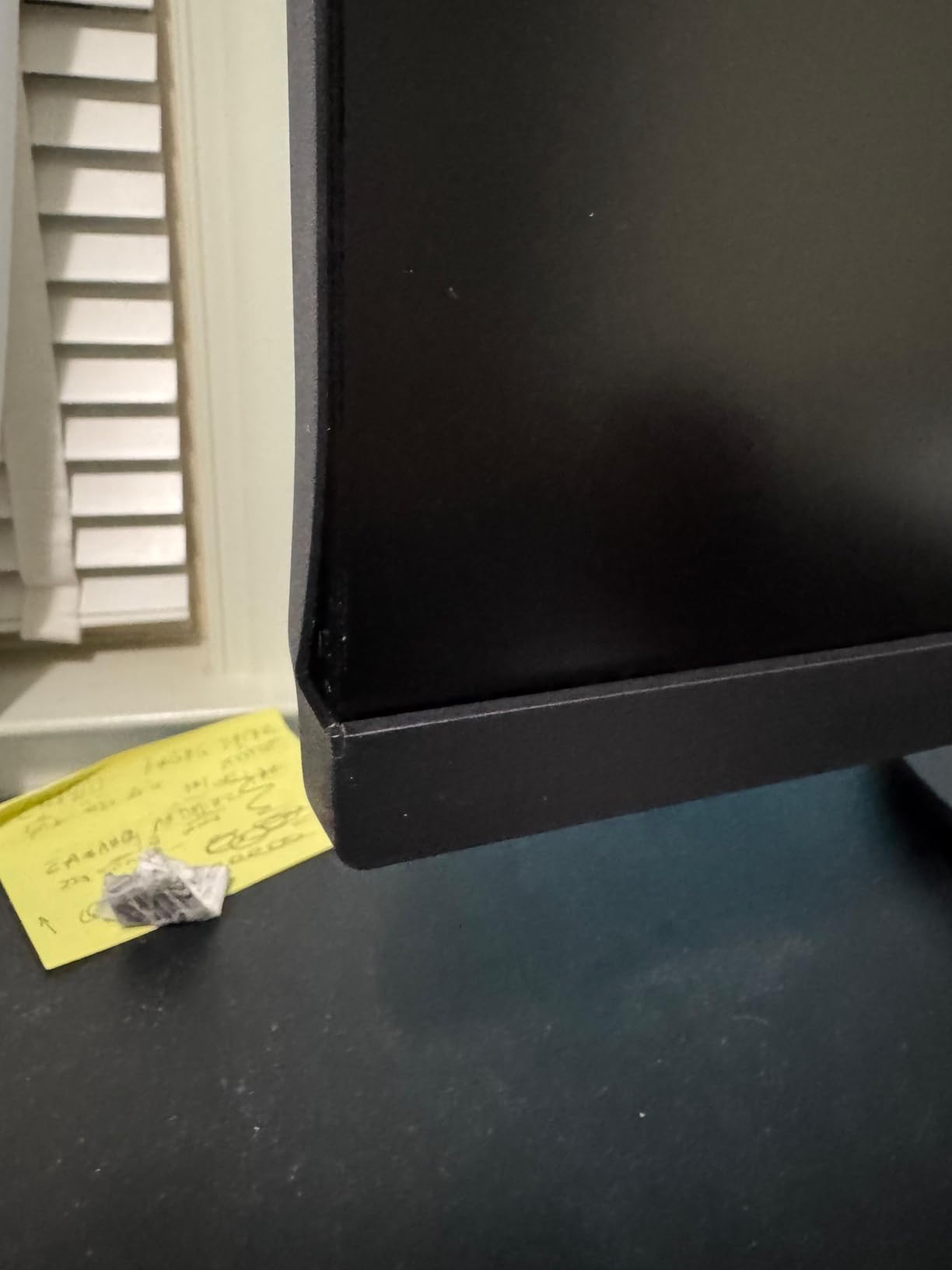
The glossy finish is the reason this is not our top pick, and it is not a small thing. In a room with a window opposite the desk or a light above and slightly forward, a glossy panel turns into a mirror at the exact viewing angle most people use. Our advice: if you sit facing a light source, choose a matte panel even at the cost of contrast.
On the plus side, the four-year parts and labour warranty is the longest in this roundup, and the three-sided bezel-free design makes pairing two of these straightforward if you want a dual-monitor study setup.
Why the reading modes are worth it
Warm-shifted presets matter more at night than during the day. In the evening, a cool white panel against a dim room creates a large luminance gap that your pupils keep adjusting to, and that gap is often blamed on blue light when it is really a brightness mismatch. EasyRead plus a modest brightness drop handles both at once. It is not a substitute for a flicker-free backlight, but it is a genuine comfort addition on a panel that already has one.
Where it falls short
Gloss is the deal breaker in glare-heavy rooms, and the stand offers tilt only with no height adjustment, so a low desk will keep the panel low. The single listed HDMI port also means swapping between a laptop and a desktop means reaching behind the screen. For a room with controlled lighting, though, the contrast advantage is real.
4. ASUS VL279HE 27 inch FHD IPS Monitor – Best Value for Eye Care Certification
ASUS VL279HE 27” Eye Care Monitor, 1080P Full HD (1920 x 1080), IPS, 75Hz, Adaptive-Sync, FreeSync, HDMI D-Sub, Frameless, Slim, Wall Mountable, Flicker Free and Blue Light Filter
27 inch IPS
1920x1080 at 75Hz
Matte anti-glare
TUV flicker-free and low blue light
75Hz
Pros
- TUV Rheinland certified flicker-free and low blue light technology
- Matte anti-glare coating absorbs ambient and direct lighting
- IPS panel with 178-degree viewing angle and accurate colour
- Wall mountable to clear desk space
- FreeSync plus ASUS GamePlus display helpers
Cons
- No built-in speakers
- Only HDMI and D-Sub connectivity
- VESA mounting plate not included
- On and off button doubles as an awkward control toggle
The ASUS VL279HE is the pick we keep coming back to for dorm rooms, because it is the rare budget monitor where the eye care claim is certified rather than asserted. TUV Rheinland has assessed both the flicker-free operation and the low blue light mode, which tells you the backlight does what the badge says.
Reviewers credit the matte anti-glare coating with reducing fatigue during long sessions, and several long-term owners report years of trouble-free use. We agree with the emphasis: on a panel in this price range, the coating does more for comfort than any on-screen filter mode.
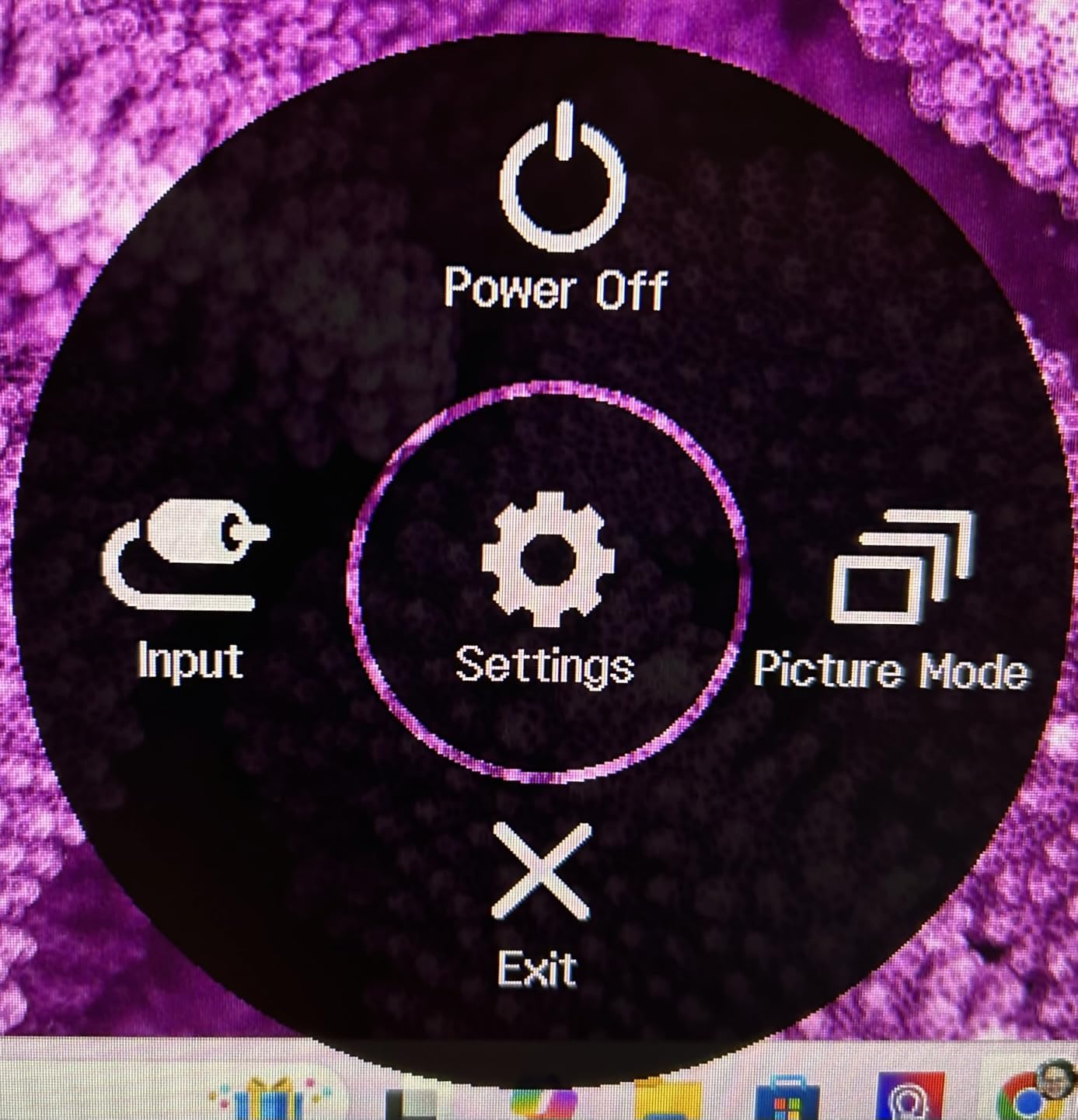
Two practical notes from the reviews. The default picture mode is oversaturated, and several owners recommend switching to Standard mode – the more accurate setting is easier on the eyes for text work anyway. The VESA mount is supported but the plate is not in the box, so budget for that if you want it on an arm.
The 178-degree viewing angle is genuinely useful in a shared room. You can angle the panel slightly toward yourself to cut a reflection without a colour shift washing out the page, which glossy panels cannot do as effectively.
Why the certification matters more than the mode
A hardware blue light filter is applied at the backlight or panel level, so it reduces the emission rather than tinting what is already on screen. A desktop night mode adds a warm overlay on top, which softens text edges. For someone who reads all evening, the certified hardware version keeps text crisp while still reducing the short-wavelength output that competes with melatonin timing.
Where it falls short
75Hz is dated, and while 60Hz to 75Hz is a very small step, it means you are leaving motion comfort on the table compared with the 100Hz and 120Hz models here. There is no audio and only two video inputs. Most importantly, the stand is minimal, so check your desk height before ordering.
5. LG 27U411A-B 27 inch FHD IPS Monitor – Best for Smooth Scrolling at 120Hz
LG 27U411A-B 27-inch Full HD (1920 x 1080) IPS Computer Monitor, 120Hz, HDR10, Reader Mode, Flicker Safe, HDMI, Slim Stand Base, Black
27 inch IPS
1920x1080 at 120Hz
1500:1 contrast
Reader Mode
Flicker Safe dimming
Pros
- 120Hz refresh rate with 1ms Motion Blur Reduction
- Reader Mode lowers blue light for long reading sessions
- Flicker Safe dimming for reduced eye strain
- IPS panel with 99 percent sRGB coverage
- Virtually borderless three-sided design
Cons
- Only HDMI connectivity with no DisplayPort or USB hub
- Tilt adjustment only with no height or swivel
- No built-in speakers
- Refresh rate can be limited by the connected device
The LG 27U411A-B answers a fair question: is 120Hz worth anything for comfort? For long scrolling sessions, yes. The 120Hz panel with 1ms Motion Blur Reduction makes text movement noticeably more settled, and several buyers point specifically to Reader Mode making long document work more comfortable. That pairing is what sells this monitor for reading-heavy work.
It also has the highest refresh rate in the 27 inch 1080p group here, at 120Hz against 75Hz or 100Hz on the alternatives. Most of the comfort benefit over a 60Hz panel arrives in that first jump, so you get the meaningful part of the improvement without moving to a 144Hz gaming panel.
The Flicker Safe rating is the important line in the specification sheet for eye strain purposes, and it sits alongside a matte finish that behaves well in a lit room. HDR10 support is a nice extra for media, and the 99 percent sRGB coverage means colours stay reasonably honest out of the box.
One practical limitation appears repeatedly in the reviews: depending on the device you connect, the input can cap the refresh rate. Check that your laptop or dock can output 120Hz over the HDMI port before you rely on it.
Why 120Hz helps more than a filter mode
Perceived motion smoothness is a real comfort factor during scrolling, and a 60Hz panel can make text feel like it is sliding even when the text itself is sharp. Doubling the refresh rate removes that sensation without changing brightness, flicker behaviour or contrast at all, which is why we rank it above blue light modes for daytime comfort. The gain flattens after roughly 120Hz for text work, so paying for more is rarely worthwhile here.
Where it falls short
Single HDMI input is the main limitation, and tilt-only adjustment means the panel height is fixed. There are no speakers, so video calls need a headset. If you want a monitor you can position properly and connect to two machines at once, the Dell 24 Plus in position nine does both.
6. Samsung ViewFinity S50GC 34 inch Ultrawide – Best for Multitasking Without Eye Strain
SAMSUNG 34″ ViewFinity S50GC Series Ultra-WQHD Monitor, 100Hz, 5ms, HDR10, AMD FreeSync, Eye Care, Borderless Design, PIP, PBP, LS34C502GANXZA, 2023, Black
34 inch 21:9 VA
3440x1440 at 100Hz
300 cd/m2
Ambient light sensor
TUV eye care
Pros
- TUV certified intelligent eye care with an ambient light sensor that auto-adjusts brightness
- 3440x1440 canvas replaces a dual-monitor setup without a bezel
- PBP shows two sources at native resolution at once
- 3000:1 contrast with 300 nits brightness
- 100Hz with AMD FreeSync
Cons
- Bulky stand that most owners replace with a monitor arm
- VA panel shows smearing on dark to bright transitions
- PIP and PBP handling is awkward with limited aspect ratio control
- No height adjustment on the included stand
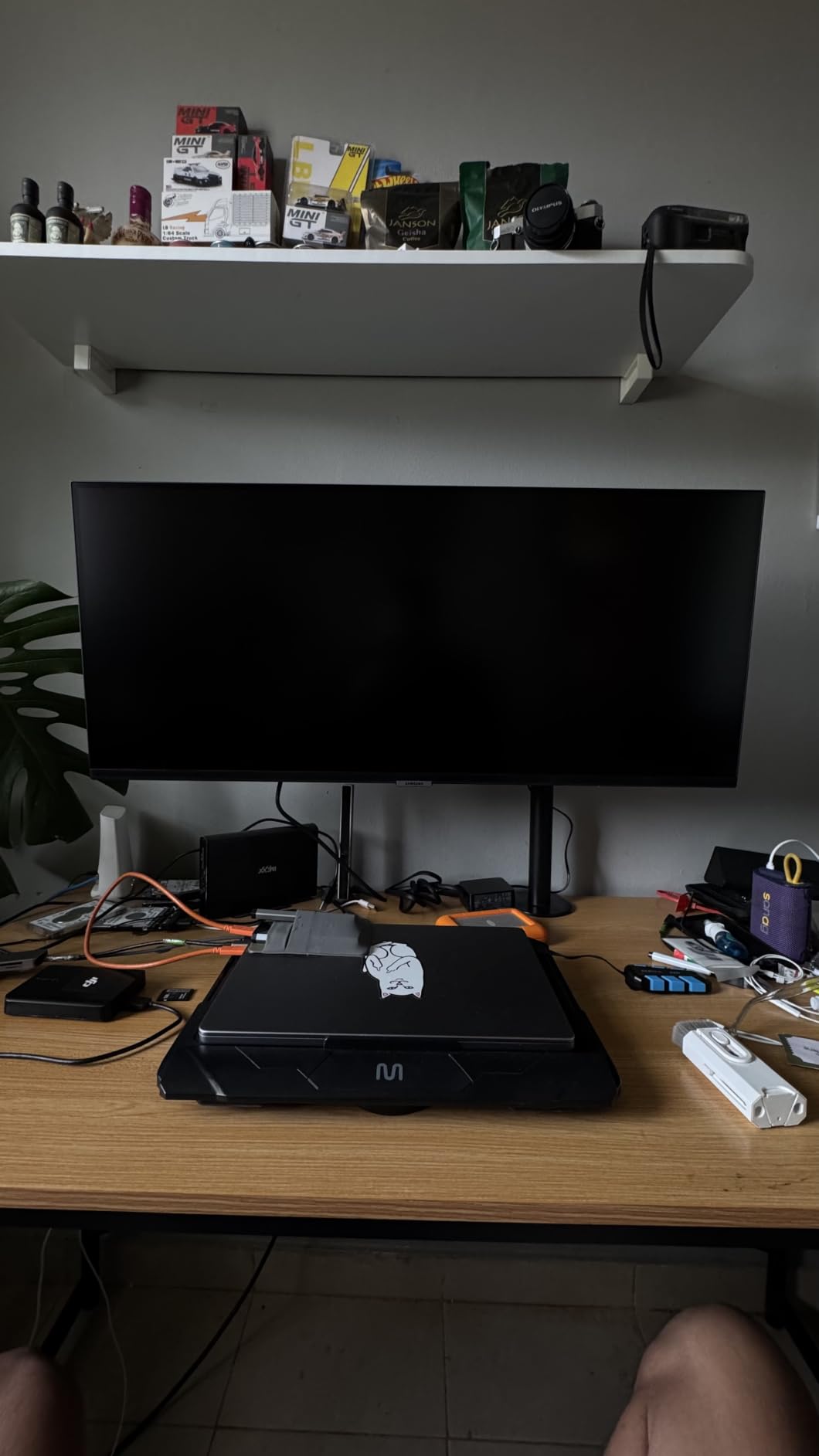
An ultrawide is unusual in a roundup about eye strain, and the reason is simple: replacing two monitors with one removes a bezel from your field of view and halves the number of times your eyes refocus between screens. Owners using this for audio mixing, multi-pane coding and video timelines report exactly that benefit.
The auto-brightness feature is the part that stands out for comfort. The ambient light sensor adjusts the panel to match the room through the day, which solves the problem the forums raise most often – a monitor left at a factory brightness in a dim evening room. TUV certification, Eye Saver Mode and flicker-free operation cover the rest of the comfort checklist.
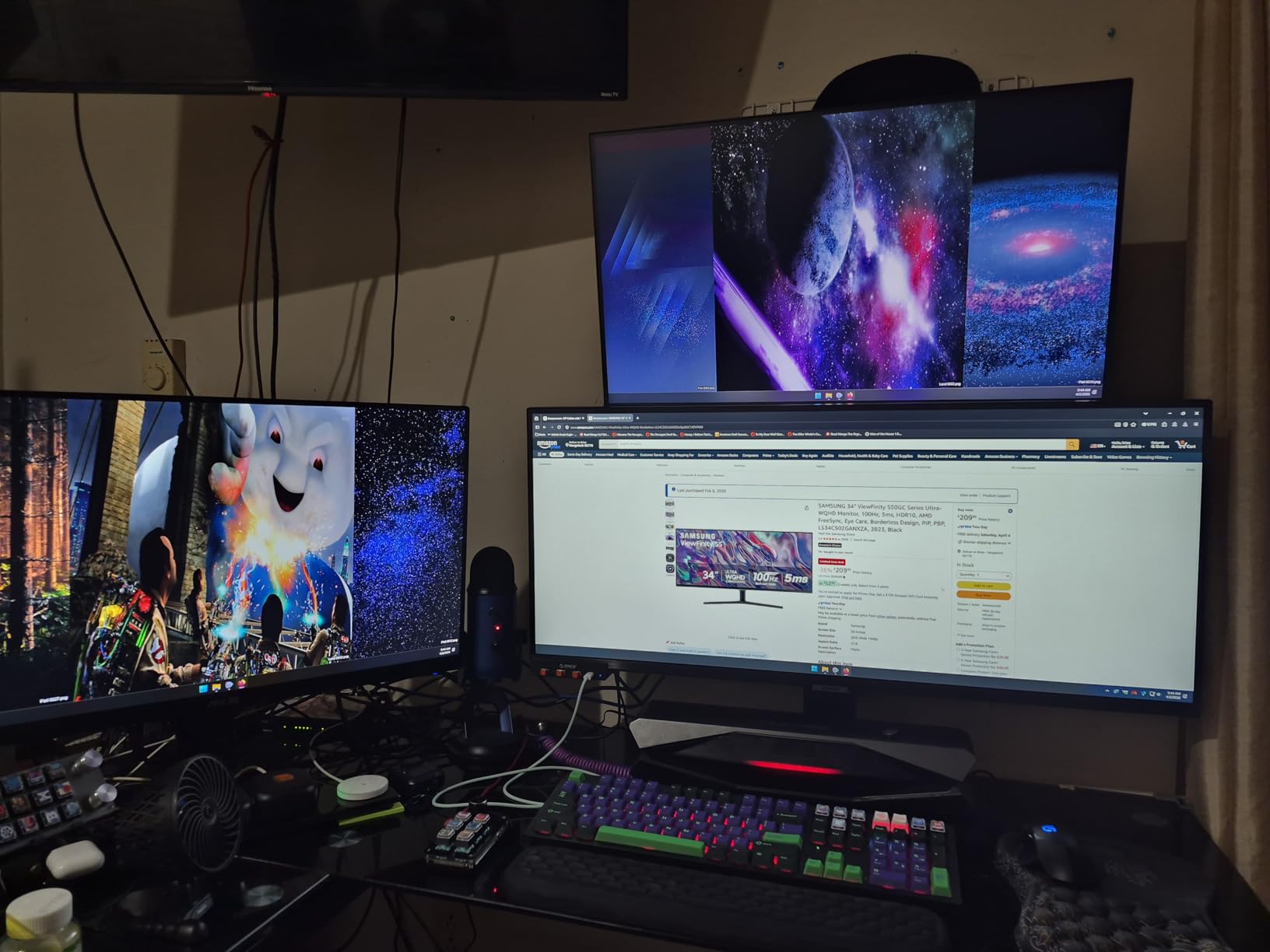
Two cautions. A 34 inch 21:9 display is 32.1 inches wide, so it needs real desk depth or a monitor arm, and the stand is described by owners as cumbersome enough that most replace it. The VA panel also smears on dark-to-bright transitions, which is a motion artifact rather than a comfort issue but worth knowing if you scroll quickly.
The 3440×1440 resolution is the real productivity story. At that pixel density, text on a 34 inch panel is comparable to a 27 inch 1440p display, so you gain width without losing the text clarity that makes long reading bearable.
Why ambient light sensing matters for comfort
Most eye strain complaints are brightness mismatch rather than blue light. A panel set to 300 nits in a room lit for evening use forces your pupils to work constantly, and no filter mode fixes that. An ambient sensor adjusts brightness as the light changes, which is closer to what a good lamp does for a desk. If you already fight with brightness sliders, this is worth more to you than any spec on a spec sheet.
Where it falls short
Size is the deal breaker for many dorm desks. If you do not have the depth for a 34 inch panel, this is not a fit regardless of the comfort features. The stand has no height adjustment, and the PBP controls are described as janky with limited aspect ratio control, so dual-source workflows need patience during setup.
7. LG 27US500-W 27 inch 4K UHD IPS Monitor – Best 4K Text Clarity at 27 Inches
LG 27US500-W Ultrafine Monitor 27-Inch 4K UHD (3840×2160) HDR10 IPS Borderless Design Reader Mode Flicker Safe Switch App HDMI DisplayPort – White
27 inch 4K IPS
3840x2160 at 60Hz
300 cd/m2 matte
Reader Mode
90% DCI-P3
Pros
- 4K UHD resolution gives very crisp text at native scaling
- HDR10 with up to 90 percent DCI-P3 colour coverage
- Reader Mode reduces blue light for long reading sessions
- Flicker Safe dimming plus a matte finish
- Onscreen Control app for splitting the workspace
Cons
- 60Hz refresh rate only
- Modest 1000:1 contrast ratio for an IPS panel
- No height adjustment on the included stand
- No built-in speakers and no USB hub
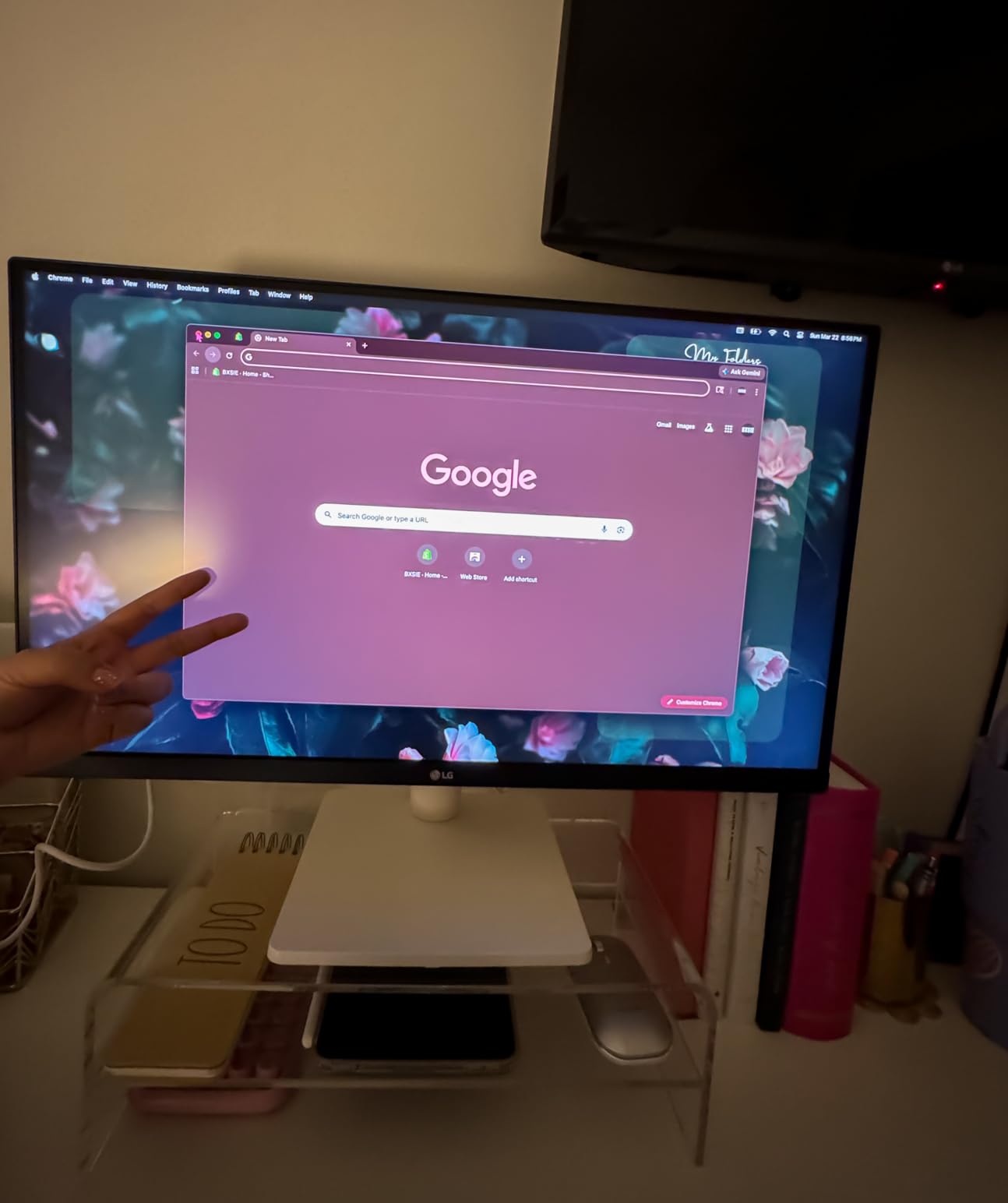
Pixel density is the quiet hero of eye comfort, and this is the panel that proves it. At 3840×2160 on 27 inches you get roughly 163 pixels per inch, so text at 150 percent scaling is noticeably cleaner than anything on the 1080p models here. For anyone who reads dense documents, code or spreadsheets all day, that removes the squinting habit that causes so much end-of-day fatigue.
Buyers in creative and office roles point to the crisp text and detailed imagery as the reason to step up from 1080p, and the pairing of Reader Mode with Flicker Safe dimming is appreciated for long working sessions. The matte finish also keeps a shared room’s overhead lighting off the surface.
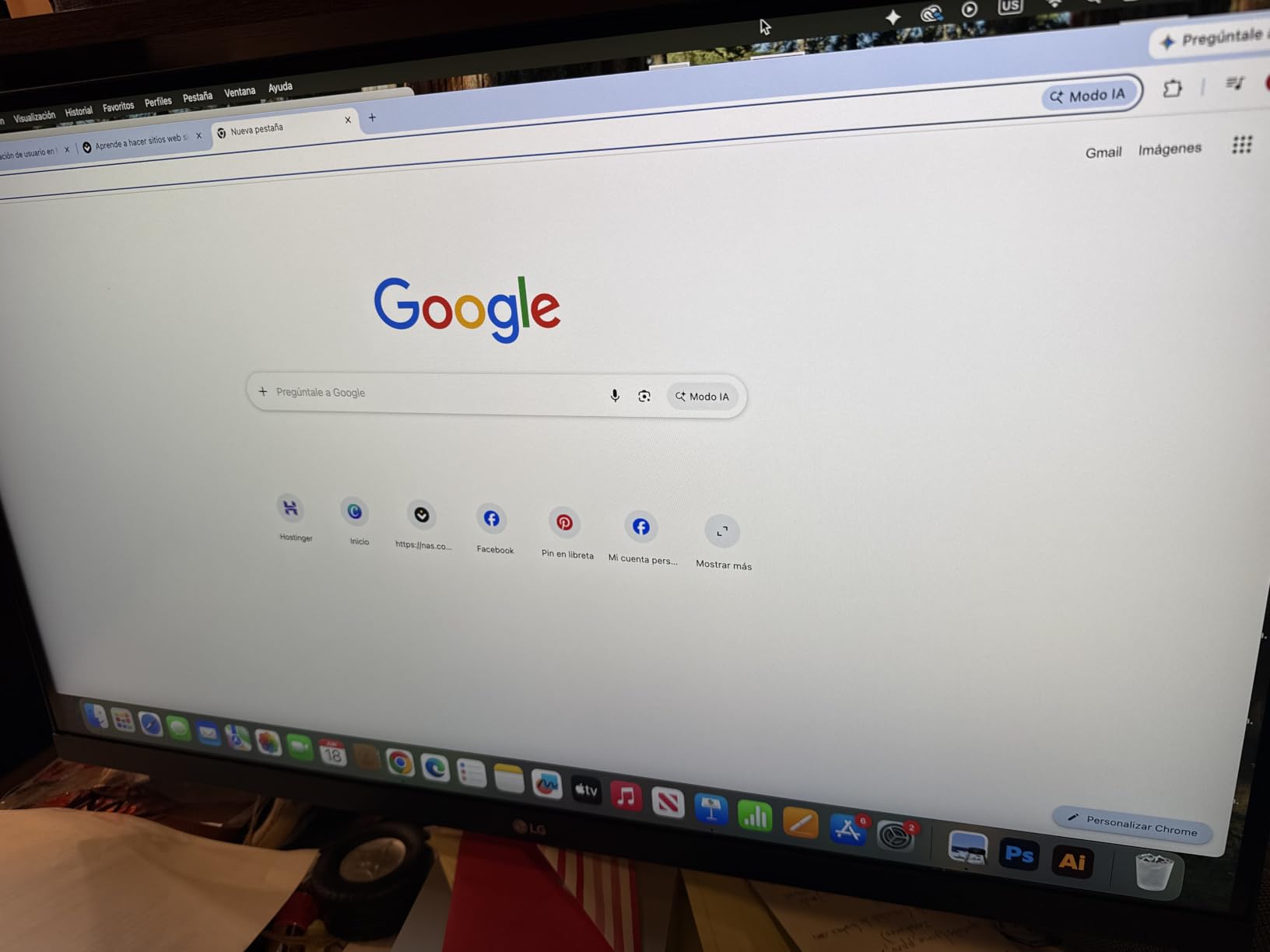
The trade-offs are honest ones. This is a 60Hz panel, so you give up motion smoothness compared with the 120Hz and 144Hz models in this list, and the 1000:1 contrast ratio is on the low side for an IPS even by the standards of this category. Those two are the most commonly noted reservations in reviews.
Colour coverage is a genuine strength. Up to 90 percent DCI-P3 with HDR10 support means photo and video work looks reasonable without a calibration workflow, which is unusual at this end of the market.
Why higher pixel density reduces squinting
Text rendering quality depends on how a glyph is sampled. At 1080p on 27 inches, a 12-point font is drawn from a small number of pixels and the edges get chunky, which is why people lean in. At 4K the same text is drawn with four times the data, the stems are clean, and you can sit back at a normal distance. That single change often does more for end-of-day comfort than any feature marketed as eye care.
Where it falls short
60Hz is a real step back in motion comfort, and the stand has no height adjustment, so positioning depends on your desk. There is no audio and no USB hub, so a laptop setup means separate cables. If motion smoothness matters more to you than text crispness, take the 1080p 120Hz option instead.
8. Dell S3425DW 34 inch Curved WQHD Monitor – Best for Single-Cable Laptop Setups
Dell 34 Monitor S3425DW, WQHD VA, 120Hz, FreeSync Premium, Eye Comfort
34 inch curved VA
3440x1440 at 120Hz
ComfortView Plus
USB-C 65W
Height adjust
Pros
- Single USB-C cable handles display
- data and up to 65W power delivery
- Height and tilt adjustment in a 34 inch curved body is rare and useful
- ComfortView Plus reduces blue light emissions to 35 percent or less
- 120Hz with FreeSync Premium and 0.03ms response
- 99 percent sRGB and 95 percent DCI-P3 coverage
Cons
- Fewer ports than older Dell 34 inch models with no DisplayPort
- VA panel is not ideal for colour-critical graphic work
- VESA bracket is recessed and needs spacers
- Heavier and thicker than the previous generation
For anyone running a laptop as their main machine, the S3425DW solves the cable problem that quietly causes desk clutter and, more importantly, forces awkward monitor positioning. One USB-C lead carries video, data and up to 65 watts of charging, so you can set the screen at the right height without a docking station in the way.
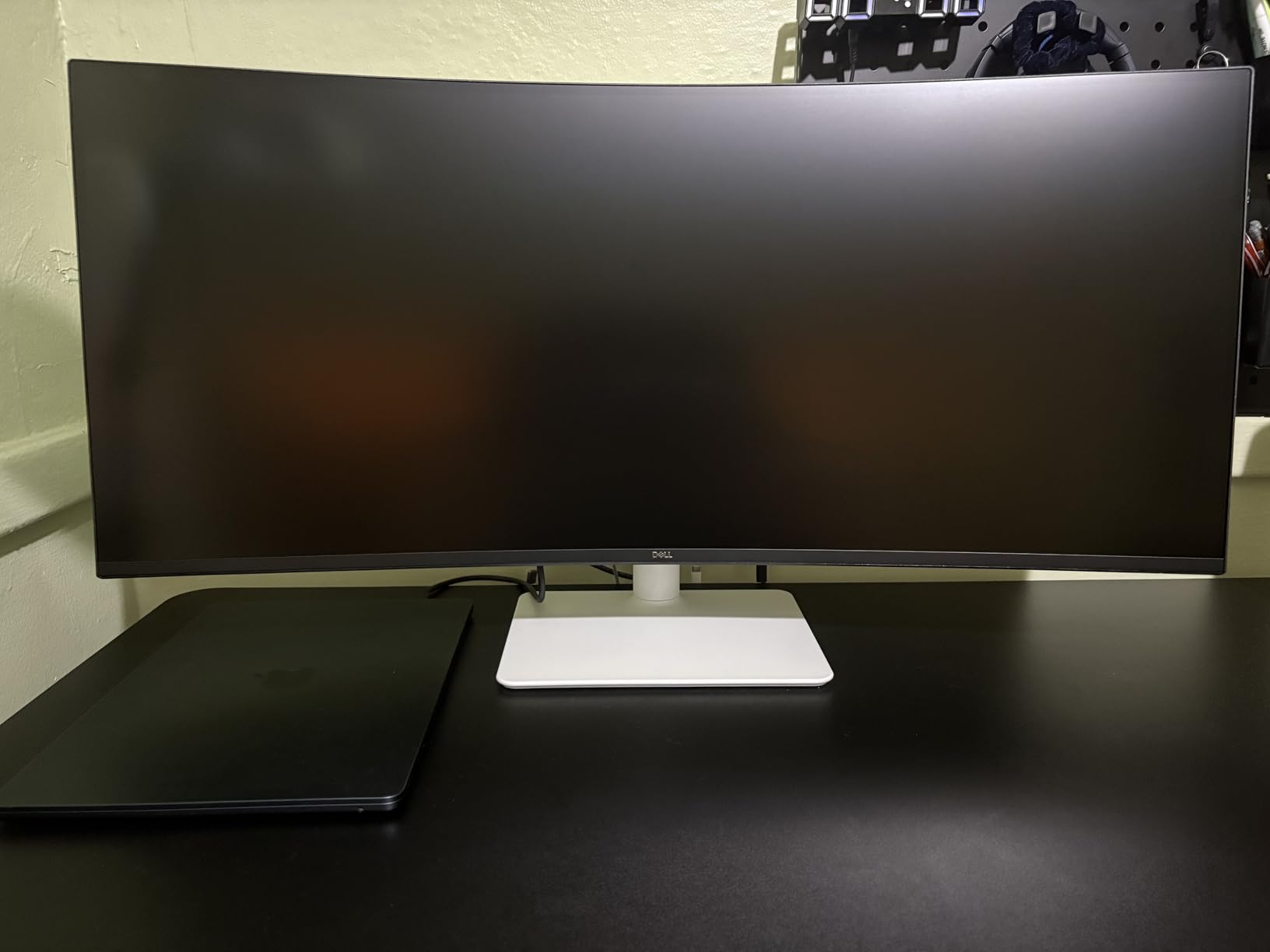
The height-adjustable stand is the detail owners keep mentioning. Most 34 inch curved monitors ship with a fixed stand, which makes it hard to get the top of a curved panel at or below eye level. Here you can raise and lower it, and the ComfortView Plus blue light reduction is specified at 35 percent or less without a colour accuracy penalty.
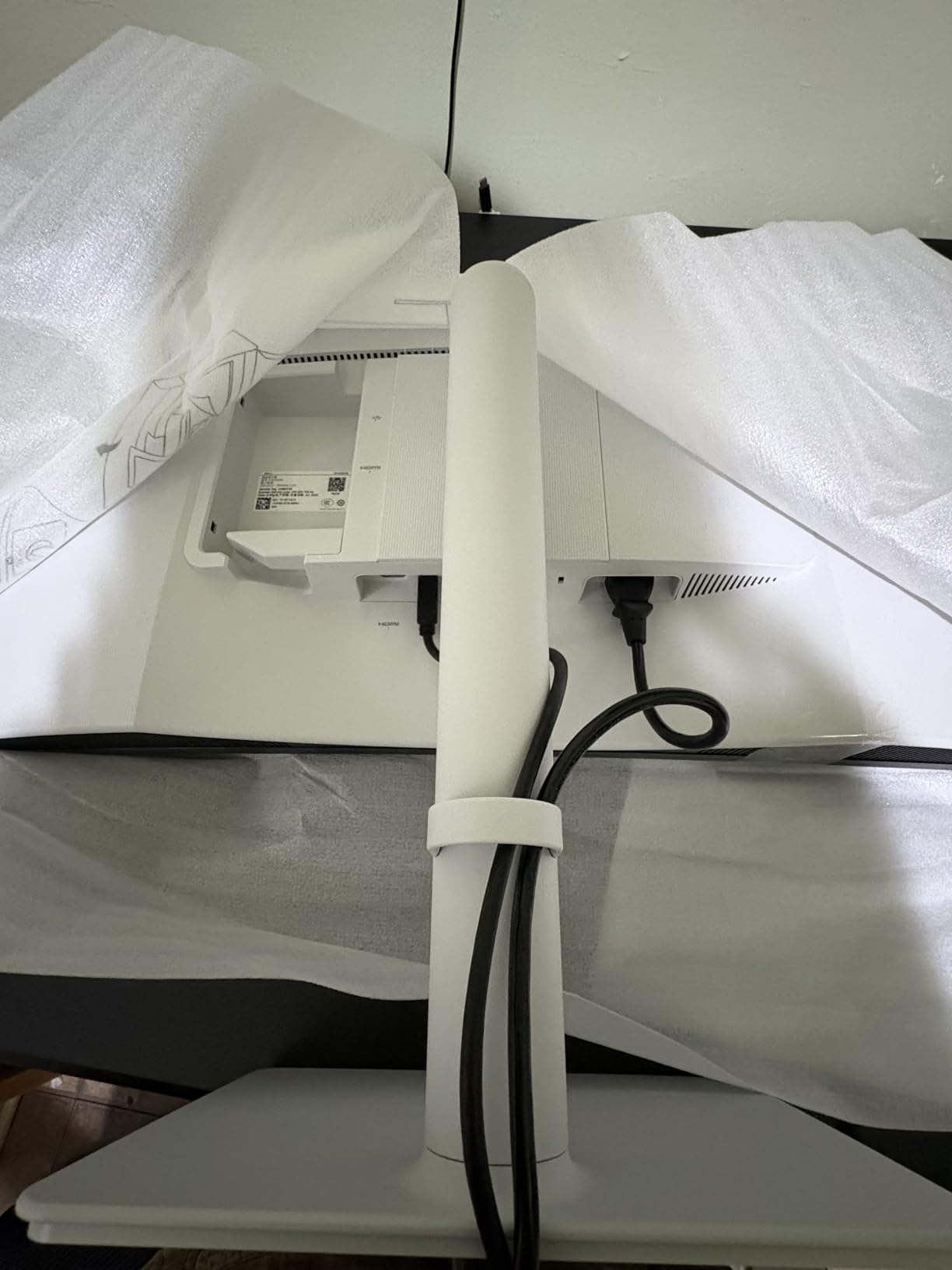
At 120Hz with FreeSync Premium and a 0.03ms response time, this is also the smoothest ultrawide in the roundup. Scrolling a 3440×1440 canvas at 120Hz is a noticeably calmer experience than at 60Hz, and the 300 nits brightness suits a normally lit room.
The reservations are about ports and colour. There is no DisplayPort, and the VA panel is not the right choice for colour-critical graphic work despite the wide gamut figures. The VESA bracket is also recessed, so mounting on an arm needs spacers.
Why one cable helps your eyes indirectly
Cable clutter on a small desk forces the monitor back and to one side, which pushes it outside the comfortable viewing arc and makes you crane your neck. Removing the docking station and its cable bundle frees the space to centre the panel properly. It is an indirect comfort gain, but on a 34 inch curved screen the geometry matters more than on a small one.
Where it falls short
Port selection is thinner than the outgoing model, which matters if you still need DisplayPort or more USB ports than the four provided. At 20.7 pounds it is a two-person lift, and the recessed mount bracket is an annoyance if you plan to use an arm. Colour-critical work should look elsewhere.
9. Dell 24 Plus S2425HSM 24 inch FHD Monitor – Best Four-Way Stand Adjustment at 24 Inches
Dell 24 Plus Monitor – S2425HSM – 23.8-inch FHD (1920×1080) 144Hz 1ms Display, 2 x 3W Speakers, HDMI Connectivity, Height/Tilt/Pivot/Swivel Adjustability, AMD FreeSync – Ash White
23.8 inch FHD
1920x1080 at 144Hz
1500:1 contrast
4-star TUV
Height, tilt, pivot, swivel
Pros
- Full height
- tilt
- pivot and swivel adjustment for correct eye level
- 4-star TUV certified eye comfort that reduces blue light without hurting colour
- 144Hz with 1ms MPRT for very smooth motion
- Two HDMI ports for a work and a personal machine
- Dual 3W speakers and a compact joystick menu
Cons
- No USB-C so a laptop cannot be driven from a single cable
- HDMI-only connectivity means a bulky cable and separate laptop charger
- 1080p text on 24 inches can look slightly pixelated to some users
- Height range may not reach eye level on every desk
This is the ergonomics pick. Height, tilt, pivot and swivel on a 24 inch is rare at this level, and it is exactly the adjustment set that lets you dial in correct eye level and a slight downward viewing angle. Owners repeatedly call the four-way stand best-in-class for a 24 inch, and several note that the TUV-certified blue light reduction produces little or no eye strain over long sessions.
The 4-star TUV eye comfort rating is a stronger claim than the 3-star versions elsewhere in this list, and the flicker-free matte panel backs it up. The 144Hz refresh with 1ms MPRT is the fastest here, which matters if you are scrolling dense documents or working in a code editor.
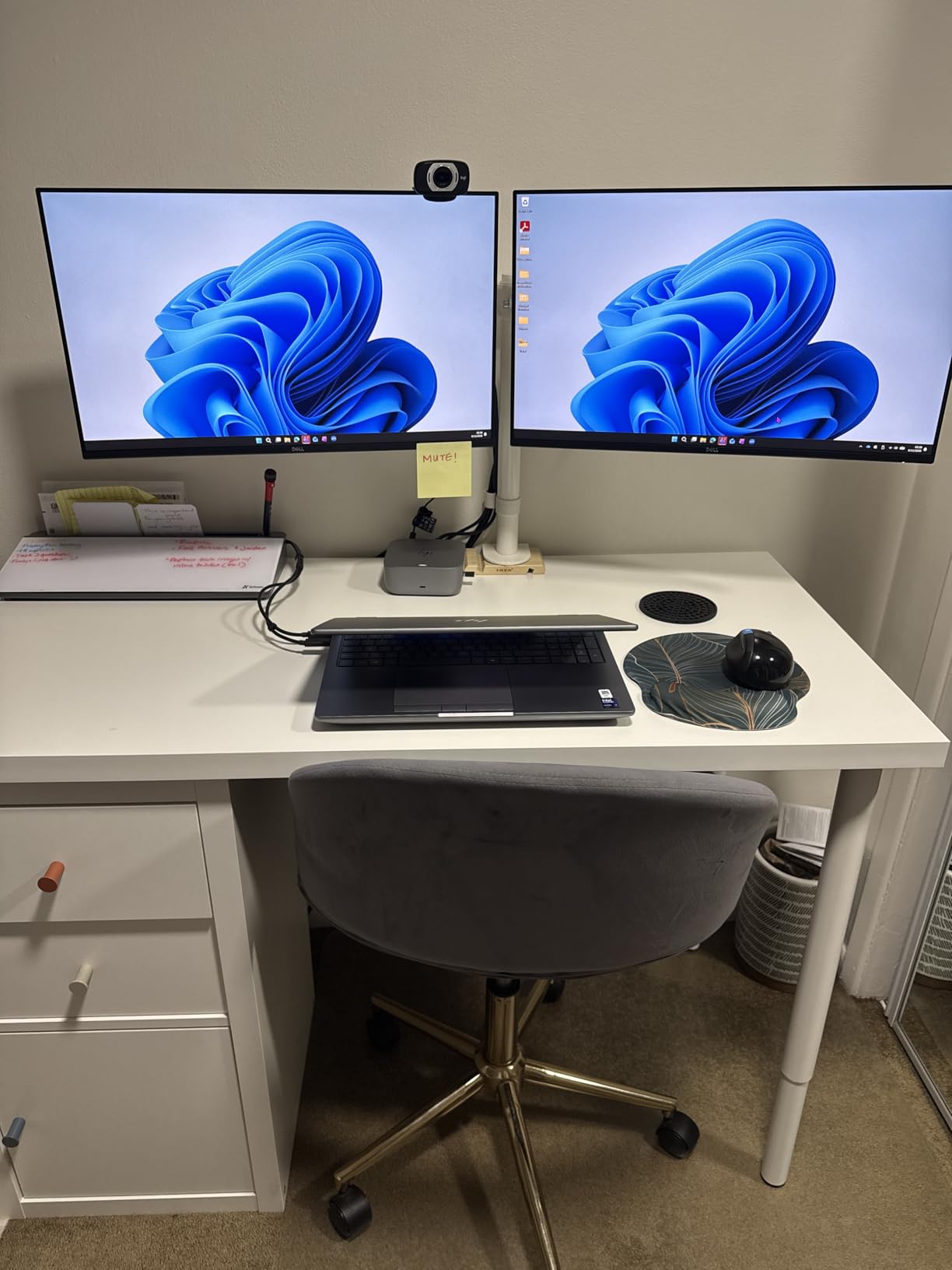
At 23.8 inches, 300 nits brightness and 1500:1 contrast is a well-balanced combination for a normally lit room. The two HDMI inputs mean you can keep a work laptop and a personal machine connected without swapping cables, which is practical in a shared room.
The dominant complaint is the lack of USB-C. One detailed reviewer puts it well: the monitor excels on comfort and ergonomics but cannot drive a MacBook from a single cable. If you are laptop-only, accept the extra cable or step up to the Dell 34 in position eight.
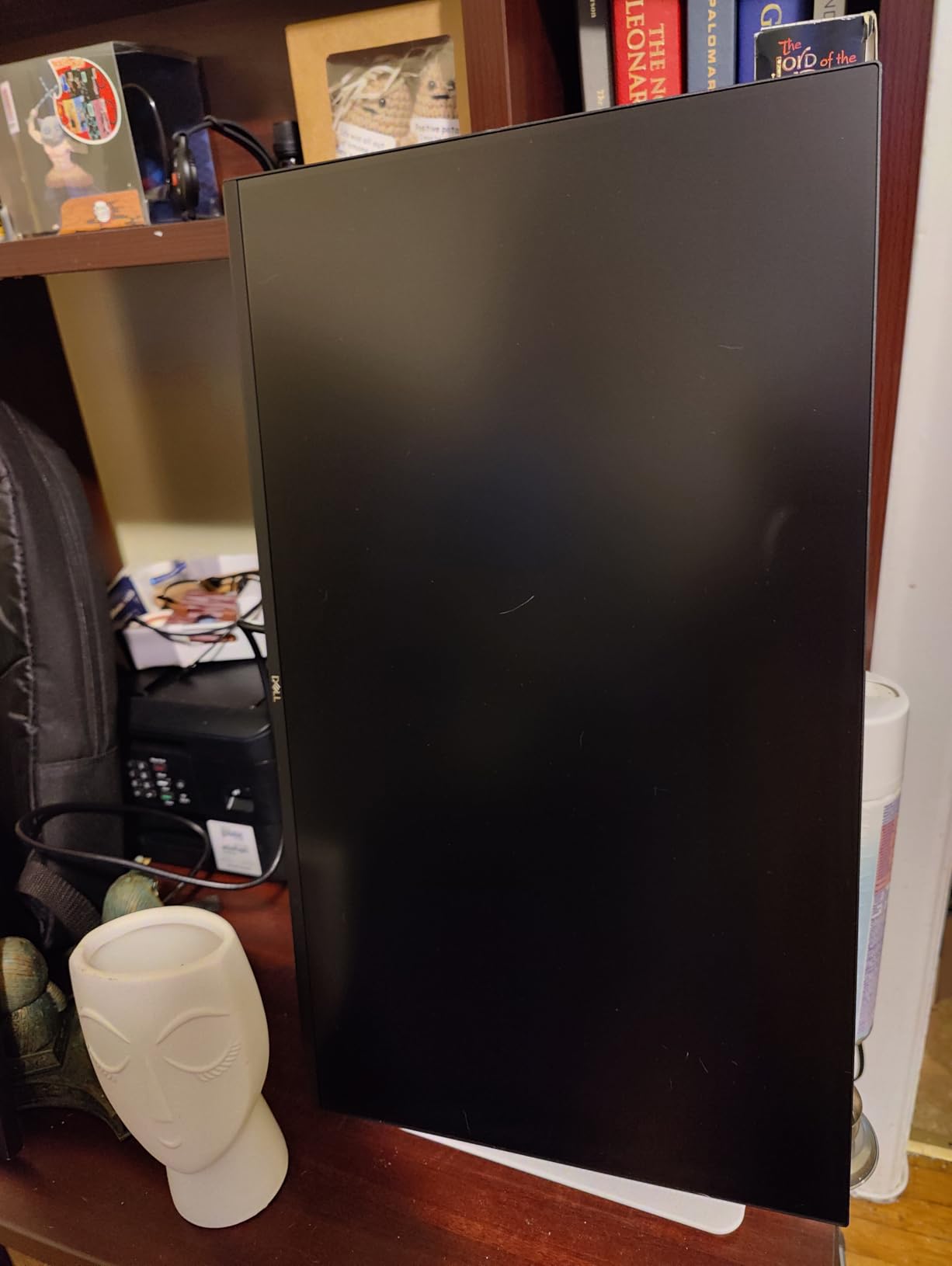
Why pivot and swivel matter more than they sound
Swivel lets you turn the panel to share a screen with someone sitting beside you, and pivot lets you rotate it to portrait for documents and code. Neither is a comfort feature for a single user, but on a shared desk in a shared room they change how the monitor gets used – and a monitor that gets shared needs less neck craning than one two people lean over.
Where it falls short
There is no USB-C, so a laptop user runs a bulky HDMI cable plus a separate charger. The height adjustment range may not be enough to reach eye level on a low desk, which partly defeats the point of having it. And at 1080p on a 23.8 inch screen, some users find text slightly pixelated – check a 4K alternative if you read dense small type.
10. Dell SE2426H 24 inch FHD IPS Monitor – Best Lightweight Option for Small Desks
Dell 24 Monitor – SE2426H – 23.8-inch FHD (1920×1080) 144Hz 1ms Display, in-Plane Switching (IPS) Technology, AMD FreeSync™, TÜV 3-Star 2X HDMI, Tilt
23.8 inch IPS
1920x1080 at 144Hz
300 nits
178-degree angles
TUV 3-star
Pros
- TUV Rheinland 3-star eye comfort certification
- IPS panel keeps colour consistent across 178 degrees
- 144Hz with 1ms MPRT at the lowest entry point here
- Lightest unit in the roundup at 7.4 pounds for easy repositioning
- Two HDMI ports and quick simple installation
Cons
- Tilt adjustment only with no height
- swivel or pivot
- No built-in speakers
- 1000:1 contrast ratio is modest next to VA alternatives
- Quick start documentation is minimal
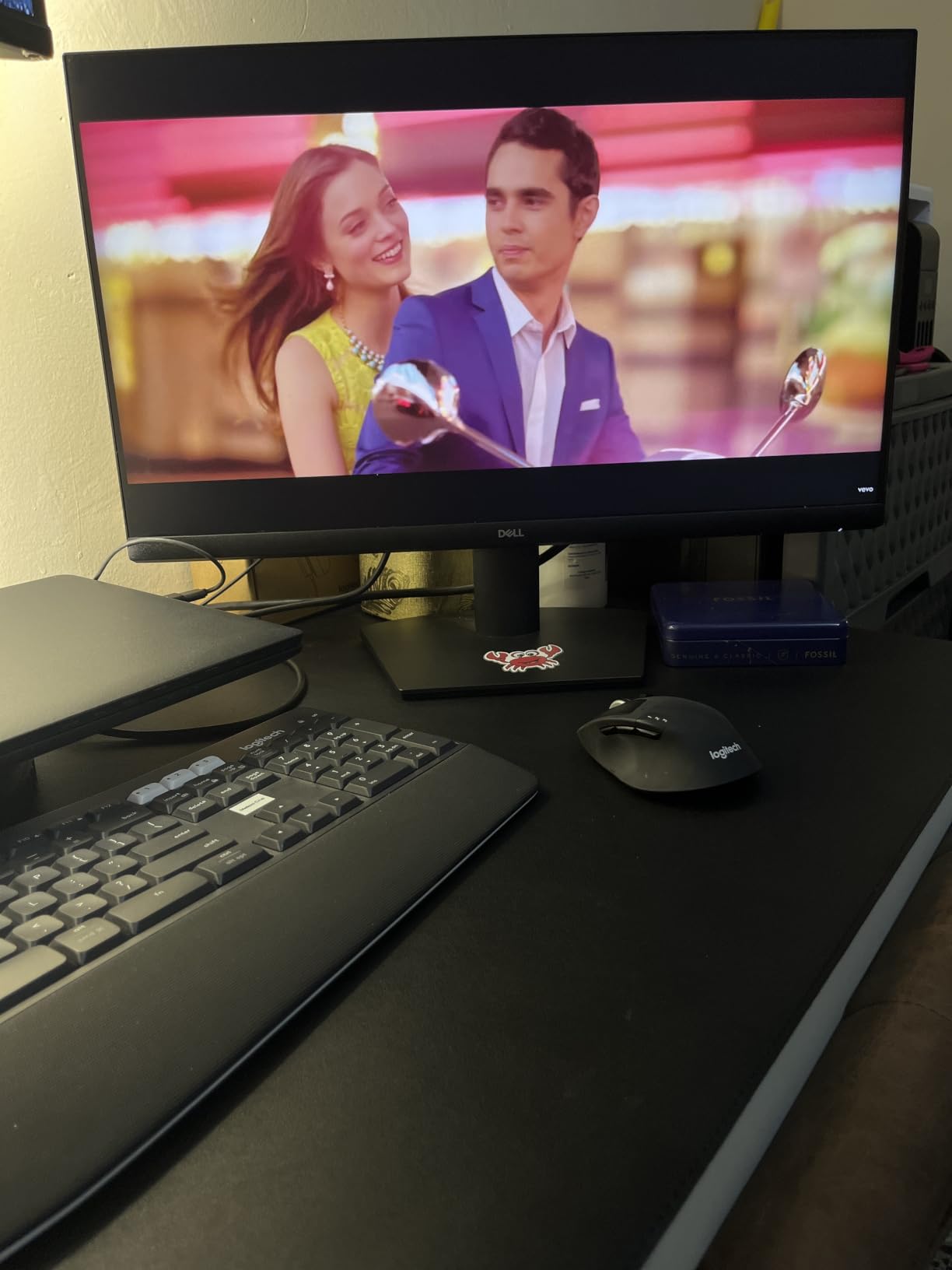
The SE2426H is the pick for a dorm room where desk space and portability both matter. At 7.4 pounds it is the easiest unit here to move between a desk and a lap desk, and 7.04 inches deep it leaves depth for a keyboard. Owners describe it as a straightforward, reliable daily driver that is easy on the eyes out of the box thanks to the TUV 3-star certification.
You are not giving up much. The IPS panel holds colour consistently across 178 degrees, 144Hz with 1ms MPRT is the joint-fastest refresh rate in this roundup, and 300 nits is the brightest 1080p panel here. Two HDMI ports let you keep two sources connected.
The 1000:1 contrast ratio is modest, which means you will want to run the panel a little brighter to keep text edges crisp, and that matters more in a dim room than in a bright one. The 13.3W power consumption is also the lowest figure in this list, which is a small win in a shared accommodation where bills are split.
One-year Advanced Exchange Service is the warranty, and a couple of buyers mention documentation and support being thinner than they would like. It is a simple monitor, and it does the simple things well.
Why a 24 inch IPS is a strong dorm default
Twenty-four inches keeps the viewing angle narrow and the panel depth short, so you sit upright and the monitor stays in your central vision rather than at the edge of your field. IPS handles the ambient light of a shared room well, and the matte anti-glare finish plus TUV 3-star certification covers the flicker and blue light questions in one package. If your desk is under about 60 centimetres deep, this size is simply the right one.
Where it falls short
Tilt only, with no height, swivel or pivot, is the limitation to weigh. If your desk sits low, the panel will be low, and a monitor you have to look down at causes neck strain regardless of the panel technology. There are no speakers, so plan on a headset for calls. Everything else is a fair trade at this level.
What Actually Causes Eye Strain on a Monitor?
Digital eye strain, sometimes called Computer Vision Syndrome, is the cluster of symptoms that comes from looking at a screen at close range for long stretches without breaks: burning or stinging eyes, dryness, blurred or fluctuating vision, headaches behind the eyes and difficulty refocusing away from the screen. The American Optometric Association attributes it to extended near-range focus combined with reduced blinking, not to any one property of the display.
That matters for how you shop, because it means the biggest gains come from fixing brightness, glare and positioning rather than from adding filter modes. In our experience the monitors that make the biggest difference for readers are the ones with a matte coating and a stand that moves, not the ones with the longest feature list.
PWM vs DC Dimming: What the Flicker-Free Label Does Not Tell You
Pulse-width modulation dims a backlight by switching it off and on very rapidly, usually inaudibly, to simulate lower brightness. DC dimming holds a steady current instead. Conventional LCD backlights were often PWM-driven, and while the flicker is invisible to most people, sensitive users report headaches, burning eyes and nausea from it. This is the single most discussed topic in the PWM-sensitive communities, and r/PWM_Sensitive is full of people who traced months of symptoms to a panel that was advertised as eye-care.
Here is the caveat that matters: a flicker-free label usually means the manufacturer moved to DC dimming, which helps if flicker is your problem. It does not always mean the panel is PWM-free at every brightness, and some displays switch dimming behaviour below a threshold. If you are genuinely sensitive, treat the certification as a strong signal rather than a guarantee, and run the test below.
Refresh rate is a separate question, and one that gets more attention than it deserves. Most of the comfort benefit arrives in the jump from 60Hz to 90Hz or 120Hz, and it flattens after that. Paying for 240Hz to reduce eye strain is chasing the wrong variable.
IPS vs VA vs OLED: Which Panel Is Easiest on Your Eyes?
For most people, a good IPS monitor with flicker-free dimming and an adjustable stand is the safest choice for long workdays. IPS panels give consistent colour and wide viewing angles, so you can angle the screen to dodge a reflection without the image washing out, and the pixel structures tend to render text cleanly. Six of the ten monitors in this roundup are IPS or LCD IPS for that reason.
VA panels, such as the two ultrawides here, offer higher contrast and deeper blacks, which lets you run the panel dimmer while keeping text crisp. The trade-off is slower transitions and some smearing on dark-to-bright changes, plus narrower viewing angles. OLED delivers the best contrast and response by a wide margin, but nearly all OLED monitors dim with PWM, which is why none appear in this roundup.
Screen Size, Resolution and Text Clarity
Resolution drives how comfortably you can read without leaning in, and this is where 4K earns its place. On a 27 inch 1080p panel, glyph edges are drawn from limited pixel data and the eye compensates by squinting, which is a leading contributor to end-of-day fatigue. A 27 inch 4K panel renders the same text with far more detail at a similar physical size.
Match your scaling to the size. Roughly 100 to 110 percent on 24 inch 1080p, 110 to 125 percent on 27 inch 1440p, and 125 to 150 percent on 27 inch 4K keeps text at a comfortable physical size without blurring. On ultrawides, 3440×1440 behaves like a 27 inch 1440p panel in terms of pixel density, so it is a comfortable width rather than a compromise.
Ergonomics: Height, Distance and Desk Depth
Put the top of the screen at or slightly below eye level and about an arm’s length away. If you find yourself tilting your head up, the panel is too low, and that posture alone causes neck strain no matter how good the display technology is. This is why height adjustment is on our feature checklist, and why three of the picks here ship with a fixed or tilt-only stand as a compromise.
Distance and desk depth interact. A 34 inch ultrawide is 32 inches wide and needs a real desk or a monitor arm, which is why two of them here are best paired with an arm. In a small dorm room, a 24 inch panel keeps everything in your central vision and lets you sit back further, which is easier on your focusing muscles than leaning toward a large screen.
The 60-Second Flicker Test and TUV Star Ratings
You can check a monitor’s dimming behaviour yourself in about a minute, and it is the most useful thing in this article. Point a phone camera at the screen, open the rear camera app, set the panel to roughly half brightness, and drag the view slowly across a white area of the image. PWM-driven backlights show up as fine dark bands or a moire pattern. Widen the shot to include the desk and ceiling lights so you are not seeing interference from other sources.
Run the same test at low and high brightness. If the banding appears at one setting and not the other, that panel is not PWM-free across its full range, and you now know that before you commit to it. A webcam works too, though a phone camera in low light is more sensitive to the pattern.
TUV Rheinland eye comfort star ratings are worth decoding. A one-star rating covers basic blue light reduction. Three stars indicates a flicker-free claim with blue light reduction, which is the level most of the picks here carry. Four stars, on the Dell 24 Plus, indicates a stronger certified low blue light performance with no meaningful colour accuracy penalty. None of the ratings tell you anything about ergonomics or brightness matching, which is where a lot of the comfort work actually happens.
What to Avoid: Fast IPS, Glossy Coatings and Oversized 1080p Panels?
Fast IPS panels are over-driven to hit low response times, and they are the hidden cause of strain in plenty of otherwise good monitors. The PWM-sensitive communities consistently single them out as offenders even in models that carry eye-care branding. If you are sensitive, check the panel type before anything else, and treat an unlisted response time figure with caution.
Glossy coatings are the second trap. In a room with a window behind the monitor or a light above and slightly forward, a glossy panel becomes a mirror at the most common viewing angle. Matte is less crisp-looking in a bright room but far better for anyone who is not in a purpose-lit studio.
Finally, avoid a large panel at low resolution. A 32 inch at 1080p gives roughly 70 pixels per inch, which forces constant squinting, and several forum users report strain that started with exactly that move. And on a shared desk, a monitor with no height adjustment will be at the wrong height for someone sooner or later.
Settings and Habits: Brightness Matching, Night Mode and the 20-20-20 Rule
Set the brightness so the screen looks slightly dimmer than a white sheet of paper held at the same distance. If the panel is obviously brighter than the room, your pupils are working overtime, and no filter mode compensates for that. In a shared room with overhead lighting, re-check this every time the light changes – the Samsung’s ambient sensor does it automatically, which is why we rate it highly.
Turn on the hardware low blue light mode in the evening, and add night mode at the operating system level for warmer colour after dark. Use the panel’s own reading or paper mode for long documents, which is exactly what the Philips EasyRead and the LG Reader Mode modes are for.
Then break up the day. The 20-20-20 rule says every 20 minutes, look at something 20 feet away for 20 seconds. The 30-30-30 variant asks for a 30-second break away from the screen every 30 minutes. Neither is a substitute for a flicker-free panel, but combined with one they add up. If symptoms persist despite good settings and a new monitor, book an appointment with an optometrist – eye strain can mask prescription changes, and no monitor fixes those.
Frequently Asked Questions
Is IPS or OLED better for your eyes?
For long workdays, IPS is the safer choice. It uses DC-style dimming on most modern monitors, keeps colour consistent at wide viewing angles so you can angle the screen to avoid reflections, and renders text cleanly. Nearly all OLED monitors dim with PWM, which is the behaviour most sensitive users avoid.
Which monitor panel type is best for eye strain?
A standard or slow IPS panel is the best all-round answer. It combines flicker-free backlighting, wide viewing angles and good text rendering without the OLED PWM dimming problem or the VA smearing that can make fast scrolling uncomfortable. Specify dimming behaviour and coating, not the panel name, when you shop.
Does 240Hz reduce eye strain?
Not much, and it is not where the benefit is. Most of the perceived comfort gain arrives in the jump from 60Hz to 90Hz or 120Hz, because motion looks more settled during scrolling. Beyond 120Hz the improvement flattens for text work, so spend your budget on flicker-free dimming, a matte coating and a stand that adjusts instead.
Is 60Hz or 120Hz better for your eyes?
120Hz is the better of the two. Scrolling and cursor movement feel noticeably more settled, which reduces the constant micro-adjustment your eyes make while reading. A 120Hz panel is a reasonable middle ground for long document and code work, and you lose very little comfort benefit by not going higher.
How do I test if a monitor is flicker free?
Open your phone camera, point it at a white area of the screen and set the panel to about half brightness, then drag the view slowly across the image. A PWM-driven backlight shows fine dark bands or a moire pattern; a DC-dimmed panel stays even. Repeat at low and high brightness, because some panels switch dimming behaviour below a threshold.
Conclusion: The Best Monitors for Eye Strain in 2026
The best monitors for eye strain in 2026 all share one combination: flicker-free DC dimming, an IPS or slow-IPS panel, a matte anti-glare coating, high pixel density and a stand that puts the top of the screen at or below eye level. Our pick for most people is the HP Series 3 327se, with the ASUS VL279HE close behind if a certified matte panel matters more to you, and the Dell SE2426H if desk space is the binding constraint.
Then do the three habits that cost nothing: match the brightness to the room so the screen is slightly dimmer than a white sheet of paper, keep the panel an arm’s length away at the right height, and take a 20-second break every 20 minutes. None of the ten monitors here will fix a prescription problem, so if symptoms persist after a month of good settings, see an optometrist.