
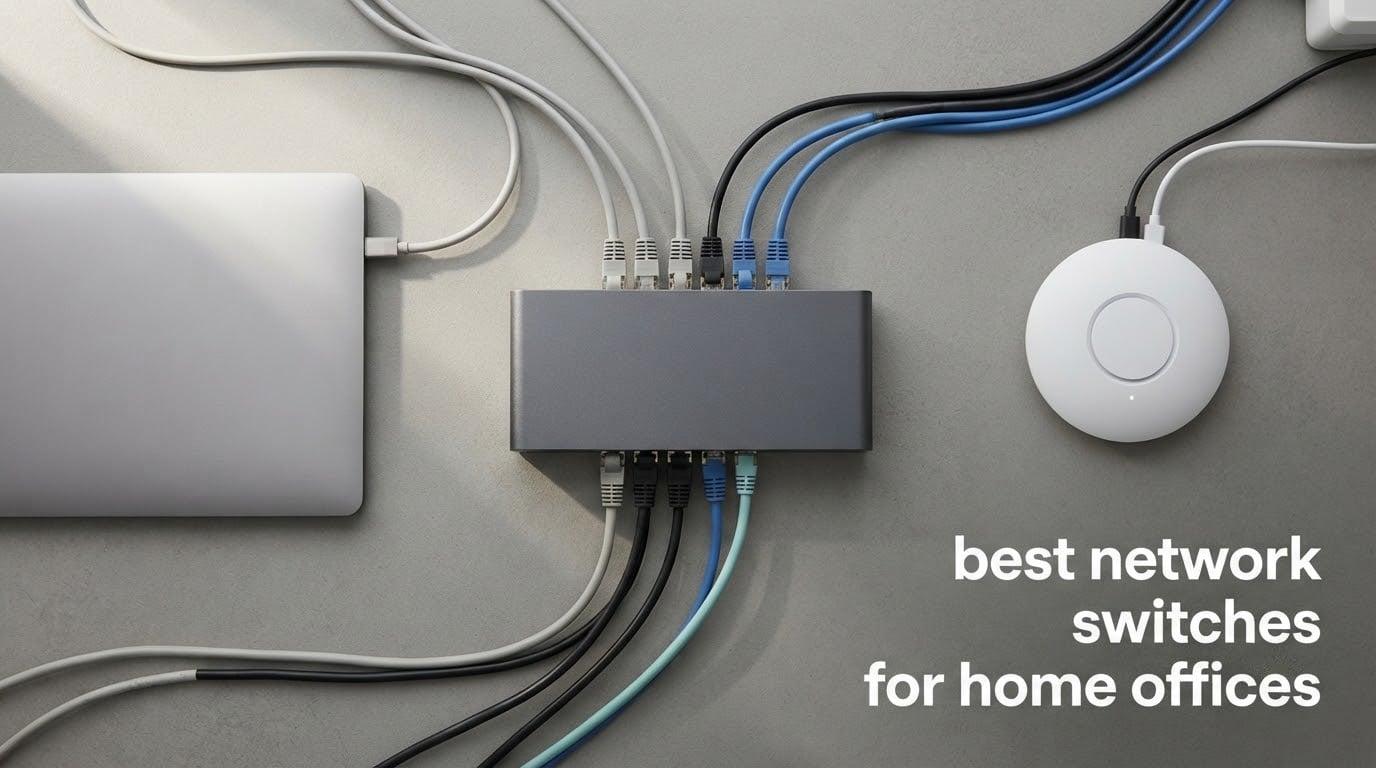
A network switch is a small box that gives you more wired Ethernet ports than your router has, and moves data between those devices at full speed without passing traffic through the router. That is the whole idea, and for most home offices the right one is a fanless metal box with five or eight ports that never needs configuring.
We spent the last few weeks going through the switches that actually show up in dorm rooms and small apartments, not the 24-port enterprise boxes that dominate office supply catalogues. Every pick below is desk-sized, quiet enough to sit in a study, and useful to someone with a router, a laptop, a console and a growing pile of smart devices. We looked at published port counts, switching capacity, PoE budgets, warranty terms, and thousands of owner reviews.
If you want the fast answer: the TP-Link TL-SG105 is the switch most home offices should buy, the NETGEAR GS308 is the better deal if you want twice the ports, and the D-Link DGS-105 is the one to pick if you care about documented internals and a lifetime hardware warranty. Everything else on this list exists for a specific reason, and we say which reason in each review.
Table of Contents
Top 3 Network Switch Picks for Home Offices in 2026


NETGEAR GS308
- 8 gigabit auto-negotiating ports
- 802.3az energy saving
- Desktop or wall-mount
- Fanless metal

D-Link DGS-105
- 10 Gbps switching engine
- 802.1p QoS and IGMP snooping
- 9 KB jumbo frames
- Limited lifetime coverage
Do You Even Need a Network Switch?
You need one as soon as you have more wired devices than your router has LAN ports, which is usually four. That is the entire test, and it is worth saying plainly because the top search results for this topic are full of people arguing about switches they do not need yet.
There is one widespread belief worth killing early. A gigabit switch does not split one gigabit between eight ports. Every port inside the box connects to a shared internal fabric rated far above any single port, so a NAS on port 1 and a laptop on port 2 each get their full gigabit, and a third and fourth device can be saturating their own ports at the same time. Only the uplink back to your router is shared, and on a home connection that link is almost never the bottleneck.
The second thing a switch is not is a router. It will not assign addresses, hand out a WiFi signal, or connect you to the internet. You plug one Ethernet cable from the router into the switch and everything downstream behaves exactly as it did before, which is why this is such a low-risk purchase in a rental where you cannot touch the wiring your landlord controls.
The real costs are practical rather than financial. The switch needs a power outlet, and it needs to go somewhere that is not in a walkway. A five-port unit is about the size of a deck of cards, so a wall or the back of a desk shelf works fine. And if you are in student accommodation, a switch you own outright is a genuine improvement over daisy-chaining cables through a roommate’s spare room.
All 10 Switches at a Glance in 2026
| Product | Specs | Action |
|---|---|---|
| TP-Link TL-SG105 5-Port Gigabit Unmanaged Switch |
|
Check Latest Price |
| NETGEAR GS308 8-Port Gigabit Unmanaged Switch |
|
Check Latest Price |
| D-Link DGS-105 5-Port Gigabit Unmanaged Switch |
|
Check Latest Price |
 NETGEAR GS305E 5-Port Easy Smart Managed Switch NETGEAR GS305E 5-Port Easy Smart Managed Switch |
|
Check Latest Price |
 Linksys LGS105 5-Port Gigabit Unmanaged Switch Linksys LGS105 5-Port Gigabit Unmanaged Switch |
|
Check Latest Price |
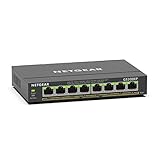 NETGEAR GS308EP 8-Port PoE+ Easy Smart Managed Switch NETGEAR GS308EP 8-Port PoE+ Easy Smart Managed Switch |
|
Check Latest Price |
 TRENDnet TEG-S350 5-Port 2.5G Unmanaged Switch TRENDnet TEG-S350 5-Port 2.5G Unmanaged Switch |
|
Check Latest Price |
 UGREEN 10-Port PoE Switch with 2 Uplinks UGREEN 10-Port PoE Switch with 2 Uplinks |
|
Check Latest Price |
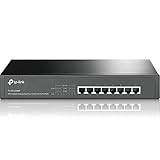 TP-Link TL-SG1008MP 8-Port PoE+ Gigabit Switch TP-Link TL-SG1008MP 8-Port PoE+ Gigabit Switch |
|
Check Latest Price |
 TRENDnet TEG-082WS 10-Port Web Smart Switch TRENDnet TEG-082WS 10-Port Web Smart Switch |
|
Check Latest Price |
How We Evaluated These Switches
We ranked these on six things, in this order: port count and speed, whether the chassis is fanless, how much power it can deliver over PoE, how deep the management goes, what the warranty actually covers, and how consistently owners report it working.
What we did not do is pretend to a lab. We did not measure throughput on a traffic generator, and we did not log thermal readings under sustained load. What we did was read the published specifications closely, compare them against each other, and study thousands of owner reviews for the failure patterns that show up after months of use. Where a spec is genuinely ambiguous, we say so rather than guessing.
One rule shaped the whole list: an unused management feature is a wasted cost in a small space. Every switch here does something specific. None of them is here because it has a longer feature list than the one next to it.
1. TP-Link TL-SG105 – The Five-Port Switch Most Home Offices Actually Need
TP-Link TL-SG105, 5 Port Gigabit Unmanaged Ethernet Switch, Network Hub, Ethernet Splitter, Plug & Play, Fanless Metal Design, Shielded Ports, Traffic Optimization
5 x gigabit RJ45 ports
10 Gbps class fabric
Fanless metal chassis
7.76 oz, wall-mountable
Pros
- Truly plug and play with no software
- Full gigabit under concurrent NAS transfers and streaming
- Compact metal body that stays cool and silent
- 3-year warranty with free support
Cons
- One port goes to the router uplink
- Unmanaged so no VLANs or QoS control
- Some streaming services flag the change in network location
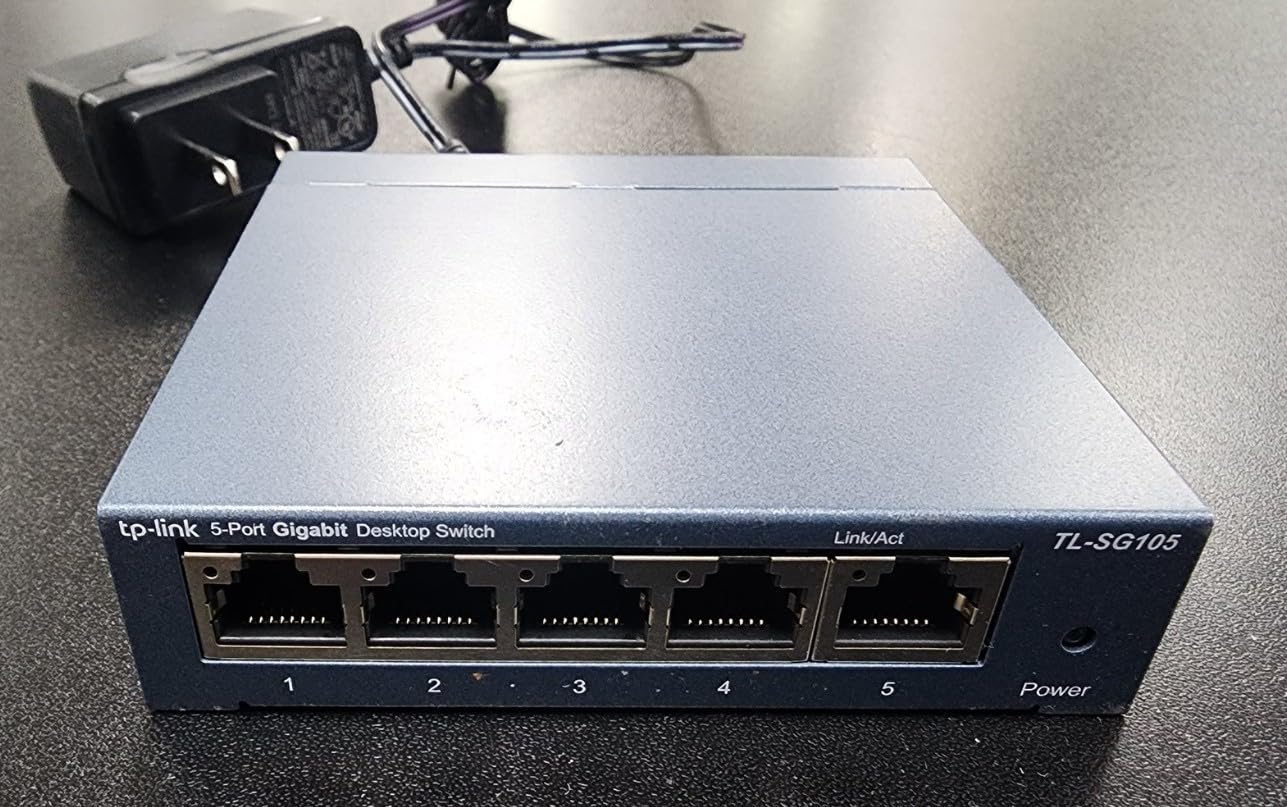
There are close to 130,000 reviews on this switch averaging 4.7 stars, and when a product accumulates feedback at that scale the pattern stops being speculative. Owners describe the same thing repeatedly: it works the moment it is plugged in, and it keeps working. The metal case is the first thing people mention because it dissipates heat without a fan, which means no fan noise on a desk in a quiet room.
In a home office this is usually the ideal size. A desktop, a printer, a game console, an access point and the uplink to the router is five devices, which is the exact capacity. The 802.1p and DSCP QoS handling and IGMP snooping are handled in hardware, so streaming traffic is prioritised even though there is no interface for you to configure.
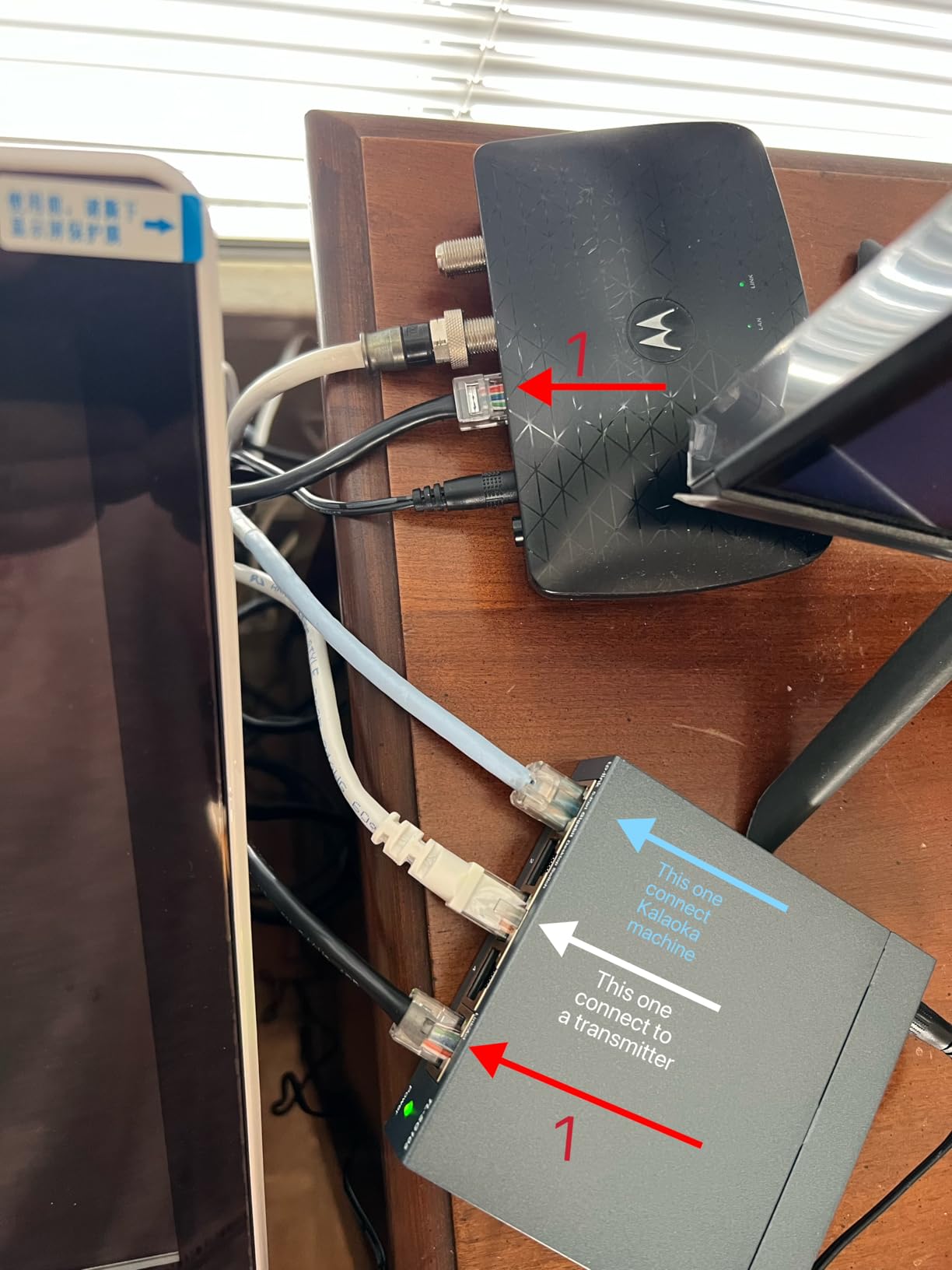
The two limits are worth planning around. One port is consumed by the uplink, so you have four for devices on a five-port unit, which is the most common surprise new buyers hit. And because it is unmanaged, there is nowhere to segment a guest network from your own devices, so anyone who joins your WiFi with your router password can reach the wired machines too.
One quirk catches people out: a switch changes how some streaming services read your network, and a few users report having to sign in again on a television after adding one. It is not a fault and it resolves with a fresh sign-in, but it is worth knowing about before you blame the hardware.
Who this is right for
This suits a single-room home office, a dorm room, or a study where the device count is known in advance and rarely grows. If your list is laptop, printer, console, television, access point, you are looking at exactly the right box, and the ports you are not using today are not wasted because the chassis is tiny enough to sit out of sight until you need them.
It also suits anyone who has been quoted a managed switch and felt intimidated. There is no login, no firmware dance, and no configuration page to get wrong. If your network is a handful of devices on one flat network, that absence of features is the feature.
Who should skip it
Skip this if you plan to run IP cameras or wireless access points that need power over the Ethernet cable, because there is no PoE here at all. Skip it if you want guest devices isolated from your own machines, since that requires VLANs and this box cannot create them. And skip it if you already know you have more than four wired devices, because the eighth port you would need lives in a different product.
2. NETGEAR GS308 – Eight Gigabit Ports With Zero Configuration
NETGEAR 8-Port Gigabit Ethernet Unmanaged Network Switch (GS308)
8 x auto-negotiating gigabit ports
Fanless metal housing
802.3az Energy Efficient Ethernet
13.76 oz
Pros
- Eight gigabit ports in a compact metal body
- Ports negotiate their own speed automatically
- Silent fanless operation
- Works with existing Cat5e or Cat6 cabling
Cons
- One port is used for the uplink
- Fully unmanaged with no VLAN support
- Listed for use in the U.S. and Canada only
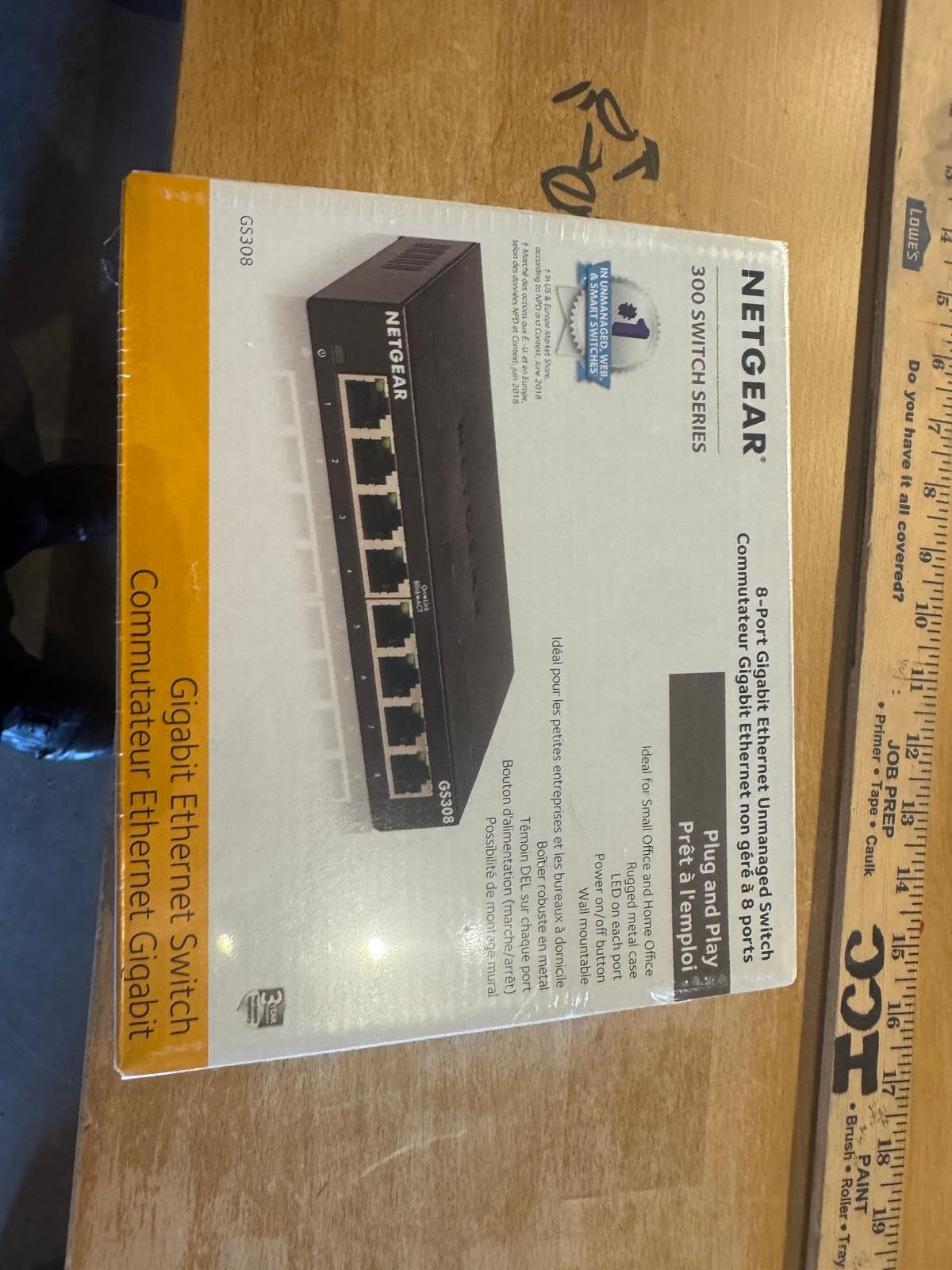
This is the pick for anyone who counted their devices, ran the arithmetic, and did not like the answer. At 4.8 stars across more than 54,000 reviews it sits at the top of the rating range in this roundup, and the owner consensus is that it is a set-and-forget device: plug in Cat5e or Cat6 cables and every attached device negotiates full gigabit without being asked.
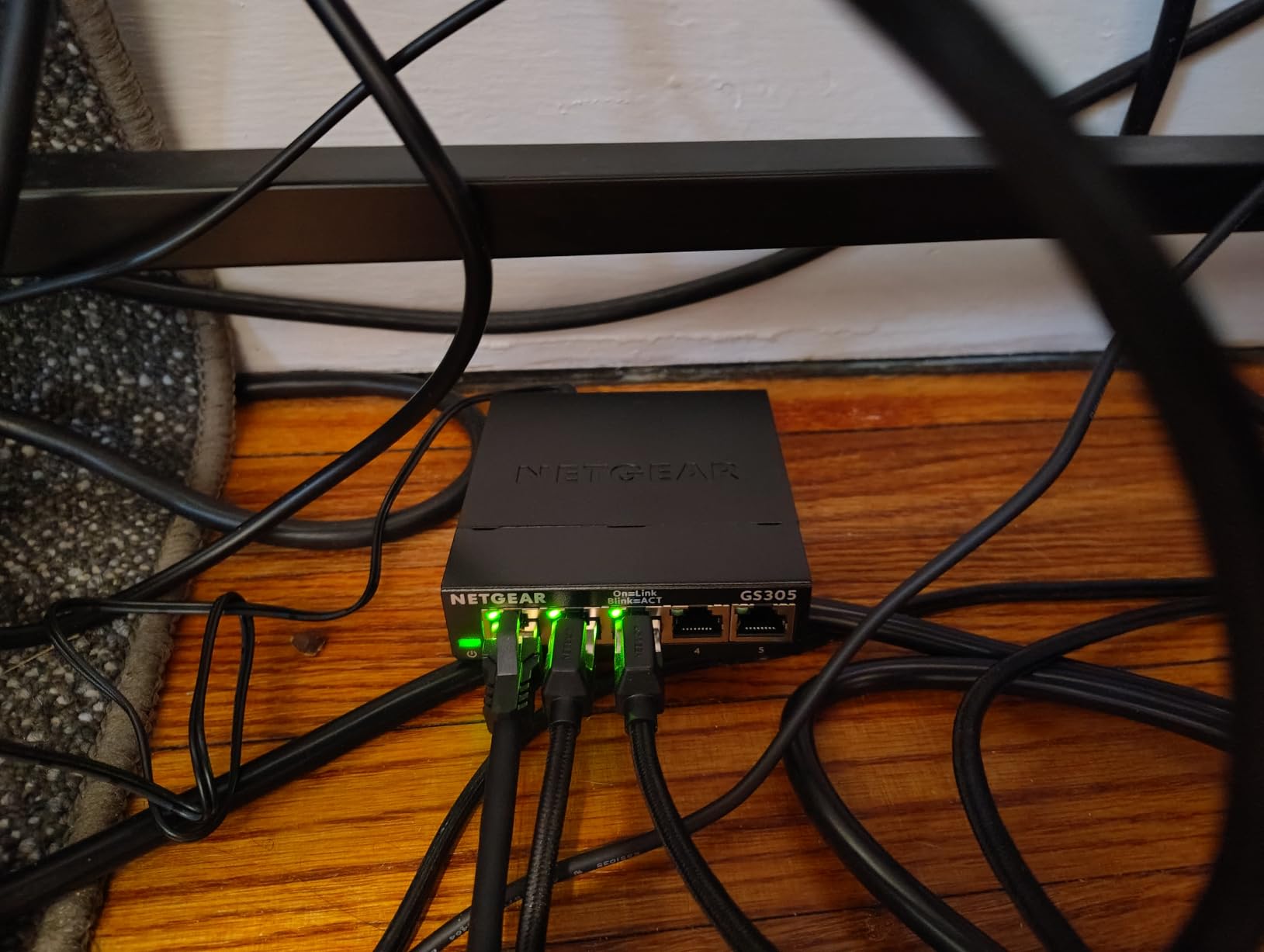
The switch is 6.22 inches by 4.02 inches, which is still small enough to wall-mount out of sight, and 802.3az Energy Efficient Ethernet cuts draw when ports are idle. For a box that stays powered on continuously next to a NAS or a home server, that idle behaviour is a reasonable part of the running cost story rather than a footnote.
Forum advice on network gear consistently lands in the same place: buy more unmanaged ports rather than fewer managed ones, because the money saved buys capacity you will actually use. That is exactly the argument this switch wins on. If you have seven devices today, this is the correct box, and the seventh port does not need a management licence or a learning curve to earn its place.
The trade is the usual one. No VLANs, no QoS controls, no per-port monitoring, and one port disappears into the uplink, leaving seven. Owners also note the unit is listed for use in the United States and Canada, which matters if you are ordering from another region.
Who this is right for
It suits a shared apartment or a two-desk home office where several people each have a wired connection, plus consoles and printers. It also suits anyone who has been adding a switch already and has ended up with a daisy chain of two small boxes. One eight-port unit replaces that, and the whole chain becomes easier to reason about when something misbehaves.
Choose it over the five-port models when your device count is uncertain by a couple of devices. Port count you have not used yet costs nothing, while running out of ports means another purchase and another cable run.
Who should skip it
Skip it if you need to separate a guest network or an IoT segment from your work devices, because VLAN support is the one thing you cannot add later. Skip it if you want to prioritise a VoIP phone or a video call over a large backup job, as there is no QoS control here. And skip it if a single device in your setup needs more than a gigabit, since every port is fixed at 1 Gbps.
3. D-Link DGS-105 – The One With a Documented Switching Engine
D-Link 5-Port Gigabit Unmanaged Ethernet Switch for Office, Media or Gaming
5 auto-negotiating gigabit ports
10 Gbps non-blocking engine
802.1p QoS and IGMP snooping
9.6 oz, limited lifetime coverage
Pros
- All-steel fanless chassis runs cool and silent
- 10 Gbps non-blocking switching engine
- 9 KB jumbo frames for large transfers
- Limited lifetime product coverage
Cons
- Unmanaged with no configuration or VLANs
- One port goes to the uplink
- A small number of boxes reported with a port shielding issue
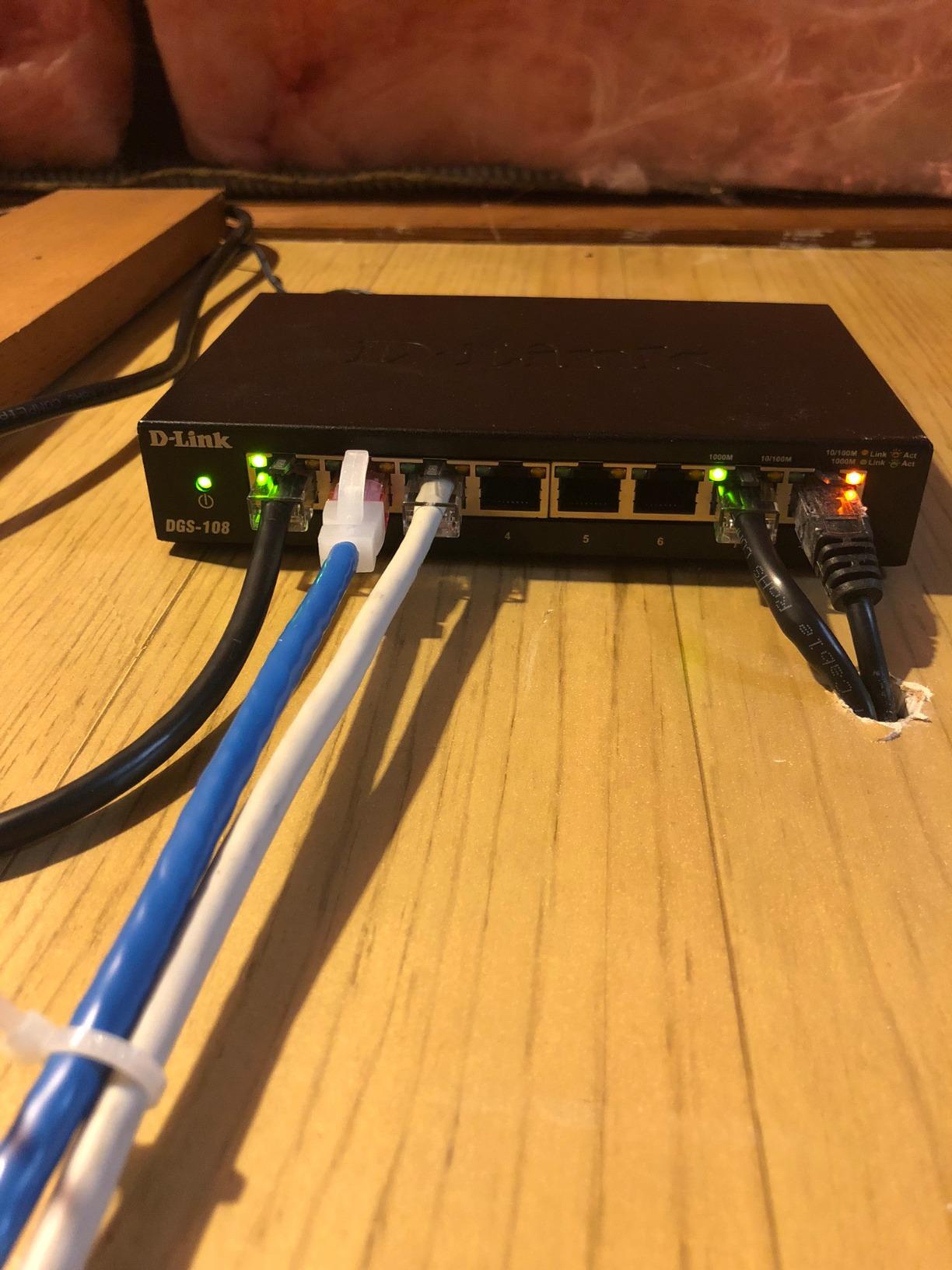
The thing that separates this from the other five-port boxes is that D-Link publishes the internals. A 10 Gbps non-blocking switching engine is stated on the spec sheet, alongside full and half duplex up to 2 Gbps per port, which tells you the box will never be the reason two devices are slow at once. That is the honest answer to the shared-bandwidth worry, and it is rare to see a consumer switch publish it.
Owners at 4.7 stars across more than 22,000 reviews report sustained gigabit transfers to NAS drives with no throughput collapse while streaming or gaming, and they attribute that to the metal chassis dissipating heat passively. Jumbo frame support up to 9 KB is listed too, which helps with large file copies to and from network storage if you also enable it on the devices at both ends.
The coverage stands apart. Limited lifetime product coverage is a longer commitment than the three-year terms common on the other picks, and for someone wiring a home office that intends to stay put, that difference is worth more than a management interface you would not use.
There are caveats. It is fully unmanaged, so the QoS and IGMP snooping features work automatically and cannot be tuned. One of the five ports goes to the uplink. A small number of owners report a port shielding issue on individual units, and the power adapter plug style can vary by region, so check the one you receive before assuming it fits.
Who this is right for
Pick this if your main device is a NAS or a home server and you move large files constantly, because the non-blocking engine and jumbo frame support are the two features that help there. It also suits anyone who intends to keep the same hardware for a long time and prefers a lifetime coverage term to a three-year one.
For a dorm room or a small study it is equally good, since it is fanless, silent, and about the size of a coaster. Just be aware you are getting a small metal box with real engineering behind it, not extra ports.
Who should skip it
Skip it if you have more than four devices to connect, because five ports minus the uplink is four. Skip it if you need port isolation for cameras, since there is nothing to configure. And skip it if you want a second device of a brand already in your setup for warranty simplicity, since the rest of this list leans heavily on TP-Link and NETGEAR.
4. NETGEAR GS305E – First VLANs Without a Learning Curve
NETGEAR 5-Port Gigabit Ethernet Easy Smart Managed Network Switch (GS305E)
5 x gigabit ports
Easy Smart Managed web interface
802.1Q VLAN tagging with PVIDs
8.8 oz, fanless metal
Pros
- Runs as a plain switch out of the box
- 802.1Q VLANs with tagged and untagged ports
- QoS and per-port monitoring in a simple web interface
- Segment a home network without extra cable runs
Cons
- Firmware updates require extracting a ZIP for the .bin file
- Discovery utility for finding the IP is Windows-only
- You need to give the switch its own IP address to avoid access issues
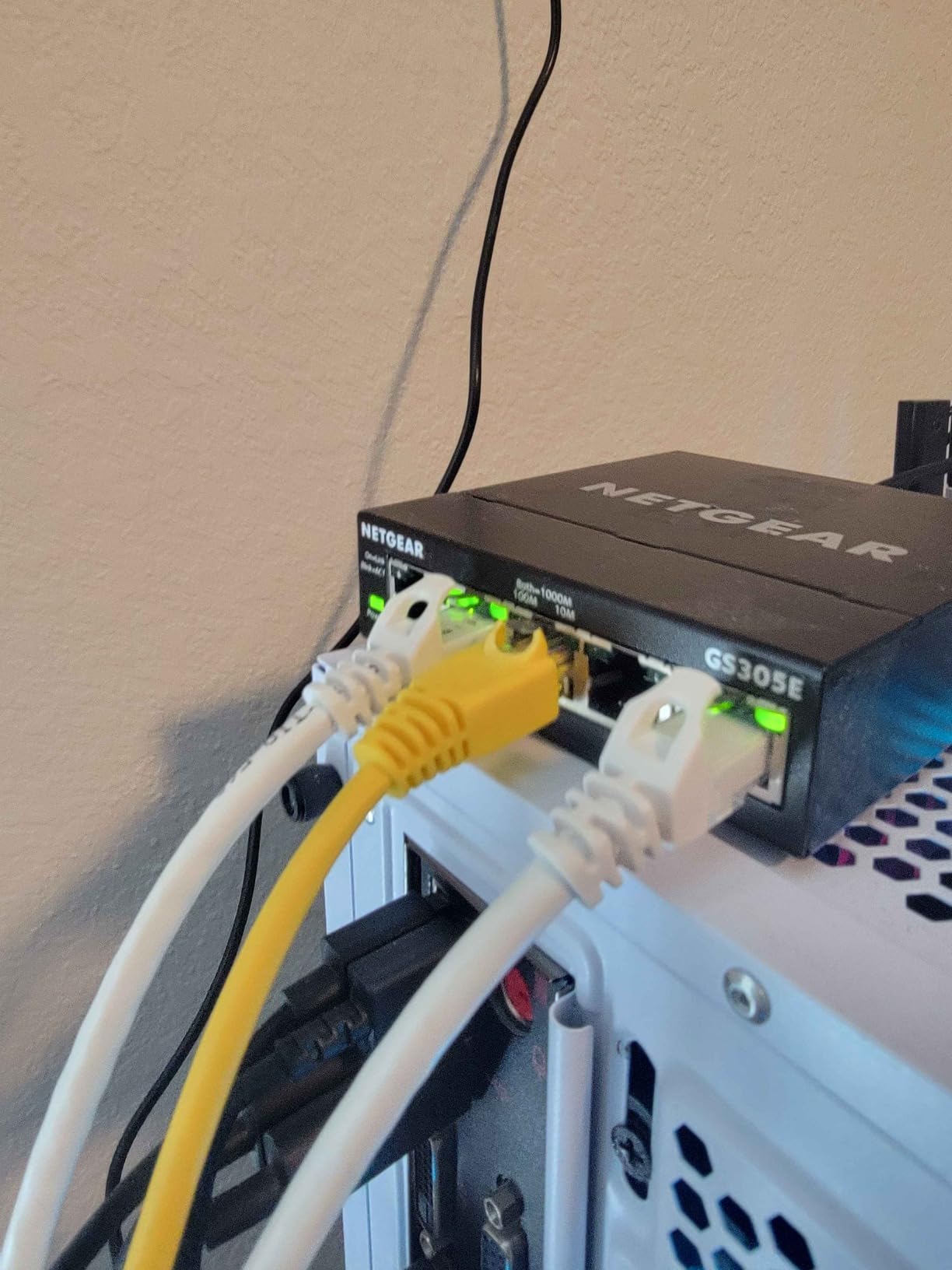
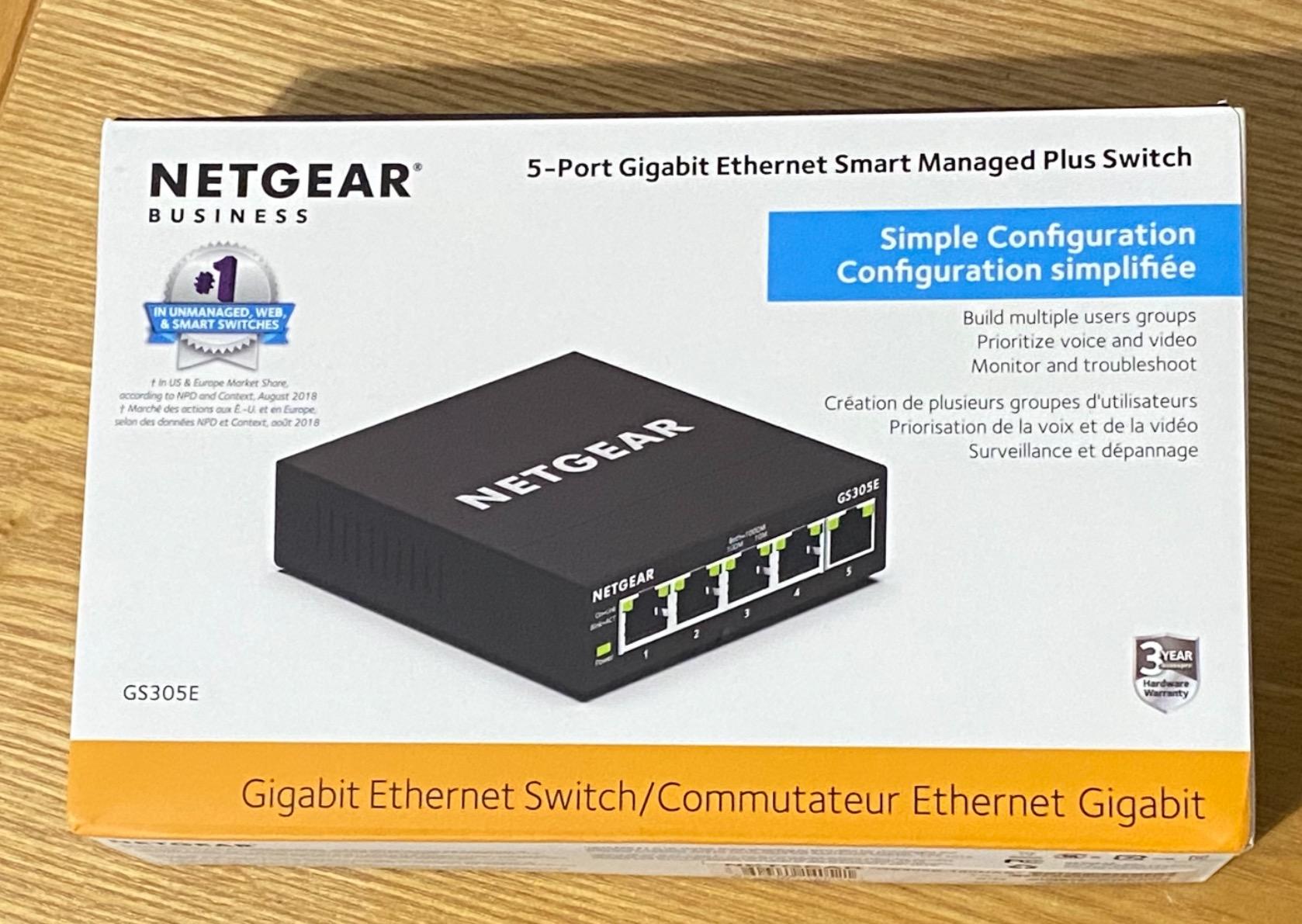
This is the smallest step up from an unmanaged box, and it is the answer for anyone who has read about VLANs and wants the benefit without a full managed switch. Owners describe running it as a plain plug-and-play switch and only opening the interface when they want to segment the network.
That segmentation is genuinely useful in a home office. Put cameras and smart plugs on one VLAN, work devices on another, and a guest network on a third, and you stop worrying about a compromised bulb reaching your laptop. The interface lets you set 802.1Q VLANs, assign tagged and untagged ports, adjust the PVID, prioritise traffic, and read per-port status, all locally from a browser on your own network.
Set expectations on the software, because that is where the complaints are. Firmware updates are manual and involve pulling a file out of a downloaded archive, and the discovery utility that helps you find the management address is Windows-only. You also need to assign the switch its own IP address, and skipping that step is the most common cause of the performance and access issues owners report.
None of that is dangerous, but it is friction. If you enjoy a weekend afternoon spent reading about tagging and trunk ports, you will be at home. If you want a box that never asks anything of you, one of the unmanaged picks suits you better.
Who this is right for
It suits a home office with a security camera or a smart-home device collection alongside work equipment, which is precisely the situation where one flat network starts to feel careless. It also suits anyone in shared accommodation who wants their own devices on their own segment, independent of whatever the building’s router is doing.
It works with the Cat5e and Cat6 cable you already have, so you are not re-pulling anything to gain segmentation. That makes it a realistic upgrade to an existing unmanaged setup rather than a rebuild.
Who should skip it
Skip it if you have never configured a network device and do not want to start now, because the manual firmware process and the IP assignment step are real obstacles for a first-timer. Skip it if your only goal is more ports, since an unmanaged eight-port box gives you more ports for the same money. And skip it if you expect enterprise features, since this sits a tier below full managed hardware.
5. Linksys LGS105 – Metal, Five Ports, Nothing Else
Linksys LGS105: 5-Port Business Desktop Gigabit Ethernet Unmanaged Switch, Computer Network, Wired Connection Speed up to 1,000 Mbps (Black, Blue)
5 auto-sensing gigabit ports
Wired speed up to 1,000 Mbps
802.3az Energy Efficient Ethernet
8.64 oz metal housing
Pros
- Fast simple way to add wired ports when the router runs out
- Durable metal construction
- Delivers reliable 1 Gbps links to every device
- Installs without any configuration
Cons
- Fully unmanaged with no VLAN support
- One port needed for the uplink leaves four
- Easy to place in the wrong spot relative to the router
At 4.8 stars this has the joint highest average rating in the roundup, though with a much smaller review base than the three picks above it. Owners consistently describe a durable, no-frills five-port gigabit switch whose metal construction feels solid for the money and which runs cool without a fan.
The use cases it gets described for are exactly the home-office ones: desktops, consoles, mesh nodes and security systems all hardwired in one go, replacing a pile of WiFi connections that kept dropping. QoS traffic prioritisation and 802.3az energy efficiency are handled automatically, so nothing needs attention after setup.
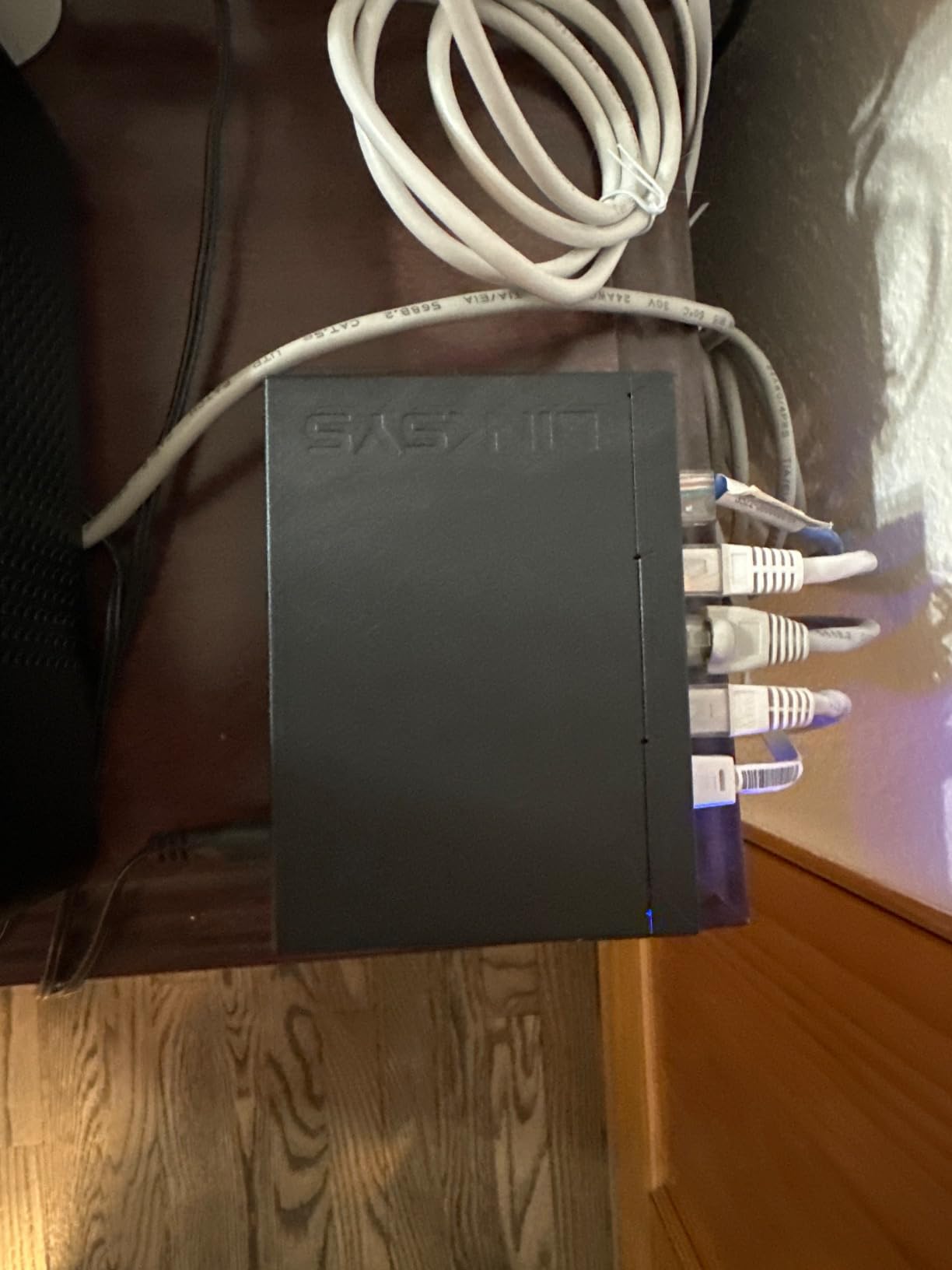
The catch is arithmetic. One of the five ports is used to connect back to the router, which leaves four for devices, and that is the whole reason this class of switch catches people out. Owners also mention confusion from putting the switch somewhere that makes physical sense but leaves no clear path back to the router, so plan the cable run before you commit.
Warranty coverage runs five years, which sits comfortably between the three-year terms on the other picks and the lifetime terms on the D-Link and TRENDnet units.
Who this is right for
It suits a study with exactly four wired devices and a preference for hardware that feels solid rather than plastic. It is also a good second unit: one near the desk, one in the hallway, each running back to the router, if you would rather not pull a single long cable through a shared flat.
Because it draws almost nothing beyond basic port power, it is a reasonable addition in a room where power sockets are scarce and every device has to earn its place on the strip.
Who should skip it
Skip it if you have five or more devices, because the fifth one has nowhere to go. Skip it if you want any configuration whatsoever, since there is no interface to open. And skip it if you want multi-gig or PoE, because this is a straightforward 1 Gbps unmanaged box and nothing more.
6. NETGEAR GS308EP – Power and Data From One Box
NETGEAR 8 Port PoE Gigabit Ethernet Easy Smart Managed Switch (GS308EP)
8 x gigabit ports, all PoE+
30W per port, 62W total budget
Easy Smart Managed web interface
1.1 kg, fanless
Pros
- Powers and carries data for cameras phones and access points
- 62W total budget with per-port control
- Easy Smart Managed VLANs QoS and monitoring
- Fanless and suited to a closet or under a desk
Cons
- 62W total budget is modest for many high-draw devices
- Larger and heavier than a plain desktop switch
- Configuration assumes some network knowledge
This is the pick to buy when the devices you are adding are the kind that want power down the same cable. IP cameras, VoIP desk phones and wireless access points all draw from the switch rather than from a wall socket, which removes a power brick per device and the cable clutter that comes with it.
All eight ports are PoE+ at up to 30W each, with a 62W total budget and per-port control, so you can decide which devices get priority when the budget is tight. Owners at 4.8 stars across more than 1,000 reviews highlight exactly this combination as the reason to buy, and the Easy Smart Managed interface gives you VLANs, QoS and port monitoring on top.
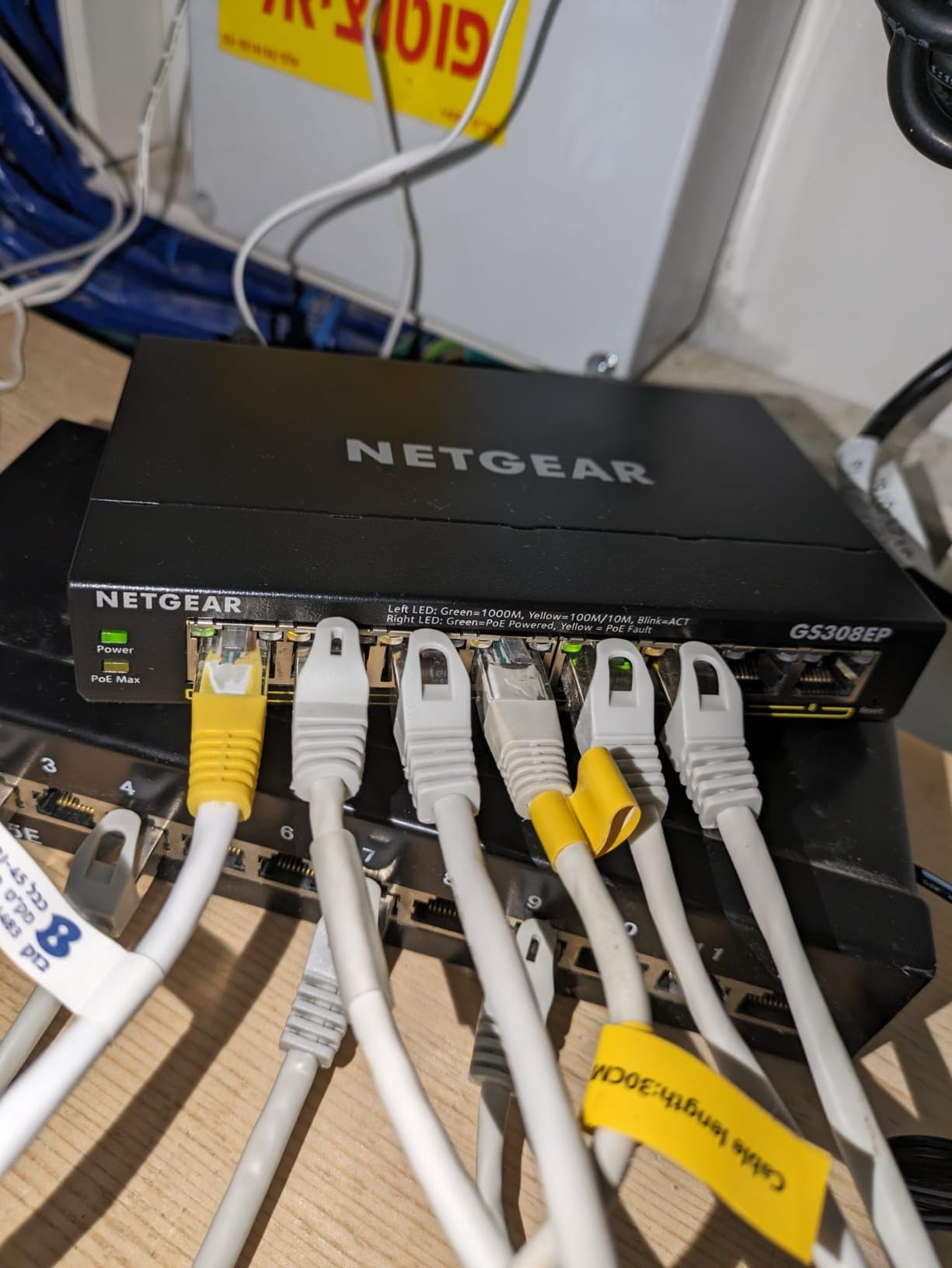
The number to check before buying is 62 watts. That comfortably runs two access points or a handful of cameras, and it runs out quickly if you plan a dozen high-draw devices. Forum complaints about PoE switches almost always come back to this: a total budget advertised without the per-port ceiling, and devices rebooting when the sum goes over.
It is also the bulkiest desktop unit in this roundup at 10.2 inches square and 1.1 kg, so it wants a shelf, a closet, or a wall mount rather than the top of a monitor stand. The fanless design means it is silent once running, which matters more than it sounds in a small quiet room.
Who this is right for
It suits a home office that has grown past a handful of devices and now includes wired cameras or more than one access point, because it handles data and power together and adds segmentation at the same time. It is a good fit for a small studio or a home consulting office where the equipment count is known and the wiring is permanent.
It is also the pick for anyone who keeps adding cameras and wants to stop buying a PoE injector for each one. Everything lands in one box, on one cable per device.
Who should skip it
Skip it if you do not need PoE, because you would be paying for a power supply you never use and carrying a heavier box. Skip it if your camera or access point plan exceeds roughly four devices, because the 62W budget will run out first. And skip it if desk space is genuinely tight, since there are smaller unmanaged options for that situation.
7. TRENDnet TEG-S350 – Multi-Gig 2.5GbE for Five Devices
TRENDnet 5-Port Unmanaged 2.5G Gaming Switch, TEG-S350, Lifetime Protection
5 x 2.5GBASE-T ports, 1G and 2.5G each
25 Gbps switching capacity
802.3bz compliant, Cat5e compatible
Fanless metal, wall-mountable
Pros
- Multi-gig ports remove the 1 Gbps ceiling for NAS transfers
- Works over existing Cat5e so no recabling needed
- 25 Gbps switching capacity handles several fast devices
- Fanless metal housing with lifetime protection
Cons
- Unmanaged with no VLAN QoS or port configuration
- Only five ports so the uplink takes one
- Smaller review base than the mainstream gigabit switches
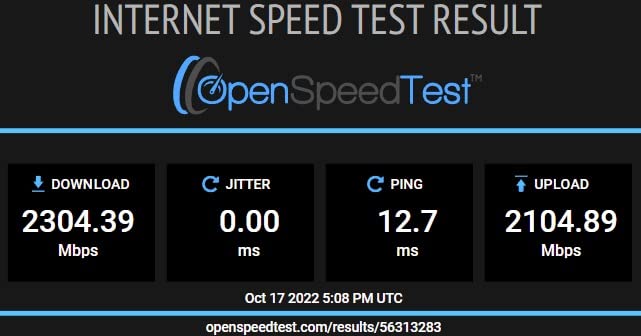
Most home office hardware has a gigabit ceiling, and this switch exists to remove it. Each of the five 2.5GBASE-T ports negotiates either 1 Gbps or 2.5 Gbps independently, and 25 Gbps of switching capacity means several fast devices can be busy at once without contending.
The reason this matters is a NAS. A single large file from a network drive to a laptop with a 2.5G network card is genuinely faster here than on any gigabit switch, and a modern laptop or a small form factor PC often has multi-gig built in already. The important caveat is the other end of the cable: a device with a 1 Gbps network card will still do 1 Gbps no matter what the switch offers.
It runs over existing Cat5e cabling, which removes the most expensive objection, namely re-pulling cable through a flat or a rented room. The fanless metal housing is wall-mountable, and TRENDnet lifetime manufacturer protection covers the hardware for as long as you own it in the United States and Canada.
Two limits. It is unmanaged, so there is nothing to configure. And five ports is small: the uplink takes one, so you are looking at four device connections, which for most people is a switch for a NAS, a laptop, and two other things rather than a whole-office solution.
Who this is right for
It suits someone with a NAS and a multi-gig capable computer who has measured a transfer and found gigabit limiting. It also suits a small content-creation setup where a laptop pulls large media files over the network, or a home lab where virtual machines move between machines.
Because it is backwards compatible, you can start with one fast device today and plug in 1 Gbps hardware later without anything to configure. That flexibility is the reason to prefer it over a faster switch with a management interface you would not use.
Who should skip it
Skip it if none of your devices has a 2.5 Gbps network card, because you will pay for ports that negotiate down to 1 Gbps. Skip it if you need more than four connections, since the port count is the limit here. And skip it if you want VLANs, as the multi-gig benefit does not come with any management features.
8. UGREEN 10-Port PoE Switch – Cameras on Their Own Island
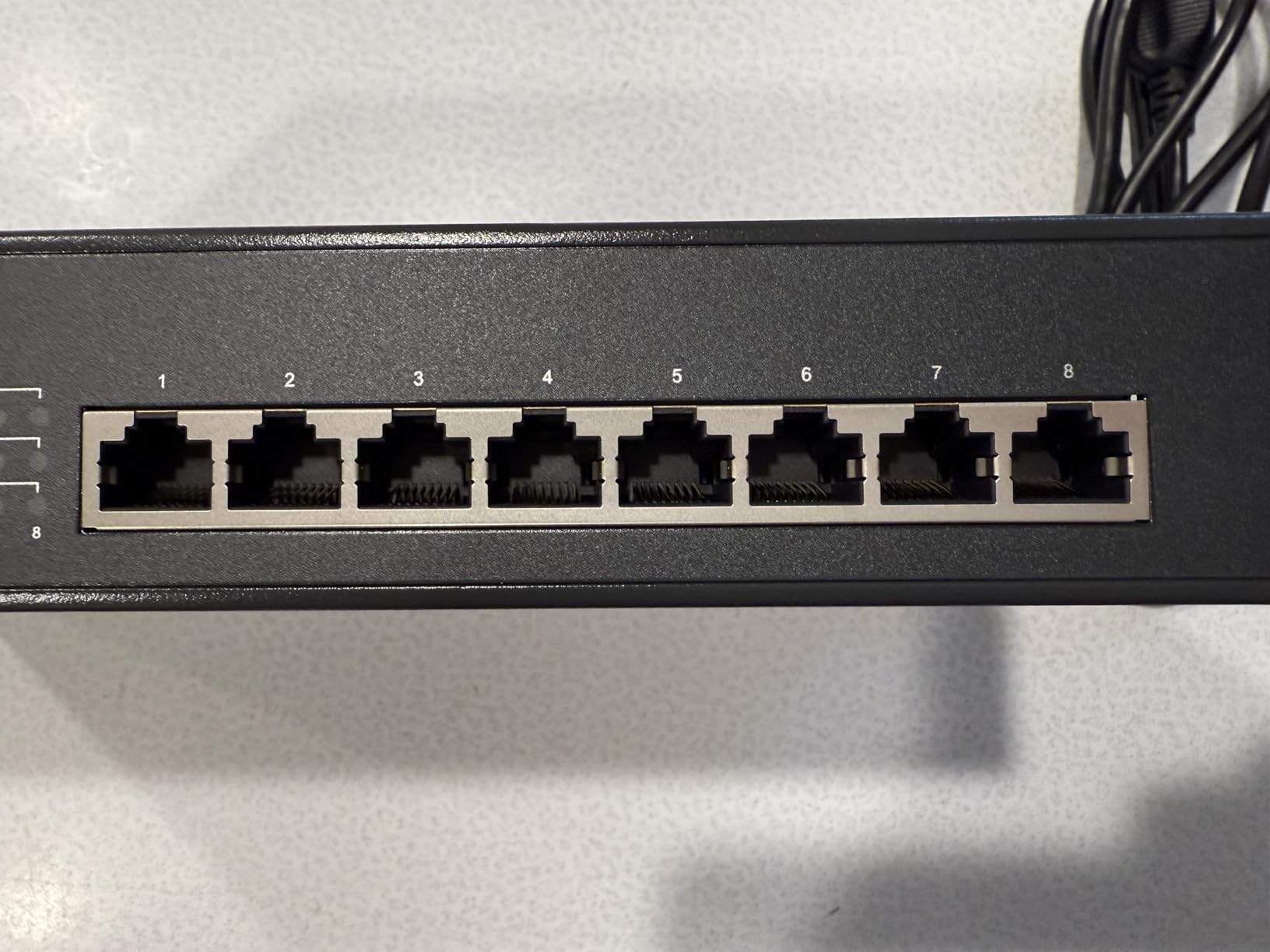
UGREEN Ethernet Switch, 10-Port PoE Switch, 8 PoE+@60W + 2 Gigabit Uplink
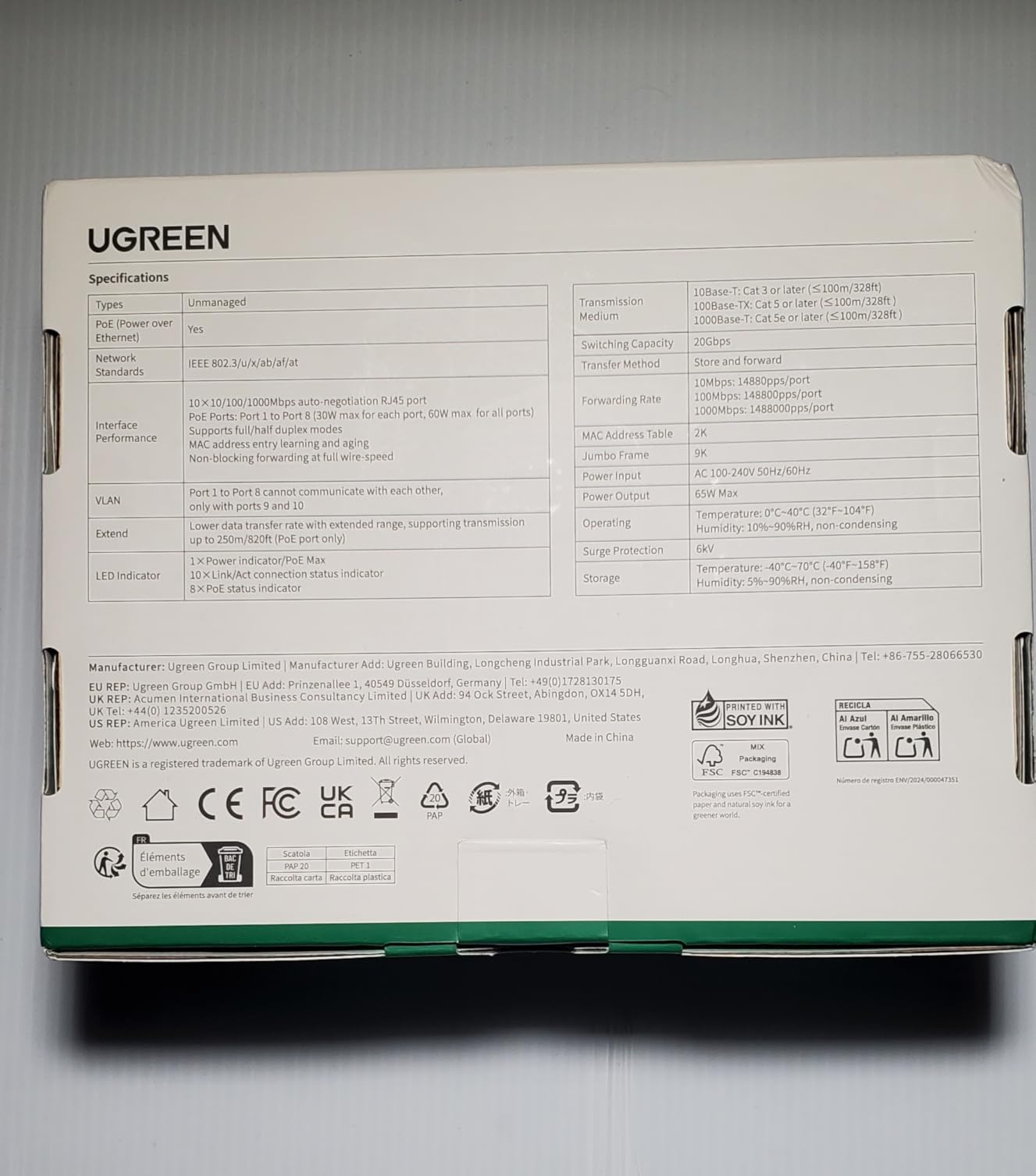
8 PoE+ ports at up to 30W each, 60W budget
2 dedicated gigabit uplinks
One-button Standard Isolation and Extend modes
Metal, fanless
Pros
- Eight PoE+ ports plus two dedicated uplinks in one box
- 60W budget for several cameras phones or access points
- One button switches Standard Isolation and Extend modes
- PoE auto recovery restarts hung devices on its own
Cons
- Configuration is one button rather than a real interface
- The 60W budget is shared across all eight PoE+ ports
- Smaller review base than the established switch brands
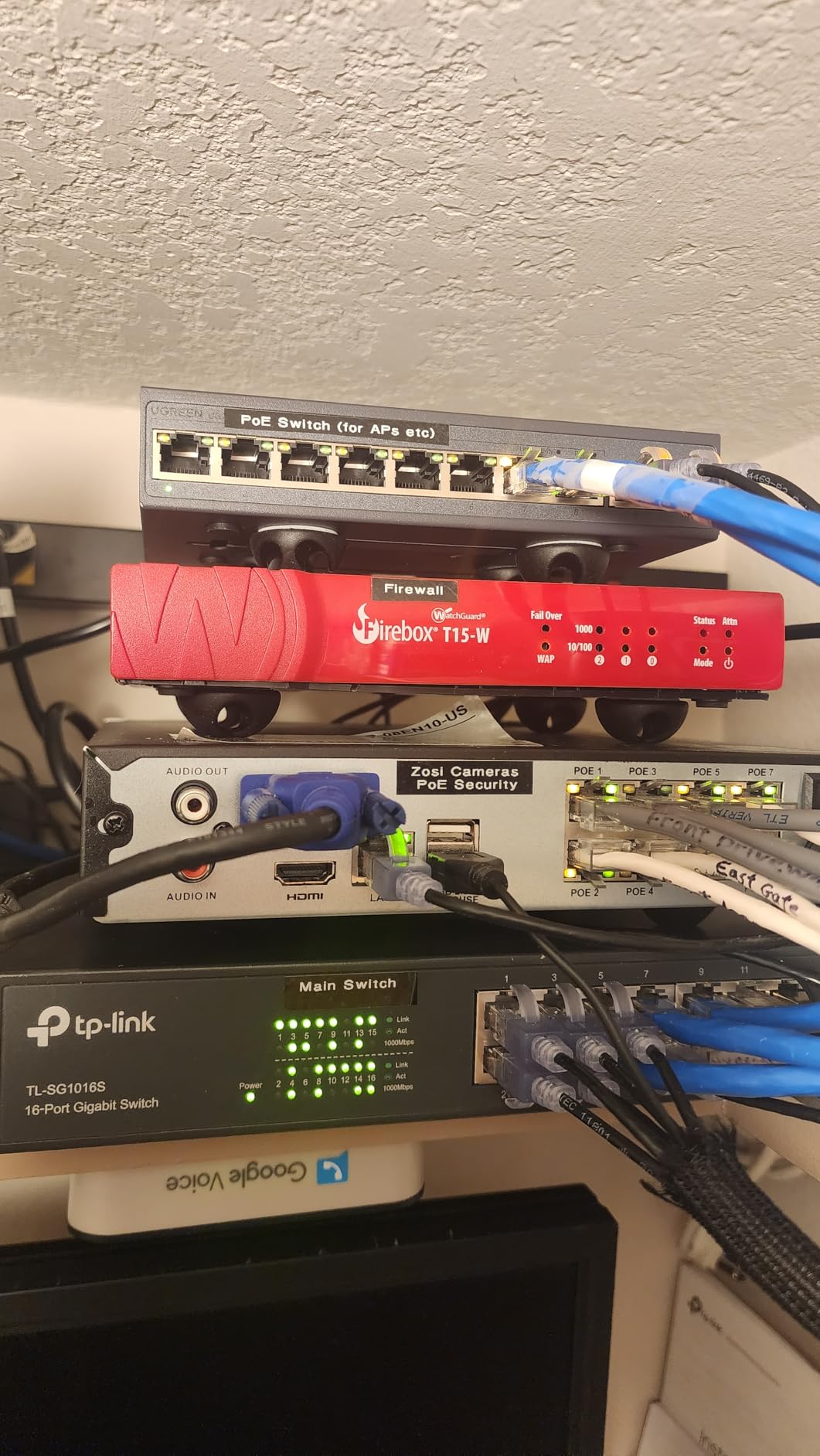
This is the one to look at if cameras are the reason you are here. Eight PoE+ ports provide up to 30W each against a 60W total budget, and the two extra gigabit ports are dedicated uplinks, so cameras get their own path to the router rather than sharing one congested link.
Port Isolation mode is the reason it earns its place in a home. Press one button and the camera ports stop talking to anything except each other and the uplink, which removes the most common objection to running untrusted devices on a home network. Extend mode stretches PoE out to considerably longer cable runs, which matters in a building where you cannot control where the sockets are.
Owners also value the automatic behaviour. Intelligent power management sheds ports in priority order before the budget is exceeded, and PoE auto recovery restarts devices that have frozen or dropped off, which removes the most common camera complaint of needing a power cycle. For a setup you cannot physically reach every week, that is worth real money in saved trips.
The honest limitation is depth. Mode selection is one button, not an interface, so there is no per-port monitoring, no QoS tuning, and no SNMP. The 60W budget is shared across all eight PoE+ ports, and the review base here is much smaller than the big-name picks, which is worth weighing in a device that stays powered on unattended.
Who this is right for
It suits someone adding four to six cameras or a mix of cameras and VoIP phones who wants them isolated from the rest of the network without configuring anything. The dedicated uplinks also make it a good fit for a home with a second network segment, since you can wire one uplink to the router and the other to a second switch.
It is a strong fit for a dorm or a shared flat where you cannot re-route the building wiring, because port isolation and long-run support reduce how much your network depends on where the landlord put the sockets.
Who should skip it
Skip it if you need more than roughly four to five PoE devices at once, because the 60W budget will not stretch. Skip it if you want real per-port management or monitoring. And skip it if you simply need more plain gigabit ports with no power over Ethernet, because the four other picks in this roundup cover that with far more owner history behind them.
9. TP-Link TL-SG1008MP – The PoE Headroom Play
TP-Link 8 Port Gigabit PoE Switch | 8 PoE+ Ports @126W | Plug & Play | Limited Lifetime Protection | Desktop/ Rackmount | Prioritized Power Supply | Sturdy Metal | Shielded Ports (TL-SG1008MP)
8 x PoE+ ports at up to 30W each
126W total PoE budget
Port priority overload protection
14.88 oz, metal, rack-mount kit included
Pros
- Very high total PoE budget for eight devices
- Plug and play with auto-detection of PoE devices
- Internal power supply avoids a bulky external brick
- Fanless and quiet with a metal chassis
Cons
- Unmanaged despite listings that call similar models smart managed
- Status LEDs cannot be turned off
- LEDs sit on the front panel rather than beside the RJ45 jacks
Where the NETGEAR GS308EP carries 62 watts across eight ports, this carries 126 watts, and that difference is the entire buying decision. Owners running several access points or a cluster of cameras rely on that headroom so they never have to think about whether the budget will hold.
Everything else is deliberately simple. It is plug and play with no software, it detects PoE and non-PoE devices automatically and powers them appropriately, and when the budget is reached it disables lower-priority ports rather than letting everything brown out. The internal power supply means no external brick to hide, which is a real advantage in a tight room.
It ships with rack-mount brackets and rubber feet, so it works equally well on a desk or screwed into a small shelf, and it is fanless and quiet. Reviews at 4.6 across more than 4,000 owners describe it as dependable for cameras and access points, with auto-detection and the port priority feature as the recurring praises.
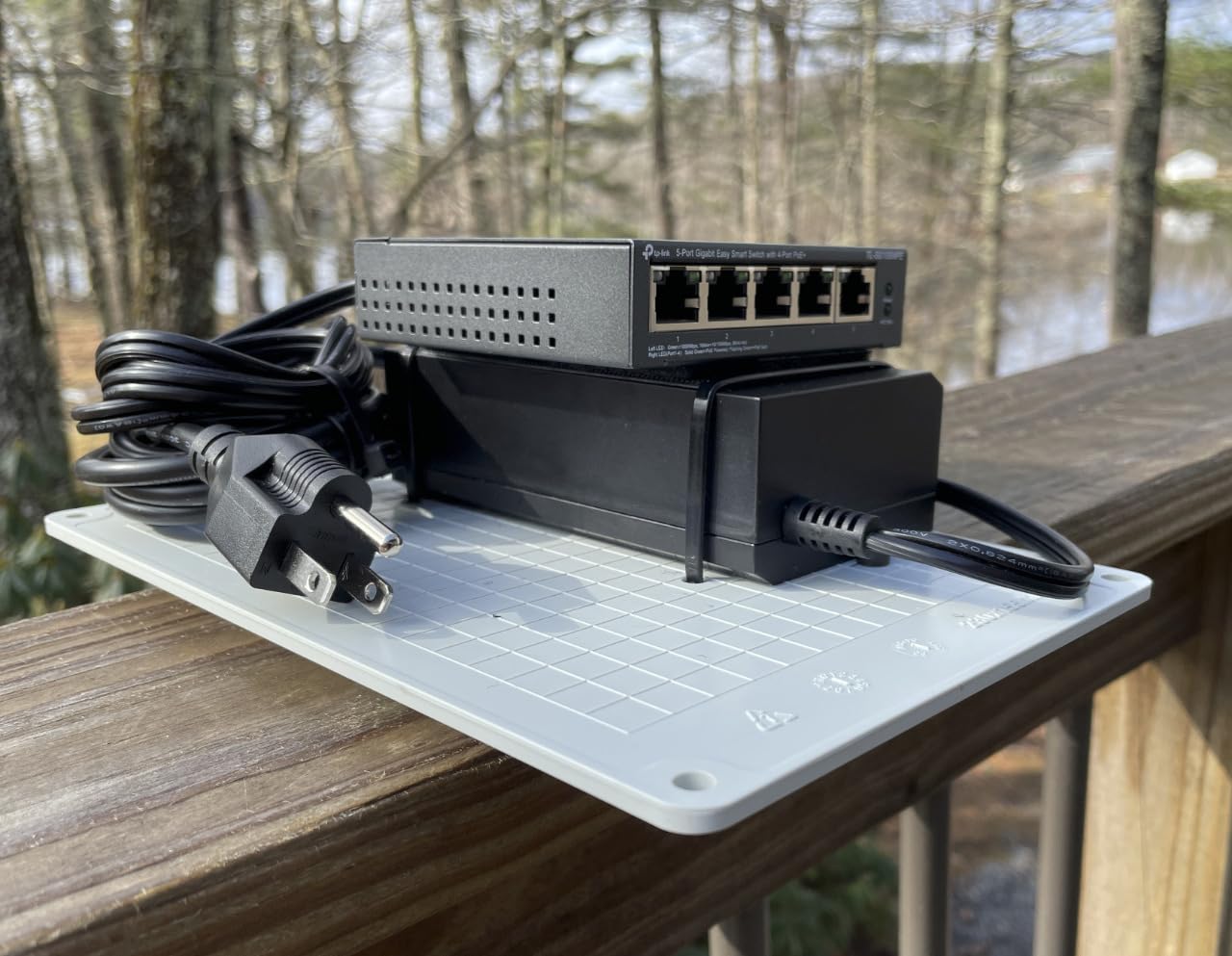
The complaints are honest and small. It is unmanaged, and listings for similar TP-Link models sometimes call them smart managed, so check carefully what you are buying. The status LEDs cannot be switched off, which can be distracting in a dark room. The lights sit on the front panel instead of beside the ports, which makes troubleshooting by hand slightly harder.
Who this is right for
It suits a home office that is genuinely expanding: a growing camera system, multiple access points, or VoIP phones, where a 62W budget would be the thing that stops you. It is also a good fit if you plan to add a second switch downstream, because the high budget means the first one does not become the constraint.
For anyone with a rack shelf or even a small shelving unit, the included hardware means you are not buying mounting kit separately, and the internal supply keeps the installation tidy.
Who should skip it
Skip it if you do not need PoE, because you would be carrying a heavier chassis and a large power supply for nothing. Skip it if you need VLANs, since port priority is not the same as segmentation. And skip it if you are very sensitive to status lights in a dark room, because there is no way to turn them off.
10. TRENDnet TEG-082WS – Managed Features and Two SFP Slots
TRENDnet 10-Port Gigabit Web Smart Switch,Lifetime Protection,TEG-082WS
8 gigabit RJ45 ports plus 2 SFP slots
20 Gbps switching capacity
Web interface with VLAN QoS LACP and SNMP
Fanless metal, 2.2 lb
Pros
- SNMP LACP VLAN QoS and IGMP snooping in a web interface
- 20 Gbps switching capacity is ample for a home office
- Two SFP slots leave room to add fiber uplinks later
- Fanless and low power consumption
Cons
- Configuration changes are lost unless you save before a power cycle
- Out-of-box firmware may need upgrading
- Web interface and documentation have a learning curve
This is the pick for a technically confident home office, and it is the only unit in the roundup with fiber expansion slots. Eight gigabit RJ45 ports are joined by two SFP slots, and 20 Gbps of switching capacity gives a backbone far more headroom than a small office consumes.
The management depth is genuinely enterprise in character. The web interface covers IPv6, LACP link aggregation, VLANs, QoS with 802.1p queue scheduling, IGMP snooping, per-port bandwidth control, private and voice VLANs, and SNMP monitoring, with TRENDnet Hive available for remote cloud management. Owners point out that this feature set usually carries a much higher price in office-grade hardware.
Reviews at 4.5 stars are honest about the cost of that depth. Configuration changes are lost unless you manually save the running configuration before a power cycle, which is a genuinely annoying habit to have to learn. Out-of-box firmware may need upgrading, and some owners report the vendor download being rejected. The web interface and documentation have a real learning curve for a first-time network administrator.
It is also the largest unit here at 11 inches long and 2.2 pounds, with an included rack-mount kit for when you get a shelf. Fanless, low draw at 14.6 watts maximum, and silent, which is the right trade for something that runs continuously in a closet.
Who this is right for
It suits someone running a small business from home who wants monitoring graphs and SNMP feeding into existing tools, or a home lab where link aggregation and VLANs are part of the design rather than a discovery project. The SFP slots matter if you might one day run fiber between two buildings or rooms rather than relying on copper.
It is also the natural choice if you already run TRENDnet gear, since the same Hive interface covers the rest of the setup.
Who should skip it
Skip it if you just want more ports, because the money is better spent on a bigger unmanaged box. Skip it if you have never administered a network device, because the save-before-power-cycle behaviour and the firmware steps will cost you an evening. And skip it if desk space is limited, as this is the largest unit in the roundup.
How to Choose a Network Switch for a Home Office?
Managed, Easy Smart Managed or Unmanaged: Which One Do You Need?
Start with the question every forum thread eventually lands on: an unmanaged switch is enough unless you specifically need VLANs, PoE, or link aggregation. That is the decision rule, and it covers the overwhelming majority of home offices, dorm rooms and shared flats.
An unmanaged switch has no interface at all. You connect cables and traffic flows, which is why it is silent, cheap in power, and impossible to misconfigure. Easy Smart Managed sits one tier up and gives you a local web interface for VLANs, QoS and port monitoring, with no cloud account and no controller to run. Full managed switches add things like static routing, link aggregation and SNMP, and are aimed at people who will actually use them.
Pay for management only when you have a use for it. If you plan to add cameras or smart devices, isolating them on their own VLAN is a real benefit. If you simply want four more ports, that money buys twice as many ports on an unmanaged box instead.
Port Speed: When 1 Gigabit Actually Bottlenecks
One gigabit per port is fine for browsing, video calls, streaming, and printing. It only becomes a visible constraint when you move large files between a NAS and a machine with a faster network card, or back up a video library over the network.
Before buying a 2.5GbE switch, check the other end. A switch cannot push 2.5 Gbps into a device whose network card only does 1 Gbps, and a 2.5GbE USB adapter is an extra purchase per machine. If the hardware on both ends already supports it, the TRENDnet TEG-S350 in this list is the practical option, and it runs over the Cat5e you likely already have in the wall.
PoE Budget: How Many Watts Do You Actually Need?
PoE is power delivered down the Ethernet cable, and the number that matters is the total budget, not the per-port maximum. A switch advertising 30W per port and a 62W total budget can only run two devices at full draw, and the rest will not come up.
Add up what you are plugging in before you buy. Most wireless access points draw somewhere around 13 to 25 watts, an IP camera commonly sits near 9 to 13 watts, and a VoIP desk phone uses around 7 watts. Leave roughly 20% headroom above your total so a firmware update or a warmer room does not push you over.
Two switches in this roundup make that arithmetic easy. The GS308EP gives you 62W for a handful of devices, and the TP-Link TL-SG1008MP gives you 126W if you are planning a larger camera or access point system.
Sizing by Room and Device Count
A single-room setup with four to six devices wants a five-port unit, remembering that one port is the uplink to the router. A shared apartment where several people each have a wired connection plus consoles and printers wants eight ports. A home office that has grown into cameras, phones and multiple access points wants eight PoE ports, or a larger unit if you are past that.
Two habits save money here. Count the uplink, which is the port people forget, and buy the next size up rather than the exact size, since spare ports cost nothing while another purchase costs a cable run.
Noise, Placement and Always-On Power Draw
Every switch in this list is fanless, which means the noise question is settled before you start. That matters more in a bedroom or a study than most spec sheets suggest, and it is why we excluded actively cooled units entirely.
Placement is a practical matter. The units are small, and most have wall-mount holes, so a switch on the wall behind a desk or on a high shelf is entirely realistic. Avoid a warm enclosed cupboard in a flat that heats up in summer, since that is where a fanless metal chassis has least room to dissipate. And remember a switch needs its own outlet, which is the real cost of adding one.
On power draw, 802.3az Energy Efficient Ethernet is present on most of these units, so idle ports drop their consumption. A small fanless switch uses a handful of watts continuously, which is a small line item but one that runs every hour of every day for years.
Netgear vs TP-Link: Which Brand Belongs in a Home Office?
Both are repeatedly recommended as the reliable, good-value choices in network forums, and the honest answer is that you cannot pick wrong between them. The difference is in what you are optimising for rather than in quality.
TP-Link appears twice in this roundup. The TL-SG105 is the most-reviewed five-port switch available and the best general-purpose pick, and the TL-SG1008MP is the one to buy when PoE wattage is your real constraint. NETGEAR appears three times and covers a wider span: the GS308 for eight unmanaged ports, the GS305E for your first VLANs, and the GS308EP for PoE with management.
So the practical split is this. If you know the exact number of devices and want it simple, both brands have a strong unmanaged option, and NETGEAR gives you more ports at a similar outlay. If you want VLANs without a big managed switch, NETGEAR is the more established route on this list. If your constraint is total PoE watts, TP-Link ships the larger budget. Support is viewed as better on both than on standalone ecosystem hardware, and both offer a three-year hardware warranty on the units here.
Frequently Asked Questions
What is the best switch for a home network?
The TP-Link TL-SG105 is the best overall switch for a home network because it adds five gigabit ports, runs silently without a fan, and needs no configuration. Choose the NETGEAR GS308 instead if you have more than four devices to connect, since it gives you eight ports in a similar metal chassis.
What are the best managed switches for a home network?
The NETGEAR GS305E is the best managed option for most home networks because it offers 802.1Q VLANs, QoS and port monitoring through a simple local web interface without needing a cloud account. For PoE with management, the NETGEAR GS308EP covers cameras and access points, and the TRENDnet TEG-082WS adds SNMP and SFP slots for a technically confident setup.
Which switch is better, Netgear or TP-Link?
Both are dependable choices and the difference is scope. TP-Link offers the most-reviewed five-port unmanaged switch and the highest PoE budget in this roundup, while NETGEAR covers more configurations, from an eight-port unmanaged box to Easy Smart Managed VLANs and PoE. Pick TP-Link for simplicity or maximum PoE wattage, and NETGEAR for VLANs or more port options.
What is the best network switch for a small business?
For a small business working from home, the NETGEAR GS308EP is the strongest fit because it powers and carries data for IP cameras, VoIP phones and access points across eight PoE+ ports on a 62W budget, with VLANs for separating departments. If you need monitoring and fibre expansion, the TRENDnet TEG-082WS adds SNMP and two SFP slots.
Do I need a network switch for a home office?
You need one when you have more wired devices than your router has LAN ports, which is usually four. A switch adds Ethernet ports and lets devices talk to each other at full line speed, but it does not route traffic, assign addresses, or provide internet access. One cable from the router into the switch is all the setup required.
Is a 2.5G switch worth it?
A 2.5G switch is worth it when you move large files between a NAS and a computer that has a 2.5GbE network card, or when you run a home lab with several fast machines. If every device on your network tops out at 1 Gbps, the extra speed goes unused, and you also need compatible hardware on the client side for the benefit to appear.
How much PoE do I need?
Add up the wattage of what you are powering and leave about 20% headroom. A wireless access point commonly draws 13 to 25 watts, an IP camera around 9 to 13 watts, and a VoIP phone roughly 7 watts, so a 62W total budget usually covers a handful of devices while a 126W budget suits a larger camera or access point system.
Final Verdict: Which Switch Should You Buy?
For most home offices, the winner is the TP-Link TL-SG105. It is the most widely owned five-port gigabit switch of this group, its metal chassis is silent, and it needs nothing from you beyond a cable. If your device list is longer than four, move up to the NETGEAR GS308 and stop thinking about it.
The rest are conditional. Buy the D-Link DGS-105 if you move big files and want a documented non-blocking engine and lifetime coverage. Buy the NETGEAR GS305E when you want cameras and smart devices on their own VLAN. Buy the NETGEAR GS308EP for PoE on a modest budget, or the TP-Link TL-SG1008MP when you need real PoE headroom.
Add cameras that should be kept away from your work devices and the UGREEN 10-port is worth a look. Add a NAS and multi-gig hardware and the TRENDnet TEG-S350 removes the gigabit ceiling. Add a monitoring stack and the TRENDnet TEG-082WS is the only one here with SNMP and fibre slots. Whichever you choose, remember that the uplink uses one port, and check for 2026 firmware before you start configuring anything.