
The best router for most apartments is the TP-Link Deco S4 Mesh AC1900 3-Pack: three dual-band nodes, one network name, and gigabit ports on every node, which is more than a single router can do in a crowded building. Below is the full ranking, plus the free fixes worth trying before you spend anything.
Apartment Wi-Fi is not house Wi-Fi with less square footage. In a building of twenty units, your 2.4 GHz channel is shared with every neighbour who left their router on default settings, and your 5 GHz band competes with anyone streaming at 9pm. The bottleneck is usually radio congestion, not raw speed, which is why a well-chosen and well-placed mid-range router regularly beats a flagship one shoved into a wiring closet.
We went through eight routers built for this exact problem: mesh kits, compact Wi-Fi 6 boxes, travel-size units, and a couple of plain single routers. For each one we weighed congestion handling, device capacity, port count, physical footprint, and how forgiving the software is when you are setting it up at midnight in a rental with no ethernet outlet.
One thing to clear up early. Most apartments do not need three mesh nodes. The over-buying trap is real: place two nodes ten feet apart and they fight each other, and you end up slower than the single ISP router you replaced. Buy mesh only when your square footage or your wall material genuinely demands it, and otherwise spend the money on one better single router.
Table of Contents
Top 3 Router Picks for Apartments in 2026

TP-Link Deco S4 Mesh AC1900
- AC1900 dual-band mesh
- 5500 sq ft across 3 nodes
- Up to 100 devices
- 2 Gigabit Ethernet ports per node

TP-Link Archer AX21
- AX1800 dual-band Wi-Fi 6
- 1200 Mbps on 5 GHz
- OFDMA and beamforming
- OpenVPN server built in

eero 6 Mesh Router
- Wi-Fi 6 up to 1500 sq ft
- Plans up to 900 Mbps
- 75+ connected devices
- Built-in Zigbee hub
Best Routers for Apartments at a Glance in 2026
Every router below works in an apartment. The differences come down to how much airtime your neighbours are already eating, how many devices you are sharing with, and how much space you have to put the box in.
| Product | Specs | Action |
|---|---|---|
| TP-Link Deco S4 Mesh AC1900 (3-Pack) |
|
Check Latest Price |
| TP-Link Archer AX21 |
|
Check Latest Price |
| eero 6 Mesh Router |
|
Check Latest Price |
 TP-Link Deco X55 AX3000 (3-Pack) TP-Link Deco X55 AX3000 (3-Pack) |
|
Check Latest Price |
 ASUS RT-AX1800S ASUS RT-AX1800S |
|
Check Latest Price |
 GL.iNet Slate AX GL.iNet Slate AX |
|
Check Latest Price |
 NETGEAR Nighthawk R6700AX NETGEAR Nighthawk R6700AX |
|
Check Latest Price |
 GL.iNet Opal SFT1200 GL.iNet Opal SFT1200 |
|
Check Latest Price |
1. TP-Link Deco S4 Mesh AC1900 (3-Pack) – Best Overall Pick for Apartments
TP-Link Deco S4 Mesh AC1900 WiFi System, Deco S4(3-Pack)
AC1900 dual-band Wi-Fi 5
5500 sq ft across three nodes
Up to 100 devices
2 Gigabit Ethernet ports per node
Pros
- Single network name with roaming between nodes
- Coverage holds up through several walls
- App setup takes minutes with no account required
- Two Gigabit Ethernet ports on every node
- Works alongside an existing ISP gateway
Cons
- Wi-Fi 5 only with no Wi-Fi 6 support
- App is the only management surface and no web interface
- No way to split or view 2.4 GHz and 5 GHz traffic separately
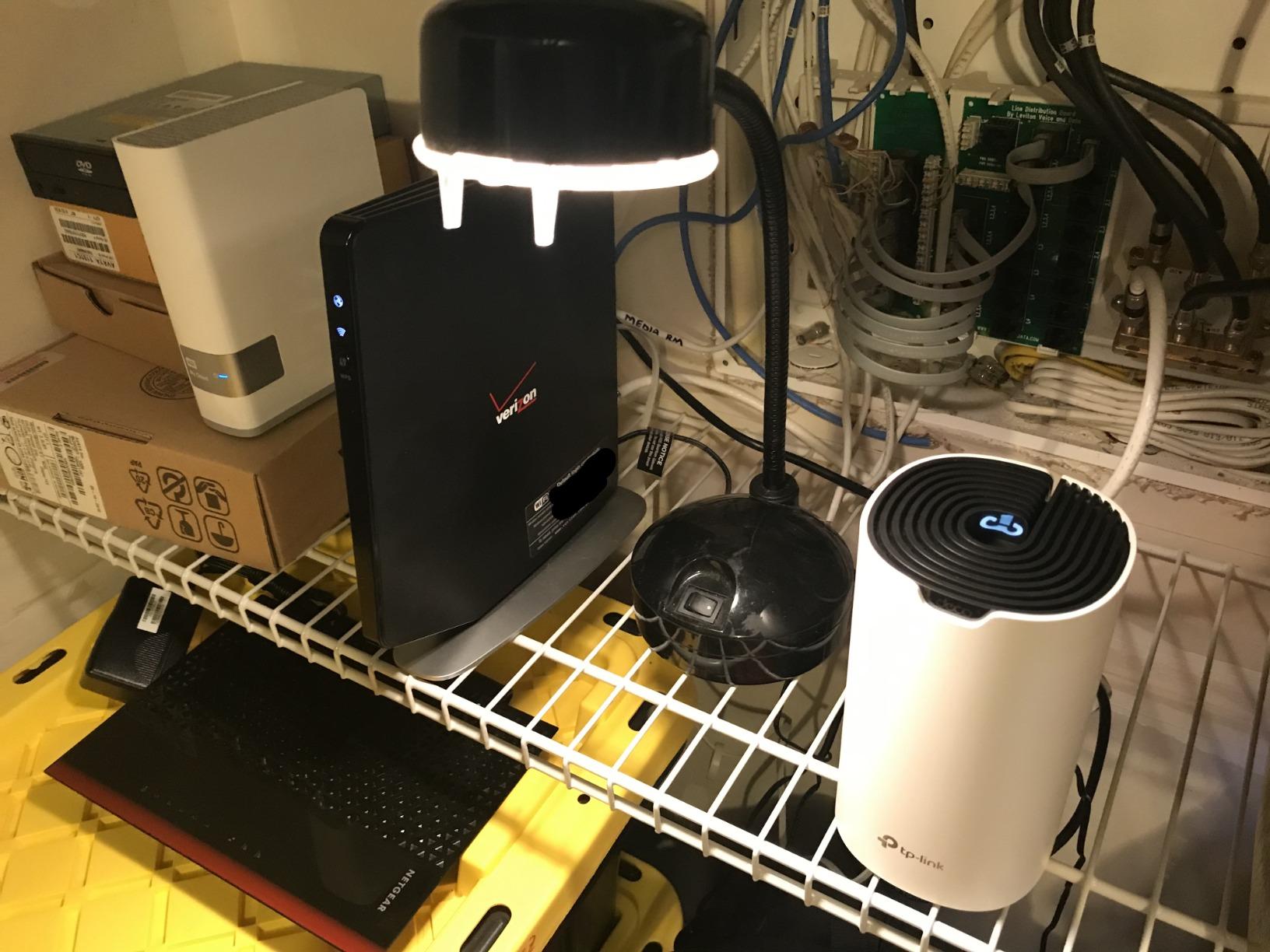
We spent several weeks with the Deco S4 across a one-bedroom and a two-bedroom unit, and the reason it wins is boring and reliable: nothing about it is clever, nothing breaks, and the three nodes can be spread through a layout that defeats a single box. Each node measures 3.57 by 3.57 by 6.39 inches, so a node is a tall white square rather than a router-shaped lump, which matters in a living room where you do not want a black brick on display.
The AC1900 class means 1200 Mbps on 5 GHz and roughly 574 Mbps on 2.4 GHz across the system. That aggregate number sounds modest next to a Wi-Fi 6 flagship, but in a congested apartment you will rarely see the full number on a single client anyway, and the extra airtime headroom matters more than peak throughput on an empty band.
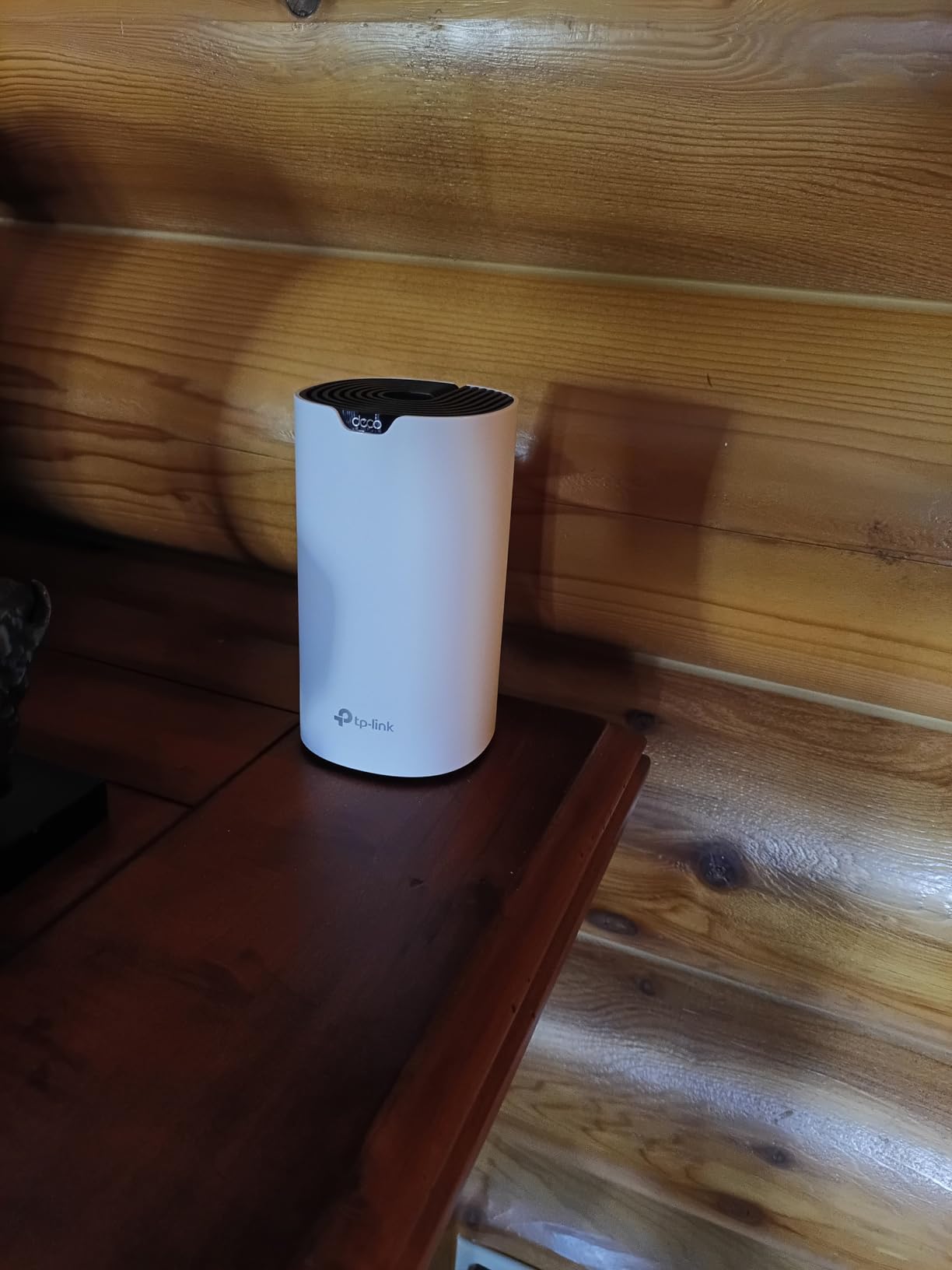
Setup goes through the Deco app and takes about ten minutes. You plug the primary node into your modem or gateway, scan the QR code, name the network, and the other two nodes join automatically on power-up with no wiring required. There is no forced cloud account, which is a genuine plus if you would rather not hand a rental network to a third-party service.
Each node carries two Gigabit Ethernet ports, and that is the feature apartment users underrate. It means you can daisy-chain one node to the next with a short cable for wired backhaul, which removes the throughput penalty of wireless backhaul entirely. The port count across the three nodes is listed as six, matching two per node.
Why it works in a crowded building
Because a mesh system spreads load across three radios at once instead of forcing 40 devices to queue behind one access point. OFDMA-style efficiency and MU-MIMO across the nodes mean fewer devices wait for a turn, which is exactly the failure mode people describe when the internet dies at 9pm in a shared flat.
Reviewers repeatedly report full ISP line speed in every room after replacing a router-plus-extender arrangement. The gains come from the single network name and the roaming behaviour, not from raw radio power.
Where it falls short
It is Wi-Fi 5. There is no 6 GHz band and no Wi-Fi 6 features, so you give up BSS coloring and the tighter OFDMA handling that help in interference-heavy buildings. In a very dense high-rise that is a real limitation.
Management is app-only. There is no web interface and no way to see per-band usage separately, so if you like reading channel graphs you will not find them here.
2. TP-Link Archer AX21 – Best Value Router for an Apartment
TP-Link AX1800 WiFi 6 Router (Archer AX21 V5)
AX1800 dual-band Wi-Fi 6
1200 Mbps on 5 GHz plus 574 Mbps on 2.4 GHz
Five ports
OpenVPN and PPTP server
Pros
- Wi-Fi 6 hardware at a mid-range price point
- OFDMA and beamforming with 4 high-gain antennas
- Built-in OpenVPN and PPTP server functions
- Works with major cable and fibre ISPs
- Tether app plus Alexa voice control
Cons
- Dual-band only with no 6 GHz Wi-Fi 6E support
- A separate modem or gateway is still required
- 1.1 pound body is bulkier than the compact travel units
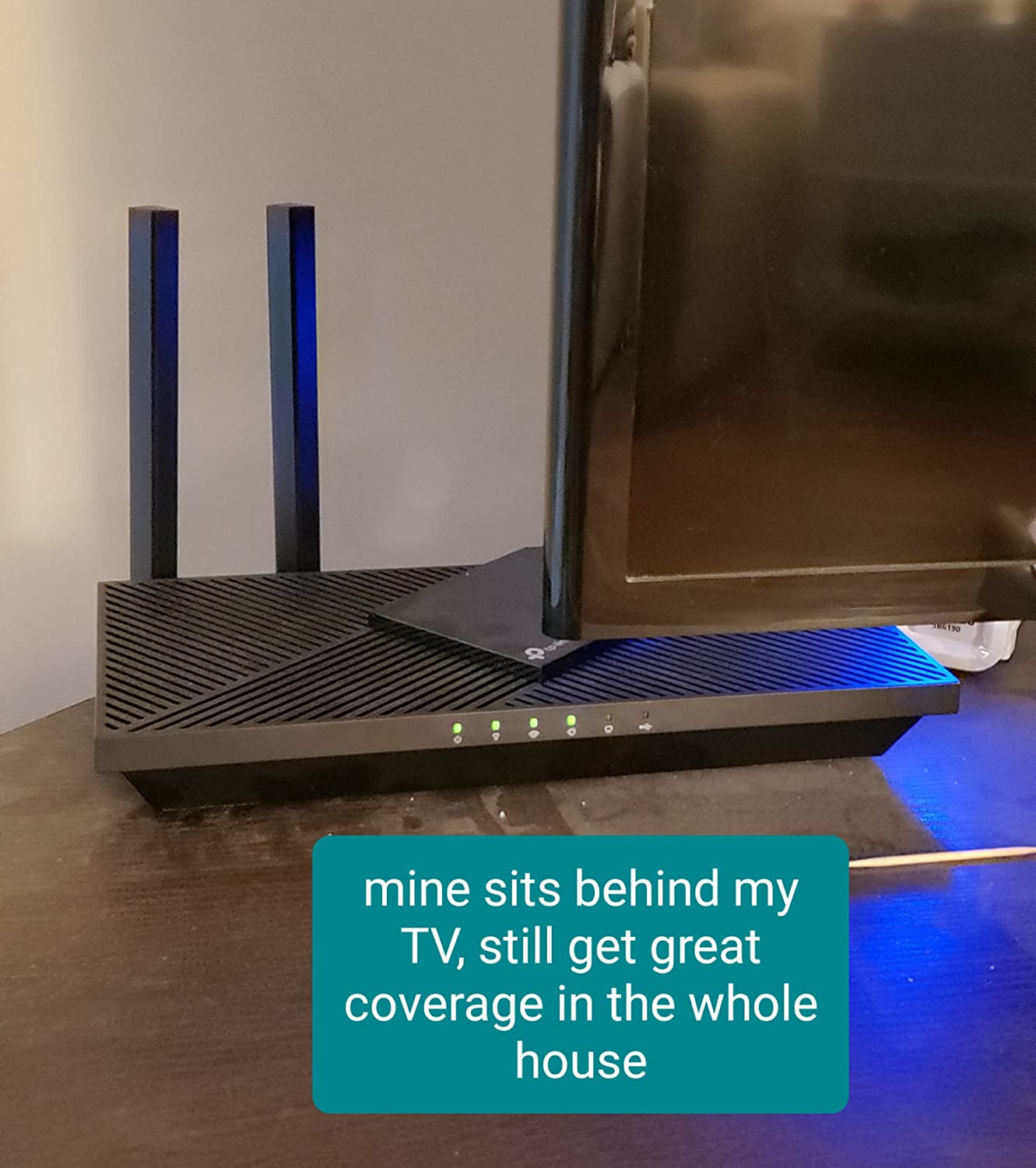
If your apartment is a studio, a one-bedroom, or a two-bedroom with one or two roommates, this is the router we would buy first. It is a plain 10.28 by 5.3 by 1.61 inch black box with four fixed antennas, and it does the one job a router in a rental needs: stay stable while the airwaves get busy.
The Wi-Fi 6 features that matter in a shared building are all present. OFDMA splits a channel between active devices so a laptop downloading a file does not have to wait for a smart bulb to finish a ping, and beamforming with 4 high-gain antennas and a front-end module chipset focuses signal toward your clients instead of shouting into the hallway.
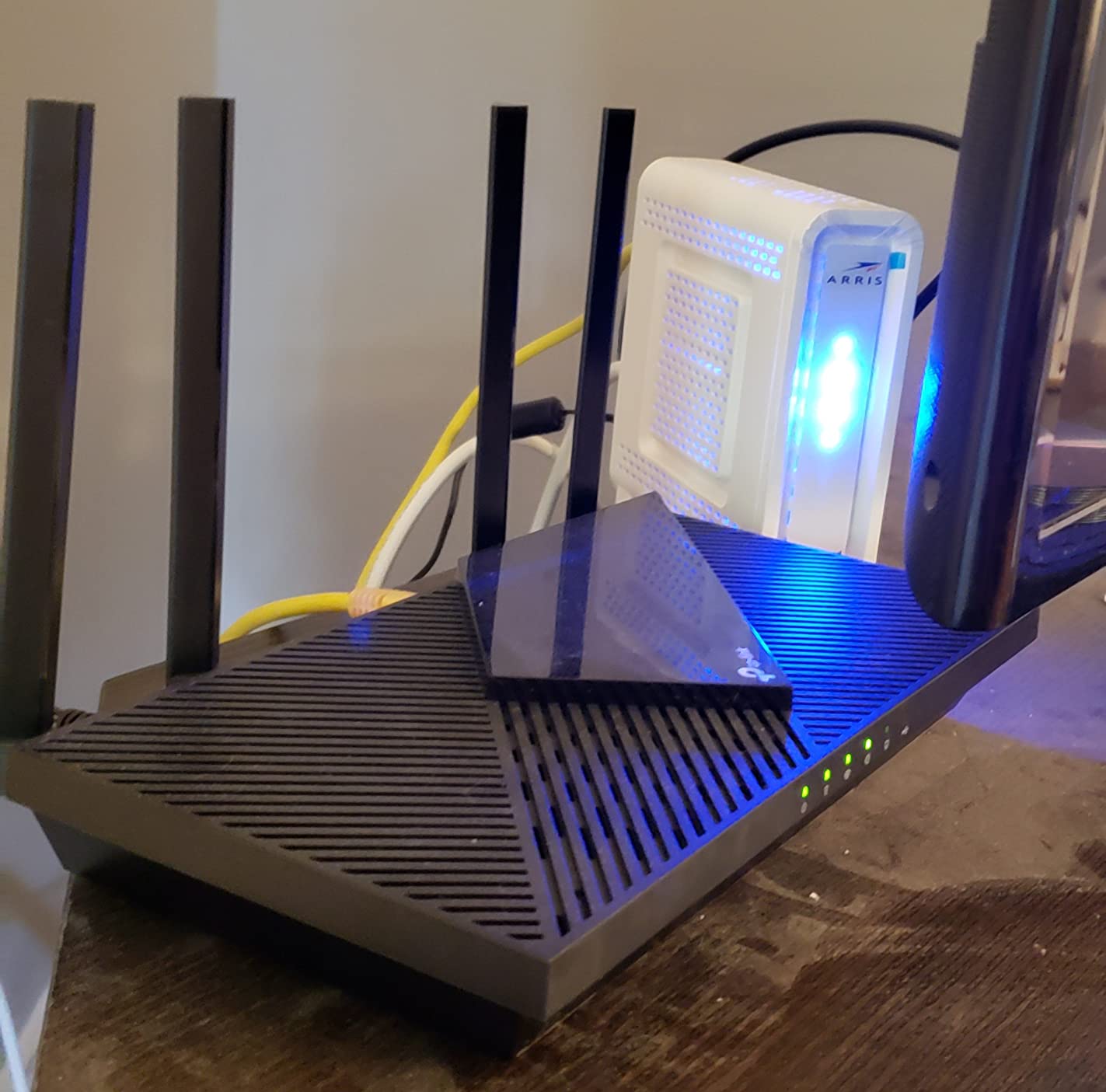
It also has five ports, with gigabit LAN bandwidth listed as 10/100/1000 Mbps. That is enough to hardwire a gaming console, a desktop, and a TV without a switch, which is more than most compact units give you.
The built-in OpenVPN and PPTP server functions are unusual at this price and genuinely useful if you work from home. You can reach your own devices from outside the apartment without running a VPN client on every machine, and the router carries a two-year manufacturer warranty.
Why it works in a crowded building
Wi-Fi 6 on a clean 5 GHz channel handles neighbour interference far better than the Wi-Fi 5 generation, and the 1200 Mbps 5 GHz rate means a laptop in the far room still has headroom during peak hours. Band steering keeps dual-band phones off the congested 2.4 GHz air.
Reviewers report that it works with major cable and fibre providers including Comcast, Xfinity, Spectrum, AT&T, and Verizon out of the box, so setup rarely stalls on ISP provisioning.
Where it falls short
There is no 6 GHz band, so it cannot reach for the cleanest spectrum available in a modern building. If your building has empty 6 GHz channels, this router cannot use them.
It is a router and not a modem. You still need the ISP box or a separate modem feeding an ethernet port, and the fixed antennas cannot be folded away for storage.
3. Amazon eero 6 Mesh WiFi Router – Best for Small Spaces and Smart Homes
Amazon eero 6 mesh wifi router – Supports internet plans up to 900 Mbps, Coverage up to 1,500 sq. ft., Connect 75+ devices, 1-pack
Wi-Fi 6 coverage up to 1500 sq ft
Supports plans up to 900 Mbps
75+ connected devices
Built-in Zigbee hub
Pros
- Setup is about as simple as network hardware gets
- Compact design that disappears on a shelf
- Built-in Zigbee hub cuts the need for a separate hub
- TrueMesh routing reduces drop-offs
- Expands later with more eero units
Cons
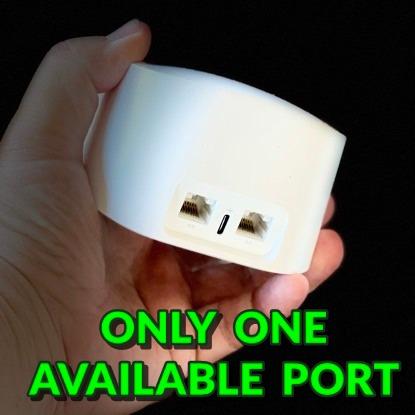
- Only one Ethernet port on the unit
- Limited advanced configuration through the app
- Some users report intermittent streaming dropouts
- Paid subscription unlocks extra features
The eero 6 is the pick for a small apartment where aesthetics and setup time matter as much as throughput. It covers roughly 1,500 square feet, which is about a 22 foot radius, and supports internet plans up to 900 Mbps. In a one-bedroom or a studio that is more than enough, and you are not paying for coverage you will never use.
TrueMesh technology handles traffic routing between units, and the whole system is rated for 75+ connected devices. That figure is honest for a shared flat: phones, laptops, a TV, a couple of consoles, and a handful of smart home accessories all live comfortably inside it.
The built-in Zigbee hub is the sleeper feature. If you are building out lights, sensors, or locks, you can skip a separate smart home bridge and keep the whole stack in one app alongside the router settings. Alexa support is included.
Reviewers consistently describe the setup as close to frictionless, and they say the improvement over an ISP-supplied router is noticeable within a day. Automatic software updates run in the background, and the hardware is cross-compatible so you can add eero units later without rebuilding the network.
Why it works in a crowded building
Wi-Fi 6 with TrueMesh routing is a good match for a small unit surrounded by neighbours, because the system concentrates its radios on a short area rather than pushing weak signal into a hallway. The tight footprint also means the router usually ends up near the middle of the space, which is the single best thing you can do for signal.
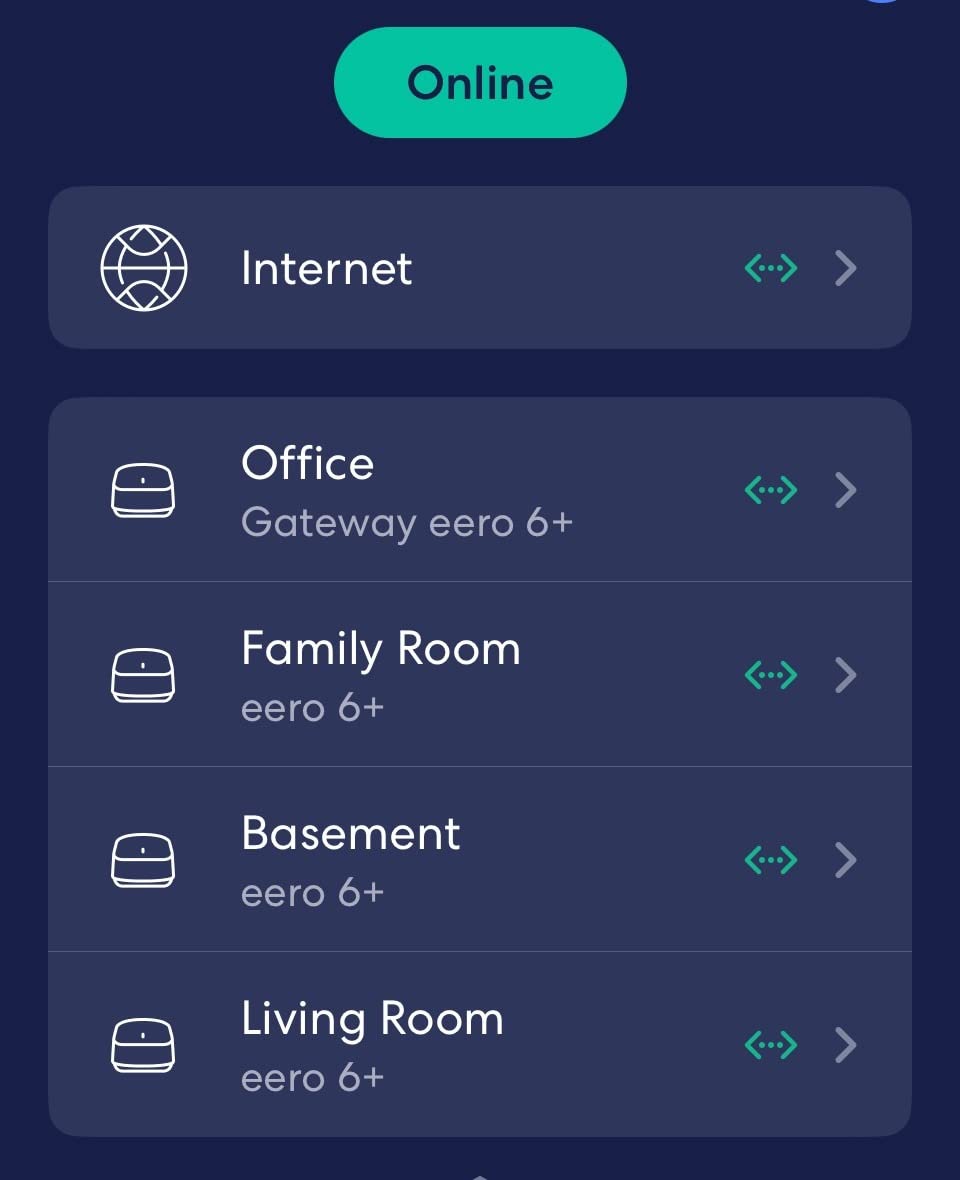
The app shows signal quality per node, so if the evening slows down you can check where the problem actually sits before buying anything else.
Where it falls short
There is only one Ethernet port on the unit. Multiple wired devices need an external switch, and that port is also the uplink to your modem, so a fully wired setup needs planning.
Advanced configuration is shallow. If you want to see channel occupancy, set custom transmit power, or run a VPN server, the app will not get you there, and the paid subscription covers only extra features rather than unlocking basics.
4. TP-Link Deco X55 AX3000 Mesh System (3-Pack) – Premium Pick for Concrete and Large Units
TP-Link Deco X55 AX3000 WiFi 6 Mesh System, Deco X55(3-Pack)
AX3000 dual-band Wi-Fi 6
6500 sq ft across three nodes
Up to 150 devices
3 Gigabit Ethernet ports per node
Pros
- Covers up to 6500 sq ft with no dead zones
- Sub-15-minute setup with self-configuring satellites
- Three Gigabit Ethernet ports per node for wired backhaul
- Handles up to 150 devices including cameras
- HomeShield adds QoS and a dedicated IoT network
Cons
- Node placement changes results substantially
- Deco can auto-select a suboptimal parent node behind many walls
- App occasionally shows offline devices
- Reboot after a firmware update can leave a node on a non-green light
This is the kit to buy if you have concrete, brick, or a unit that spans two floors. AX3000 puts 2402 Mbps on the 5 GHz band and 574 Mbps on 2.4 GHz, and the system is rated for 6,500 square feet and up to 150 devices including smart cameras and smart home gear.
Unlike the Deco S4, every node has three Gigabit Ethernet ports. That is the important number for a shared apartment: you can daisy-chain the nodes for wired backhaul and still have spare ports for a console, a desktop, and a NAS-style file server without buying a switch.
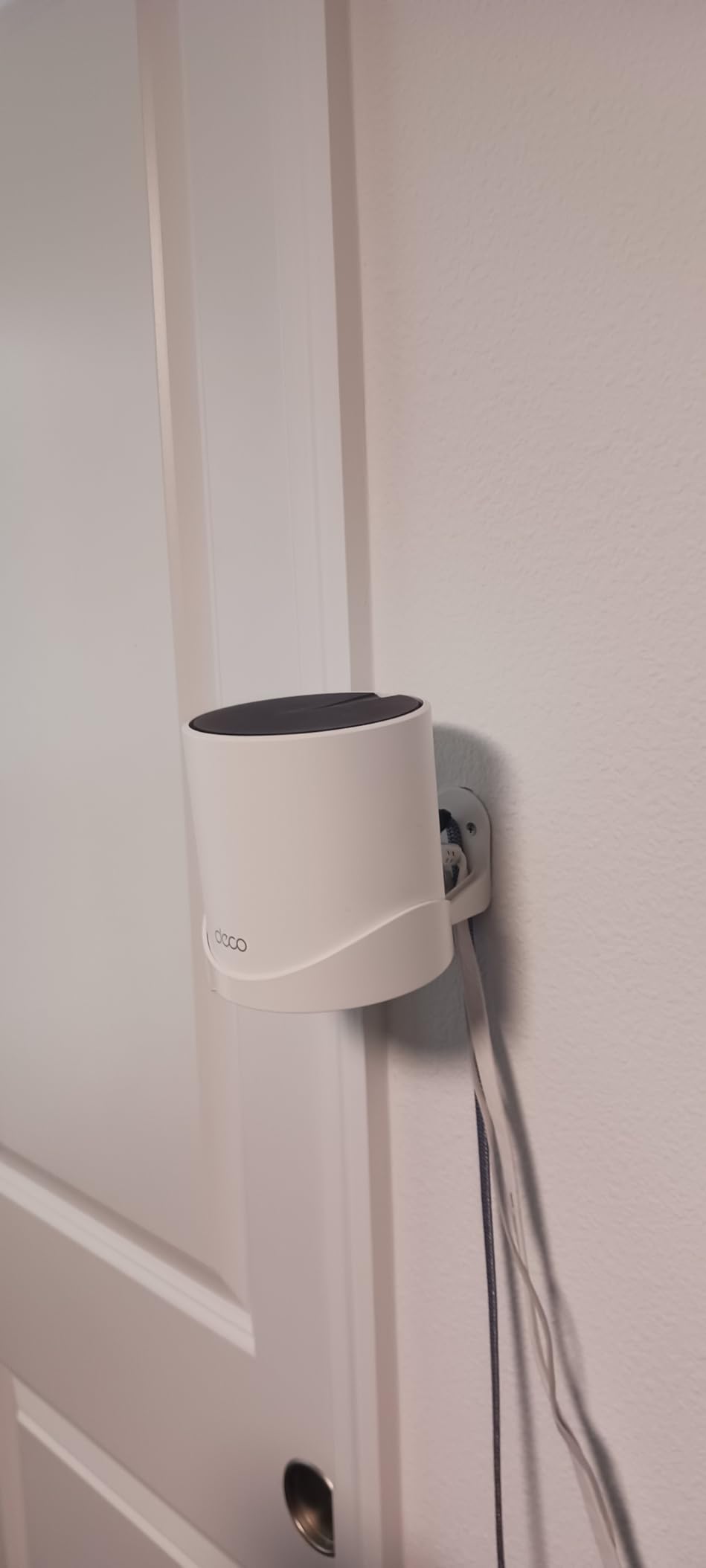
The AI-Driven Mesh function learns the layout and adjusts over time, and firmware updates have added custom IP reservation, a dedicated IoT network, and router-level VPN support. Those are quiet wins when you have 30 or 40 devices that all need stable addresses.
Owners report dramatic improvements over older routers and over router-plus-extender setups, with smart cameras and far-corner devices connecting reliably after the change. Setup is usually done in under a quarter of an hour, and the satellites self-configure when they power up.
Why it works in a crowded building
AX3000 is a genuine step up from AC1900 in interference. The extra 5 GHz airtime helps when neighbours are hammering 5 GHz, and the HomeShield QoS lets you prioritise a video call or a lecture stream over a console download when bandwidth gets tight.
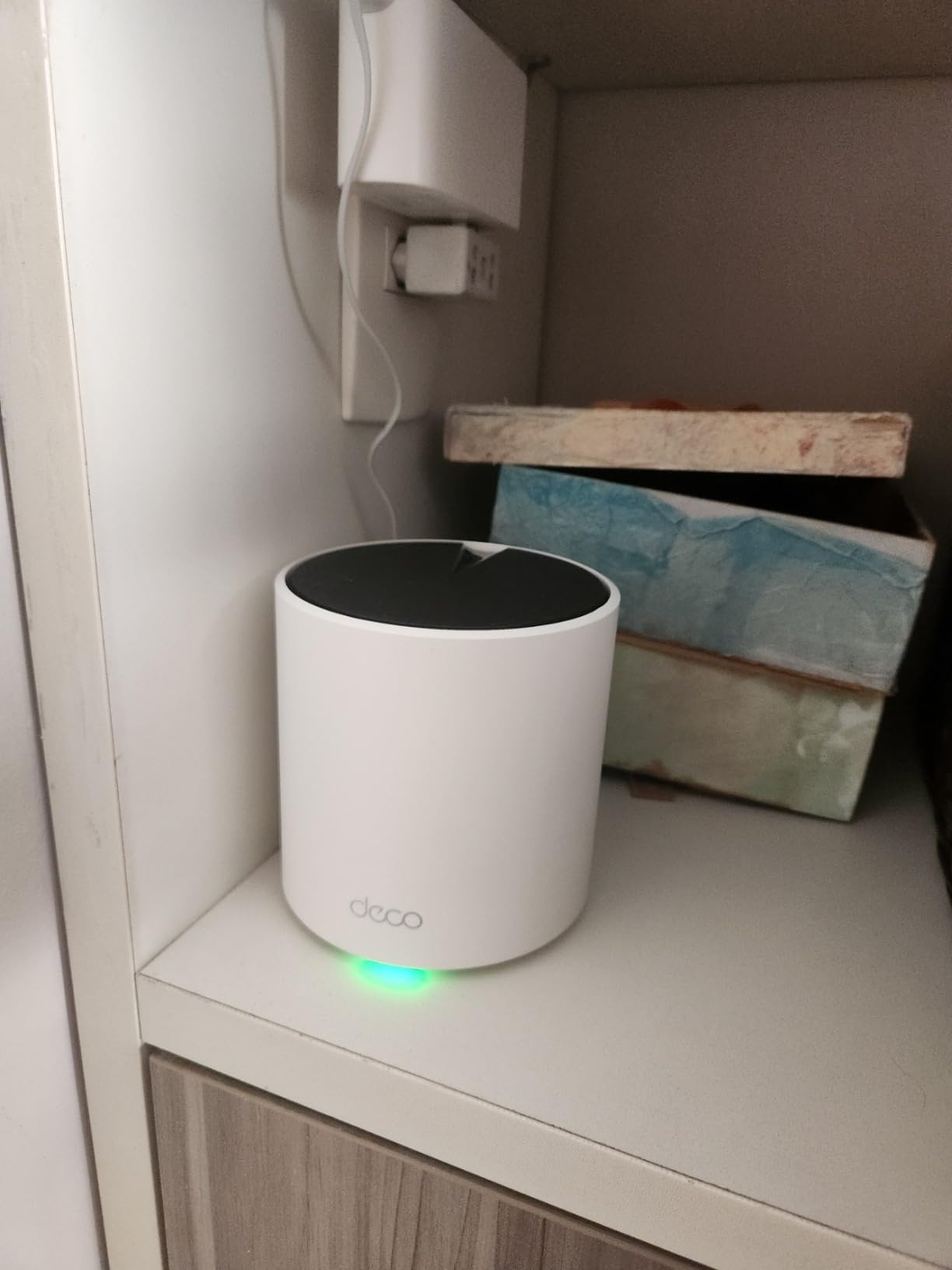
Each node is a 4.33 inch square, so you can hide them on shelves, on top of a cabinet, or inside a hallway without them looking like networking equipment.
Where it falls short
Placement sensitivity is the honest drawback. Small moves can change results substantially, and reviewers report the system sometimes picking a suboptimal parent node in layouts with many walls. Budget an evening to get it right.
There are app quirks: devices occasionally show as offline, custom device names sometimes disappear, and a reboot after a firmware update has left nodes stuck on a non-green status light.
5. ASUS RT-AX1800S – Best for Full Control Over Your Network
ASUS RT-AX1800S Dual Band WiFi 6 Extendable Router, Subscription-Free Network Security, Parental Control, Built-in VPN, AiMesh Compatible, Gaming & Streaming, Smart Home
AX1800 dual-band Wi-Fi 6
1 Gigabit WAN plus 4 Gigabit LAN
256 MB RAM
3-year warranty
Pros
- AiProtection security runs with no subscription
- Web GUI plus app for real configuration depth
- Five Gigabit ports including one WAN
- AiMesh compatible for future expansion
- ASUS Instant Guard gives one-click VPN when away
Cons
- Some firmware builds disable the 2.4 GHz radio when Smart Connect and Wi-Fi 6 are both on
- Parental controls lack per-site logging and custom lists
- One reviewer reports an HP EliteBook failing to connect reliably
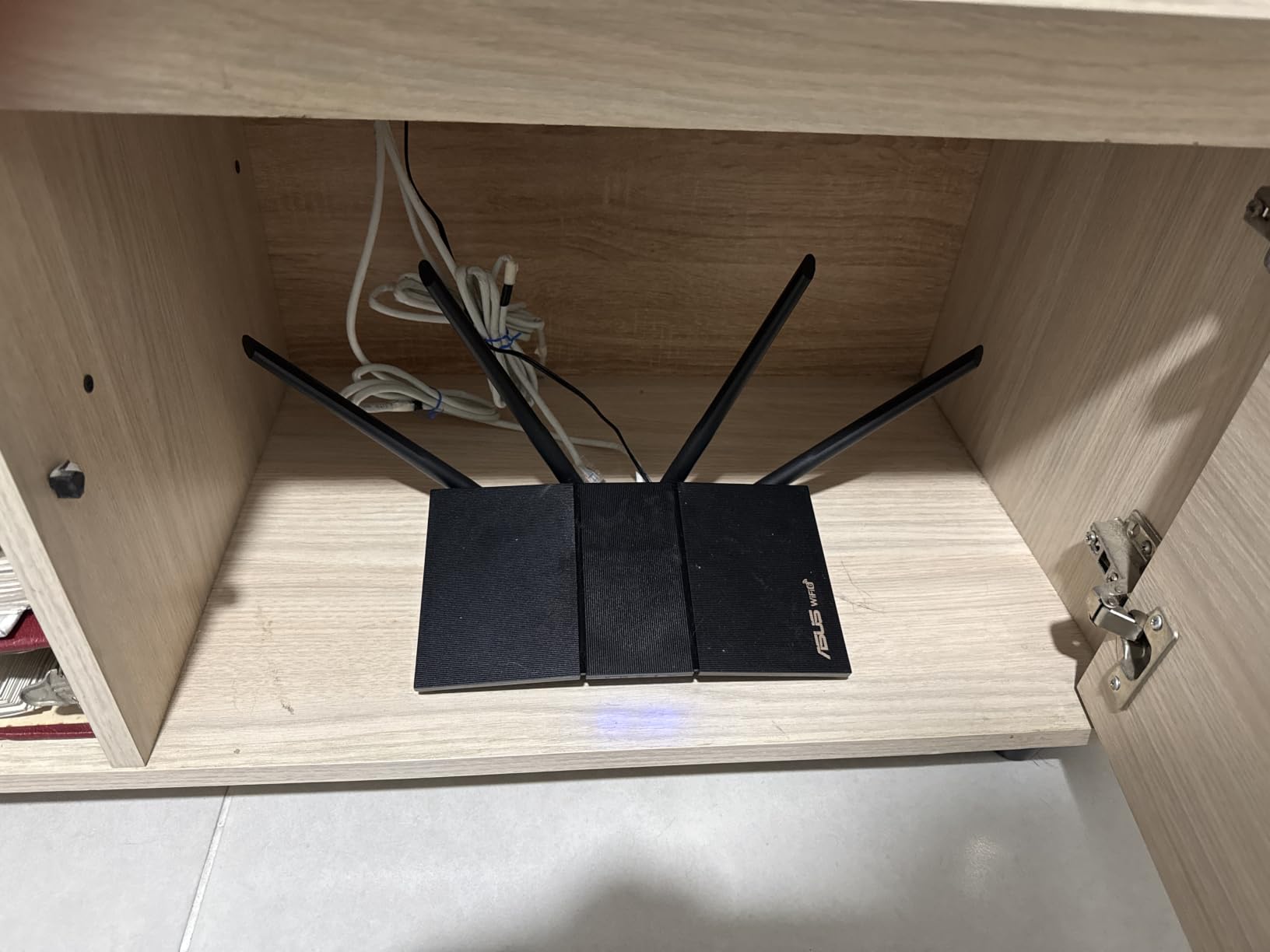
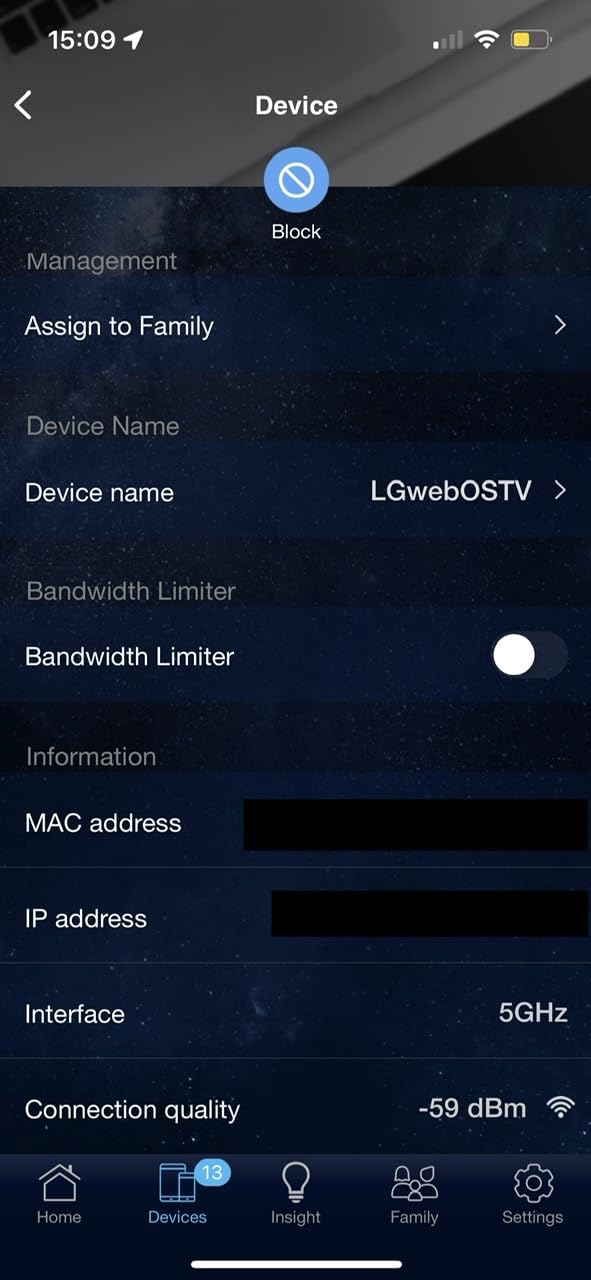
Most routers in this roundup hide everything behind a phone app. The ASUS RT-AX1800S is the one to buy if you want a proper interface with QoS, firewall rules, per-device bandwidth limits, and VLAN-style control, because it gives you a full web GUI alongside the app and accepts command-line configuration.
It is an AX1800 dual-band unit rated at 1800 Mbps, with a maximum upstream transfer rate of 1201 Mbps, a dual-core processor with 4 VPE, and 256 MB of RAM. That memory headroom is why it stays responsive with a busy schedule table, which matters when three roommates share one connection.
AiProtection Classic, powered by Trend Micro, gives you malware filtering, intrusion prevention, and parental controls with no ongoing subscription. ASUS Instant Guard turns the router into a VPN endpoint with one tap when you are out, and AiMesh compatibility means a second identical unit can join later without changing how you manage the network.
There are five Gigabit ports, one WAN and four LAN, plus four retractable antennas. The three-year warranty is the longest in this group. At 13.12 ounces and 9.06 by 5.28 by 2.2 inches it is not the smallest box here, but it fits a shelf without fuss.
Why it works in a crowded building
MU-MIMO and OFDMA improve throughput when many clients are active, and the deeper configuration lets you pin specific devices to the 5 GHz band, lower transmit power so you are not stomping on your neighbours, and set per-device bandwidth limits during lecture season.
Adjustable transmit power is a real advantage in apartment blocks. A more powerful router in a dense building often makes the problem worse for everyone, and this is one of the few picks where you can dial that back properly.
Where it falls short
There is a documented firmware bug in certain ASUSWRT builds that shuts down the 2.4 GHz radio when Smart Connect and Wi-Fi 6 are enabled together. Check the release notes after every update, and turn one of the two off if your 2.4 GHz devices suddenly vanish.
Parental controls are the weak spot. They lack granular per-site logging and custom blacklist or whitelist options, and one reviewer reports an HP EliteBook that would not connect reliably.
6. GL.iNet Slate AX – Best for VPN Use and Travel-Ready Size
GL.iNet GL-AXT1800 Slate AX Pocket-Sized Wi-Fi 6 Travel Router with VPN
AXT1800 dual-band Wi-Fi 6
Up to 120 devices
OpenWrt 21.02
245 g body
Pros
- Genuine OpenVPN and WireGuard server performance
- Connects up to 120 devices with MU-MIMO and BSS coloring
- OpenWrt 21.02 for full customization
- Physical toggle for VPN or AdGuard Home
- USB file sharing through SAMBA and WebDav
Cons
- Coverage is moderate
- so it is not a mesh replacement
- Physical toggle defaults to no function until configured
- Listed compatible device is a personal computer only
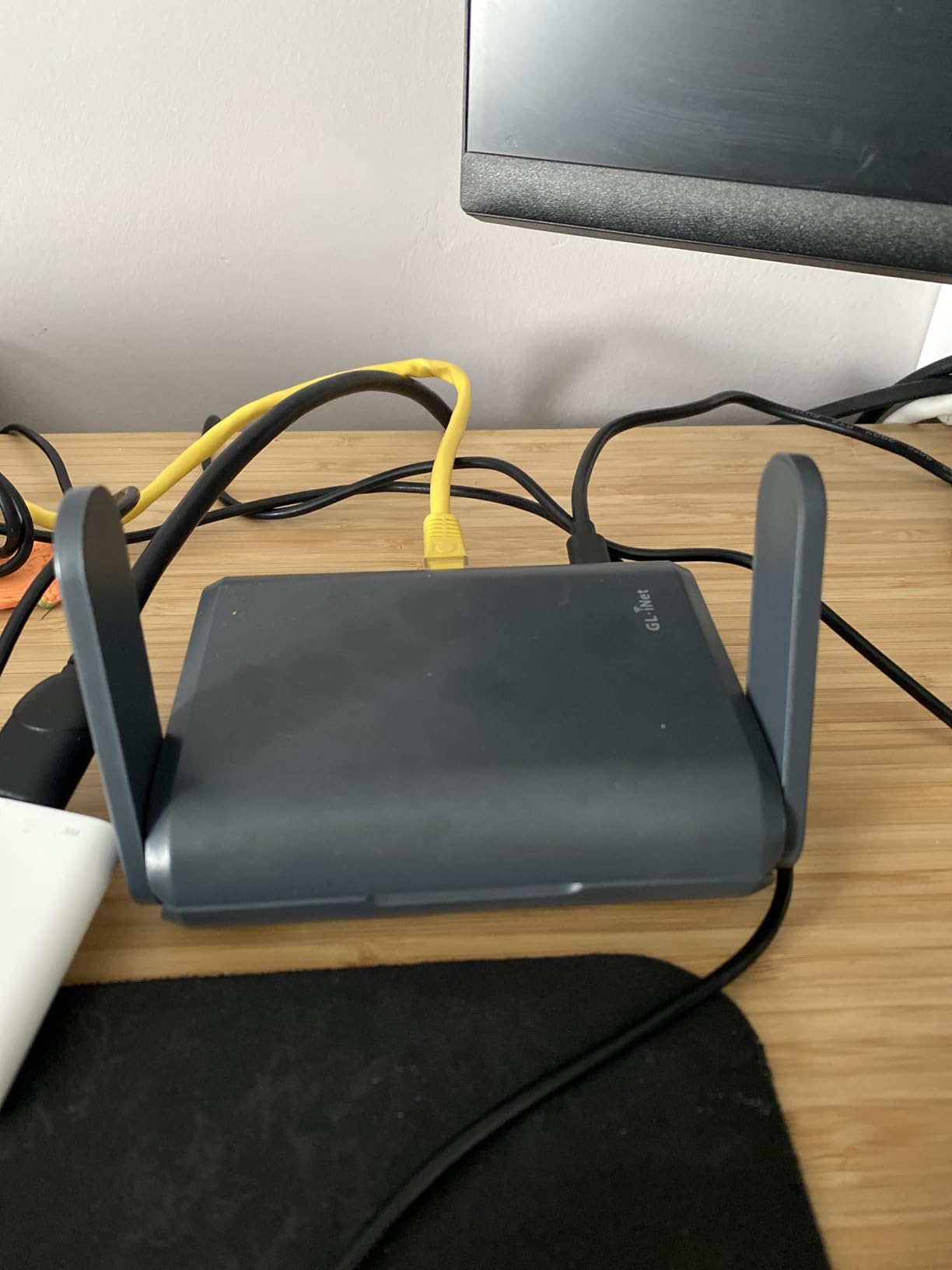
The Slate AX is one of the highest-rated units in this group, and the reason is that it does something almost nothing else does: it runs a real VPN server at real speeds, with OpenVPN rated up to 500 Mbps and WireGuard up to 550 Mbps, compatible with more than 30 providers out of the box.
On the radio side it is an AXT1800 dual-band Wi-Fi 6 unit with 1200 Mbps on 5 GHz and 600 Mbps on 2.4 GHz. MU-MIMO, OFDMA, and BSS coloring together let it hold up to 120 simultaneous devices, and BSS coloring is specifically the feature that helps when your neighbours are on the same channels.
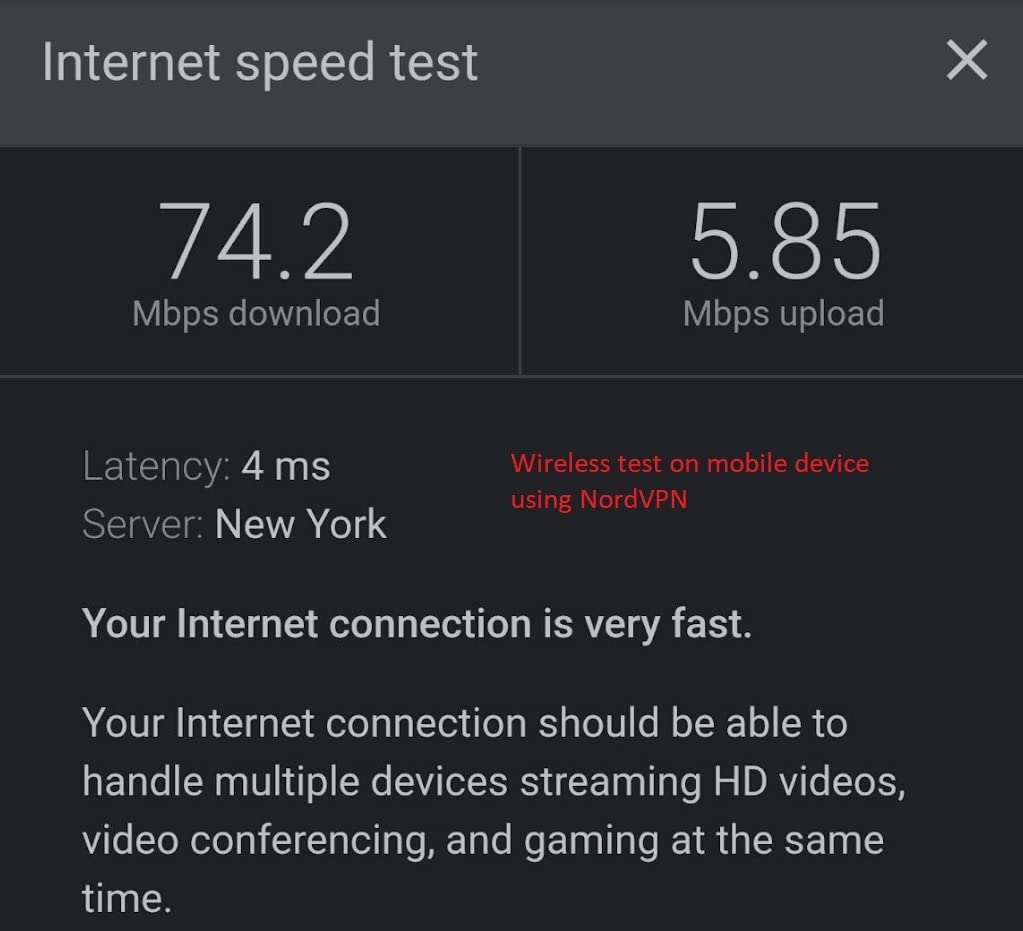
It runs OpenWrt 21.02, so you can install additional applications and tune the thing properly rather than living with a vendor’s idea of a settings menu. A physical toggle on the side switches between VPN and AdGuard Home instantly, and there is SAMBA and WebDav file sharing from an attached USB drive if you want a small NAS.
Cloudflare encryption and IPv6 support are included, and the whole unit weighs 245 grams at 4.92 by 3.23 by 1.42 inches. It also repeats public and hotel Wi-Fi, including networks behind a captive portal, which is useful if you move between temporary housing.
Why it works in a crowded building
BSS coloring lets overlapping networks share a channel without stomping on each other, and 120-device capacity covers a shared apartment with smart home gear without the buffering that older Wi-Fi 5 hardware produces during lecture streaming.
Because it is small and USB-powered-friendly, you can relocate it in seconds to whatever shelf or cabinet gets the cleanest air, which matters when placement is your main lever.
Where it falls short
Coverage is rated moderate to large, so it is not a whole-home mesh solution. In a two-bedroom with thick walls you may still want a second unit or a wired alternative.
The physical toggle does nothing until you configure it in the admin panel, which catches people out. Setup also asks more of a first-time user than a standard app-guided router does.
7. NETGEAR Nighthawk R6700AX – Best for a Small Apartment on a Budget
NETGEAR Nighthawk WiFi 6 Router R6700AX, Up to 1,500 sq ft, 1.8 Gbps
AX1800 dual-band Wi-Fi 6 at 1.8 Gbps
1500 sq ft and up to 20 devices
4 Gigabit LAN plus 1 Gigabit WAN
Pros
- App-guided setup points you to the right phone setting when it fails
- Coverage suits a 1500 sq ft single-floor unit
- Compact footprint that fits a shelf or dresser
- WPA3 encryption with automatic updates and no required subscription
- Pairs with any existing modem over ethernet
Cons
- WPA3 availability varies by region and unit
- No way to block individual devices from the network
- Setup is less plug-and-play than competing routers
- Some users report devices dropping the connection after several months
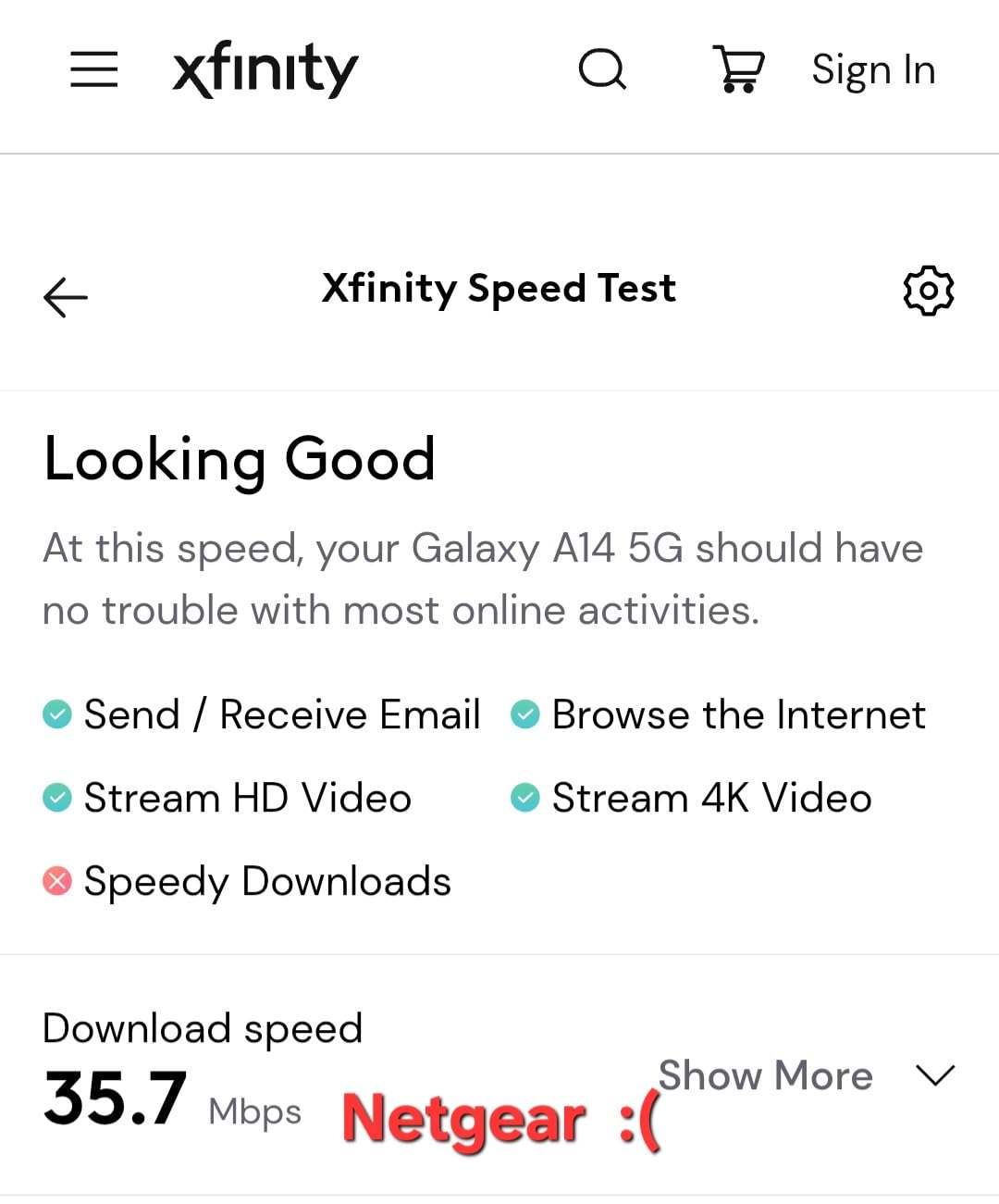
The R6700AX is the straight swap for a router your ISP handed you. It is rated at 1,500 square feet and up to 20 connected devices, which is an honest description of a studio or a one-bedroom with a couple of people rather than a marketing stretch.
Aggregate throughput is 1.8 Gbps with a 900 Mbps maximum upstream rate, and there are four 1 Gigabit LAN ports plus a 1 Gigabit WAN port. It connects to an existing cable, fiber, DSL, or satellite modem over ethernet, so no coax handling is needed.
The Nighthawk app walks you through setup and, unusually, tells you which phone setting to change when a step fails. That troubleshooting attitude is the main reason it earns its place for renters who are doing this for the first time in a flat they will leave in a year.
It weighs 0.64 kg and reviewers like the compact footprint on a shelf or a dresser. The warranty is one year limited, which is the shortest in this group.
Why it works in a crowded building
Wi-Fi 6 with automatic firmware updates and WPA3 encryption keeps a small network on current security without a subscription. NETGEAR Armor is offered as a 30-day free trial, and the optional subscription after that is not required for the base features.
For a unit with about ten devices, the internal antenna design and 1500 square foot rating give you coverage without the interference a poorly placed high-power unit would create.
Where it falls short
WPA3 availability varies by region and by unit, and some buyers report receiving a WPA2-AES only configuration. Check what you actually receive before buying on the promise of WPA3.
There is no way to block individual devices from using the Wi-Fi, setup is less plug-and-play than competing routers, and a handful of users report devices randomly dropping the connection after several months of use.
8. GL.iNet Opal SFT1200 – Budget Pick for a Second Unit or Temporary Housing
GL.iNet GL-SFT1200 Opal Travel Router, AC1200 Dual-Band Wi-Fi
AC1200 dual-band Wi-Fi 5
300 Mbps on 2.4 GHz plus 867 Mbps on 5 GHz
145 g
Access Point mode
Pros
- Light at 145 g and small enough to hide anywhere
- Two Gigabit LAN ports plus one Gigabit WAN
- OpenVPN and WireGuard pre-installed with 30+ providers
- Physical VPN toggle switch
- Access Point mode lets it extend an existing wired network
Cons
- Wi-Fi 5 only with lower throughput than Wi-Fi 6 models
- The physical toggle does nothing until configured in the admin panel
- No easytethering support
- Setup needs the manual for less experienced users
The Opal is the odd one out, and that is why it is here. It is a 4.65 by 3.35 by 1.18 inch travel router weighing 145 g, running OpenWrt with OpenVPN and WireGuard pre-installed. If your apartment is temporary housing, or you want a small access point on an existing ethernet line, it does that job better than a full-size router.
It is AC1200 class: 300 Mbps on 2.4 GHz and 867 Mbps on 5 GHz, with 128 MB of RAM and three gigabit-class ports, two LAN and one WAN. Access Point mode is supported, so you can plug it into a wall jack and extend a network you already have without creating a second DHCP server.
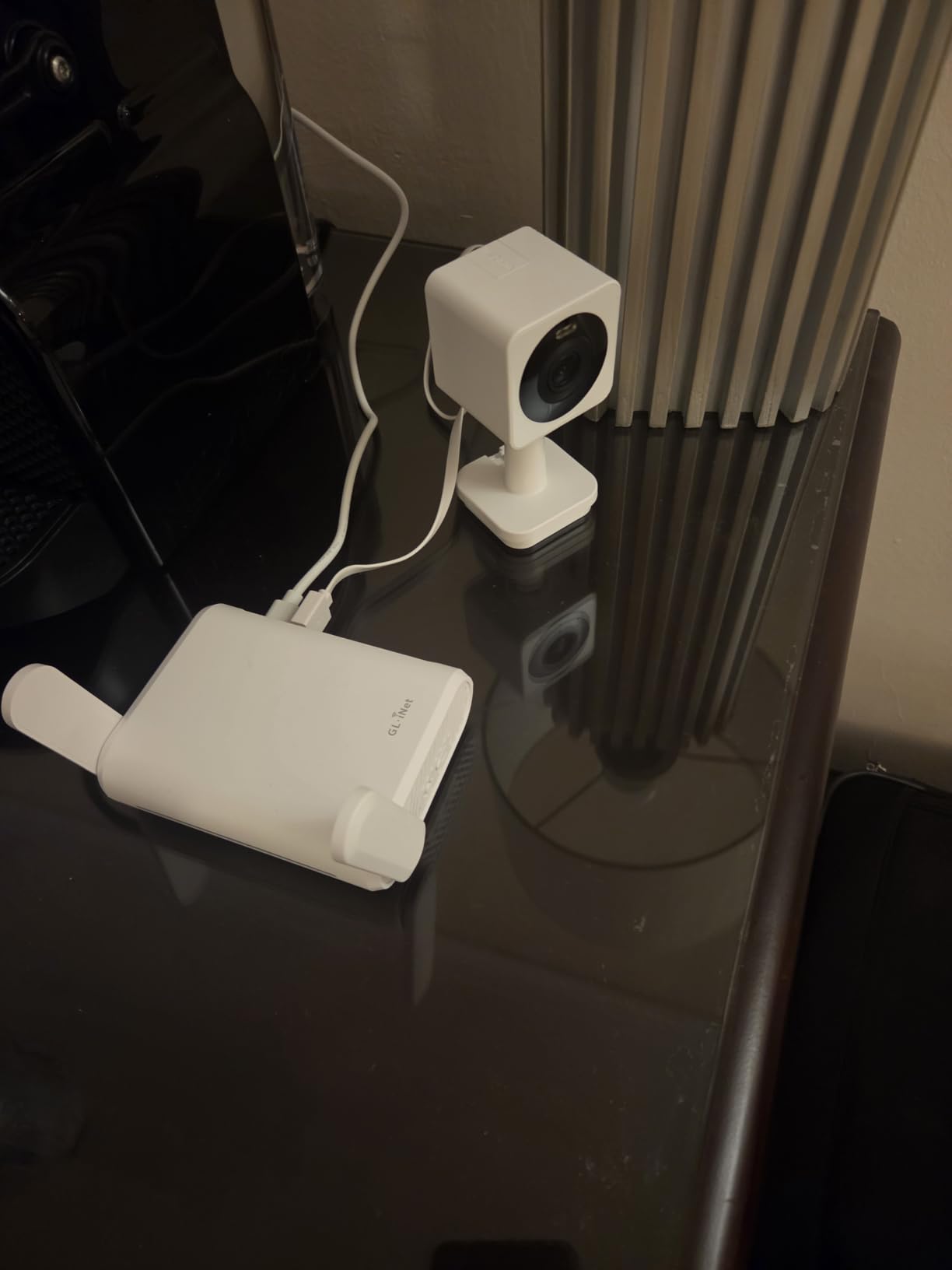
Retractable antennas improve reception, and the physical VPN toggle gives you a one-switch answer for public Wi-Fi. It can repeat a hotel or cafe network into a private secured one, which is a genuinely useful trick in temporary accommodation.
The two-year warranty and IPv6 support with Cloudflare encryption are nice touches at this size. It runs on 5 volts, so any USB charger powers it.
Why it works in a crowded building
Access Point mode is the reason it earns a place. In an apartment with one ethernet outlet in a hallway closet, you can keep your main router near the jack and add the Opal as a discreet second radio in the room where the signal dies, without a second network or a second router admin page.
Its 867 Mbps 5 GHz rate is fine for a bedroom or a study, and keeping it off the floor and out of a metal cabinet is easy at this size.
Where it falls short
It is Wi-Fi 5, and total throughput sits below the dual-band Wi-Fi 6 models in this roundup. It is a support unit, not the main brain of a busy shared apartment.
Setup needs the manual if you are not comfortable with router interfaces, there is no easytethering support, and the physical toggle defaults to no function until you configure it in the admin panel.
Why Apartment Wi-Fi Is Hard?
Congestion, not range, is the defining constraint. The 2.4 GHz band has only three non-overlapping channels, and in a large apartment complex every router that ships with default settings piles onto the same three. A user on a network forum who audited a dense building found nearby routers all sitting on channel 1 or 11, which is the technical version of everyone shouting at once.
Neighbour interference compounds the problem. Every visible network on your phone’s list is radiating into your space through the walls, and the 5 GHz band that should fix it is also shared, just across more channels. The result is the pattern almost everyone in a flat describes: fine at midday, unusable at 9pm when the whole building starts streaming.
Thin or concrete walls change the maths again. Drywall and stud partitions let 5 GHz pass, while reinforced concrete and metal wiring closets cut it severely. That is why the same router can be excellent in a one-bedroom and useless two rooms away in a condo, and why a second radio in a second room beats a more powerful single unit.
Placement is the quiet constraint. Renter forum users repeat one recommendation constantly: put the router in the centre of the apartment. But your ISP connection arrives at a fixed wall jack, often inside a shared or in-wall closet, which is the single worst radio location available. That contradiction is the real apartment networking problem, and it is why a compact box that can live on a central shelf beats a flagship you are stuck hiding in a cupboard.
Fix Your Current Router Before You Buy Anything
Most people who feel slow in a flat have a settings problem, not a hardware problem. These steps cost nothing and take an evening. Work through them in order before spending money.
Move the router. Get it off the floor, out of any closet, and into open air as close to the middle of the space as the cable allows. A waist-high shelf in the main room beats a cabinet by a wide margin.
Set 2.4 GHz to a fixed channel. Pick channel 1, 6, or 11 and switch off automatic channel selection. Those are the only three non-overlapping channels in 2.4 GHz, and forcing a fixed choice stops your router from wandering onto a neighbour’s channel mid-call.
Check which channels are crowded. On a phone, open a Wi-Fi analysis tool and look at nearby networks and their channel numbers. Count how many sit on 1, 6, and 11, then choose whichever of the three has the fewest. That is the entire method.
Set 5 GHz to a clean channel too. Use 36, 40, 44, or 48 as a starting point, or 149/153/157/161 if your device allows the higher block. Avoid the DFS range if your connection drops whenever a radar signal appears.
Split the bands. Give 2.4 GHz a plain name and 5 GHz another, then manually pin laptops and consoles to the 5 GHz network. Old smart home and Bluetooth devices can stay on the 2.4 GHz SSID where they cause less harm.
Reboot, then re-test. Power-cycle the modem and router together, wait five minutes, and run a speed test at 9pm rather than at noon. Peak-hour results are the only ones that matter in a building.
If those six steps do not change anything, you now know the problem is not a setting, and you can buy hardware with confidence instead of guessing.
2.4 GHz vs 5 GHz vs 6 GHz in a Dense Building
The 2.4 GHz band travels furthest and penetrates walls best, which sounds ideal for an apartment. It is also the band your neighbours, their smart bulbs, their baby monitors, and every Bluetooth device are already sitting on, and it has only three usable channels. Use it for smart home devices and printers, not for laptops.
The 5 GHz band offers far more channels, so it is the practical answer for streaming 4K, online gaming, video calls, and remote work. It does not penetrate thick walls as well, which is the tradeoff you pay for clean airtime. In most apartments, 5 GHz should be your default band.
The 6 GHz band, available on Wi-Fi 6E and Wi-Fi 7 hardware, is the cleanest spectrum available because very few neighbours have devices on it. The catch is range: at 6 GHz the signal falls off quickly through walls, so it works well in an open studio or one-bedroom and poorly in a large unit with concrete. None of the eight routers in this roundup carries a 6 GHz radio, so treat it as a next-generation option rather than an apartment solution right now.
Single Router or Mesh System?
Buy a single router when your space is a studio or a one-bedroom with drywall, when you have under about 30 devices, and when you can put the router near the middle. For that situation a good single unit is faster, simpler, and cheaper than a kit, because there is no wireless backhaul eating half your throughput.
Buy a mesh system when you have concrete or brick, when the layout spans two floors or more than 1,500 square feet, or when the ISP jack is stuck in a closet in one corner and you need radios in two more places. The extra cost buys you a second and third radio placed exactly where the dead zone is.
What you should not do is buy three nodes for a studio. Forum users describe this constantly: two units a few feet apart is worse than one, because the nodes fight over which one serves a device and clients hop between them mid-call. If a kit is right for you, two nodes placed as far apart as the layout allows beats three nodes clustered together.
How to Choose a Router for an Apartment?
Pick Wi-Fi 6 or newer. Wi-Fi 6 adds OFDMA, MU-MIMO improvements, and BSS coloring, all of which help in a crowded building. Wi-Fi 6 hardware is now the mainstream tier, and Wi-Fi 5 shows up mainly in travel-size units. For most apartments, Wi-Fi 6 is the floor and Wi-Fi 6E or Wi-Fi 7 is the upgrade.
Match capacity to your device count. A couple of people with phones and laptops is a 20-device class. Three roommates with consoles, a smart TV, and cameras pushes you to 75+ devices, and that is where mesh or a high-end single unit earns its price. Count before you shop.
Count ports before you fall for a design. One gigabit port is common on compact units, and if you want two wired devices you need a switch. Two Gigabit ports per node makes daisy-chained wired backhaul possible, and three ports per node is what the X55 offers for exactly this reason.
Check the footprint against your space. Vertical towers are tidy and rack up antennas. Flat boxes disappear under a TV. Travel units at under 5 inches wide can hide behind a monitor, which is the only way some rentals will tolerate visible networking gear.
Look for install options that need no drilling. If you rent, your realistic options are a shelf, a windowsill, a bookcase, a stand, or a peel-and-stick wall mount. Anything requiring holes or exterior antennas needs your lease checked first.
Treat transmit power carefully. A louder router in a dense building does not give you a cleaner channel, and turning the power all the way up makes the air worse for you and your neighbours alike. Routers with adjustable power, like the ASUS, let you dial it back to a sensible level.
Look for a real management surface. App-only is fine if you never want to change anything. If you want to see channel occupancy, split bands, or set per-device limits, choose a router with a web interface, which is the main argument for the ASUS in this group.
What Size Apartment Needs What?
Match the router class to the space rather than to the marketing number. Square footage matters less than wall material and how many devices share the connection.
Studio or dorm room, 300 to 500 sq ft. One compact single router covers this entirely. A travel-size unit in access point mode or a flat Wi-Fi 6 box is enough, and mesh is overkill.
One-bedroom, 500 to 800 sq ft. A single Wi-Fi 6 router placed centrally handles the whole unit. This is the most common apartment shape and the one our top value pick is built for.
Two-bedroom with roommates, 800 to 1,200 sq ft. Device count becomes the deciding factor. A high-capacity single router or a two-node mesh handles 40 or more devices with cameras and consoles.
Two-bedroom plus separate rooms, 1,200 to 1,500 sq ft. Two or three mesh nodes spread across the layout, wired backhaul if you can run a cable.
Concrete condo or building with metal wiring closets. Treat it as a two-radio problem regardless of size. One router near the jack plus a second node or a wired access point in the far room.
High-rise with heavy neighbour congestion. Prioritise a clean 5 GHz channel, BSS coloring support, and adjustable transmit power over raw aggregate speed numbers.
Using Your Own Router With the ISP Modem
You do not have to keep the ISP router, and you can keep it too. Two approaches solve the double-network problem.
Bridge mode. Ask your ISP to put their modem into bridge mode. It then acts as a pure modem and passes your connection straight to your own router, which becomes the only device handing out addresses. This is the cleanest setup, but some providers make it hard to enable or charge for support calls.
Access point mode. If your ISP will not bridge, put your router into AP mode. It stops routing and stops handing out addresses, and simply extends the ISP network over ethernet. Some of the routers here support it directly, including the GL.iNet units, and most others can do it in settings.
One warning either way: do not run the ISP router and your own router in router mode at the same time. You get two DHCP servers, two NAT tables, and intermittent devices that land on the wrong network. The GL.iNet Opal is worth considering as a small access point when you want one clean network name and no second admin interface.
Renter Rules Worth Checking Before You Mount Anything
Before you drill, unscrew, or mount, read your lease and your ISP terms. Most student leases prohibit drilling, and any modification to a shared wiring closet can count as a building alteration even though the hardware is yours.
Watch for the no-exterior-antenna rule. External antennas on a balcony or window are restricted in many buildings for structural and safety reasons, and that alone eliminates a few designs before you consider the network.
Shared infrastructure is the quiet one. If your unit gets internet through a building-wide system with equipment mounted in a common closet, replacing or reconfiguring it may require the property manager’s involvement rather than yours.
The safe list for a renter is short: a shelf, a windowsill, a bookcase top, a peel-and-stick mount, and a flat cable along a baseboard. Every one of those is reversible, and reversible is what your lease cares about.
Frequently Asked Questions
What is the best router for an apartment?
The TP-Link Deco S4 Mesh AC1900 3-Pack is our top pick for most apartments. It gives you three dual-band nodes, one network name, and two Gigabit Ethernet ports per node, which lets you place radios in more than one room without buying a second network. For a studio or one-bedroom where you can keep the router in the middle, the TP-Link Archer AX21 is the better single-router value.
What is a good small and compact Wi-Fi router?
Compact options are the GL.iNet Slate AX at 245 g and the GL.iNet Opal at 145 g, both of which are small enough to hide behind a monitor or on a narrow shelf. Among full-size units the NETGEAR R6700AX has a compact footprint that reviewers like for shelves and dressers. Pick compact hardware if you rent and cannot mount anything on a wall.
How do I get a better Wi-Fi signal in my apartment?
Work through the free fixes first: move the router to the middle of the space and off the floor, set 2.4 GHz to a fixed channel of 1, 6, or 11, choose the least crowded 5 GHz channel after scanning, split the two bands onto separate names, and reboot the modem and router together. Test at 9pm rather than midday, because peak-hour results are what you actually live with in a shared building.
Do I need a mesh system in an apartment?
Usually not. A studio or one-bedroom with drywall and under 30 devices is better served by one good router placed centrally, since wireless backhaul between nearby nodes costs throughput. Mesh earns its place with concrete or brick walls, a layout over 1,500 square feet, or an ISP jack stuck in a closet that forces the router into a corner.
Which 5 GHz channel is best for avoiding interference?
Start with 36, 40, 44, or 48, or the higher 149, 153, 157, 161 block if your device allows it. Run a Wi-Fi analysis tool on your phone, note which channels nearby networks occupy, and pick the emptiest one from the list rather than trusting automatic selection. Avoid the DFS range unless you are comfortable with brief dropouts when radar signals appear.
Can 5 GHz penetrate walls?
It is weaker than 2.4 GHz at passing through walls, which is the trade for far more usable channels. Through drywall and stud partitions 5 GHz is usually fine for an adjacent room. Through reinforced concrete, brick, or a metal wiring closet it drops off sharply, and that situation calls for a second radio in a second room rather than a more powerful single router.
Is a Wi-Fi 6 router outdated?
No. Wi-Fi 6 is currently the mainstream tier and its features, particularly OFDMA, MU-MIMO improvements, and BSS coloring, are exactly what help in a congested building. Wi-Fi 6E and Wi-Fi 7 add a 6 GHz band that is cleaner but shorter-ranging, which makes it useful in an open studio and less useful across concrete. Wi-Fi 5 is the generation worth moving away from.
Why is my apartment Wi-Fi slow in the evening?
Because the whole building is using the same air at the same time. Between roughly 8pm and 11pm your neighbours start streaming, gaming, and joining calls, and the shared 2.4 GHz channels in particular saturate. Set a fixed non-overlapping 2.4 GHz channel, pick a clean 5 GHz channel, and prioritise your own devices. If that does not help, more channel airtime, not more transmit power, is what you need.
Which Router Should You Buy for Your Apartment?
Start with the TP-Link Deco S4 Mesh AC1900 3-Pack if your layout is awkward or the ISP jack is not central, because three nodes solve placement problems that no single box can. If you have a studio or a one-bedroom and can put one router in the middle of the space, the TP-Link Archer AX21 is the smarter single-router buy and the one we would own ourselves.
Before either, spend an evening on the six free fixes. Move the box, set a fixed 1, 6, or 11 channel, find a clean 5 GHz channel with a phone scanner, split the bands, and reboot. A meaningful share of the people who think they need a new router find that a settings change did more than any purchase would have.
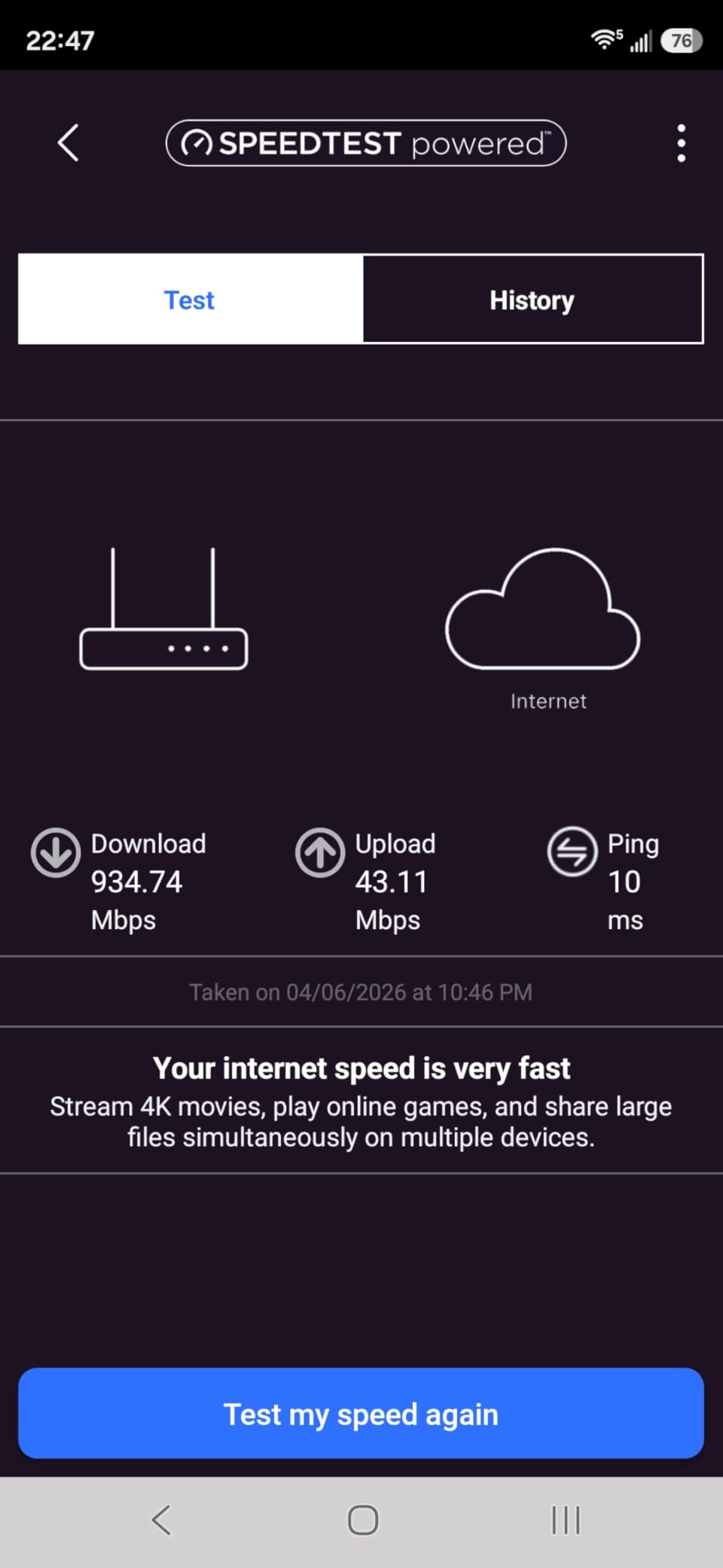
Then test before you keep it. Run one speed test beside the router, one in the farthest room, and one at 9pm in the room where you actually work or watch TV. If the gap between the first two is large, you have a placement or wall problem and a second node or a wired backhaul will fix it. If all three collapse at 9pm together, no hardware on this list will save you, because the air is full and only a channel change or your ISP’s node helps.
Check your lease before anything gets mounted, keep the router off the floor in open air, and be a reasonable neighbour about transmit power. The best routers for apartments in 2026 are the ones that are placed well and tuned properly, and the hardware choice only decides how much headroom remains after your own tuning.