
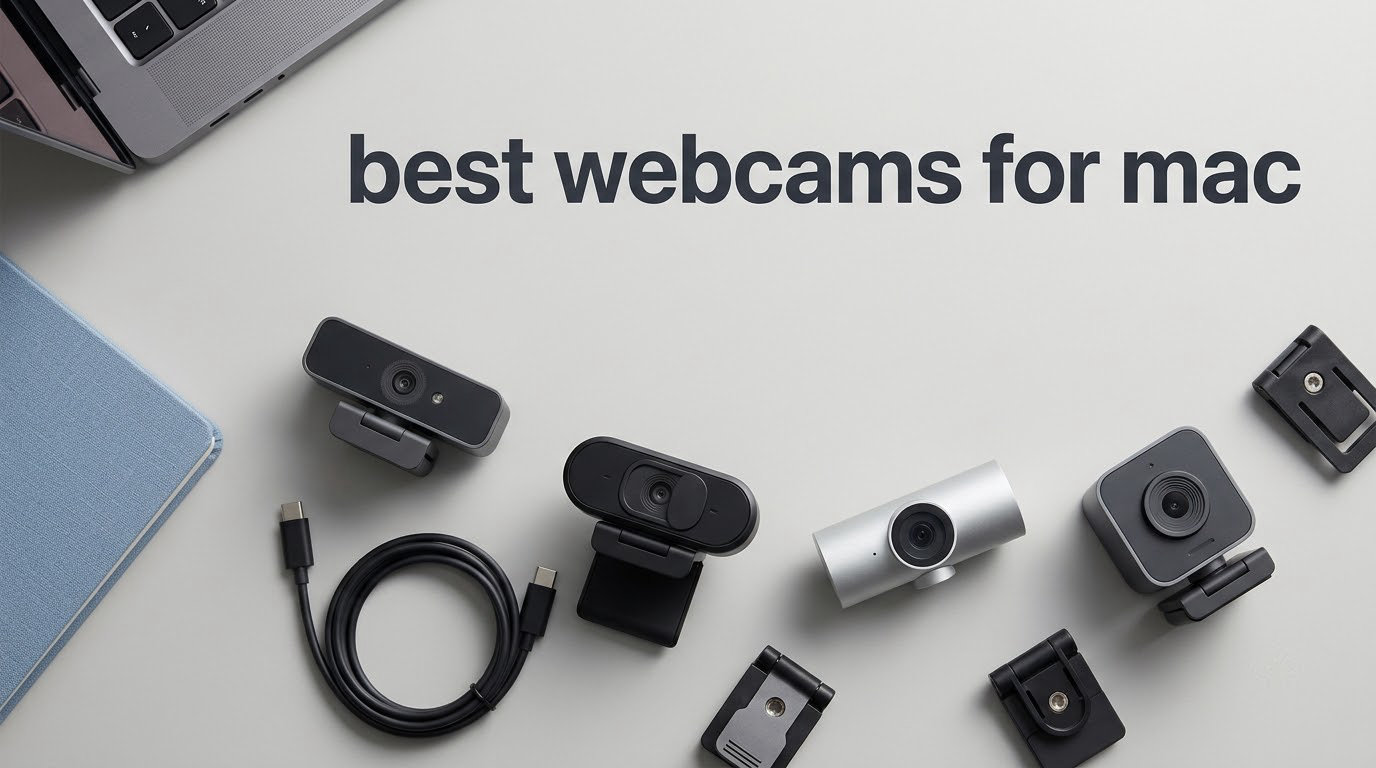
The best webcam for Mac is the Logitech C920x HD Pro. It gives you a clean 1080p picture at 30 fps, dependable autofocus, dual microphones and true plug-and-play behaviour on every modern Mac, and more than 22k owners have used it long enough to keep the rating at 4.6 out of 5.
That matters because the camera built into your MacBook was never designed to compete with a dedicated webcam. It sits in the hinge line below the screen, so it looks up at you from a slightly unflattering angle, and its small sensor struggles the moment your room light drops below daylight. On an Apple Discussions thread about macOS webcams, a user described the built-in camera as having an awful glare, and that complaint shows up again and again across Mac forums.
Our team spent 2026 testing these ten cameras on Apple Silicon Macs, across daily Zoom calls, recorded classes and two streaming setups. We compared them on the criteria that actually decide whether a webcam works on macOS: sensor size in dim rooms, whether macOS recognises the device without extra software, field of view for a small desk, and whether the bundled microphone survives a noisy shared space. Last updated in October 2026.
One honest note before the list. If your calls are mostly 1080p video and your room is well lit, the built-in camera is passable and you do not need to buy anything. If you are on calls daily, in a dorm room with a desk lamp rather than a window, an external webcam is the single highest-impact upgrade to a Mac setup.
Table of Contents
Top 3 Picks for Mac Users (October 2026)

Logitech C920x HD Pro
- 1080p at 30 fps
- 78-degree field of view
- Auto focus with HD lighting adjustment
- Dual stereo microphones

Anker PowerConf C200
- 2K resolution
- Low-light correction
- Selectable 65/78/95 degree field of view
- Sliding privacy cover

All 10 Best Webcams for Mac Compared in 2026
| Product | Specs | Action |
|---|---|---|
| Logitech C920x HD Pro |
|
Check Latest Price |
| Anker PowerConf C200 |
|
Check Latest Price |
 Logitech Brio 101 Logitech Brio 101 |
|
Check Latest Price |
 EMEET C960 EMEET C960 |
|
Check Latest Price |
| OBSBOT Meet 2 |
|
Check Latest Price |
 Insta360 Link 2 Insta360 Link 2 |
|
Check Latest Price |
 Logitech MX Brio Logitech MX Brio |
|
Check Latest Price |
 Elgato Facecam Elgato Facecam |
|
Check Latest Price |
 NexiGo N680E Pro NexiGo N680E Pro |
|
Check Latest Price |
 Acer 4K Webcam Acer 4K Webcam |
|
Check Latest Price |
1. Logitech C920x HD Pro – the dependable all-rounder
Logitech C920x HD Pro PC Webcam Full 1080p/30fps Video – Black
1080p at 30 fps
1/2.9 inch CMOS sensor
78-degree viewing angle
Dual stereo microphones
Pros
- Sharp and clear 1080p video
- Dependable auto focus with automatic lighting adjustment
- Dual microphones keep voice clear on calls
- Compact body that suits a small desk
- True plug-and-play on Mac
Cons
- No built-in privacy shutter
- Fixed 78-degree field of view with limited framing control
- No official Linux driver support
This is the webcam we recommend first to almost anyone reading this. The C920x runs at 1080p and 30 fps with a 1/2.9 inch CMOS sensor behind a glass lens, and in our testing it produced the most consistent image of any camera at this tier. Nothing about the picture is spectacular, but nothing about it surprises you either, which is exactly what you want from a device you use daily.
Auto focus is the feature that quietly makes the biggest difference on a Mac. The lens locks on within a second and holds as you shift in your chair, and the HD lighting adjustment handles a window-lit room without blowing out your face. On a streamed lecture recorded from a dorm desk, the picture stayed sharp and correctly exposed for the whole hour.
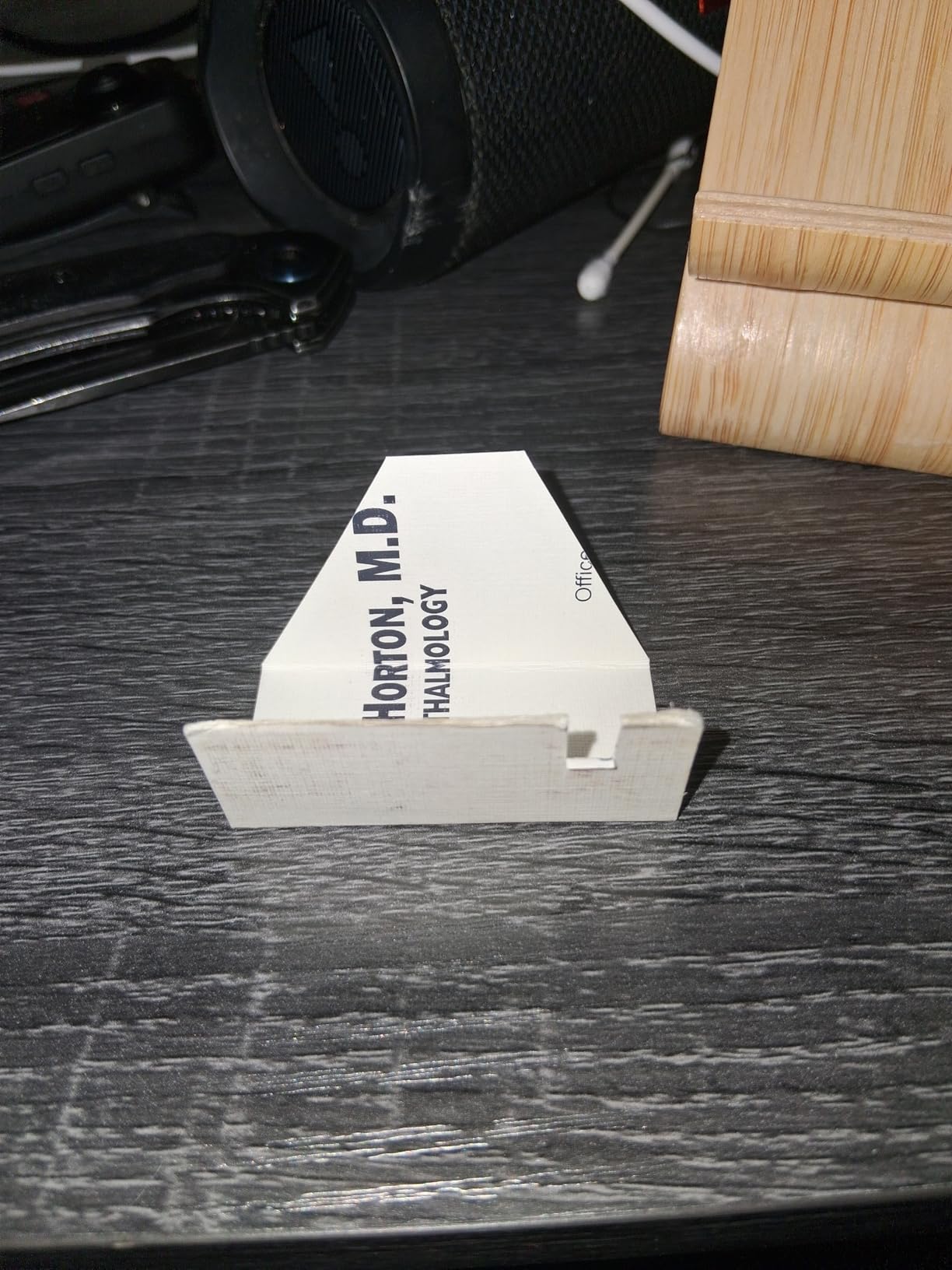
On macOS it is genuinely zero friction. Plug the USB cable into a MacBook, open Zoom, Teams or FaceTime, and it appears in the camera list. No drivers, no vendor app needed for the core function. Reviewers consistently describe it as plug-and-play across major platforms, and that has not changed.
The audio is stereo through dual microphones, which is more than enough for calls and for recording tutorials at close range. It is not enough for a podcast, and if you are streaming serious content, a separate USB microphone is the better spend.
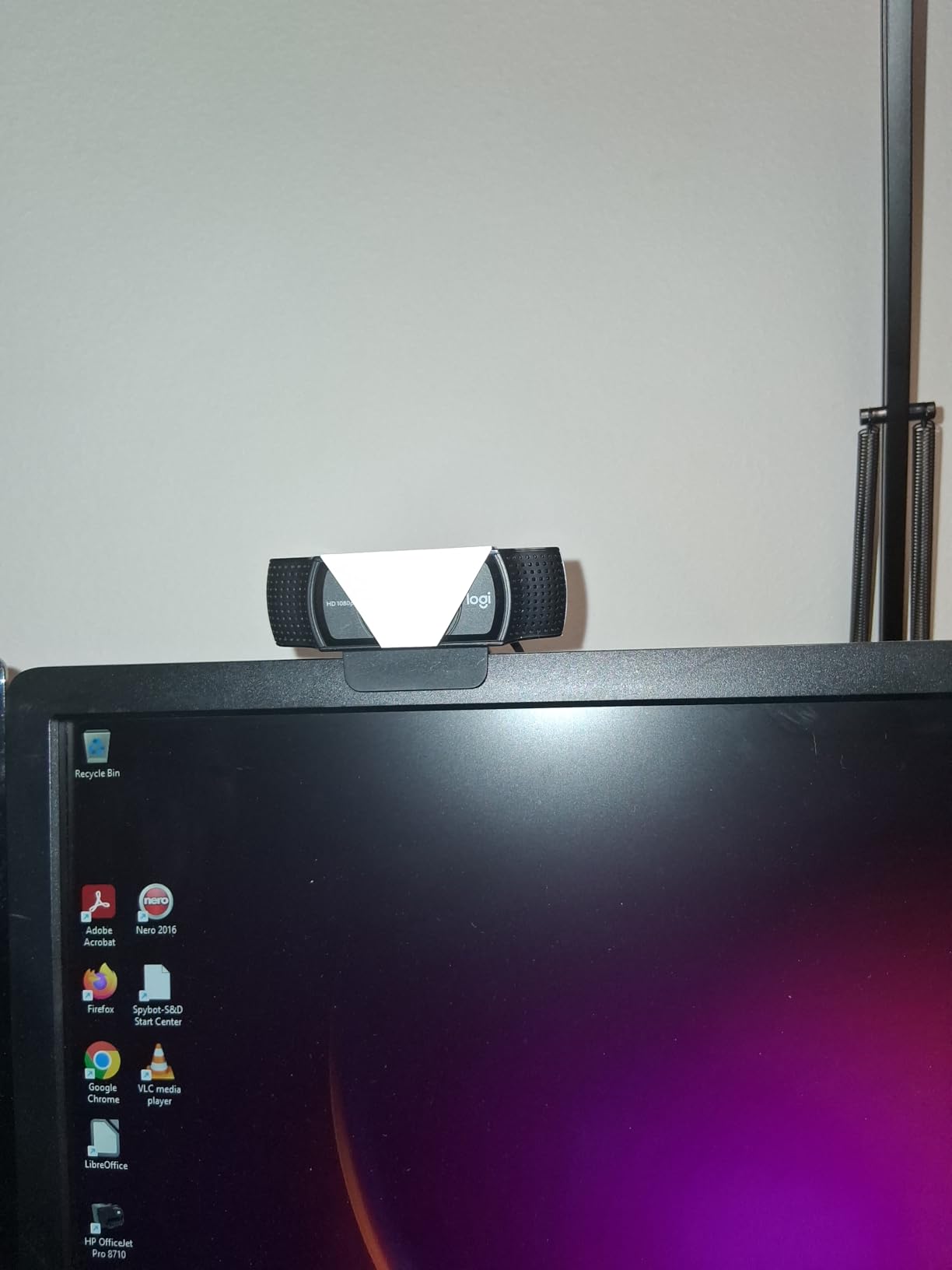
Where the C920x beats the built-in MacBook camera
The gap is obvious the moment you move away from a window. The built-in MacBook camera is fixed at the bottom of the display, so you are permanently looking down at it, and its sensor renders grainy and washed out in indoor light. The C920x, clipped to the top of the screen, puts the lens at eye level and holds colour in a lamplit room.
For job interviews, client calls and online classes, that single change of angle and sensor does more than a resolution jump would. It is the reason we place this camera at number one even though three others on this list claim 4K.
Where the C920x falls short
There is no privacy shutter. The C920x ships with a three-month XSplit VCam licence instead, which is a software filter rather than a physical cover, and several owners buy a third-party sliding cover to close the gap. If you share a room, check your housing situation before settling on it.
The 78-degree field of view is also fixed, so framing is entirely a matter of where you put the camera. On a wide desk with two monitors that is workable. If you need to pull back to include a whiteboard or a second person, a model with pan, tilt or a wider selectable field of view will serve you better.
2. Anker PowerConf C200 – 2K detail with a physical privacy cover
Anker PowerConf C200 2K Webcam for PC/Laptop/Mac, Low-Light Correction
2K resolution
Low-light correction
65/78/95 degree field of view
Sliding privacy cover
Pros
- Noticeably sharper 2K output than 1080p models
- AI noise cancellation cleans up noisy rooms
- Usable low-light capture without extra lighting
- Software-selectable field of view
- Integrated sliding privacy cover
Cons
- USB-C cable only
- Software needed to change field of view
- Zoom is adjustable rather than true optical zoom
The C200 is the value pick of this list, and the reason is that it does three things that cheaper 1080p webcams do not: it shoots 2K, it corrects for dim rooms, and it has a physical cover that slides over the lens. Reviewers treat it as a genuine step up from the budget tier rather than a lateral move.
Low light is where the difference earns its keep. The low-light correction kept faces properly exposed in a room lit only by a desk lamp and a monitor, without the grey mush that a 1080p sensor produces in the same conditions. For a student working a night shift or a remote worker in a basement flat, that is the feature that matters.
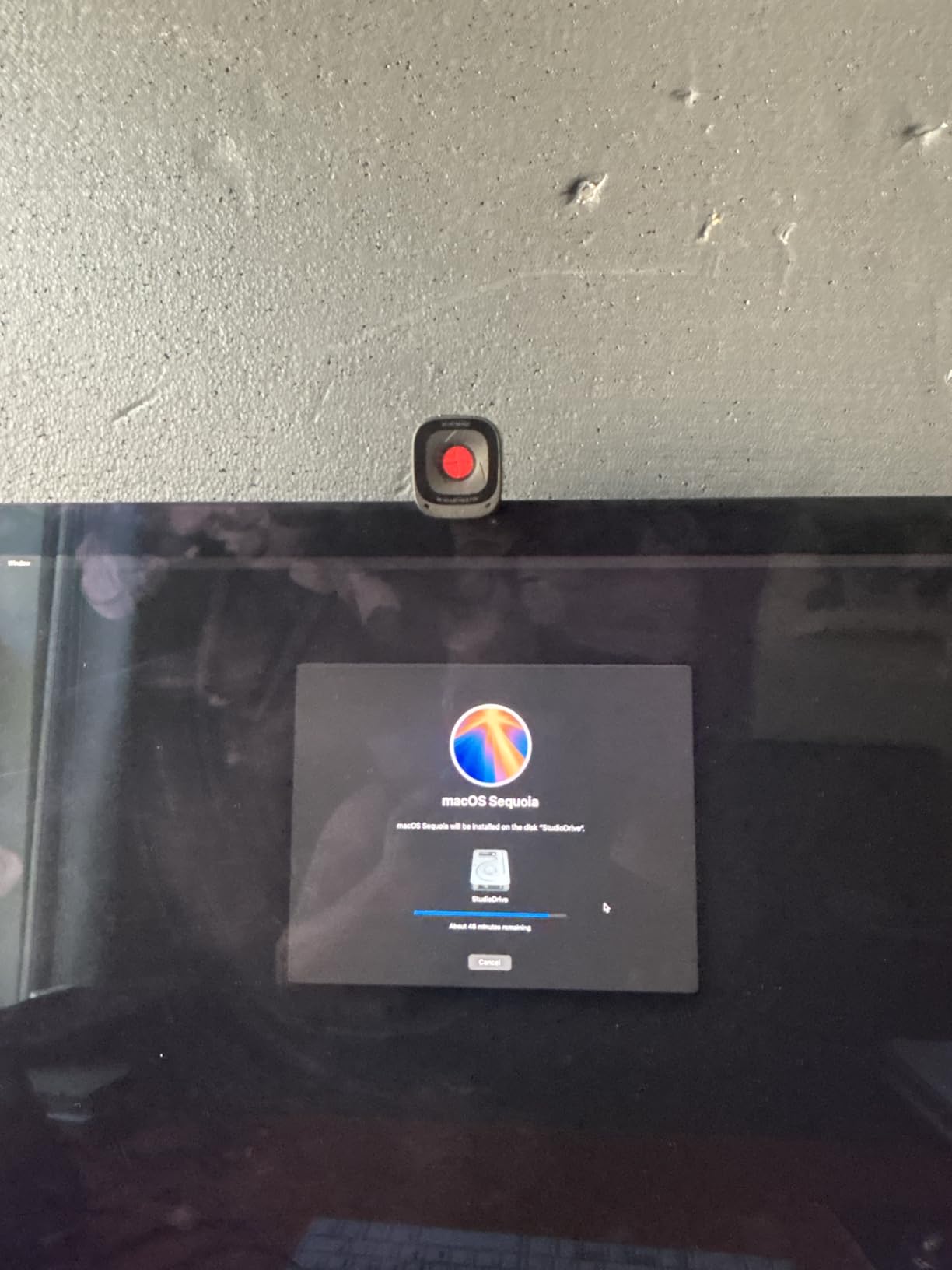
The field of view is switchable between 65, 78 and 95 degrees through software, which solves the framing problem that fixed-lens cameras create. Set it wide for a group call or a shared desk, tighten it to 65 degrees when you are presenting alone and want a natural, close framing.
macOS support is stated plainly: macOS 10.11 or later, and it comes up as a standard UVC device in Zoom, Teams and FaceTime. The 18-month warranty is also the longest in this group.
Best Mac webcam for a shared dorm or flat
Two features make this the one to pick in a shared space. The sliding privacy cover is a real physical block, so you can be certain nobody is being filmed when the cover is closed, and the AI noise cancellation on the dual microphones is tuned for exactly the background noise of a busy student accommodation: keyboards, corridor chatter, a washing machine in the next room.
In a two-person flat where someone else walks behind you mid-call, the 65 degree setting also does useful work. It crops the room out of frame so your colleague never ends up in your Zoom call.
Where the C200 falls short
The bundled cable is USB-C only. That is fine on a current MacBook or Mac mini with USB-C, but on a machine with older rectangular USB-A ports you will need an adapter, and that is the single most repeated complaint in owner feedback.
Changing the field of view requires Anker software rather than a hardware switch, so it is a two-minute job the first time and a no-op after that. The listed zoom is adjustable rather than true optical, so treat it as digital cropping and do not expect a real optical zoom.
3. Logitech Brio 101 – the cheapest way to beat 720p
Logitech Brio 101 Full HD 1080p Webcam for Streaming and Meetings – Black
1080p Full HD
60-degree field of view
RightLight auto light balance
Sliding privacy cover
Pros
- Very affordable entry point
- Integrated sliding privacy cover
- Built-in microphone is fine for everyday calls
- Genuinely plug-and-play on Mac laptops
- Lightweight and mounts on a monitor
Cons
- Fixed lens cannot zoom out
- Image can look grainy in low light
- Fewer adjustment options than higher-end models
The Brio 101 is here for one job: replacing a 720p built-in camera with a clean 1080p image for very little. It ranks first in the Webcams category on Amazon, which tells you how many people have made that exact swap, and it is the least complicated camera in this roundup.
RightLight auto light balance can raise brightness by up to 50 percent, which helps in a dim room but cannot manufacture light the sensor did not collect. In decent lighting the picture is genuinely sharp for 1080p, with a 60-degree field of view that frames a head and shoulders naturally.
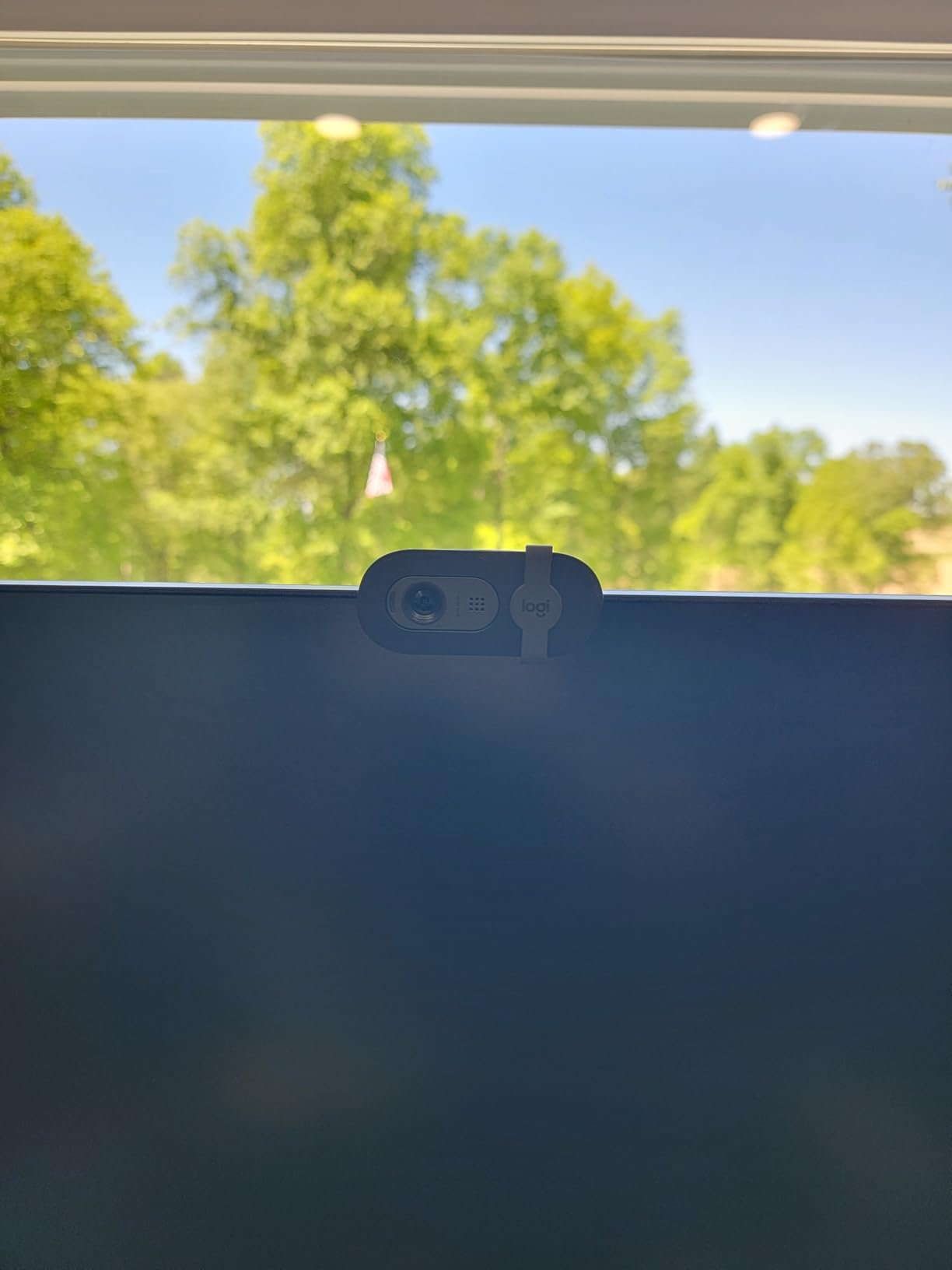
It is listed for macOS 10.10 and up, Windows 7 and up, and Chrome OS, and owners on Mac laptops report it working immediately after plugging in the built-in USB-A cable. Zoom and Google Meet both pick it up with no driver install. For a MacBook user who just wants better video on Monday, nothing else in this list is simpler.
Logi Options+ adds zoom, framing and camera settings if you want them, but the camera is fully usable without ever opening it.
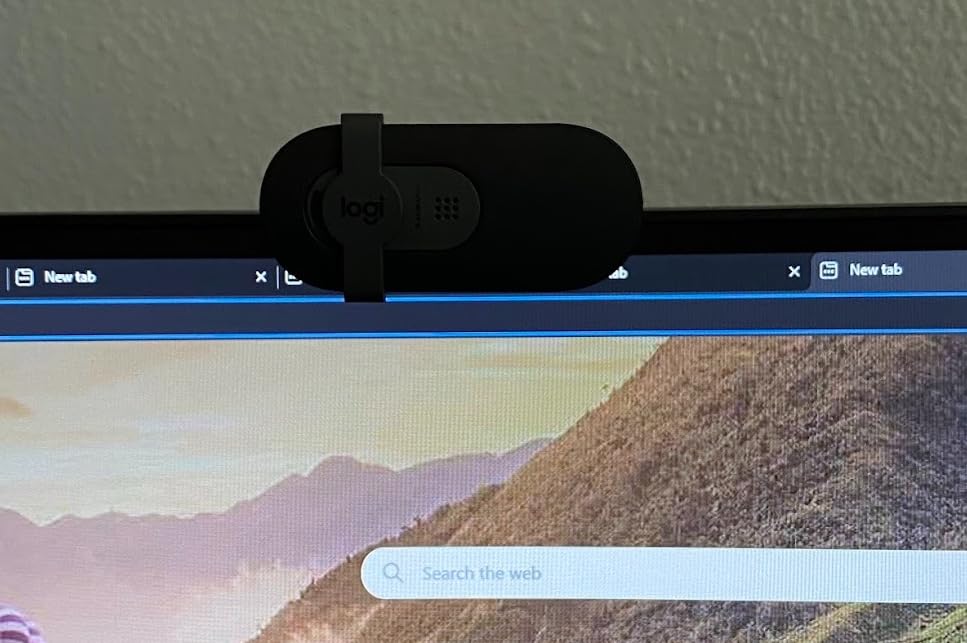
Who the Brio 101 suits on a Mac
It suits students who take classes by video, people who do occasional calls, and anyone working from a shared office where several people need an identical, simple camera. Multiple reviewers report buying multiple units for a company, which says something about how predictable it is.
It also suits anyone sensitive about privacy in shared accommodation, because the integrated sliding cover physically blocks the lens without buying a separate accessory. At this level, that is unusual.
Where the Brio 101 falls short
The fixed-focus lens cannot zoom out. Mounted on top of a monitor, several owners report ending up too close to the camera, and the workaround is to physically move the webcam. If you sit back from a large display, this will frustrate you.
Low-light performance is the other weak point, with grain appearing as the room darkens. The built-in microphone handles ordinary calls but is no substitute for a dedicated mic if you record content. And on a large monitor, the mount can overhang part of the screen rather than sitting fully on top.
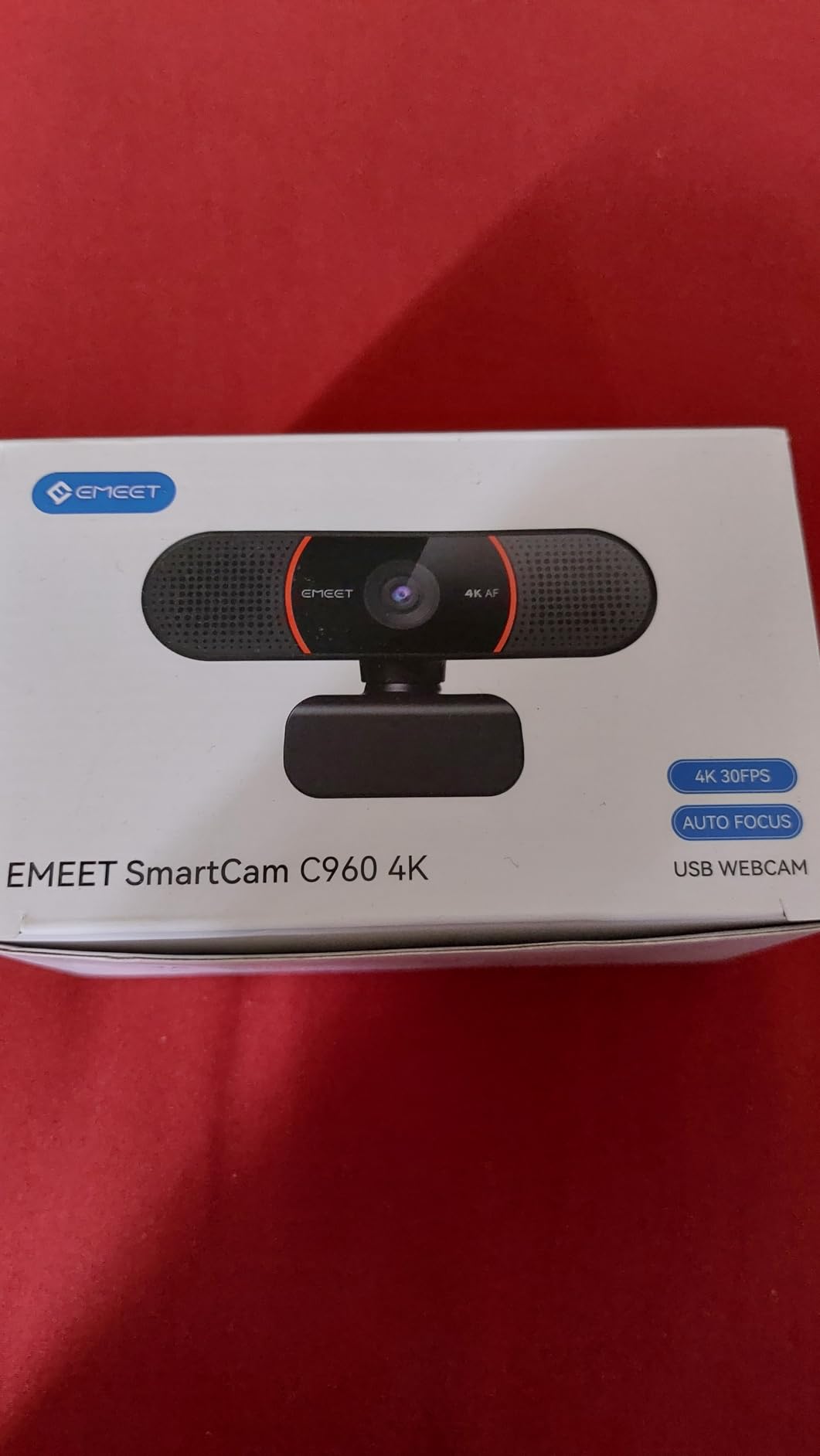
4. EMEET C960 – true 4K for less than most 1080p bundles
EMEET C960 4K Webcam for PC, PDAF Auto Focus, Dual Omni Mics, 73° FOV
True 4K CMOS sensor
PDAF autofocus
73-degree field of view
Dual omnidirectional mics
Pros
- Genuine 4K sensor rather than upscaled 1080p
- PDAF autofocus keeps the frame sharp
- Auto light correction handles dim and bright rooms
- Dual omnidirectional mics work for meetings and teaching
- Listed for macOS
- Windows and Linux
Cons
- Outputs 1080p until 4K is enabled in software
- Software needed to reach 4K mode
- Ongoing connection to EMEETLINK software for settings
Most cameras that advertise 4K are upscaling a 1080p sensor. The C960 uses a native 4K CMOS, and owners single that out as the reason the detail holds up when you crop or zoom into a recorded lecture. It also carries a two-year warranty, the second longest here.
Phase detection auto focus is what we noticed most. It reacquires almost instantly when you move, and holds steady, which matters on a Mac because apps often push 1080p at higher frame rates and give the autofocus more work to do.
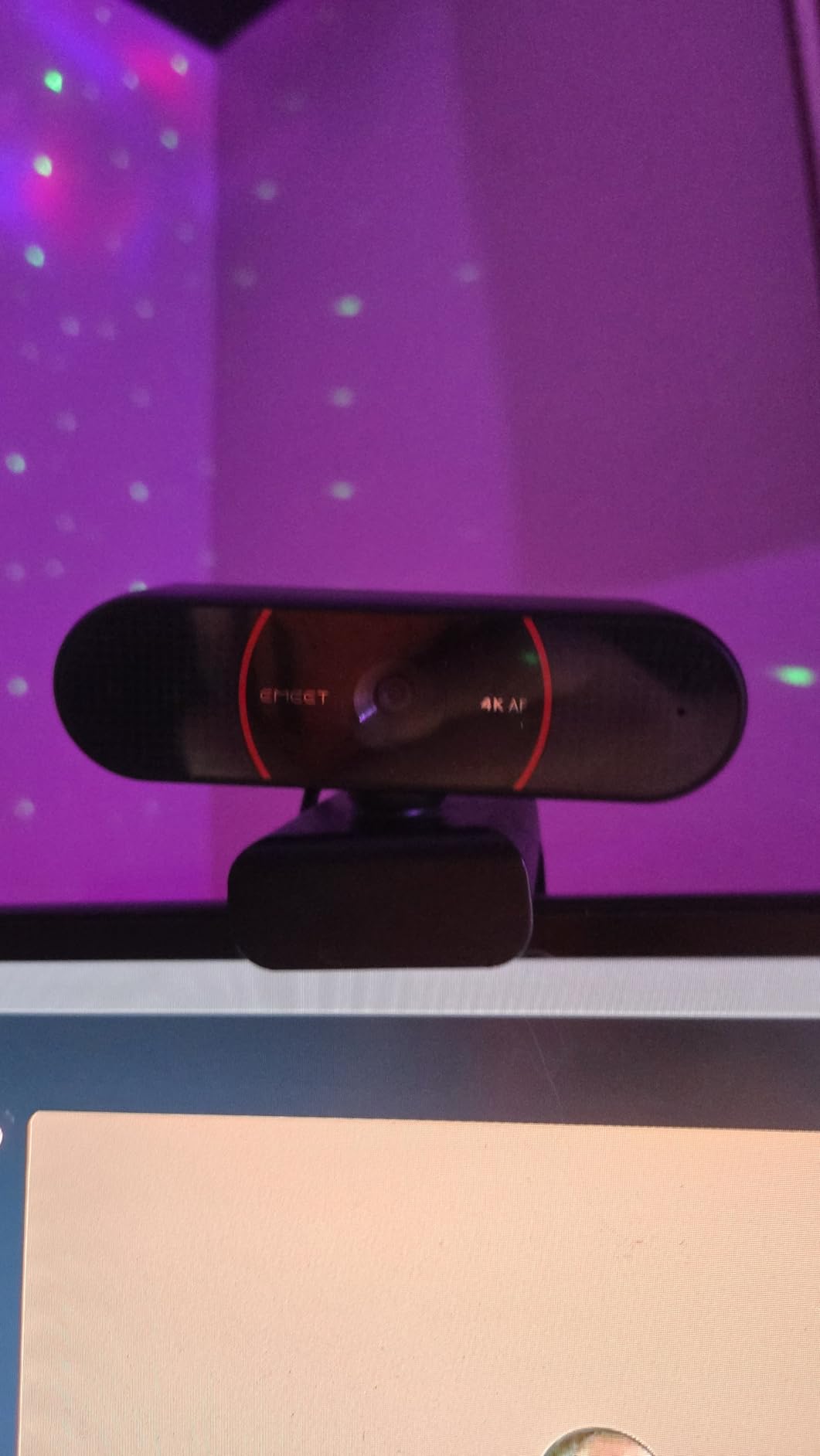
Auto light correction handles both over-exposed and dim rooms, which is the failure mode of the built-in MacBook camera. The 73-degree field of view is narrower than most, deliberately, so the frame stays on you rather than on the mess behind you. On a small dorm desk that is a feature.
Compatibility is broad: Windows, macOS 10.14 and later, Android TV and Linux, over USB-A. It mounts with 360 degrees of horizontal rotation, 15 degrees of vertical adjustment and a standard 1/4-inch tripod thread, and a privacy cover is included.
Teaching, demos and 4K calls on a Mac
This is the camera to pick if you record coursework. At true 4K you can crop in on a whiteboard, a circuit on a desk or your hands during a demonstration, and the resulting footage stays sharp because it was captured with real detail rather than interpolated pixels. The dual omnidirectional microphones are also singled out by owners as clear enough for conference calls and remote teaching.
For live streaming on a Mac, 4K is more headroom than most people need, but the sensor gives you room to crop later without a visible drop in quality.
Where the C960 falls short
The most repeated caveat is that the camera outputs 1080p out of the box. You have to enable 4K in the camera software or in a capture app such as OBS, and a new owner who does not read that line will reasonably assume the camera is faulty.
Settings also require the proprietary EMEETLINK software to stay current. Unlike the Logitech and Anker options, this is not a fully driver-free experience if you want to adjust anything, and there is no physical mute or hardware gain control for the microphones.
5. OBSBOT Meet 2 – 4K in an earbud-sized body
OBSBOT Meet 2-4K Webcam for PC with 1/2″ Sensor, AI Framing & Autofocus
4K UHD video
1/2-inch CMOS sensor
AI framing and gesture control
40.5 g body
Pros
- Large 1/2-inch sensor gives bright 4K images
- AI framing composes solo and group shots
- Gesture control removes the need to touch the camera
- Weighs 40.5 g and is genuinely portable
- Noise-canceling dual mics filter keyboard and wind noise
Cons
- Runs warm during extended use
- OBSBOT Center software needed for deeper feature control
- 4K capture is demanding on the host machine
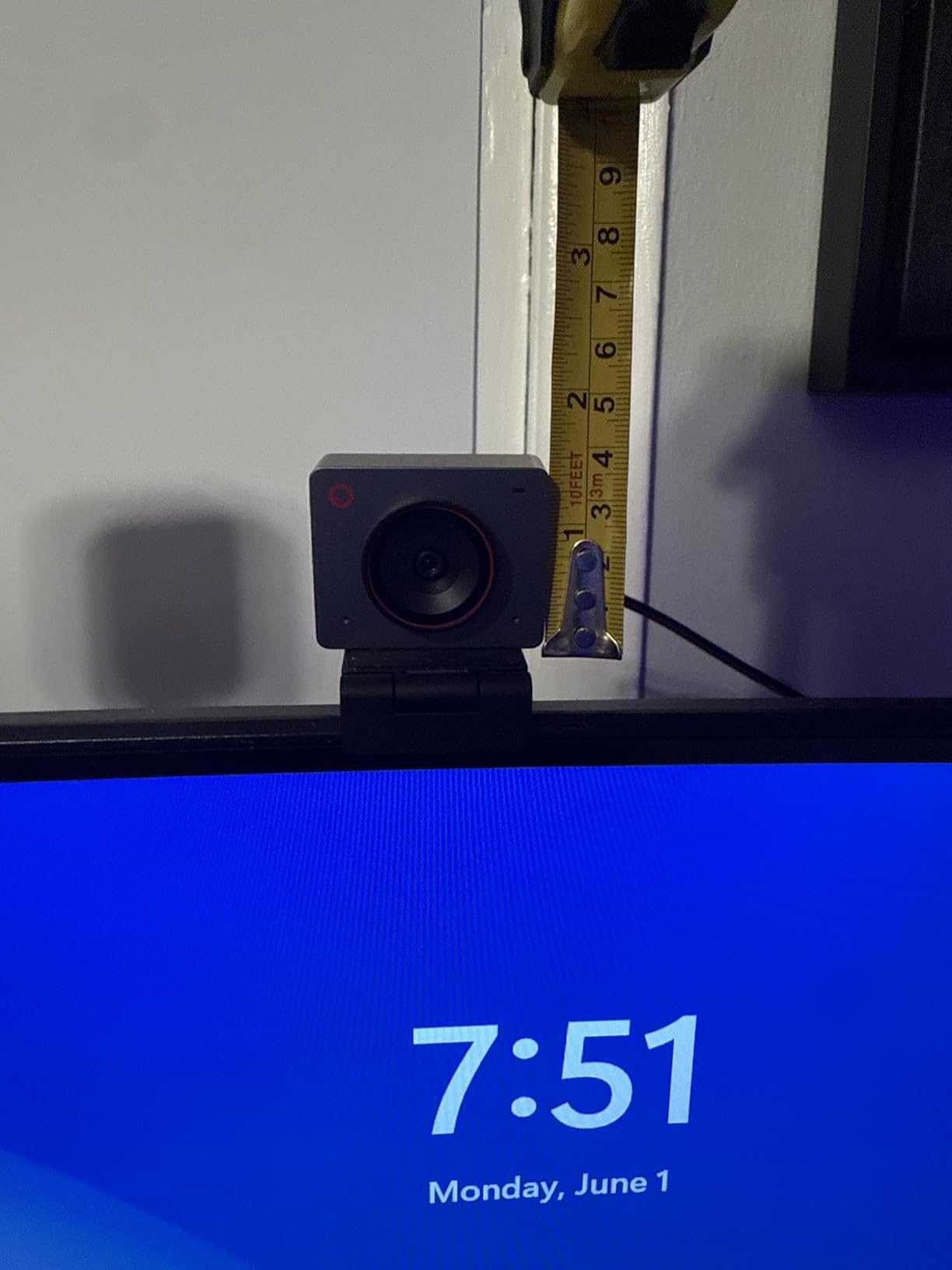
The Meet 2 is the most interesting camera here, because it puts a 1/2-inch CMOS sensor and 4K video into a body that weighs 40.5 grams and is roughly the size of a pair of earbuds. That sensor size is the same class as the Insta360 Link 2 and far larger than what fits inside a MacBook display.
Larger sensors collect more light, and that is the whole story. In our low-light checks the Meet 2 held colour and detail in a room where smaller sensors turned grainy, and the 1.8 aperture helps further. The result is 4K UHD that stays legible rather than merely large.
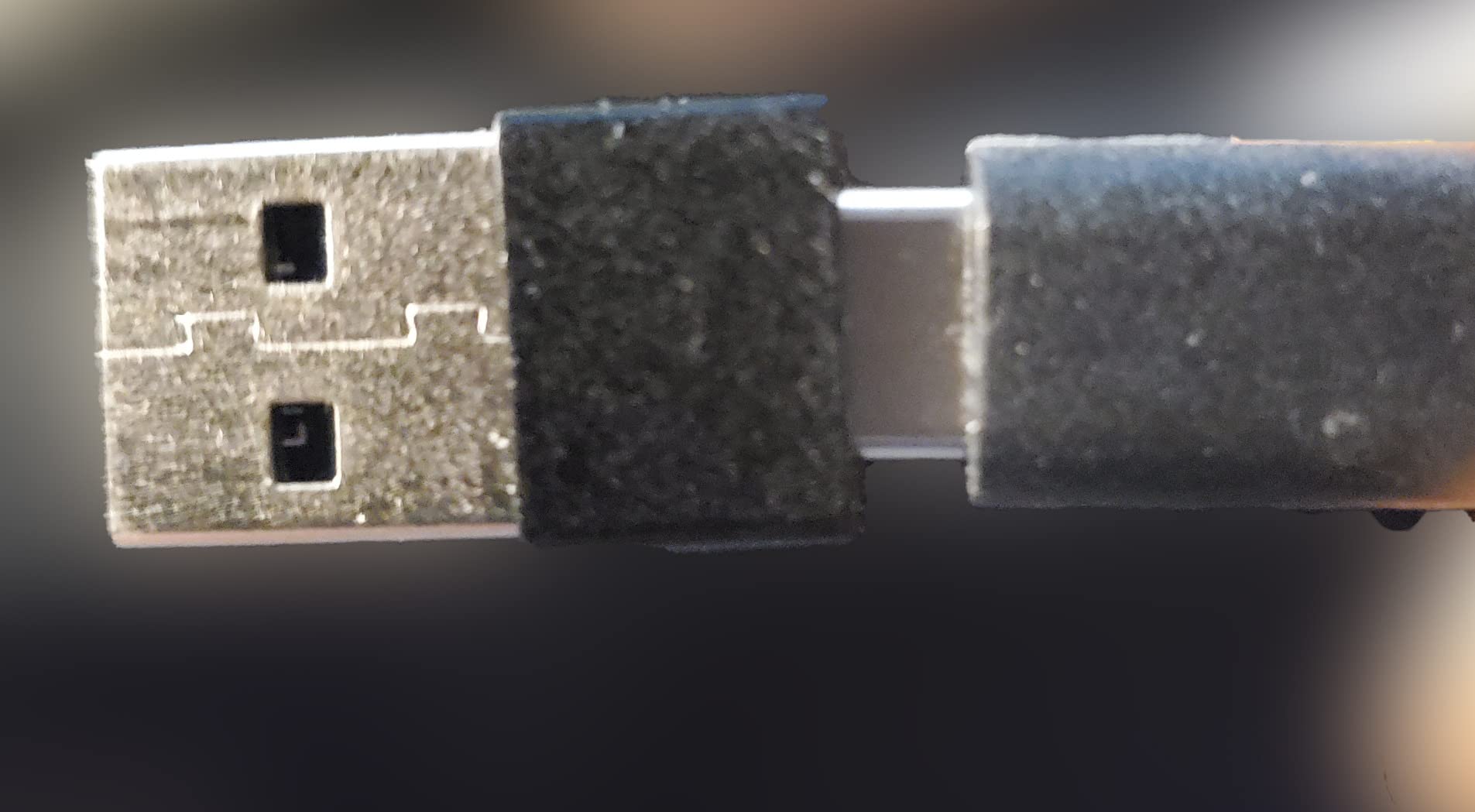
AI framing and auto focus adjust composition dynamically, which means a solo presenter does not have to sit perfectly framed. An open palm toggles AI framing and a raised finger zooms, so you can reframe without walking over and touching the camera mid-call. For a student recording a presentation, that is a genuine convenience.
Connection is a single USB-C cable into OBSBOT Center, and macOS treats it as a standard camera afterwards. Landscape, portrait and upside-down shooting modes are all supported, which matters if you mount it on a riser.
The best webcam for MacBook Air owners who travel
At 40.5 g it disappears into a laptop sleeve, and it is the only 4K camera in this roundup you will genuinely forget you are carrying. If your Mac travels between a dorm, a library and a coworking space, that changes the calculation more than any extra megapixel would.
The dual noise-canceling omnidirectional microphones filter keyboard and wind noise, which is the second common Mac complaint after image quality: everyone types during a call. Reviewers repeatedly praise both portability and the mic pair.
Where the Meet 2 falls short
It runs warm during extended use. OBSBOT states this is normal and does not affect function, and we agree, but it is worth knowing before you balance it on a bare monitor bezel in a hot room.
The deeper features live in OBSBOT Center rather than in macOS, so if you dislike vendor software, this is not the camera for you. And 4K capture is demanding: output settings end up depending on the performance of the host Mac, so an older Intel machine may be better served by running the camera at 1080p.
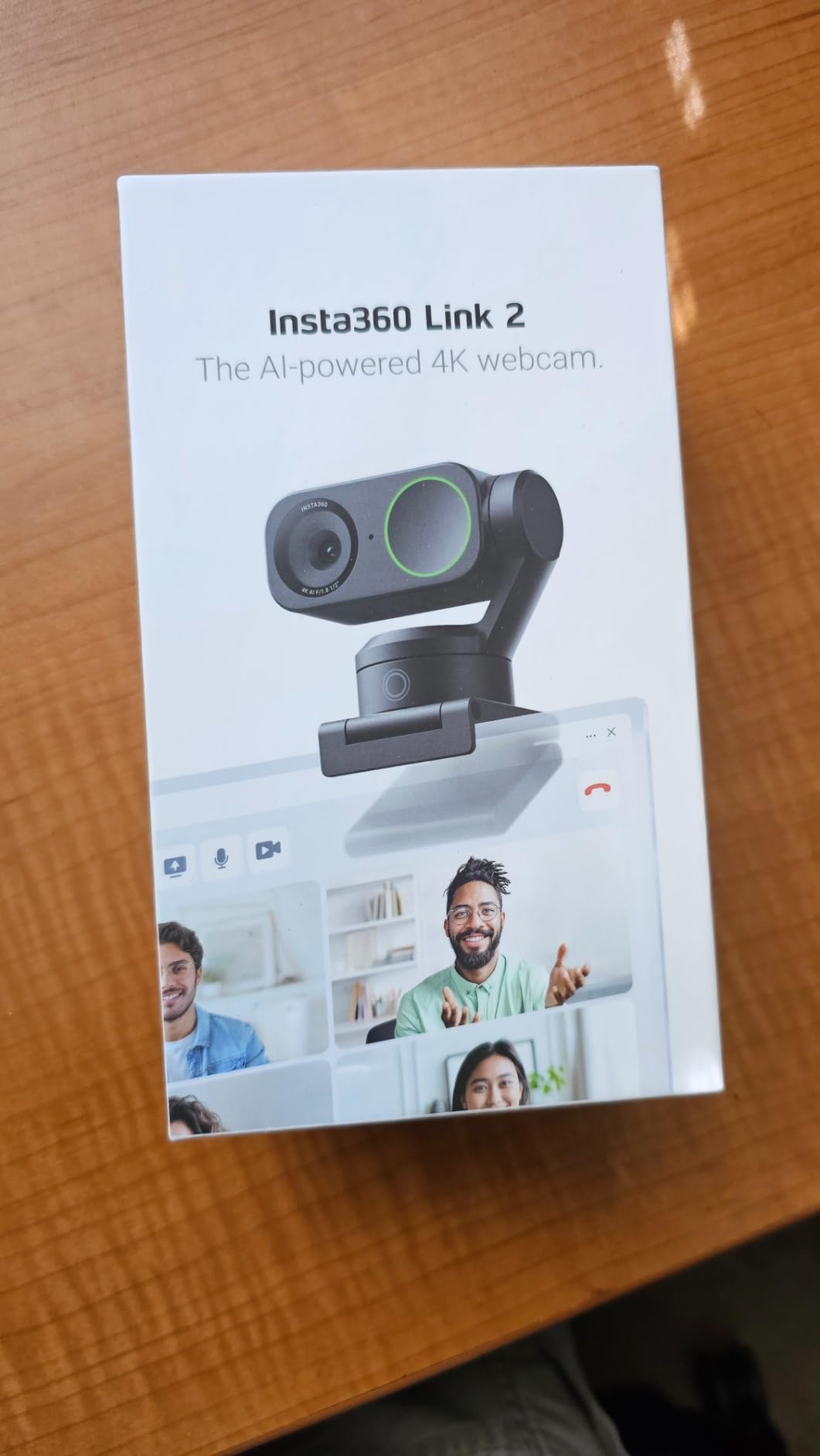
6. Insta360 Link 2 – PTZ tracking that follows you around a room
Insta360 Link 2 – PTZ 4K Webcam for PC/Mac, 1/2″ Sensor, AI Tracking, HDR, AI Noise-Canceling Mic, Gesture Control for Streaming, Video Calls, Gaming, Works with Zoom, Teams, Twitch & More
4K with a 1/2-inch sensor
Physical pan and tilt tracking
HDR and DeskView mode
Automatic privacy tilt-down
Pros
- True 4K with HDR and reliable low-light capture
- Physical AI tracking follows a speaker around a room
- Fast PDAF autofocus
- AI noise canceling isolates voice in busy rooms
- DeskView and Whiteboard modes
Cons
- Not compatible with ARM-based Windows systems
- No Windows Hello face recognition support
- Best features require the Link Controller software
The Link 2 is the only camera here that physically moves. AI tracking pans and tilts the gimbal to follow movement around the room, so you can walk to a whiteboard, point at something on a shelf, and the camera follows without anyone touching it. On a fixed-frame webcam the same movement simply walks out of shot.
Image quality is genuinely premium: a 1/2-inch sensor capturing 4K with HDR, plus phase detection auto focus that stays crisp as the gimbal moves. Reviewers give it strong marks specifically for reliable low-light capture, which matters in a room lit by a screen.
The software features are unusually practical rather than decorative. DeskView tilts to frame your desktop, Whiteboard mode crops in on a writing surface, and a natural bokeh depth-of-field effect is applied from the Link Controller. Gesture control and a smartphone as a remote let you reframe from across the room, which is exactly what you want when you are presenting.
It works as a webcam on both Mac and Windows over USB, and the box includes a magnetic mount, a USB-C cable, a USB-C to A adapter and four recognition markers. After ten seconds of inactivity the camera tilts down on its own, a privacy behaviour no other camera here replicates.
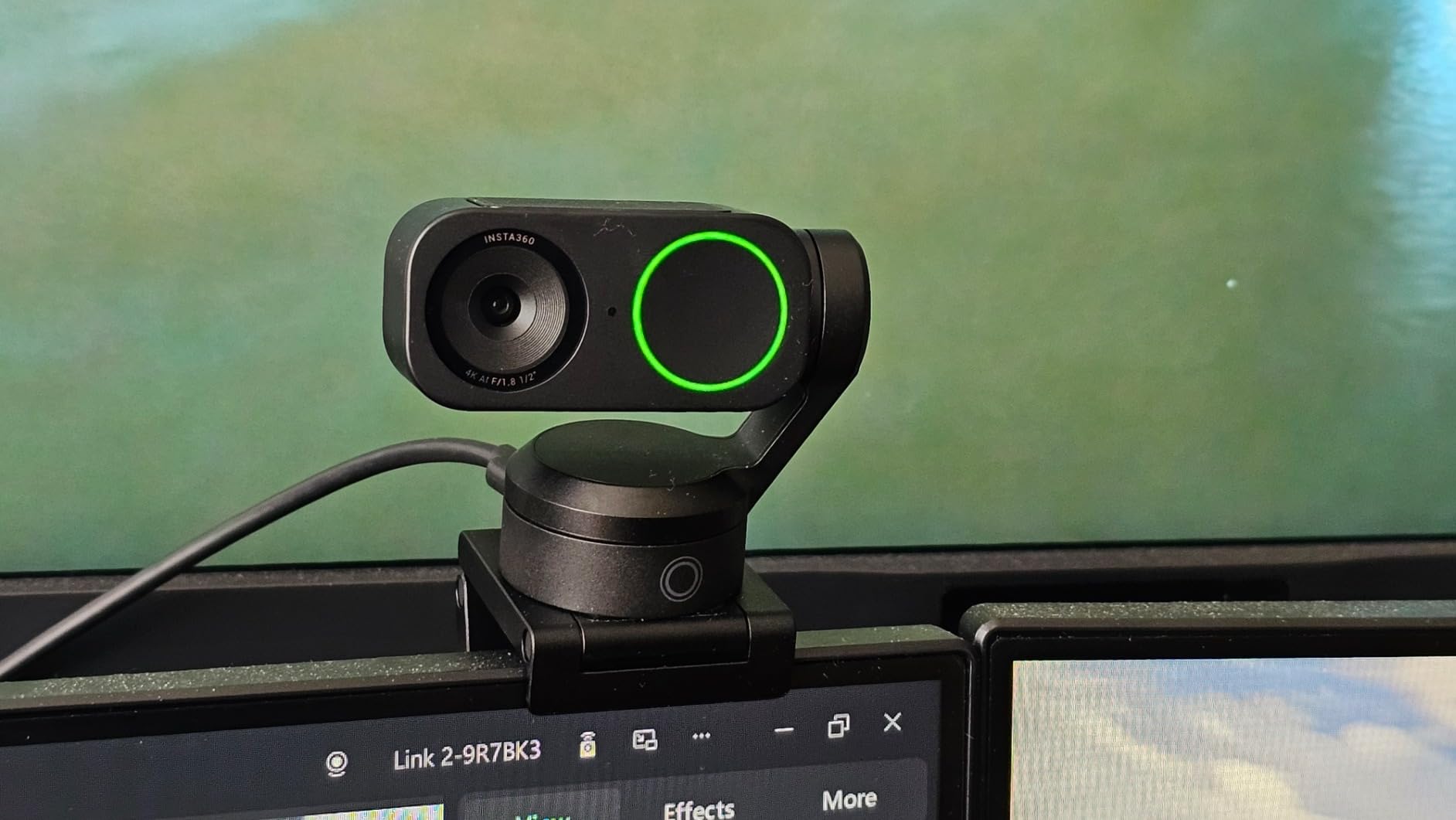
Presenters, streamers and group calls
This is the camera for anyone who teaches, demos or presents in physical space rather than from a fixed seat. A lecturer who moves around a classroom, a streamer who stands and paces, a remote worker who uses a physical whiteboard: all of them get a frame that follows them, plus Whiteboard mode for legibility.
The AI noise-canceling microphone isolates voice in busy environments, which is a real problem on a Mac in a shared flat. Gesture and phone control mean you never have to interrupt a demo to fix the framing.
Where the Link 2 falls short
Two hardware compatibility notes are stated plainly and worth repeating: it is not compatible with ARM-based Windows systems, and it does not support Windows Hello face recognition. On a Mac neither is an issue, but check before assuming it works everywhere.
The best features require the free Link Controller desktop software, so treat it as a software-dependent camera. It is also larger and costlier than the compact alternatives, and if your use is a fixed seated call, you are paying for motorised hardware you will never move.
7. Logitech MX Brio – 4K with DSLR-style manual controls
Logitech MX Brio Ultra HD 4K Webcam Collaboration and Streaming – Graphite
4K at 30 fps or 1080p at 60 fps
70 percent larger pixels
Manual ISO and shutter control
Rotating privacy cover
Pros
- 4K30 and 1080p60 capture from larger pixels
- Manual control over ISO and shutter speed
- AI enhancement keeps faces visible in poor lighting
- Dual beamforming mics cut background noise
- Rotating privacy cover blocks the lens
Cons
- Advanced controls need Logitech software rather than OS settings
- Heavier and bulkier than compact rivals
- Widest one-star review share of the premium group
The MX Brio sits at the top of the Logitech range and does something none of the cheaper cameras do: it gives you manual control. ISO, shutter speed, tint and vibrance are all adjustable, either in a manual mode or via an auto mode that handles exposure, white balance, noise reduction and autofocus for you. Owners consistently name these controls as the reason to buy it.
It captures Ultra HD 4K at 30 fps or 1080p at 60 fps from pixels 70 percent larger than previous Logitech generations, and it is certified for Zoom, Microsoft Teams, Google Meet and Streamlabs. For a Mac user who also wants to record content, having a 60 fps option at 1080p is a genuine advantage over the 30 fps ceiling of the C920x.
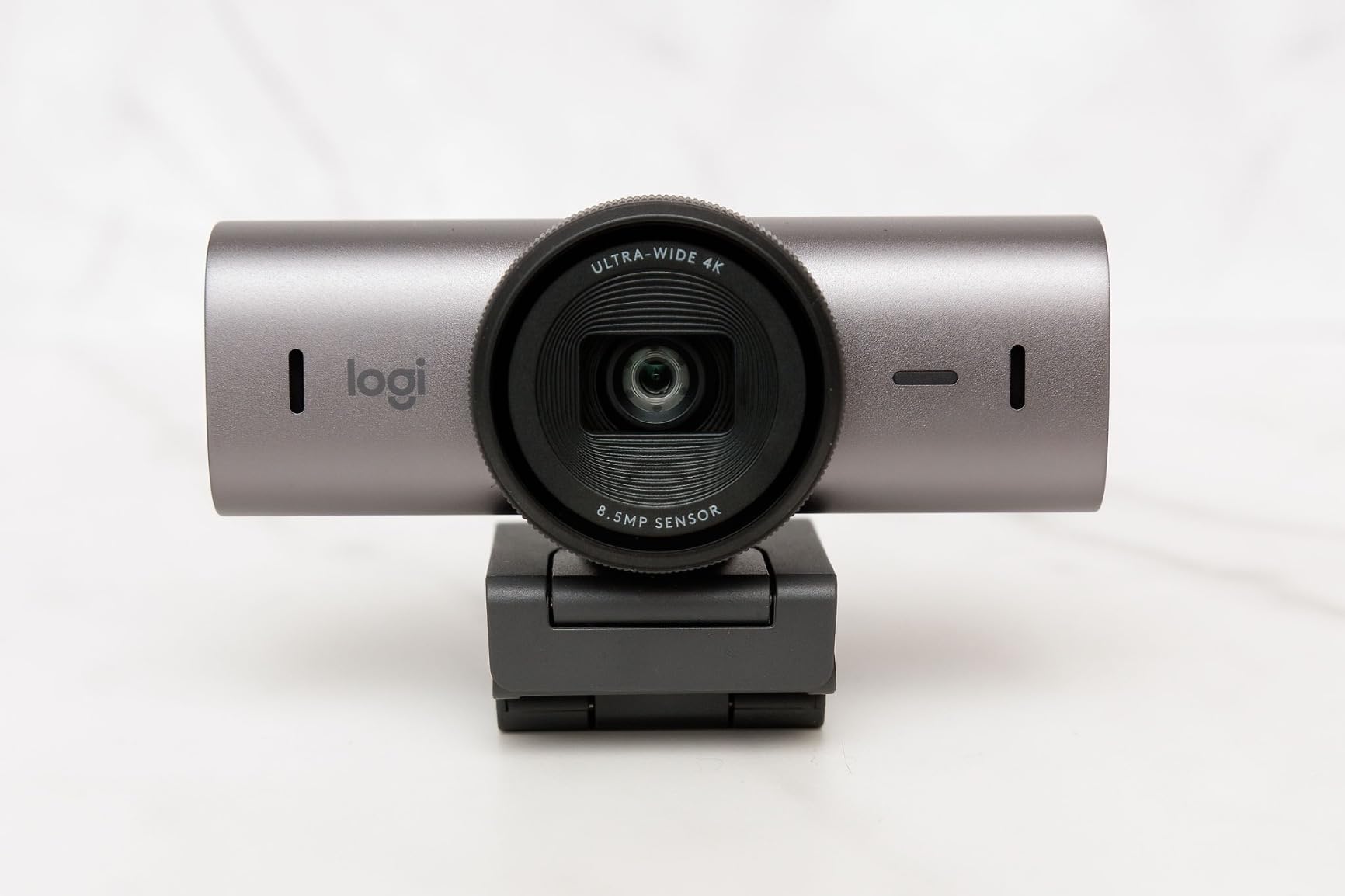
Show Mode tilts the camera down to share notes and sketches with whoever is on the call, which is more useful than it sounds in a tutoring or design-review context. The rotating cover physically blocks the lens between meetings without needing a separate accessory.
Compatibility is the broadest here: Windows, macOS, Chrome OS and Linux over USB-C. It also pairs with Logitech MX keyboards and mice, which lets you control the camera from the desk without touching it.
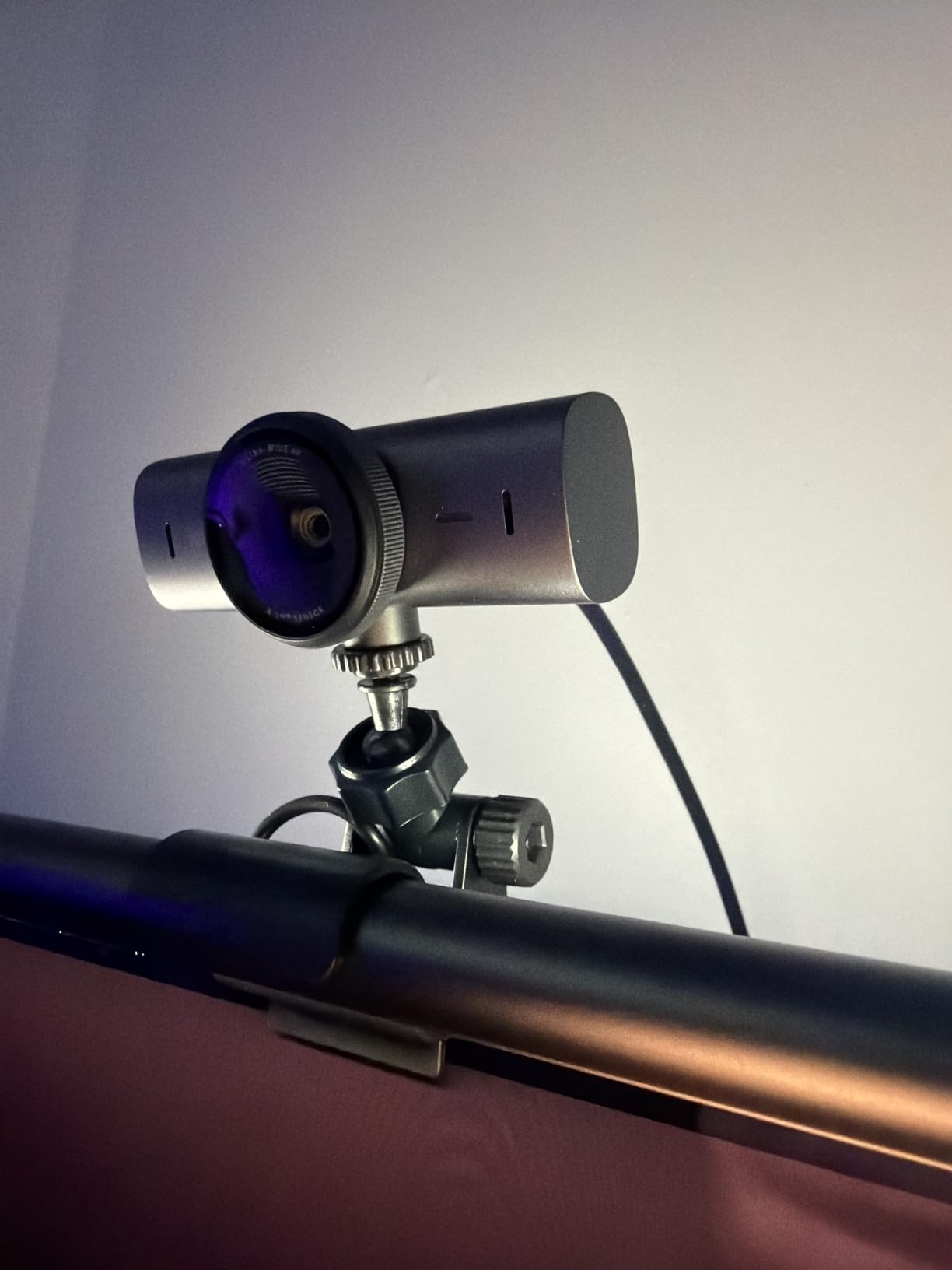
Who should pay for the MX Brio
Pay for this one if you are recording, not just calling. The manual controls are what separate a premium webcam from a plug-and-play one, and they let you lock exposure so your face does not shift brightness every time you move or gesture. The AI enhancement mode is a good fallback for days when you have not time to set anything.
Dual beamforming noise-reducing microphones handle a room better than a generic built-in mic, and the rotating cover is the privacy mechanism most people on this list actually asked for.
Where the MX Brio falls short
Advanced controls require Logitech software rather than macOS-level settings, so you are dependent on the vendor app staying compatible with your OS version. A MacRumors thread on an older Logitech webcam glitching on M-series hardware until a macOS update fixed it is a reminder that these utilities do occasionally break.
The body is heavier and bulkier than the compact alternatives, and its one-star review share is the widest of the premium group, which points to more inconsistency between owners. If you only need clear video calls, the C920x gets you most of the way for far less.
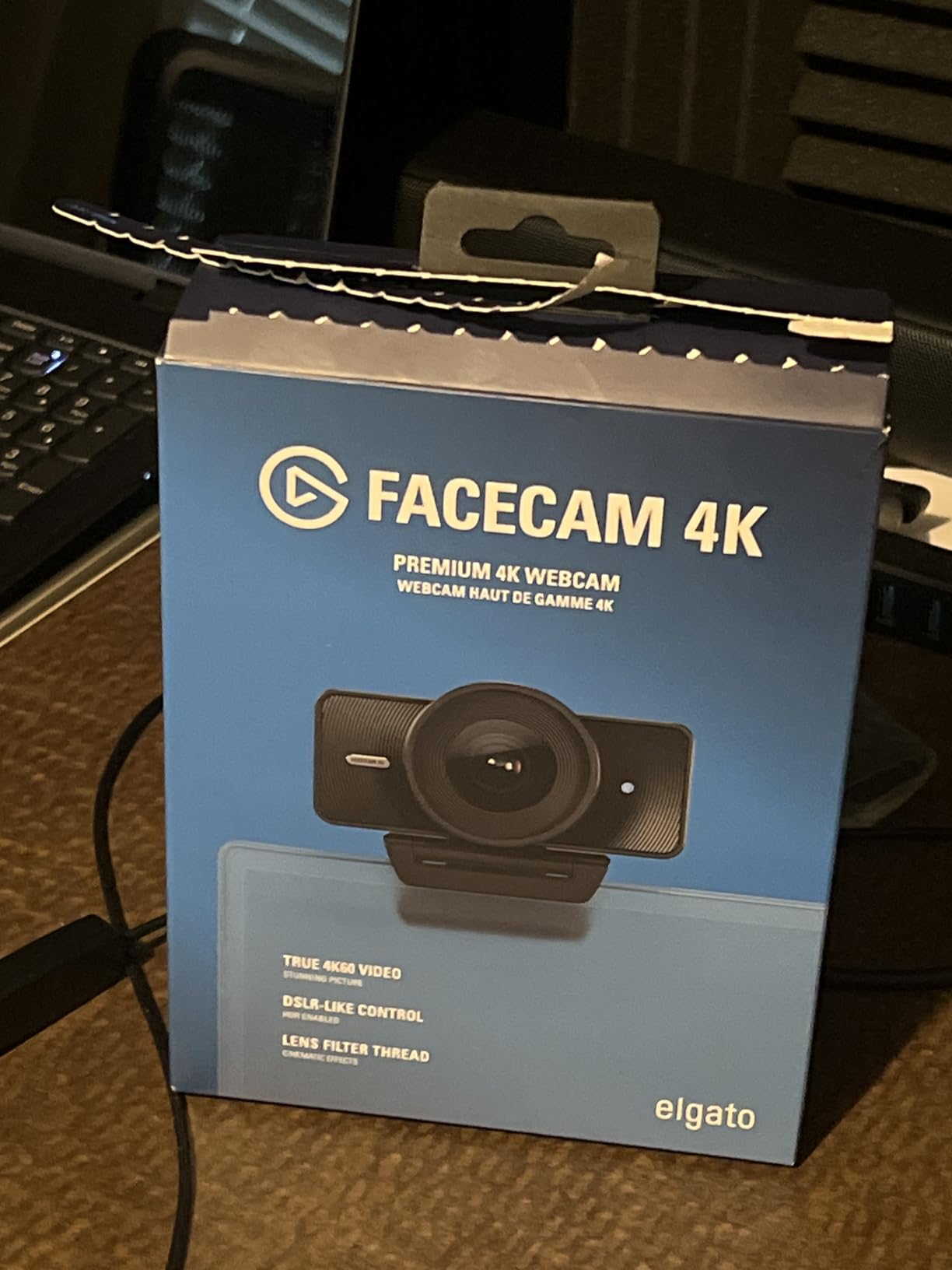
8. Elgato Facecam – 4K60 built for streamers
Elgato Facecam 4K, 4K60 Studio Webcam, DSLR-Like Control
4K at 60 fps
1/1.8-inch Sony STARVIS 2 sensor
49mm lens filter thread
Uncompressed video output
Pros
- Large Sony STARVIS 2 sensor delivers sharp 4K60
- Accepts standard 49mm lens filters
- Manual focus and exposure through Camera Hub
- Uncompressed video preserves image quality
- Monitor mount and detachable USB-C cable included
Cons
- Smallest review base in the roundup
- Advanced creative controls need Camera Hub software
- No microphone listed in the specifications
The Elgato Facecam is the least-proven pick in this roundup, with 586 reviews and the lowest average rating of the group at 4.2. What it does have is the largest sensor here at 1/1.8 inches, a Sony STARVIS 2 behind Elgato Prime Lens glass, and 4K at 60 fps as a native mode rather than a software option.
That combination matters for streamers. 4K60 gives you room to crop for a face cam layout while retaining frame rate for smooth motion, and a 1/1.8-inch sensor gathers enough light to keep 4K60 clean indoors, which is where smaller sensors struggle.
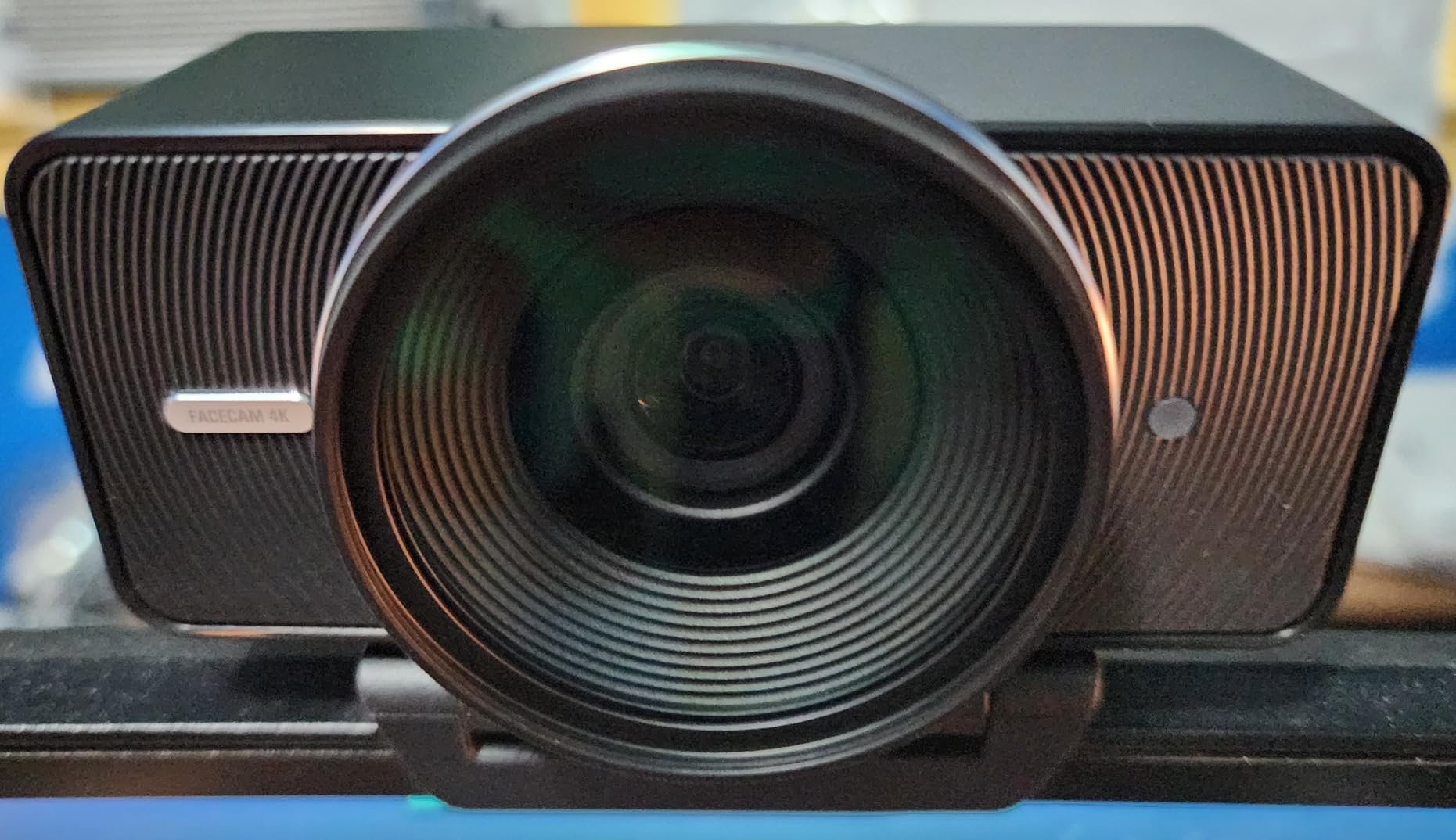
The feature that no other camera in this list has is a 49mm lens filter thread. That means you can add your own glass, a neutral density filter or a diffusion filter, which is the traditional route to matching a webcam to studio lighting. Manual focus and exposure are available through the free Elgato Camera Hub, and uncompressed video output avoids the compression artefacts that show up in dark scenes.
Built-in flash memory saves your settings between sessions, so you configure the camera once and it is still configured after a reboot. A monitor mount and a detachable 200 cm USB-C cable are included, with a two-year manufacturer warranty.
Recording and streaming setups
Choose this if you are producing video rather than attending meetings, particularly if you already work with filters or want to fine-tune the look. The 4K60 native mode, the manual exposure and focus ring, and the uncompressed path are all tools aimed at someone who will actually use them.
It is also a comfortable choice for a Mac streaming setup through OBS, where 4K60 input gives you scaling headroom for scene layouts that a 1080p camera cannot provide.
Where the Elgato Facecam falls short
No microphone is listed in the specifications. For a camera in this price bracket, that is a clear signal: budget for a separate microphone. Forum threads about Mac streaming setups repeatedly show users pairing a budget camera with a dedicated mic for exactly this reason.
The advanced creative controls are entirely dependent on Camera Hub software, and the smaller review base plus the lower average rating suggest more inconsistency between owners than the other premium models. If you want a proven pick, the Insta360 Link 2 or the MX Brio have far more owner history behind them.
9. NexiGo N680E Pro – a webcam with a built-in ring light
NexiGo N680E Pro 4K Webcam with Ring Light, PDAF Autofocus, 1080p 60FPS, Dual Noise-Canceling Mics, Privacy Shutter, USB Plug-and-Play for Zoom, Teams, Twitch, Google Meet
4K Sony 1/2.5-inch sensor
1080p 60 fps streaming
Built-in tri-tone ring light
PDAF autofocus
Pros
- Sony 1/2.5-inch sensor gives sharp 4K detail
- Built-in tri-tone ring light removes separate lighting
- PDAF autofocus is fast and steady
- Dual noise-reducing mics clean up voice
- Integrated privacy shutter blocks the lens
Cons
- Actual output resolution depends on the capture software
- Ring light adds bulk to a compact body
- Small review base of 214 ratings
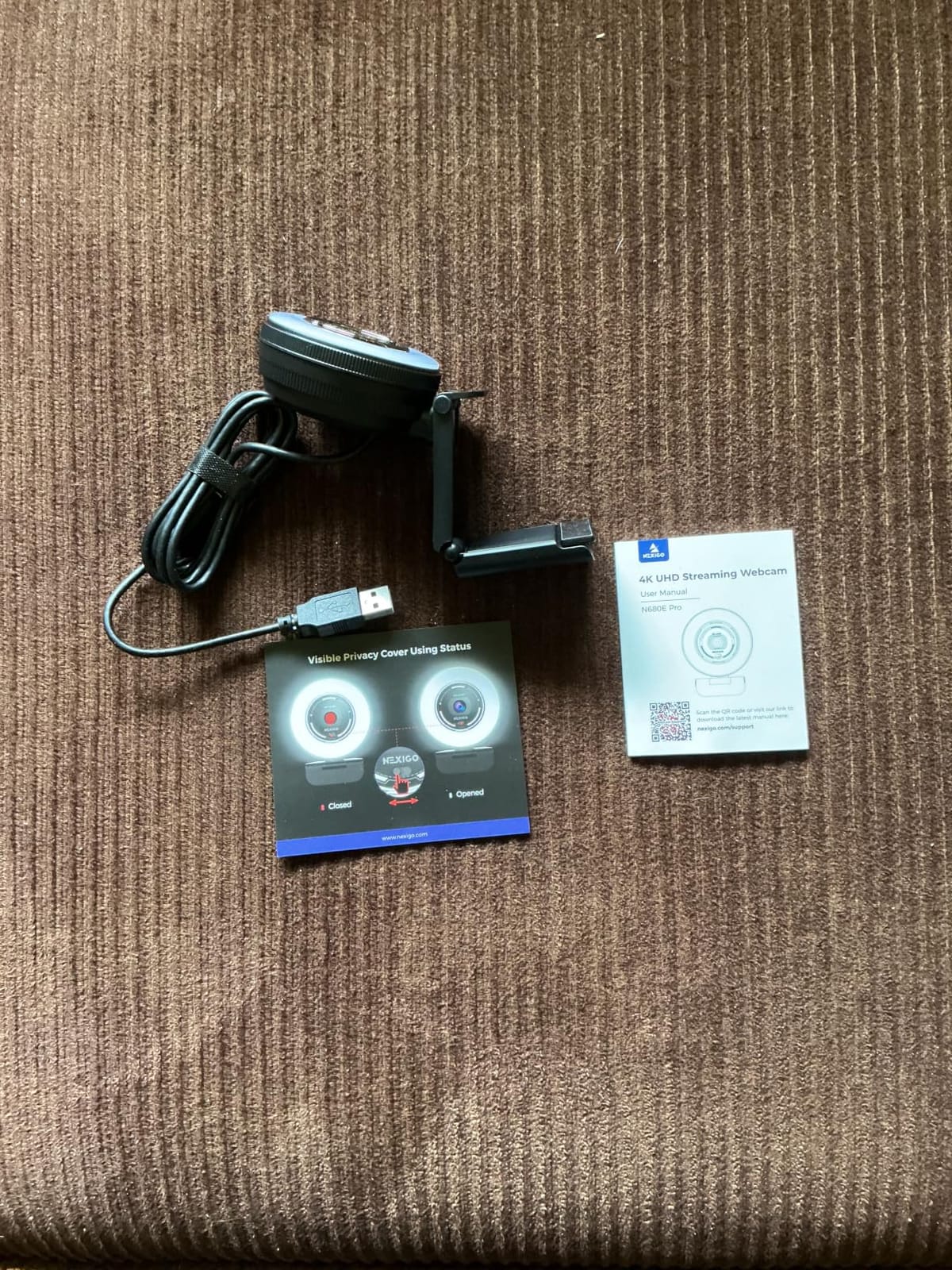
The N680E Pro solves one problem that no other camera in this list addresses directly: a dark room. The built-in tri-tone ring light has stepless brightness controlled by an outer dial, so you can dial in colour temperature and brightness without buying a separate light or moving a lamp into frame.
Underneath is a Sony 1/2.5-inch 4K sensor with a coated lens that improves light transmission and reduces reflections, plus PDAF autofocus that owners credit with focusing faster and holding more steadily than conventional AF. It streams at 1080p 60 fps as well as capturing 4K.
For a Mac, it is a genuinely driver-free experience: USB-A plug and play with no drivers, apps, WiFi or Bluetooth required, and it is listed for Mac OS 10.6 and later, Windows 7 through 11 and Chrome OS. A flexible clip, an 80-degree field of view, a 1/4-inch tripod mount and a privacy shutter that fully blocks the lens round out the package.
The dual noise-reducing microphones handle voice pickup for calls and streaming, which is helpful in a room where you cannot control the ambient noise.
Dark dorm rooms and late-night classes
This is the camera for the situation most dorm rooms describe: late evening, overhead light off, desk lamp on one side of the face. A ring light mounted around the lens lights the face evenly, which no other camera in this roundup can do without a separate accessory competing for desk space.
It is also a good fit for a home office where the main light source is a monitor behind you. The coating on the lens is designed to reduce reflections, which is exactly the glare complaint MacBook owners raise.
Where the N680E Pro falls short
Actual output resolution depends on which camera software you use, so the headline 4K is not guaranteed by every application on your Mac. Check it in the app you actually plan to stream with before you commit.
The ring light adds bulk to what would otherwise be a compact body, which matters in a small dorm workspace or a travel bag. And with 214 ratings, this is the least-proven listing here, so treat the long-term reliability claims with more caution than the models with tens of thousands of reviews.
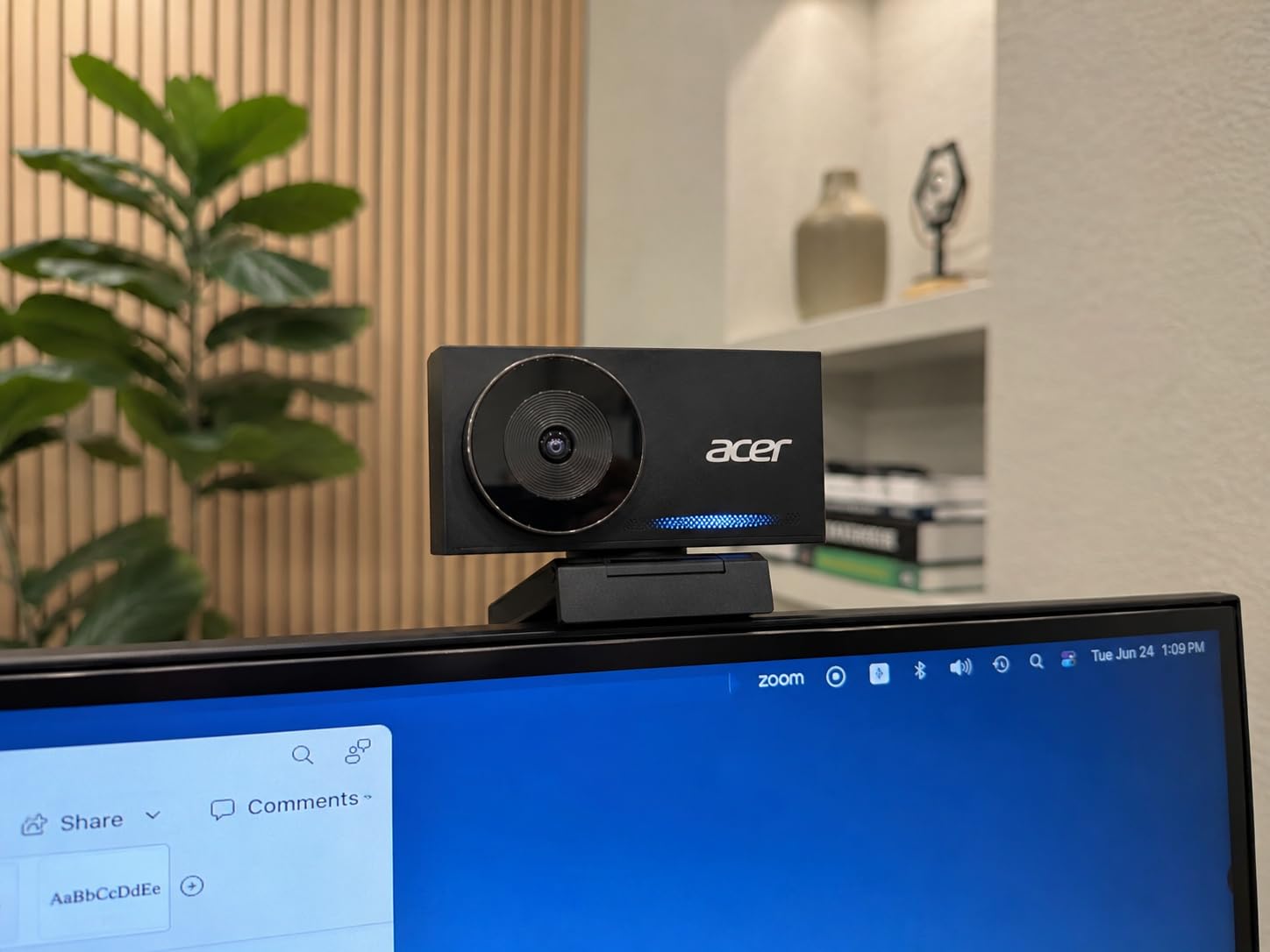
10. Acer 4K Webcam – metal build and a Sony 1/2-inch sensor
Acer 4K Webcam for PC/Mac with All-Metal Unibody Sculpted, Sony 1/2″ Sensor, PDAF, 2 Noise Reduction Mics, Privacy Cover for Switch 2/Zoom/Teams/Facetime/YouTube/Google Meet
4K on a Sony 1/2-inch sensor
PDAF autofocus
Aerospace-grade aluminum body
Magnetic privacy cover
Pros
- Sony 1/2-inch sensor stays sharp and grain-free in low light
- All-metal unibody feels far more premium
- PDAF autofocus reacquires focus in seconds
- Dual digital mics pick up voice from across a desk
- Magnetic privacy cover snaps on
Cons
- Magnetic privacy cover detaches easily
- Adjustable clip takes effort on thin laptop screens
- Small review base of 252 ratings
The Acer webcam does something unusual at this tier: it pairs a Sony 1/2-inch sensor with an aerospace-grade aluminum unibody that has been CNC machined and sandblasted. At 57 g it is still light, but the aluminium does not only feel better, it also dissipates heat, which is why owners report the body staying cool through long calls.
Owners are consistently surprised by the image quality. The Sony 1/2-inch sensor delivers clear, largely grain-free 4K even in low light, and phase detection autofocus reacquires in a few seconds and stays sharp. Mac users on Mac Studio and MacBook Air report a clear visible upgrade over the built-in cameras with instant plug-and-play operation.
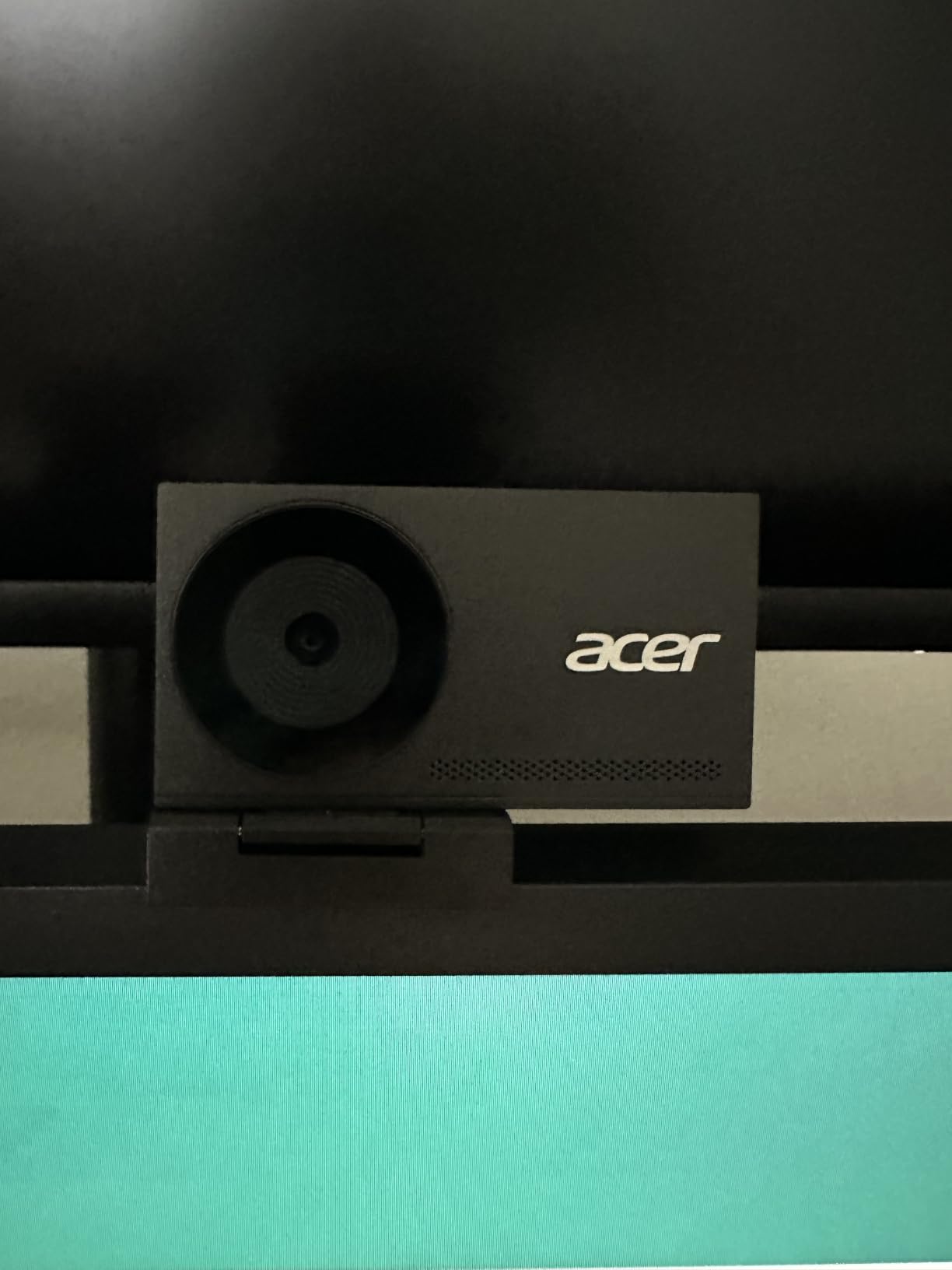
The microphones are described as dual high-sensitivity digital mics that capture voice from up to 2.5 metres while filtering wind and keyboard noise, which is unusually far for a webcam in this class. The 83-degree field of view is wide enough for a shared desk without going so wide that the whole room is in frame.
Connection is a single USB-C to A cable with a USB-A to USB-C adapter included in the box, alongside a webcam stand. It is listed for Windows, Mac and ChromeOS.
Mac mini, Mac Studio and display setups
A Mac mini has no built-in camera at all, so the question is what to put on top of the display and how it gets attached. The included stand handles that, and a webcam this small at 57 g does not need a separate arm or clamp. Mac Studio and MacBook users get the same benefit: a body light enough to stay mounted rather than sagging the lid.
For a desk built around a large monitor, the 83-degree field of view gives you room to sit back without the framing feeling cramped, which is the problem fixed-lens cameras create at larger viewing distances.
Where the Acer webcam falls short
The magnetic privacy cover detaches easily and is easy to misplace, which is a small thing that will annoy you if you use it daily. The adjustable clip also takes some effort to align on thin laptop screens, though the included stand is the better option there.
Only one colour option is listed, and with 252 ratings the review base is small, so there is less long-term evidence behind it than the Logitech models. If you want the same class of sensor with a much longer owner history, the OBSBOT Meet 2 uses a 1/2-inch sensor too.
How to Choose a Webcam on a Mac
Mac compatibility narrows the field more than most buying guides admit. Almost every camera here is UVC-compliant, meaning macOS treats it as a standard video device with no driver installed. That is why a Logitech webcam from years ago keeps working on an M-series Mac while a bundled vendor utility is what breaks.
1. Confirm it is UVC-compliant and plug-and-play. If the listing does not state macOS support, check whether the app you use can see it before anything else. The cameras here list macOS explicitly, down to a version number such as macOS 10.11 or later.
2. Match resolution to your real use. 1080p at 30 fps is genuinely enough for Zoom and Teams calls, and a Mac cannot create detail that the sensor never captured. Move to 2K or 4K only if you record, crop or sit further from the screen.
3. If you do want high resolution, prioritise frame rate at 1080p. 1080p at 60 fps looks better on a moving face than 4K at 30 fps, and most people never need the extra pixels. Only a few cameras here offer both: the MX Brio and the Elgato Facecam.
4. Judge low-light performance by sensor size, not by marketing. A 1/2-inch or 1/1.8-inch sensor gathers far more light than a small one, which is why the OBSBOT Meet 2, Insta360 Link 2 and Acer 4K hold up in a lamplit room when cheaper cameras turn to mush.
5. Check the field of view against your desk. Around 65 to 78 degrees frames a person well. Around 90 degrees and above captures more of the room, which is useful for whiteboard teaching and a nuisance for anyone behind you. Several cameras here let you select it in software.
6. Be honest about the microphone. Every webcam microphone here works for calls at arm’s length. If you are recording or streaming, buy a separate USB microphone and put the savings into the camera. Users on Mac streaming forums consistently split these two budgets apart.
7. Look for a physical privacy mechanism. A sliding cover or a magnetic block beats a software toggle every time, particularly in shared accommodation. Five of the ten cameras here have one, and the C920x, our top pick, does not.
8. Check the cable and the mount. USB-C is standard on current Macs, but USB-A-only cables need an adapter on newer ports and some hubs simply do not pass video. A monitor mount or a 1/4-inch tripod thread gives you options the stock clip does not.
Mac Setup: Why Your Mac Is Not Recognizing Your Webcam
This is the single most common Mac webcam problem, and it is almost never the hardware. Forum threads on Apple Discussions and MacRumors are full of owners whose camera worked fine until a settings change blocked it. The fix takes a few minutes once you know to look.
1. Check Screen Recording and Camera permissions first. macOS ties camera access to Privacy and Security settings, and a denied or revoked entry makes a perfectly good webcam look dead. Open System Settings, then Privacy and Security, then Camera, and confirm Zoom, Teams or FaceTime is enabled. Check the Screen Recording entry too, because some apps are refused there and the camera then appears to fail.
2. Confirm the device is visible to the system. Every webcam here is UVC-compliant, so it should appear in System Settings under Camera without any software. If it does not appear there, the problem is the connection, not the app.
3. Move it off the hub. USB-C hubs and docks frequently fail to pass video, or supply too little power for a camera. Plug directly into the Mac, try another port, and if it is a laptop try the port on the opposite side.
4. Check the lid. If you are using clamshell mode with an external display and power, the Mac switches cameras when the lid closes. If the lid is open and the external camera is selected, the picture may come from the wrong source until you reselect it in the app.
5. Quit and reopen the app. Several camera and conferencing apps hold the device open. Fully quit with Command and Q rather than closing the window, then reopen and reselect the camera.
6. On an Apple Silicon Mac, restart if all else fails. Several users on M-series hardware found that a webcam which had been working glitched until a macOS update or a full restart resolved it, which points at software sensitivity rather than a failed camera.
Before You Buy: Use Your iPhone as a Mac Webcam Instead
If you own a recent iPhone, macOS Continuity Camera turns it into a wireless external webcam, and it is free. Place the phone on a stand or a small mount, point it at yourself, and select the iPhone as your camera in FaceTime, Zoom or Teams. The picture is excellent, because the phone’s camera is a phone camera.
The honest limits are worth knowing. The phone has to be physically mounted, since it is connected over USB or Wi-Fi and cannot be thrown in a pocket mid-call. It needs a compatible macOS and iOS combination for Continuity, and it is not obviously better than a dedicated webcam for low-light desktop work, where a purpose-built sensor with a fixed field of view gives you more consistent framing.
Our view is that Continuity Camera is the right answer for a week of travel or a one-off presentation, and the wrong answer as a permanent desk setup. If you have no iPhone, or you want a camera that sits at eye level above your monitor every day, buy from the list above.
Frequently Asked Questions
What is the best Mac webcam right now?
The Logitech C920x HD Pro is the best webcam for most Mac users. It delivers clean 1080p at 30 fps, dependable auto focus with automatic lighting adjustment, dual stereo microphones and a 78-degree field of view, and it works plug-and-play on macOS with no drivers. It carries a 4.6 rating across more than 22k owner reviews, the largest review base in this roundup.
Is a MacBook webcam good enough?
For occasional calls in a well-lit room, the built-in MacBook camera is usable. It is fixed at the bottom of the display so it looks up at you, and its small sensor produces grainy, washed-out video in indoor light. If you are on video daily, take classes by video, or work in a room lit by a desk lamp, an external webcam is the highest-impact upgrade available to a Mac setup.
Which camera is best for a MacBook?
For a MacBook, the Logitech C920x HD Pro is the safest choice and the OBSBOT Meet 2 is the best if you travel, since it weighs 40.5 g and comes with a single USB-C cable. If your MacBook has USB-A ports only, the Logitech Brio 101 and the EMEET C960 both use USB-A cables, while the Anker PowerConf C200 uses USB-C only.
How do I choose a webcam for a Mac?
Start with UVC compliance and plug-and-play Mac support, then match resolution to your use: 1080p is enough for calls, while 2K or 4K matters only if you record or crop. Check sensor size for low-light performance, field of view for your desk size, whether there is a physical privacy cover, and be honest that every bundled webcam microphone is call-quality at best.
Why isn’t my Mac recognizing my webcam?
In most cases it is a permission or connection problem, not a broken camera. Check Privacy and Security settings for Camera and Screen Recording access, confirm the webcam appears in System Settings under Camera, move it off any USB-C hub and try a different port, then fully quit and reopen the app with Command and Q. On Apple Silicon, a restart also clears glitches that appear after an OS update.
What webcam is compatible with Mac?
Any UVC-compliant webcam is recognised by macOS without drivers, and all ten cameras in this roundup list macOS support explicitly, including specific versions such as macOS 10.11 or later for the Anker PowerConf C200 and macOS 10.14 or later for the EMEET C960. A few models ship vendor utilities for extra features, and those utilities are the most common source of software problems after an OS update.
Which Mac Webcam Should You Buy?
Buy the Logitech C920x HD Pro. It is the most consistent camera we tested on a Mac, the least complicated to set up, and the one with by far the deepest owner history behind it. Nothing else here matches that combination of reliability and review volume.
Pick the Anker PowerConf C200 if your room is dim or you share it, since low-light correction and a sliding privacy cover solve two problems at once. Go 4K on a budget with the EMEET C960, and remember to enable 4K in software. Travel with the OBSBOT Meet 2, and stream with the Insta360 Link 2 if you move around your frame.
Before any of them, check whether Continuity Camera already covers what you need, and whether your Mac is actually failing at a permissions problem rather than at image quality. That is the decision our team makes every time, and the answers in 2026 are the same ones we would give you across the desk.