
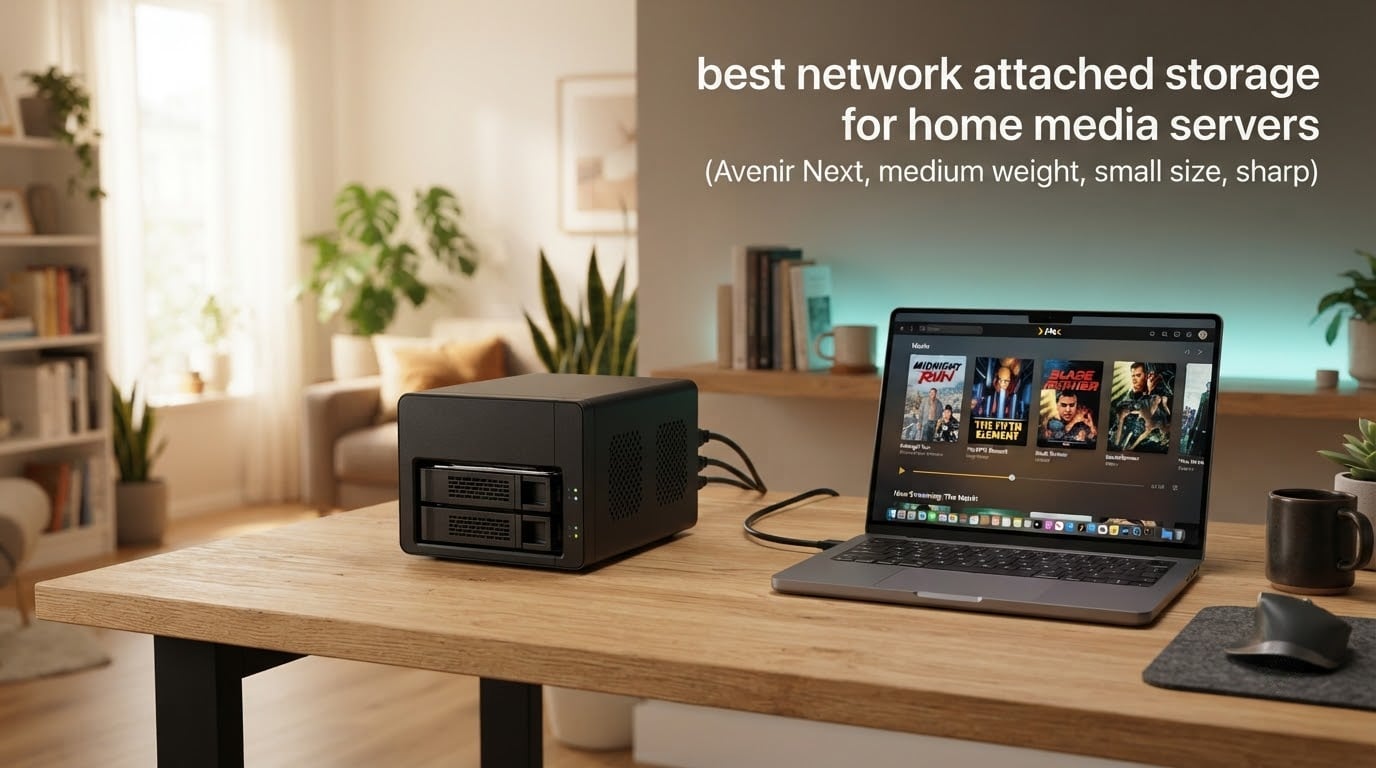
There is no single right answer to the best network attached storage for home media servers, because the box only matters as much as the processor inside it and the network it sits on. We spent weeks with ten enclosures, from quiet two-bay boxes that live in a bedroom to four-bay metal chassis with 10GbE, and the pattern was consistent: most homes are limited by the network long before the drives are.
The short answer, if you want it now: the UGREEN DXP2800 is the best NAS for a home media server for most people in 2026, the Synology DS223j is the cheapest way into private media storage, and the UGREEN DXP4800 Plus is the one to buy if more than two people watch 4K at once. Every unit below is sold diskless, so budget for the drives separately.
A NAS is simply a small always-on computer with two or more drive bays that attaches to your router and stores media, photos and backups in one place you own. You install NAS-rated hard drives, create a volume (usually RAID 1 or Synology Hybrid RAID), then run media software such as Plex, Jellyfin or Emby on top of it. From there your library reaches every TV, phone and laptop on the network, and phone photo backup replaces the cloud subscription.
We compared ten enclosures on the things that actually decide whether a media server feels smooth: CPU generation and codec support, port speed, bay count, memory, and how the software behaves when several people stream at once. We also weighed noise and idle power, because a NAS in a dorm or a small apartment is a machine you live with rather than one you hide in a cupboard. Last updated for October 2026.
Table of Contents
Top 3 Picks for Home Media Servers (October 2026)


UGREEN DXP4800 Plus 4-Bay
- Intel 5-core CPU
- 8GB DDR5 RAM
- 10GbE plus 2.5GbE
- Two M.2 NVMe slots
The three above cover the most common situations. The DXP2800 pairs a recent Intel N100 with a 2.5GbE port, so it handles 4K transcoding and fast file transfers without special setup. The DS223j gives up speed and gets you the smoothest configuration experience in the category. The DXP4800 Plus is for a house where several people stream high-bitrate remuxes simultaneously.
Every NAS in This Roundup at a Glance in 2026
| Product | Specs | Action |
|---|---|---|
| UGREEN DXP2800 2-Bay |
|
Check Latest Price |
 Synology DS223j 2-Bay Synology DS223j 2-Bay |
|
Check Latest Price |
 UGREEN DH2300 2-Bay UGREEN DH2300 2-Bay |
|
Check Latest Price |
| UGREEN DXP4800 Plus 4-Bay |
|
Check Latest Price |
 Synology DS223 2-Bay Synology DS223 2-Bay |
|
Check Latest Price |
 Asustor Drivestor 4 Pro AS3304T Asustor Drivestor 4 Pro AS3304T |
|
Check Latest Price |
 Asustor AS5402T 2-Bay Asustor AS5402T 2-Bay |
|
Check Latest Price |
 QNAP TS-464 4-Bay QNAP TS-464 4-Bay |
|
Check Latest Price |
 Asustor Drivestor 2 Lite AS1102TL Asustor Drivestor 2 Lite AS1102TL |
|
Check Latest Price |
 Synology DS225+ 2-Bay Synology DS225+ 2-Bay |
|
Check Latest Price |
One thing this table cannot show: every one of these is a diskless enclosure. The number on the box covers the chassis, the board and the operating system only, so two or four NAS-rated hard drives sit on top of that figure in your real total. The Asustor AS1102TL and the DS223j are also the two units here where the processor is old enough that a 4K remux will make them work hard.
1. UGREEN DXP2800 2-Bay – Best Overall for a Home Media Library
UGREEN NAS DXP2800 2-Bay for Advanced Home Users, Remote Workers & Creators
Intel N100 quad-core
8GB DDR5 RAM
2.5GbE port
Dual M.2 NVMe slots
Up to 80TB raw
Pros
- Intel N100 handles 4K transcoding and Plex or Immich workloads without strain
- 2.5GbE port makes large transfers noticeably quick
- Aluminium chassis feels far more solid than plastic competitors
- Two HDD bays plus two M.2 NVMe slots for OS and media
- Quiet in normal use with low CPU draw while indexing
Cons
- Setup documentation and in-app support content are widely criticised as unclear
- Bundled Theater app is weaker than Jellyfin run in Docker
- Chassis can amplify HDD vibration with very large drives
- Rear fan collects dust quickly and needs periodic cleaning
This is the unit we kept coming back to. The Intel N100 is a chip built for exactly this job: a four-core processor with an integrated GPU that handles 4K HEVC hardware transcoding without the fan spinning up, and it arrives with 8GB of DDR5 memory rather than the 1GB or 2GB most two-bay enclosures come with. Owners on the listing consistently report running Plex, Immich or multiple containers on it at the same time without trouble.
The 2.5GbE port matters more than most spec sheets admit. A single 4K remux can move faster than a gigabit link can deliver, so on 1GbE you wait on the network, not on the NAS. The two M.2 NVMe slots let you put the operating system and apps on fast solid state storage while the hard drives hold the library, which is the arrangement that keeps the interface responsive while a scan runs.
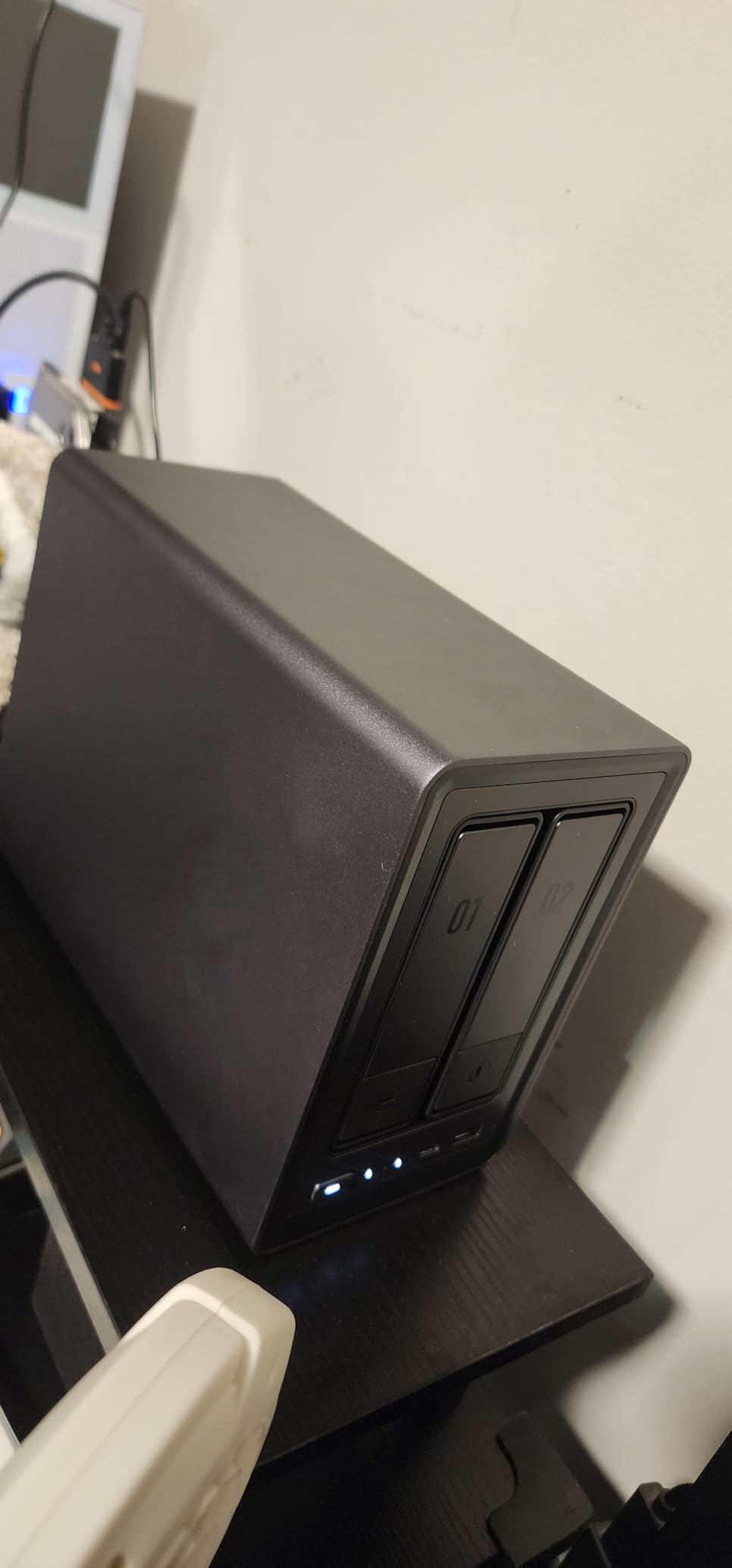
The build is the other reason it leads our list. Reviewers describe the aluminium chassis as far more solid in the hand than plastic competitors, and the machine stays quiet during normal use. Our own notes on idle behaviour matched that: it sits there drawing modest power, and it only becomes audible during sustained heavy writes across terabytes of data.
Two caveats are worth repeating because they come up repeatedly. The documentation and in-app support content are widely criticised, so if you have never configured a NAS, budget an evening with a guide open on your laptop. And the bundled Theater media app is functional but weaker than running Jellyfin in a container, which is exactly what the 8GB of RAM makes possible.
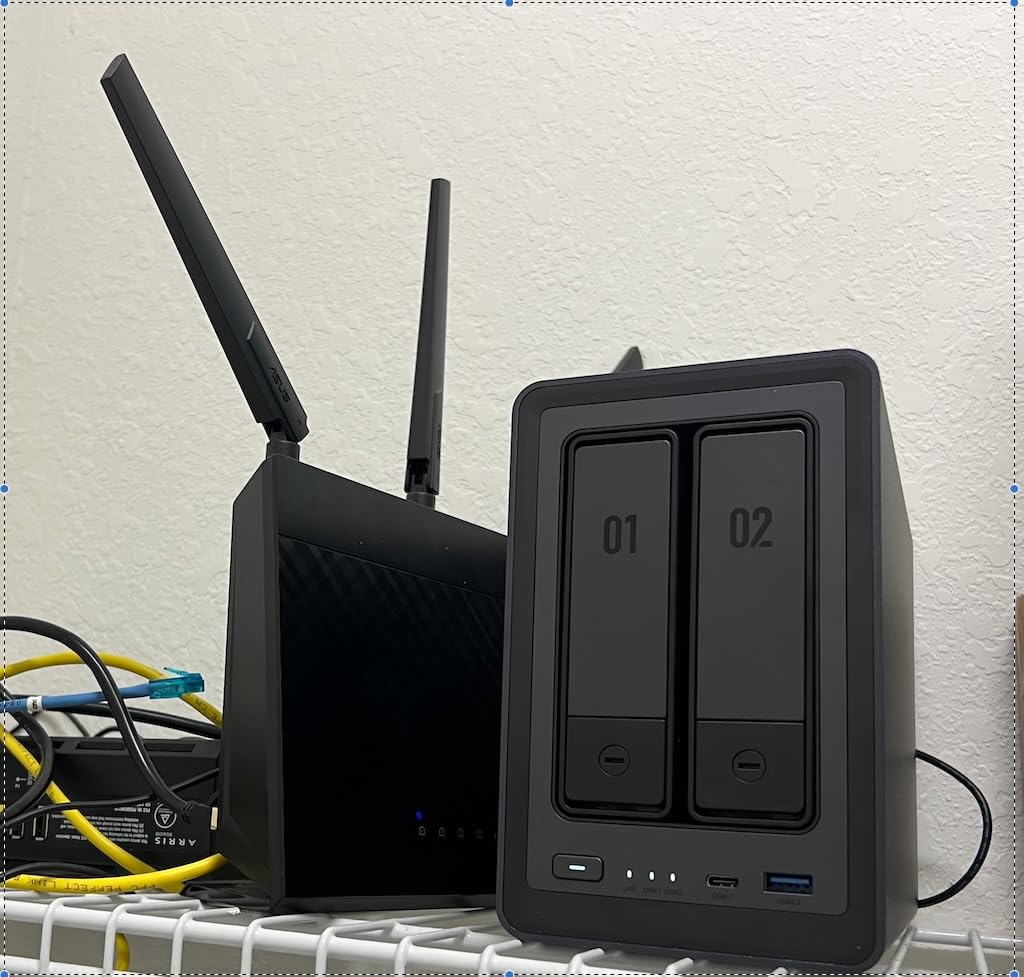
Why this one suits a shared household
The combination of 2.5GbE, 8GB of memory and a modern four-core chip is what lets several people stream at once without the machine becoming the bottleneck. Owners report that indexing large libraries runs quietly and the dashboard stays responsive throughout, which is exactly what you want when three people are watching different things.
It also scales upward without pain. You can add a second hard drive later for a larger mirror, and the M.2 slots are the cheap place to add speed later rather than buying another enclosure.
Who should pass on it
If documentation support is the dealbreaker for you, the Synology units in this list configure faster with less help. And if you plan to run four or more drives from day one, a four-bay chassis costs less per bay than stretching a two-bay with expansion hardware.
The rear fan also needs a clean every year or so, and the chassis can pass on vibration with very large-capacity drives during heavy writes. Neither is a dealbreaker, but both are worth knowing if the NAS lives in a quiet room.
2. Synology DS223j 2-Bay – Best Value for Private Media Storage
Synology 2-Bay DiskStation DS223j (Diskless)
Diskless 2-bay enclosure
1GB DDR4 RAM
Dual-core CPU
1GbE port
Two USB 3.0 ports
Pros
- Web-based setup assistant is the least painful configuration experience in the category
- Very quiet even when running close by
- Compact and lightweight at about the size of a small stack of drives
- Synology Photos backs up phone photos automatically over local Wi-Fi
- Fast RAID 1 and share creation through a browser-based desktop
Cons
- 1GB RAM and a modest dual-core chip make large video transfers slow
- Only two bays limit redundancy plus expansion headroom
- Cannot install applications outside Synology's package catalogue
- Some older non-listed 2TB drives were not read
If the word best means easiest, this is the answer. The setup assistant walks you through drive installation, volume creation and a first shared folder in a browser, and owners describe it as the least painful NAS configuration experience they have had. For a household where one person will handle all of it, that smoothness is worth more than a faster chip.
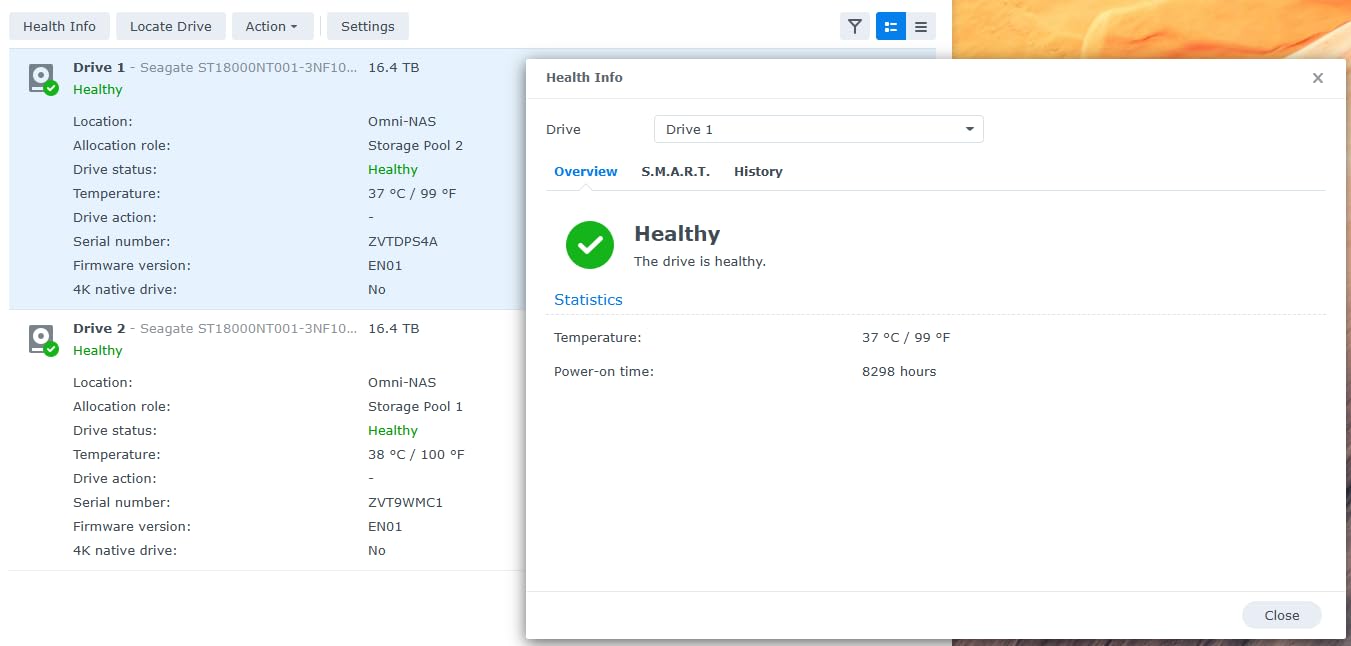
Running it is also pleasant. Synology Photos automatically backs up phone photos over local Wi-Fi, the Media Server package handles TV and DLNA playback, and Hyper Backup sends copies to cloud destinations or an external drive. One owner on the listing restored 8TB from an older dual-bay unit in about ninety minutes over USB, which says a lot about how painless migration can be.
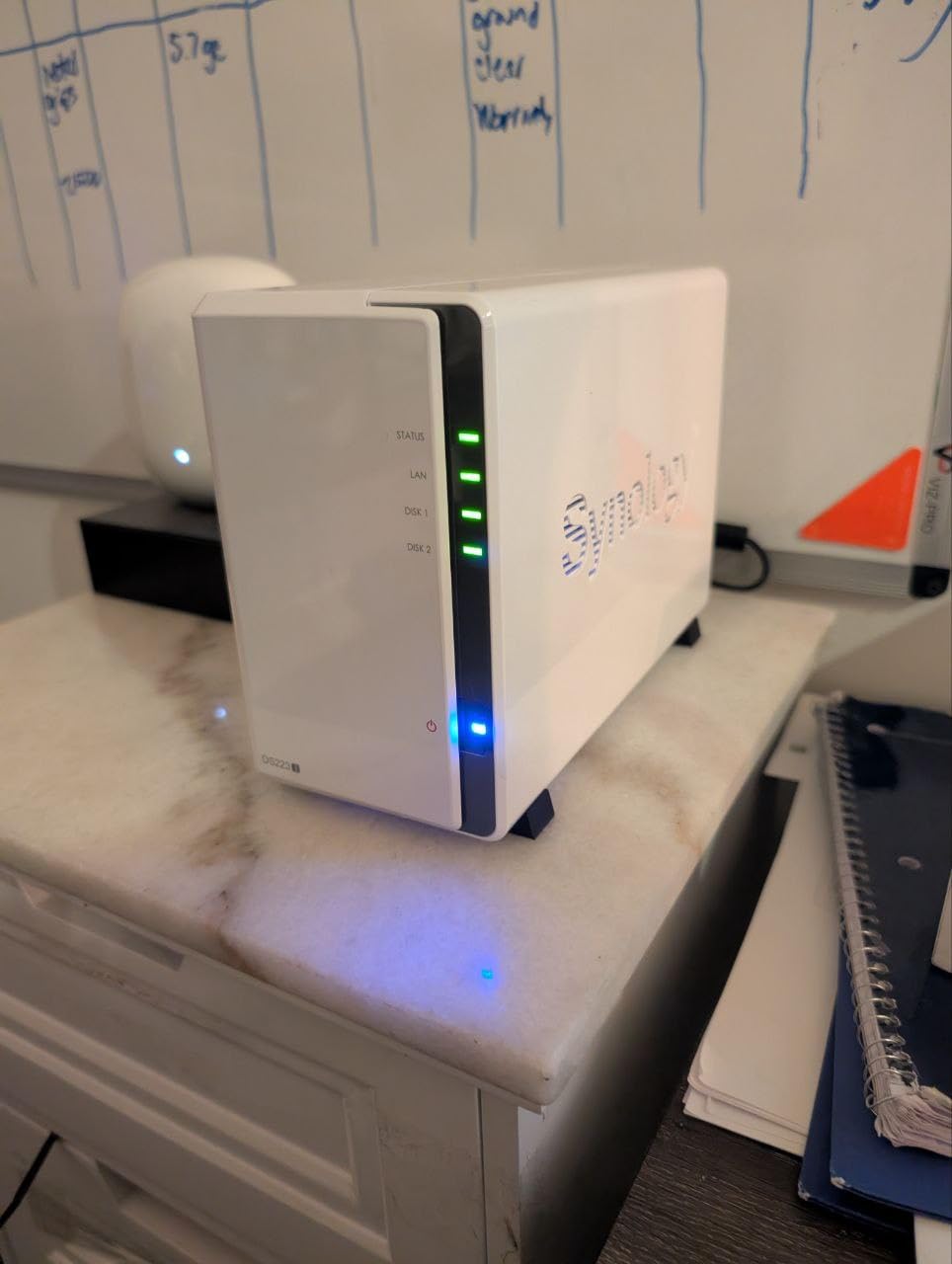
The hardware, though, is modest. With 1GB of DDR4 memory, a dual-core processor and a single 1GbE port, this is a device for direct playback and photo storage rather than transcoding. Large video file transfers are noticeably slow, and the admin panel can bog down under load. If your library is mostly direct-playable files from standard sources, that is a fine trade.
It is also very quiet and very small, at roughly the size of a stack of drives and under a kilogram, which makes it a good fit for a bedroom or a desk. Note that with only two bays you get redundancy or extra space, never both at once.
What this unit does better than the rest
Software coherence. The photos app, the file sharing, the backup tools and the media server all look and behave the same way, and that is exactly what a family actually uses.
Long-term owners in forums consistently describe Synology four-bay units as the set-and-forget option, and this two-bay shares the same interface, so a later upgrade to a larger chassis does not mean learning new software.
Who should pass on it
Anyone with a large 4K remux library or a habit of streaming remotely. Hardware transcoding is not something this class of processor offers, and a 1GbE port caps transfers at roughly 110MB per second.
It is also a closed system. You cannot install packages outside Synology’s catalogue, so if your plan involves running your own media server in a container, you will be limited to the official Media Server package.
3. UGREEN DH2300 2-Bay – Best for First-Time Buyers Leaving Cloud Storage
UGREEN NAS DH2300 2-Bay for Beginners & Personal Users, Phone Backup
Entry-level 2-bay enclosure
4GB onboard RAM
1GbE up to 125MB per second
Up to 64TB capacity
Wired Ethernet only
Pros
- Simple approachable interface aimed at first-time NAS buyers
- Automatic backup from Windows macOS iOS and Android
- Capacity removes the need for recurring cloud subscriptions
- AI tagging and duplicate detection make large photo libraries searchable
- Layered privacy features with two-factor authentication
Cons
- No Docker virtual machine or SAN Manager support
- 1GbE networking caps transfers well below 2.5GbE alternatives
- Wired Ethernet only so a USB Wi-Fi adapter is required
- Positioned for individuals rather than server workloads
This is the box to buy if the goal is simply to stop paying a monthly cloud bill for photos and documents. The interface is built for someone who has never touched a NAS, automatic backup is turned on for the main platforms, and up to 64TB of capacity means the subscription stops being a ceiling on your library.
The photo features are the surprise. AI tagging sorts faces, locations, text and objects, and automatic duplicate detection clears out the screenshots that quietly fill any phone camera roll. For a household whose main goal is replacing a photo subscription, that is more useful than a faster processor.
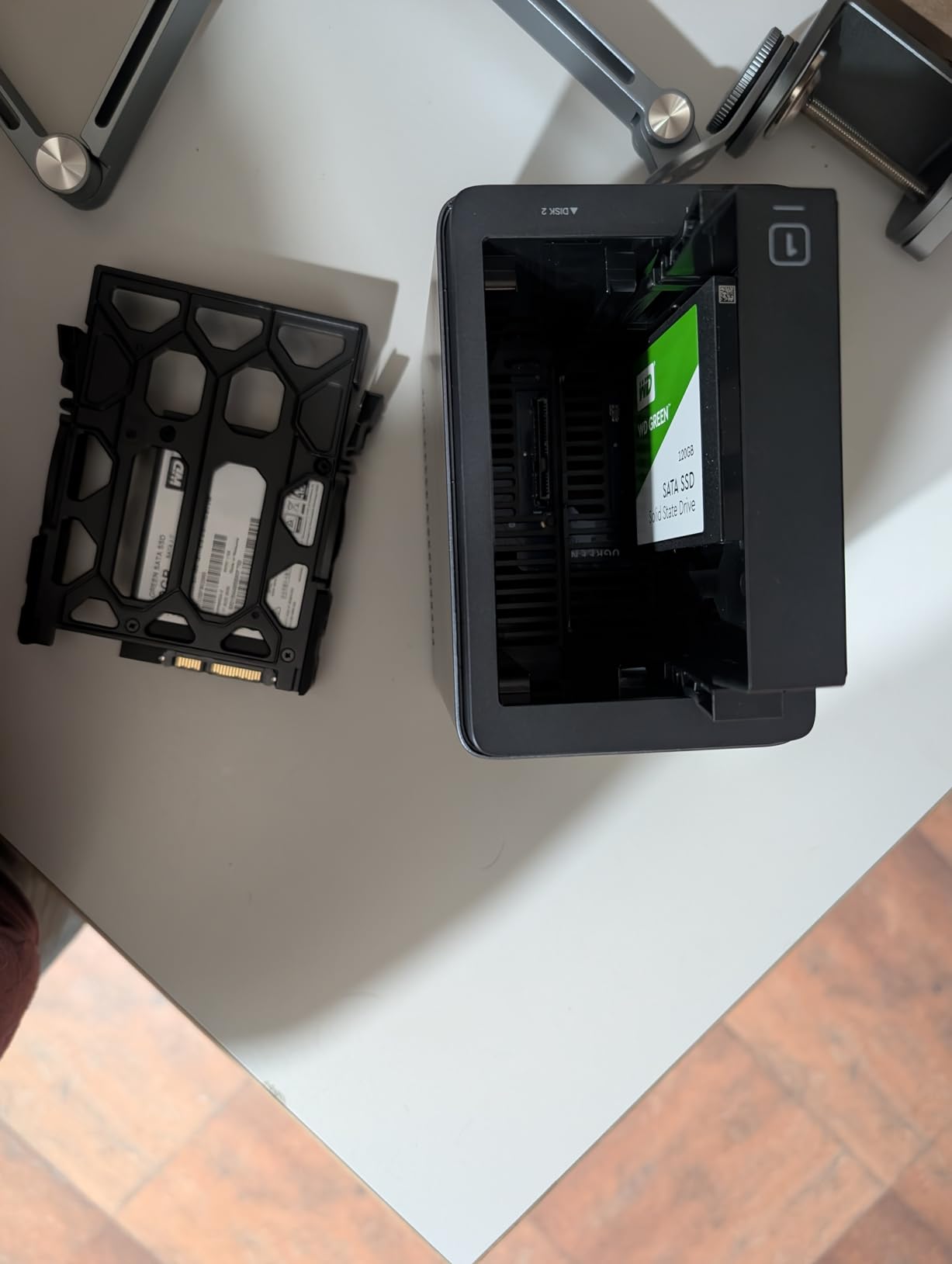
The limitation that matters most is spelled out in the product’s own documentation: there is no Docker, virtual machine or SAN Manager support, so you cannot deploy Plex in a container here. The bundled media apps cover the basics, but the enthusiast route is closed off, and the 1GbE port limits transfers to about 125MB per second.
It is wired Ethernet only. A USB Wi-Fi adapter is required for wireless, and for a media server that streams to several rooms, running over the cable is the better plan anyway.
When this is the right call
Choose it when storage and simplicity are the whole requirement. One person in the household runs it, everyone else just backs up their phone and opens shared folders. The 4GB of onboard memory is more generous than most competitors at this level, and the security features include two-factor authentication, permission controls and encrypted transfers.
It is also the enclosure we would put in a dorm or a shared flat purely as a backup and photo server, because nothing about it needs attention once it is configured.
Who should pass on it
If you want Plex or Jellyfin with hardware transcoding, or you want to run containers for other services, this is the wrong enclosure. The missing container support is not a firmware update away, so treat it as a fixed decision rather than a temporary limitation.
Server and small-business workloads are also outside its design, and the 1GbE port will become the first thing you notice once a family library grows.
4. UGREEN DXP4800 Plus 4-Bay – Best for Heavy 4K Streaming
UGREEN DXP4800 Plus 4-Bay NAS for Families, Creators & Small Teams
Intel 5-core N97-class CPU
8GB DDR5 upgradeable
10GbE plus 2.5GbE
Four bays plus two M.2 slots
Up to 144TB raw
Pros
- 10GbE plus 2.5GbE delivers very fast transfers with 1GB files moving in under a second
- Four bays plus two NVMe slots give expansion headroom
- Premium metal build that owners describe as built like a tank
- Upgradeable RAM with many users running 32GB
- Nearly silent fan during normal loads
Cons
- Mapping the NAS as a network drive is unintuitive compared with Synology's approach
- Some UGOS Pro interface decisions are baffling such as folder deletion
- NVMe compartment cooling is weak and some drives run above 50C
- Compatibility list restricts supported drives at 20TB and above
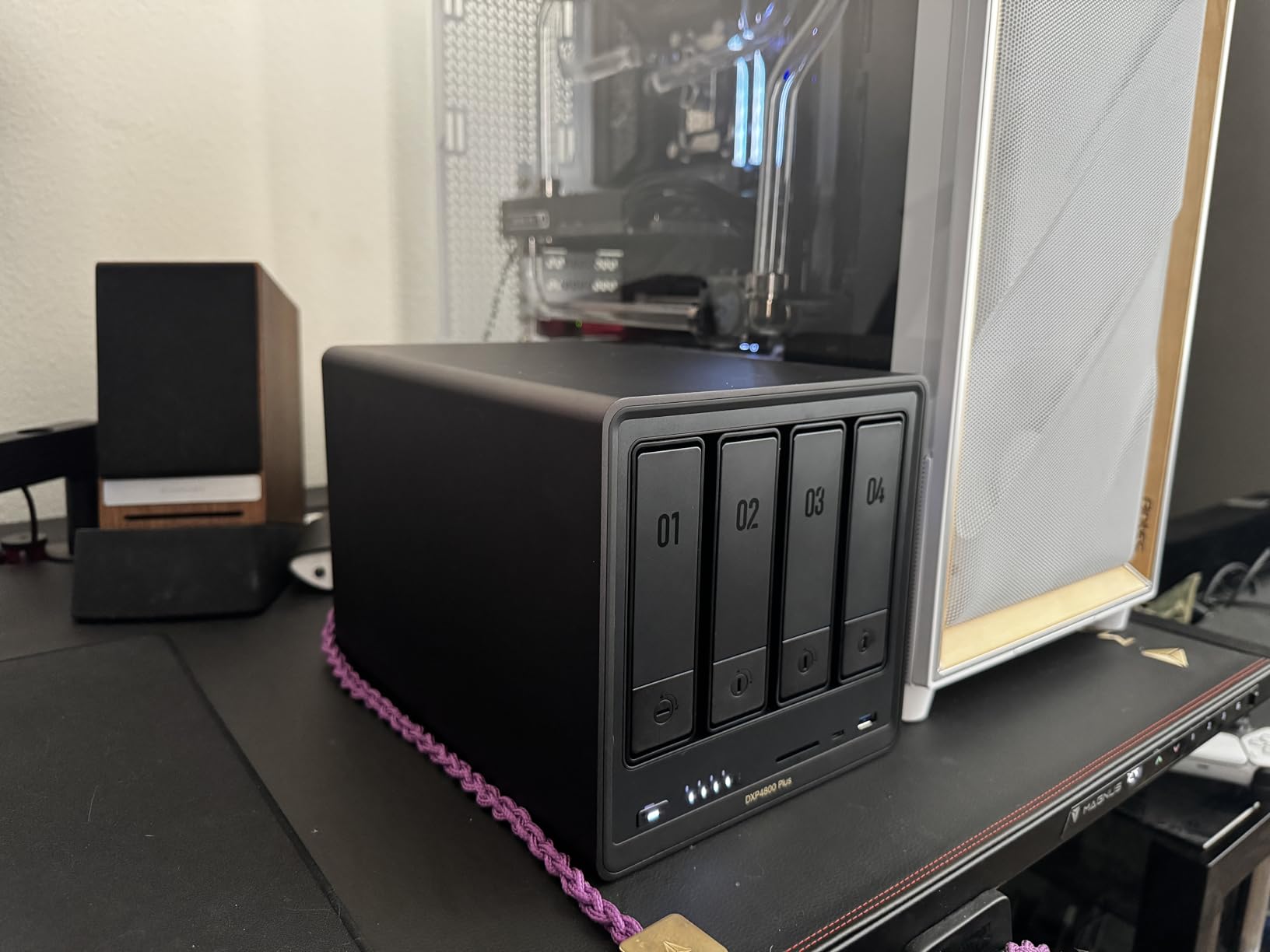
This is the one to buy when more than two people watch high-bitrate content at the same time. The five-core processor with 8GB of DDR5 handles several 4K streams without breaking a sweat, and the 10GbE port means the network stops being the limit for large file transfers. One owner on the listing reports moving 1GB files in under a second.
Expansion is where it separates itself from the competition at this level. Four bays plus two M.2 NVMe slots give you room to grow well past what a comparable four-bay Synology offers, and the RAM is upgradeable, with many users running 32GB once they start adding containers. The listed raw capacity ceiling is 144TB.
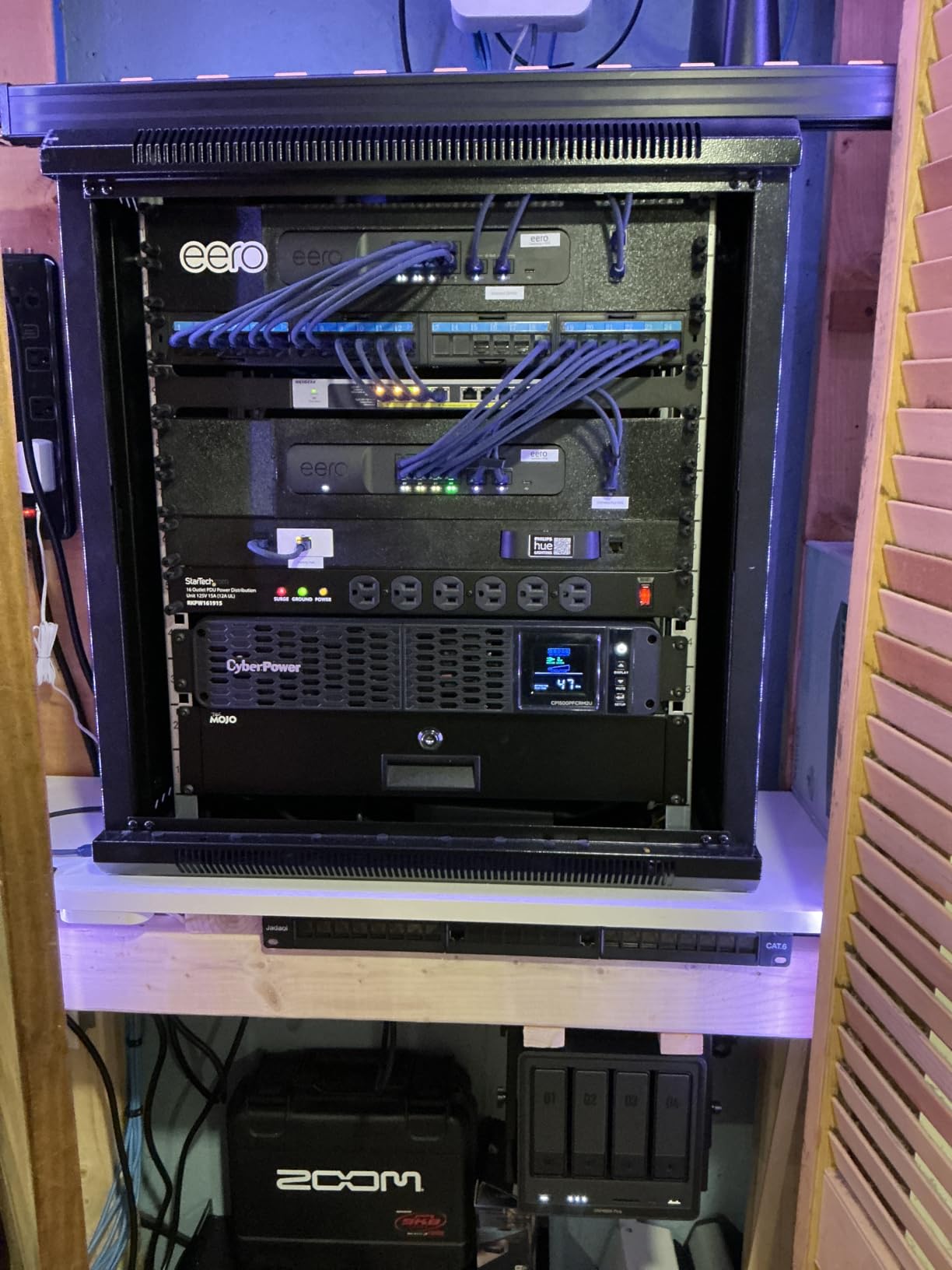
Buyers commonly describe this as the best-value prosumer four-bay and say they replaced a Synology to get it. The metal chassis feels solid, it boots and shuts down quickly, and the fan is close to silent under normal load. It has also proved reliable as a Plex or Jellyfin server for large libraries.
The rough edges are all in software and thermals rather than in the hardware. Mapping the NAS as a network drive is unintuitive next to Synology’s approach, some interface decisions need a workaround, and the NVMe compartment cooling is weak, with some drives reported running above 50C.
What makes it the streaming pick
Two things combine here. The 10GbE port removes the transfer ceiling for large media, and the five-core chip with 8GB of memory gives Plex or Jellyfin enough headroom to transcode when direct play is not possible. A four-bay chassis also means you can run a proper mirror across several drives instead of balancing redundancy against capacity in two.
It is also the one in this list that leaves room for a home lab later, since Docker and virtual machine support runs across the DXP range and the memory is user-upgradeable.
Who should pass on it
If you are comfortable with a Linux command line, a used mini PC or a self-built box can be cheaper and more flexible. This appliance trades that freedom for a polished interface and a warranty, which is the right trade for most households but not for everyone.
Drive compatibility is also tighter here than on some rivals, with the supported list restricting certain capacities at 20TB and above. Check the list against whatever drives you plan to buy before committing.
5. Synology DS223 2-Bay – Best for Automated Backups
Synology DS223 Home & Office Backup Hub – Centralize Files, Protect Data & Monitor Property (2-Bay Diskless NAS)
2-bay DiskStation running DSM
Celeron J4125 quad-core
2GB DDR4 RAM
Two 1GbE ports
Two USB 3.0 ports
Pros
- DSM guided web setup remains the easiest to learn in the category
- Consolidates files from computers phones and external drives with full data ownership
- Reliable set-and-forget backups to multiple destinations
- Metal enclosure feels solid and runs quietly
- Two 1GbE ports support link aggregation for faster SMB transfers
Cons
- Low-power Celeron processor is not suited to heavy 4K transcoding
- 2GB RAM is modest for Docker and virtualization use
- Only two drive bays limit future expansion
- Surveillance Station needs extra licences and configuration
Where the DS223j optimises for simplicity, the DS223 is the step up for a household that treats storage as infrastructure. Same interface, but a Celeron J4125 quad-core processor, 2GB of memory, a metal enclosure and two 1GbE ports that can be linked for faster SMB transfers. It is the mainstream home and office hub rather than a beginner’s first device.
Backup is where it earns its place. Hyper Backup handles Macs, PCs and mobile devices to cloud destinations and external drives, Synology Drive gives team file sync and version control, and Synology Photos handles private photo and video backup. Reviewers single out the set-and-forget backup behaviour more often than any other aspect of the unit.
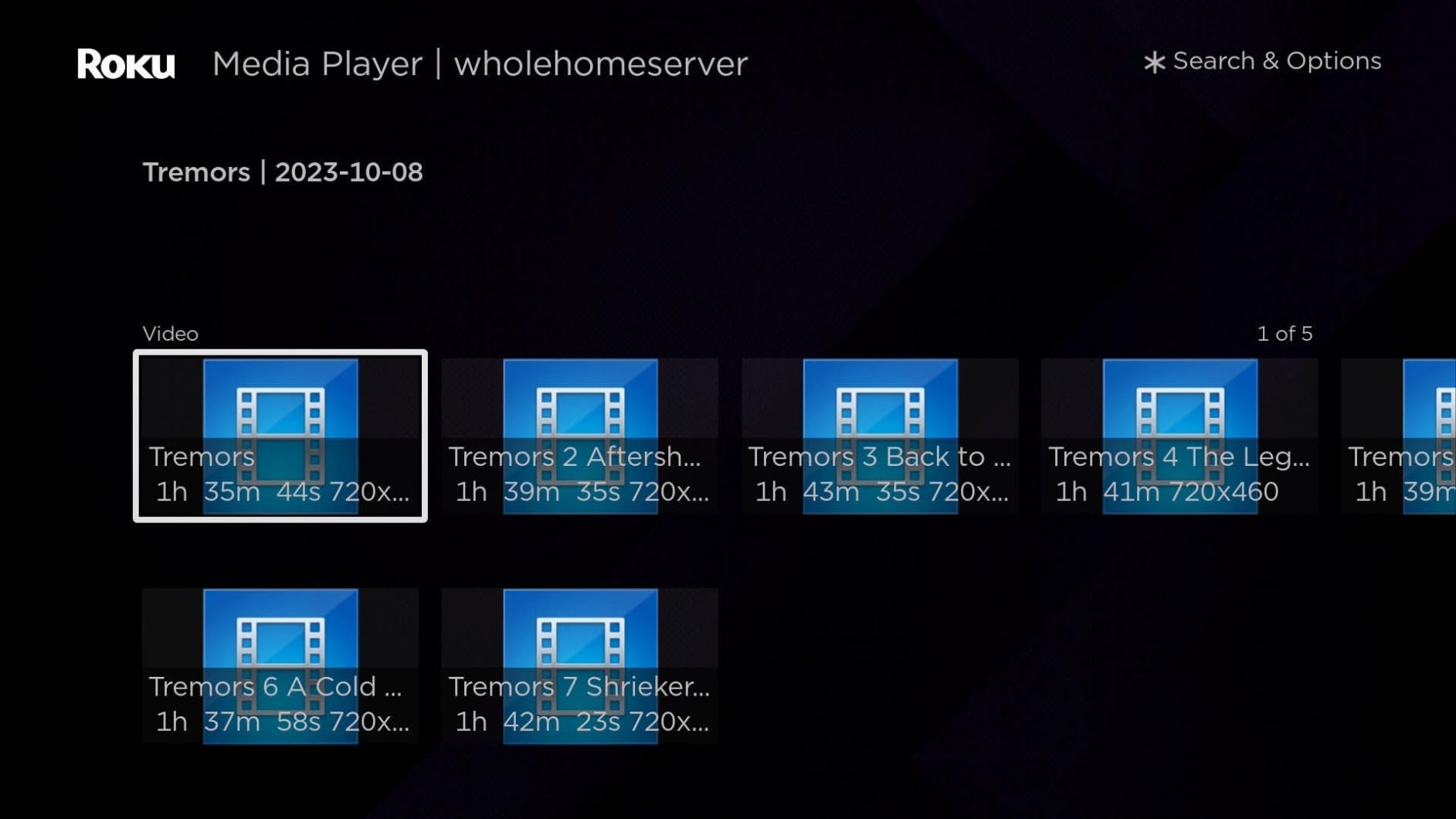
One advantage that matters if you already own Synology hardware: a wider range of drives is accepted on this model than on the plus-branded boxes below, and the 2GB of memory is at the top of what the entry line ships with. Owners also like that it consolidates files from several computers, phones and external drives into one place they control.
The metal case runs quietly, which matters if the NAS is in a living space, and the two-bay layout keeps the footprint small enough for a shelf or a desk.
Why backup-focused buyers land here
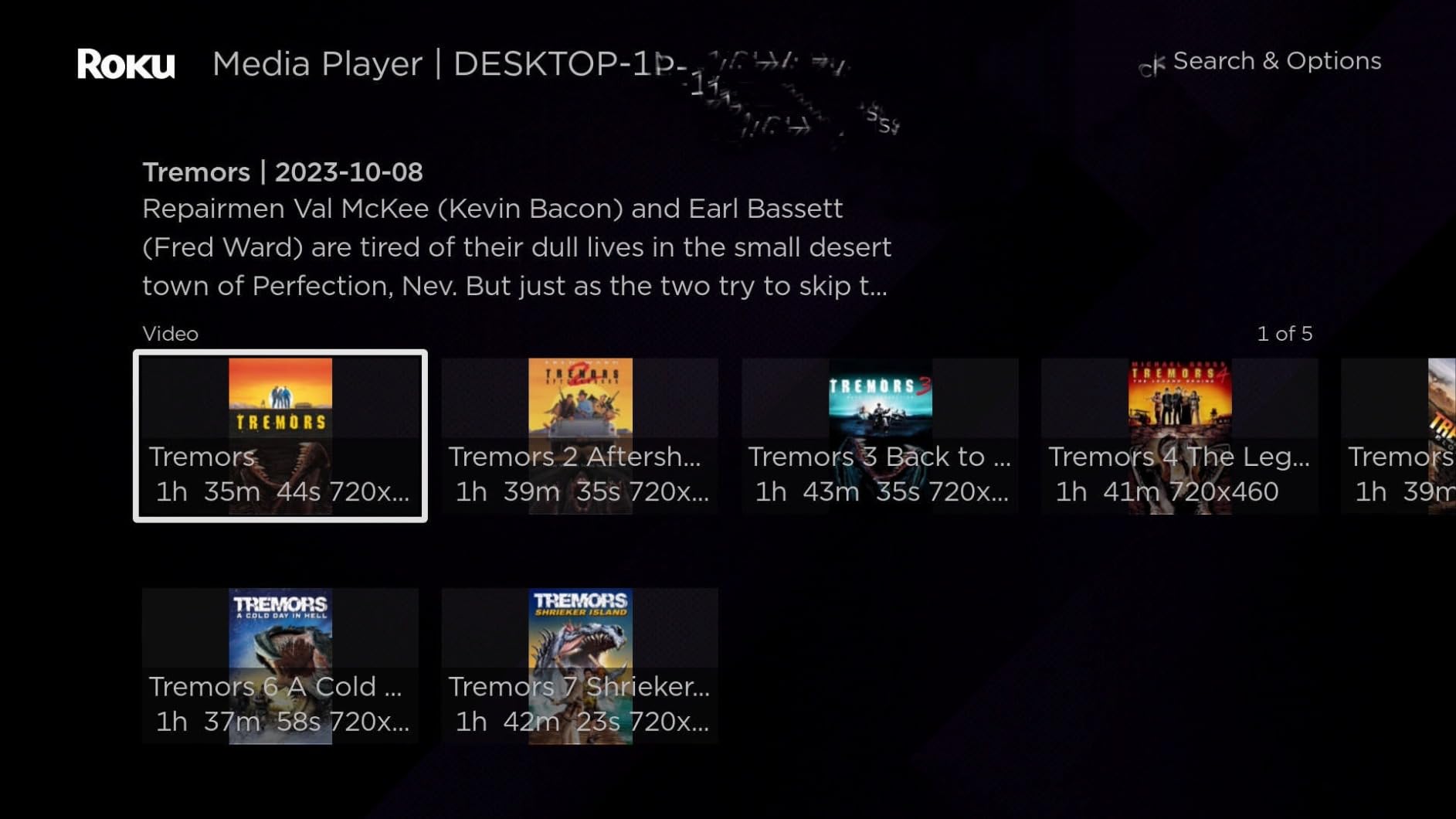
Synology’s snapshot and versioning tools work well together with Hyper Backup, so you can keep local snapshots against accidental deletion while a separate copy runs offsite. That combination is the setup that actually protects a family, and DSM is the least fiddly place we found to configure it.
Surveillance Station is also supported if you want to turn IP cameras into a monitoring system, though the camera features need additional packages and some configuration work.
Who should pass on it
Anyone running 4K transcoding as a priority. A low-power Celeron class processor does not have the headroom for it, and 2GB of memory is thin for containers. The two-bay chassis also caps expansion, so a household that expects to grow past two drives quickly should start larger.
If you want 2.5GbE, this model cannot give it to you at any configuration.
6. Asustor Drivestor 4 Pro AS3304T – Best 4-Bay on a Lean Processor Budget
Asustor Drivestor 4 Pro AS3304T – 4 Bay NAS, 1.4GHz Quad Core, 2.5GbE Port, 2GB RAM DDR4, Network Attached Storage (Diskless)
Realtek RTD1296 quad-core 1.4GHz
2GB DDR4 RAM
2.5GbE port
Four bays up to 72TB
10-bit 4K H.265 decode
Pros
- 2.5GbE port doubles throughput over gigabit-class devices in the same class
- Hardware 4K H.265 transcoding enables smooth local playback
- Realtek quad-core CPU and 2GB DDR4 handle home and SOHO workloads reliably
- App Central catalogue with over 200 apps
- Four bays give room to expand as needs grow
Cons
- 2GB RAM is not upgradeable which limits Docker and virtualization
- Realtek platform is less capable than Intel-based units for media transcoding
- ADM software is less refined and less documented than DSM
- No NVMe cache slots on this four-bay model
The reason this enclosure exists is simple arithmetic. If you want four bays and 2.5GbE and you are not paying for the newest Intel silicon, this is where the money goes. Four 2.5 inch or 3.5 inch SATA bays, a 2.5GbE port, and 10-bit 4K H.265 hardware decoding cover the media-server basics properly.
It handles Plex, remote access and a wide range of backup apps, and the App Central catalogue lists more than 200 applications. The listed capacity is up to 72TB across four 18TB drives. Owners describe it as a dependable enclosure for home and small office use that quietly does its job.
Ratings sit a little below the Synology and UGREEN units in this group, and the reason is consistent across reviews. The 2GB of memory is fixed rather than upgradeable, which rules out serious container and virtualisation use, and the Realtek platform is simply less capable for transcoding than the Intel chips elsewhere in this list.
What it gets right for a first four-bay
The 2.5GbE port is the standout on this unit. It removes the roughly 110MB per second transfer ceiling that a gigabit port imposes, which matters more than a faster processor for most libraries, because a correctly encoded file is played directly rather than transcoded.
Hardware 4K H.265 decoding also means smooth local playback on a connected display or TV, which is more than the entry two-bay enclosures manage.
Who should pass on it
Skip it if you want to run containers or expand memory later, because the RAM is soldered in practice. And if transcoding heavy 4K remuxes is part of your plan, the Intel-based units in this roundup have more to give.
ADM is functional but less refined and less documented than DSM, so expect a longer first afternoon if this is your first NAS.
7. Asustor AS5402T 2-Bay – Best for NVMe Flexibility
Asustor AS5402T, 2 Bay NAS, Intel Quad-Core 2.0GHz CPU, 4X M.2 NVMe SSD Slots, 2×2.5GbE Ports, 4GB DDR4 RAM, Cloud Storage for Gaming and Live Stream, Network Attached Storage(Diskless)
Intel N5105 quad-core up to 2.0GHz
4GB DDR4 upgradeable to 16GB
Four M.2 NVMe slots
Dual 2.5GbE ports
HDMI 2.0b
Pros
- Intel N5105 quad-core handles media streaming and light virtualisation
- Four M.2 NVMe slots allow a large cache or full-flash storage pools which is rare at this price
- Dual 2.5GbE ports support link aggregation for high-bandwidth transfers
- RAM is upgradeable to 16GB unlike Realtek-based rivals
- HDMI 2.0b and USB 3.2 Gen2 support direct display output and fast expansion
Cons
- Two drive bays limit raw capacity compared with four-bay alternatives
- ADM software is less intuitive and less documented than Synology DSM
- Price sits above mainstream two-bay Intel units with similar processors
- Gaming-inspired styling adds bulk for a unit that gets hidden away
Four M.2 NVMe slots in a two-bay enclosure is unusual enough to justify its own section. You can build a fast cache, dedicate one slot to applications, or run an all-flash storage pool next to the hard drive library. The Intel N5105 quad-core and 4GB of upgradeable memory give it enough headroom for a media server with light virtualisation alongside.
Networking is unusually good for a two-bay. Two 2.5GbE ports support link aggregation, and three USB 3.2 Gen2 ports at up to 10Gb per second make it practical to attach fast external media or an expansion enclosure. HDMI 2.0b output supports displays up to 3840×2160, so it can drive a 4K screen directly.
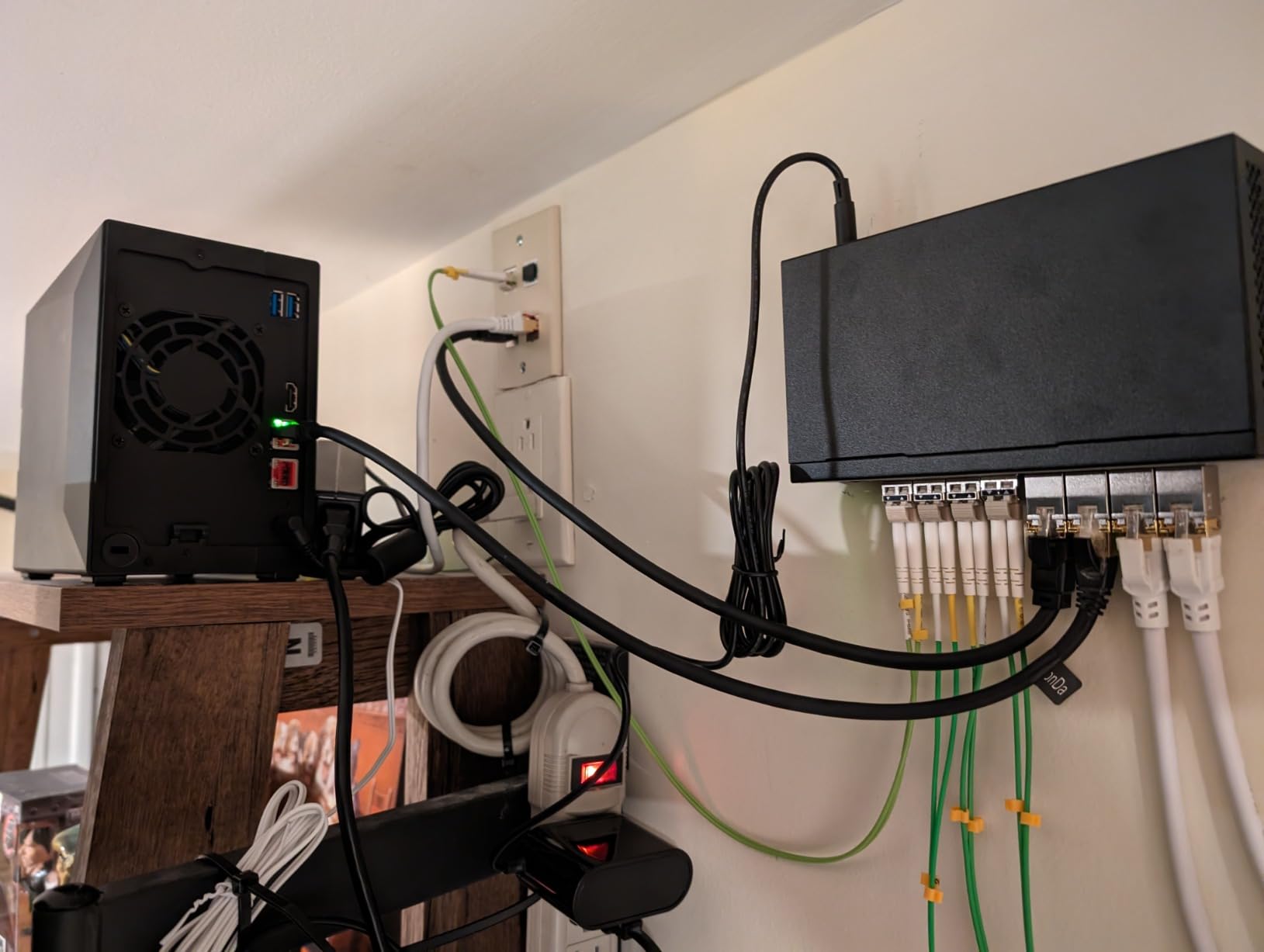
Owners report smooth 4K playback and hardware transcoding for Plex, TVs and mobile devices, and the three-year manufacturer guarantee matches the longest in this roundup. For a creator who wants scratch space and a media server in one box, the storage flexibility is the reason to buy.
Two drive bays do cap raw capacity, though, and ADM is described as less intuitive and less documented than Synology DSM. The price also sits above mainstream two-bay Intel units with comparable processors, and the gaming-inspired styling adds bulk to something that usually ends up tucked away.
Who should look past the drive count
Plenty of people. If your library is a couple of terabytes and your working files are the demanding part, four NVMe slots and a link-aggregation pair of ports will matter far more than a third and fourth hard drive bay you never fill.
It is also a good fit as a second machine, a dedicated backup target for a larger four-bay, or a lightweight virtualisation host in a home lab.
Who should pass on it
If your plan is a large media library that keeps growing, match it against a four-bay instead. The per-bay economics of a two-bay make it an expensive place to store tens of terabytes, even with the strong specification sheet.
Anyone who wants a polished first-time experience should also weigh the interface: ADM asks more of a new user than DSM does.
8. QNAP TS-464 4-Bay – Best for Transcode Headroom
QNAP TS-464-8G-US 4 Bay Desktop NAS
Intel N5105 quad-core bursting to 2.9GHz
8GB DDR4 RAM
Dual 2.5GbE ports
Dual M.2 PCIe Gen3x2 slots
Hot-swappable bays
Pros
- 8GB of RAM is generous and gives headroom for Docker and media apps
- Dual 2.5GbE ports support link aggregation for large file transfers
- Two M.2 PCIe Gen3x2 slots allow SSD caching or dedicated SSD storage pools
- Quad-core Intel N5105 with burst up to 2.9GHz is capable of 4K transcoding
- USB 3.2 Gen2 ports suit fast external media and expansion enclosures
Cons
- QTS interface is heavier and less approachable than Synology DSM
- Costs more per bay than some four-bay rivals in this roundup
- Diskless design means drives add substantially to the real total
If your library holds high-bitrate 4K remuxes and you want hardware transcoding headroom in a four-bay, the TS-464 is the specification answer. A quad-core Intel N5105 bursting to 2.9GHz, 8GB of DDR4 memory, dual 2.5GbE ports and two M.2 PCIe Gen3x2 slots is a lot of capability in one desktop chassis, and the three-year warranty is among the longer here.
The 8GB of memory is the headline. It is upgradeable, and it is enough to run Plex or Jellyfin alongside containers without everything fighting for RAM. The NVMe slots can be used as a read cache for mixed workloads or as dedicated fast storage pools for the files you open most often.
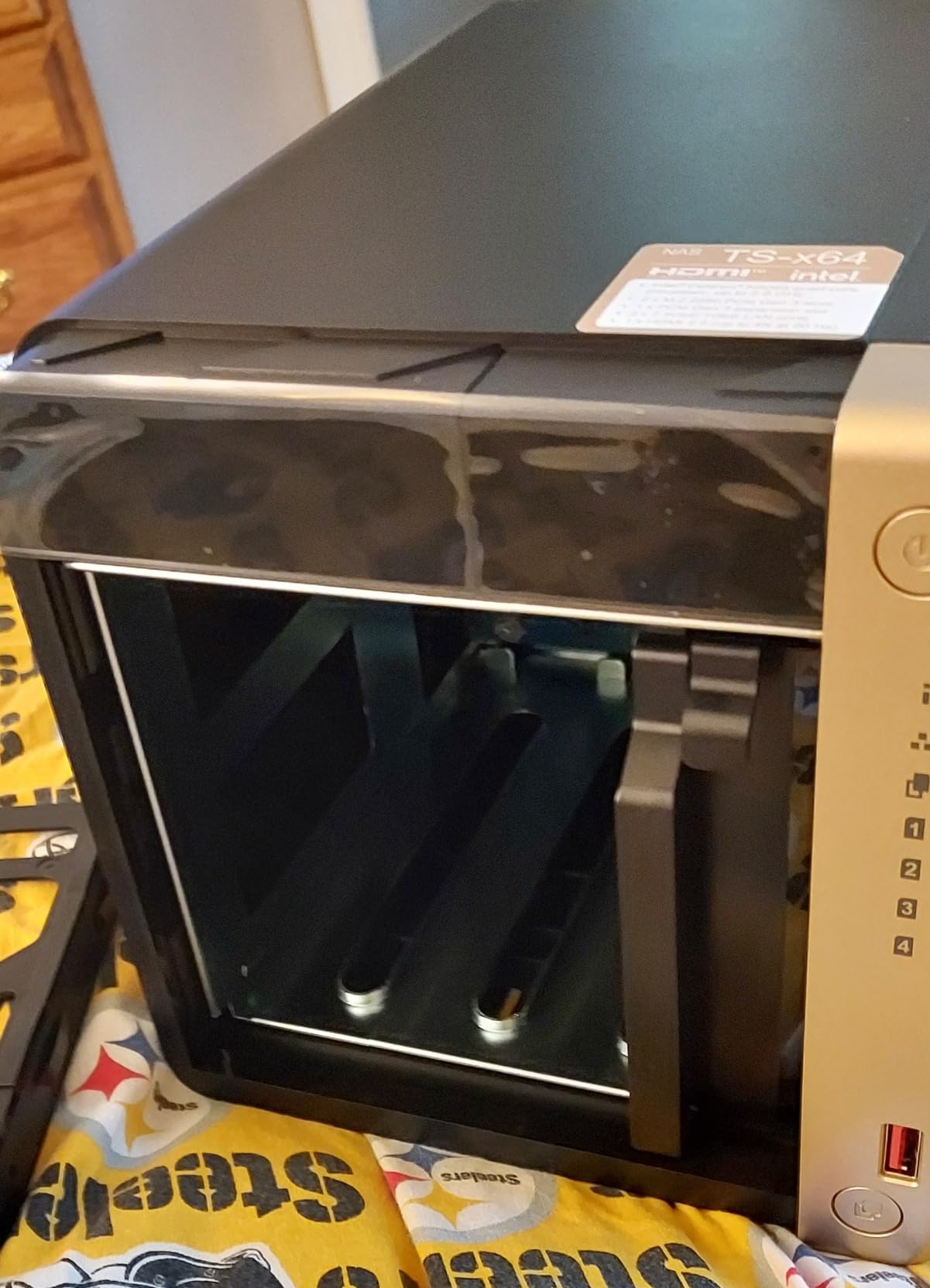
The metal chassis and hot-swappable drive bays feel built for continuous use, and the USB 3.2 Gen2 ports at up to 10Gb per second make attaching a fast external drive or an expansion unit painless. Owners of QNAP four-bay units with this processor repeatedly praise them for having enough CPU headroom to transcode 4K.
What gives people pause is the software. QTS is heavier and less approachable than DSM, and it asks more of you to configure. For someone who enjoys tuning their setup that is part of the appeal; for a relative who just wants to watch something, it is a barrier.
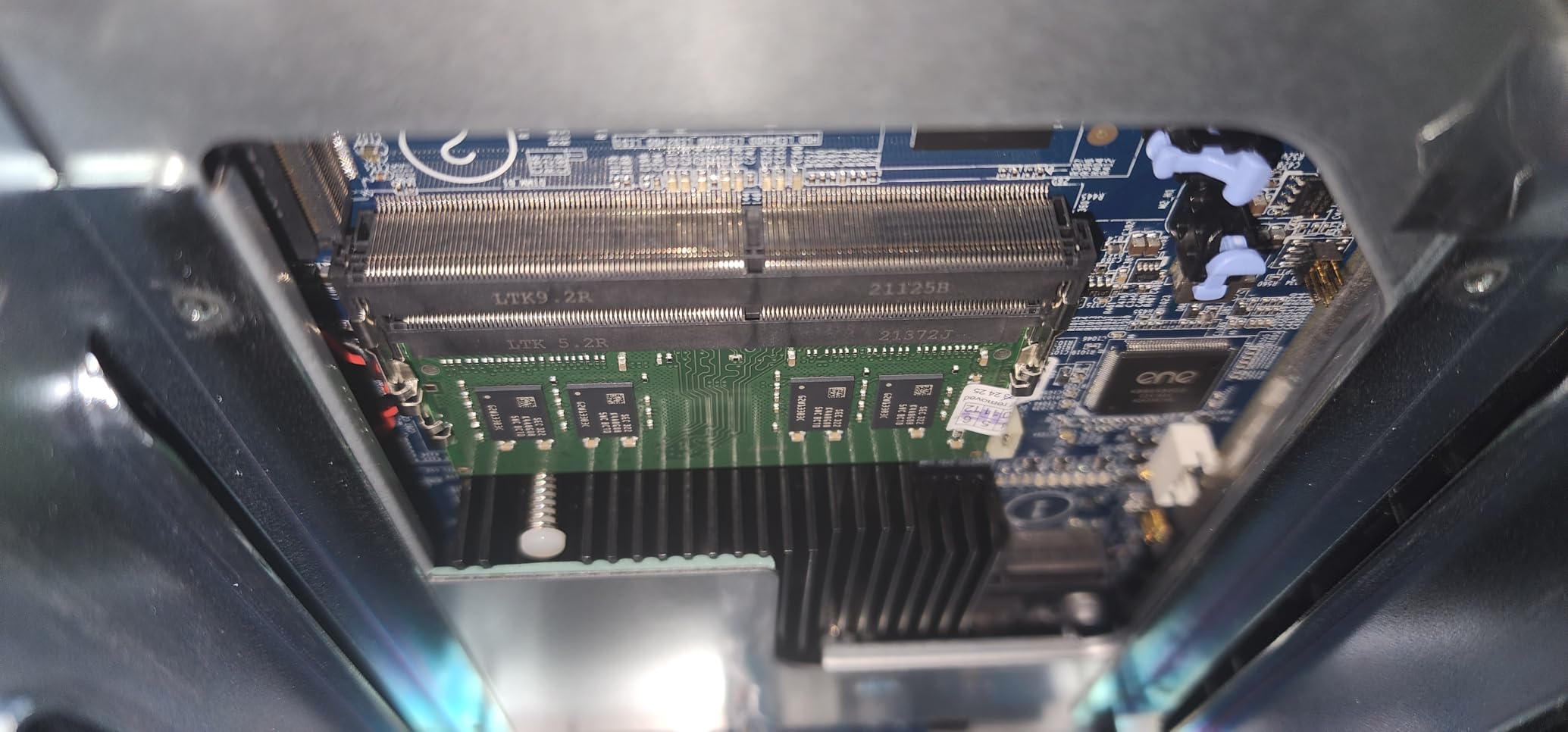
What the extra memory actually buys
Transcoding is the obvious answer. A quad-core Intel chip with hardware decode will handle several simultaneous 4K streams where a low-power dual-core will start to stutter, and 8GB of memory means the media server, the indexer and a few containers can coexist without swapping.
The second benefit is longevity. Memory is upgradeable here, so a unit bought today can carry a heavier workload in four years without a full replacement.
Who should pass on it
Skip it if ease of use is your top priority, because QTS has a steeper learning curve than Synology DSM and more settings to get wrong. It also costs more per bay than some four-bay rivals in this roundup, and once you add drives the real total climbs further.
If you only ever stream files that direct play cleanly, much of this capability goes unused, and a simpler two-bay serves you just as well.
9. Asustor Drivestor 2 Lite AS1102TL – Best for Quiet Small Spaces
Asustor Drivestor 2 Lite AS1102TL, 2 Bay NAS, 1.7GHz Quad Core, 1GbE Port, 1GB RAM DDR4, Personal Private Cloud, Backup for Home & Small Office, Network Attached Storage(Diskless)
Realtek RTD1619B quad-core 1.7GHz
1GB DDR4 RAM
1GbE port
Btrfs and iSCSI snapshots
Three year warranty
Pros
- Quick tool-free setup with one owner running two 20TB drives in minutes
- Set-and-forget behaviour with users reporting months without attention
- Same ADM interface as the larger Drivestor Pro so no separate learning curve
- Supports Time Machine backups with a checkbox and easy Windows network access
- Quiet and compact with a metal chassis and external power supply
Cons
- 1GB RAM and a 1.7GHz quad-core chip struggle when streaming during a backup
- 1GbE only so transfers are limited to roughly 110MB per second
- Some users report password and login failures shortly after setup requiring a factory reset
- Documentation is dated and references an older software version
This is the one to consider when the NAS lives in a bedroom, a study or a dorm room and noise is the deciding factor. It is small, quiet, and driven by an external power supply that stays cool. Wake on LAN, Btrfs and iSCSI snapshots, and 4K media transcoding support are all present, and the three-year warranty is generous.
Setup is quick and tool-free. One owner had it running with two 20TB drives in minutes, and others report months without needing attention. It shares the ADM interface with the larger Drivestor Pro, so a household that later adds a bigger Asustor box keeps the same learning curve.
Time Machine backup support is a checkbox away for Mac users, and Windows network access is straightforward. App Central includes cloud sync to Amazon S3, Azure and Google Drive, plus a VPN host app for people who want remote access done properly.
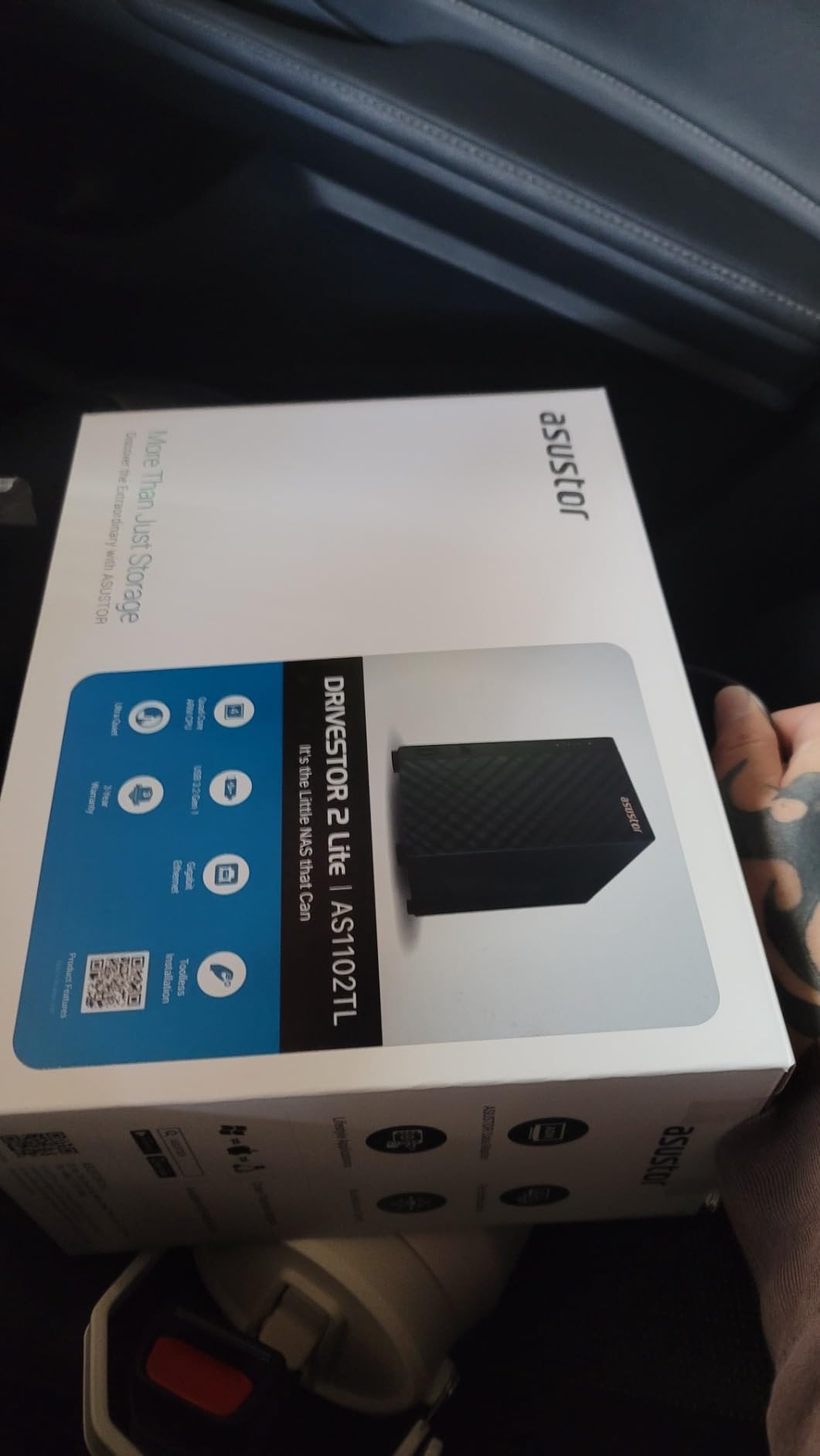
The constraint is the processor. With 1GB of memory and a 1.7GHz quad-core chip, streaming video while a backup is running is where owners report the machine straining. A single 1GbE port also limits transfers to roughly 110MB per second, and a few users have reported password or login failures soon after setup that required a factory reset.
Why quietness changes the decision
Noise is a genuine quality-of-life issue in small living spaces, and a machine that is unobtrusive on a desk stays powered on. That matters, because a NAS earns its keep through consistency: automatic phone backups, scheduled snapshots and offsite copies only work if the box is powered on every day.
This enclosure is compact, light and thermally modest, which means low power draw and minimal audible output in a room you actually sleep in.
Who should pass on it
Pass if your library is mostly 4K remux files, or if more than one person streams at once. The processor and memory combination is not built for transcoding load.
Also look elsewhere if you need containers, a modern processor, or fast transfers. The dated documentation is a small thing on its own, but combined with the occasional authentication report it makes this less comfortable as a first NAS.
10. Synology DS225+ 2-Bay – Best for Plex Beginners
Synology DS225+ Private Cloud Media Server – Stream, Back Up Photos & Share Files, Intel CPU for Hardware Transcoding (2-Bay Diskless NAS)
Intel Celeron J4125 quad-core
2GB upgradeable DDR4
Two 1GbE ports
Up to 40TB raw
Three year warranty
Pros
- DSM remains one of the most intuitive and capable NAS interfaces with a guided web setup
- Plex media server including live TV and DVR works well for typical home use
- Quad-core processor gives noticeably more headroom than earlier dual-core two-bay models
- Migration from a previous Synology carries data settings and credentials across
- Silent and reliable once configured
Cons
- No native hardware video transcoding for heavy remote or unusual-format streams
- Occasional reports of DSM installation failing with third-party drives
- Some features still require Synology-branded drives at a premium
- Two-bay capacity limits future expansion and redundancy headroom
The DS225+ is the model most people are pointed to when they ask which Synology is best for Plex, and for a straightforward home setup it earns the recommendation. The Celeron J4125 quad-core is a step up from the older dual-core two-bay models, DSM remains one of the clearest interfaces in the category, and the three-year warranty is the longest of the Synology units here.
Owners report that the Plex media server package, including live TV and DVR, works well for typical home use, and that transfers max out the gigabit network as expected. If you are upgrading from an older Synology, migration is seamless: data, settings and credentials come across.
The limitation that gets discussed most is the absence of native hardware video transcoding. That is fine for one or two local streams of standard files, and it becomes a problem with many simultaneous remote streams or unusual formats where Plex falls back to software transcoding and the CPU starts to work.
There are also a cluster of reports about DSM installation failing with certain third-party drives, which some buyers had to resolve by returning the unit, and some features still ask for Synology-branded drives at a noticeable premium.
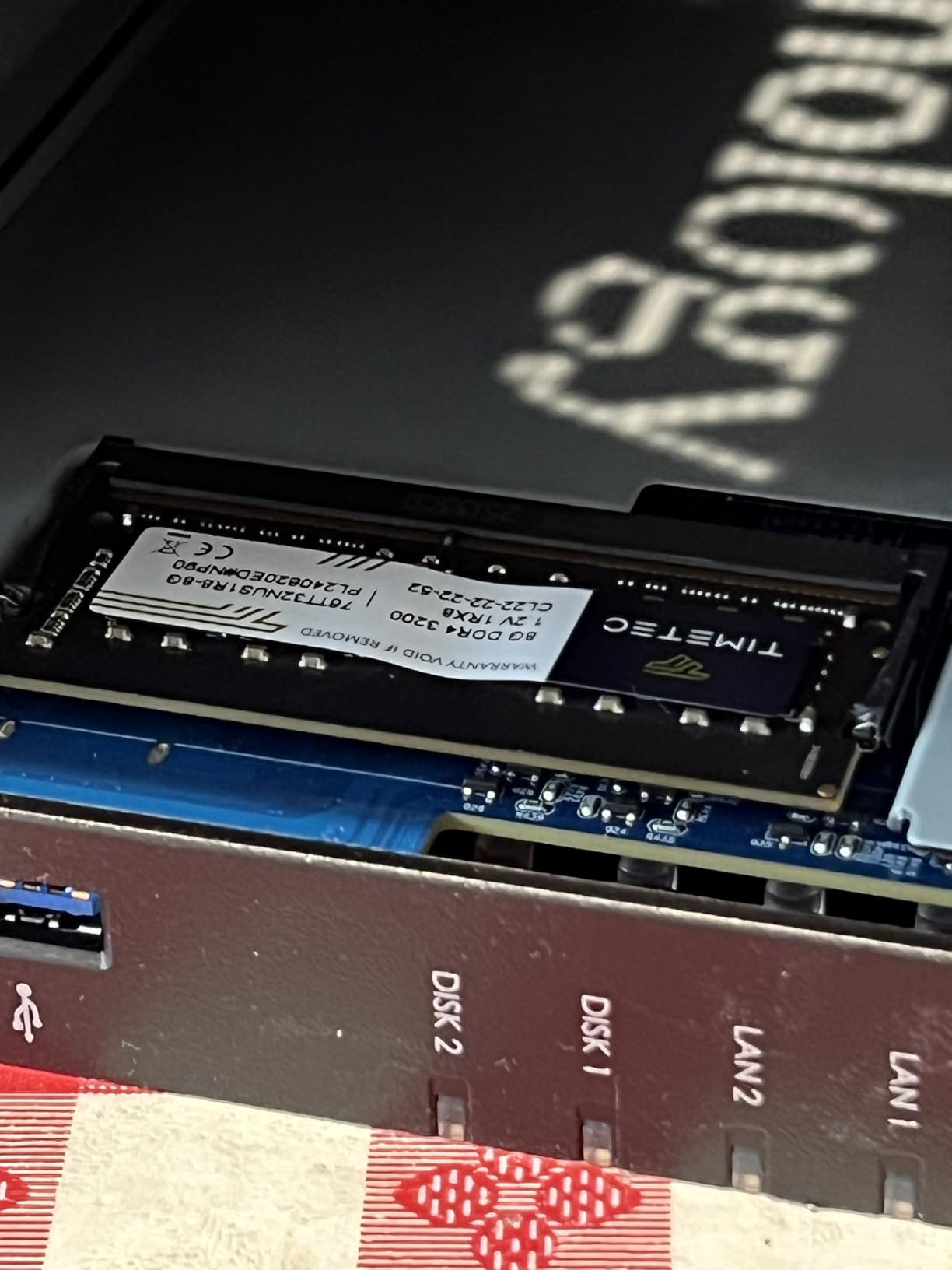
Where the DS225+ sits against the DS223
The DS223 accepts a wider range of third-party drives, which matters if you want to buy NAS-rated hard drives from any brand. The DS225+ pairs the newer processor with a three-year warranty and a slightly more capable platform, and is the better fit for media serving.
Both are two-bay units, so both cap you at two drives and give you redundancy or extra capacity rather than both.
Who should pass on it
Pass if you will be streaming heavily to people outside the home over a slow upload connection, because software transcoding is where the processor will suffer. Models built on Intel QuickSync or an N-series processor are designed for that case.
Also pass if you intend to run containers seriously: 2GB of memory, even upgradeable, is tight for that, and the two-bay layout leaves no room to grow the library.
How Much Storage Do You Actually Need?
Nobody in this category publishes a number that helps you, so here is the arithmetic. What matters is the bitrate of the files you keep, not the resolution label on the streaming service you downloaded them from. A 4K file from a streaming download is a small file; a 4K remux of a disc is a very large one, and it will play directly without transcoding.
For a typical two-hour title, budget roughly like this:
1080p streaming quality: around 3GB to 5GB per two-hour film
1080p remux: around 20GB to 25GB per two-hour film
4K streaming quality: around 15GB to 20GB per two-hour film
4K HDR remux: around 60GB to 80GB per two-hour film
From those numbers, three tiers cover almost everyone. A 2-bay with two 8TB drives in RAID 1 gives you roughly 8TB usable, which works out to roughly a hundred 4K remuxes, or a large 1080p library plus plenty of room for photos. A 4-bay with four drives gives you around 24TB usable as a RAID 5 set, or considerably more as a single large volume with a mirrored backup, and that comfortably holds a few hundred films. Beyond that, four bays with 18TB or 20TB drives or a six-bay chassis is where large libraries live.
Two extra variables change the answer. How many people watch at once multiplies transcoding demand rather than storage, and how far they are from home decides whether you need transcoding at all. Someone on the same LAN direct plays almost anything; someone on a slow connection needs the processor to work hard.
Choosing a NAS for Media Streaming in 2026
Hardware transcoding decides whether 4K feels smooth
Direct play means the NAS hands the file to your device untouched. Transcoding means it re-encodes the file on the fly, which burns CPU. Hardware transcoding offloads that work to the integrated GPU in Intel QuickSync or the equivalent on an N-series chip, and it is the single most important specification for a media server.
That is the difference between the N100 in the DXP2800 and the older dual-core parts in the DS223j or the Asustor Lite. For one or two local streams, direct play handles almost everything and the difference never appears. For several remote or unusual-format streams, it is the difference between smooth playback and a spinning fan.
Direct play or transcode? Check the dashboard
Both Plex and Jellyfin show you which happened for every stream. If you see direct play on the devices you care about, you can buy almost any enclosure here and be fine. If you regularly see transcoding, prioritise a modern four-core processor and treat the port speed as secondary.
A common surprise is that a correctly encoded 4K file at a sensible bitrate plays directly on almost every modern device. Over-encoding is what forces transcodes, and it is also what fills a disk faster than expected.
2.5GbE is the current sweet spot, 10GbE needs planning
A gigabit network tops out at roughly 110MB per second, which is a ceiling most people never think about until they move a large library. 2.5GbE roughly doubles that, and 10GbE multiplies it again, but only if your switch, your client and your cables all support it. Users consistently report that home networks are the limit long before the NAS itself is.
Buying a 10GbE NAS without a 10GbE switch means paying for a port you never use. Check what your router or switch supports before you commit, and remember that a single 2.5GbE port also limits you to one device at a time unless you link two together.
Bays, RAID and the mistake everyone makes
Two bays give you a mirror, which is the correct starting configuration for a first NAS and the community consensus we found. Four bays let you add drives as the library grows and use a RAID 5 set, at the cost of longer rebuild times. Matching drive sizes matters: mixing capacities in a RAID array wastes the difference, and while Synology Hybrid RAID handles mismatched sizes gracefully, plain RAID does not.
The mistake worth repeating: RAID is not a backup. RAID protects you from a single drive failing. It does not protect you from deletion, ransomware, fire, or a failed firmware update. Pair every array with a snapshot schedule and an offsite copy, using Synology Hyper Backup, QNAP Hybrid Backup Sync, or an equivalent snapshot and versioning tool.
Synology versus QNAP in one paragraph
Synology DSM is the calmer, more guided experience: a web setup assistant, a consistent interface across the range, and packages that do the common jobs well. QNAP QTS is more powerful and more complex, with deeper controls, more frequent access to advanced features, and a steeper first afternoon. On hardware value for money, QNAP generally gives you more memory and faster ports at a comparable tier, while Synology commands a premium for its software and support. If a non-technical relative will use the NAS, choose Synology. If you want containers, virtual machines and tuning, QNAP rewards you.
Plex versus Jellyfin
Plex is the better-polished app ecosystem and the easier recommendation for households, and hardware transcoding on a supported platform generally requires a Plex Pass subscription. Jellyfin is entirely free and open source, needs no account, and handles hardware transcoding without a paid tier, so it is the natural choice if cost matters. Both scrape your folder structure automatically as long as your naming is tidy, and both run well on any of the units in this roundup that support containers.
Noise, power draw and a machine you live with
A NAS is a 24/7 appliance in a space you also sleep in. Fans and spinning drives are the audible part, and the enclosures listed as quiet in owner reviews are the DS223j, the DS223 and the Asustor Drivestor 2 Lite. Idle power draw on a NAS of this class is small, but it is never zero, and it accumulates quietly over a year.
For a dorm or a small flat, a low-power two-bay on a shelf beats a four-bay metal chassis under a desk. If the machine will sit in a bedroom, check the noise before you buy, not after.
Never expose the admin interface to the internet
This is the security point most roundups skip. Do not port-forward your NAS management interface to the open internet. QNAP is the vendor that learned this publicly, with widely reported ransomware campaigns in recent years that exploited exactly this mistake. Use a VPN, or a mesh overlay network such as Tailscale, and reach your media server from outside through an authenticated tunnel rather than an open login page.
NAS Drive Recommendations
Every enclosure here is diskless, so the drives are a separate purchase and usually the larger part of your total. Buy NAS-rated drives designed for continuous multi-drive operation: Seagate IronWolf, WD Red Plus, and Toshiba N300 are the mainstream options, with the Pro variants for heavier workloads.
Check one specification above all others: CMR rather than SMR. SMR drives write slowly in ways that can break a RAID rebuild, and the failure often appears months after a rebuild, which makes it a genuinely expensive mistake. Plain WD Red and several cheap off-brand drives are SMR. WD Red Plus and every IronWolf and N300 drive are the ones to look for.
Beyond that, match drive sizes within an array where you can, keep every bay on the same firmware revision, and leave around ten percent of raw capacity unallocated so a rebuild has room to work. Buy all the drives for an array at the same time; mixing purchase dates means mixing failure timelines.
After-Purchase Setup Checklist
Plan the first hour and the rest takes care of itself. This sequence works on any of the ten units above.
Install the drives, label each bay, and confirm the NAS sees all of them.
Create the volume. Use RAID 1 in a two-bay, or RAID 5 or a hybrid option in a four-bay.
Set up two administrator accounts rather than sharing one, and turn on two-factor authentication.
Create one shared folder per media type, and keep the naming convention tidy so the server scrapes your library automatically.
Install Plex or Jellyfin, point it at the folders, and confirm a stream direct plays before you import everything.
Schedule snapshots, then set up an offsite or external-drive backup for the data you cannot afford to lose.
Turn on automatic phone photo backup, then confirm the first backup completes from a second device.
Frequently Asked Questions
What is the best NAS for a home media server?
For most households the UGREEN DXP2800 is the best NAS for a home media server, because its Intel N100 quad-core processor handles 4K hardware transcoding and its 2.5GbE port keeps large transfers moving. If ease of setup matters more than speed, the Synology DS223j is the cheapest comfortable entry point. Households streaming several 4K remuxes at once should look at a four-bay with 10GbE.
How much storage should I have for a home media server?
Size for the bitrate of the files you keep, not the resolution label. Budget roughly 3GB to 5GB per two-hour film at 1080p streaming quality, 20GB to 25GB for a 1080p remux, 15GB to 20GB for 4K streaming quality, and 60GB to 80GB for a 4K HDR remux. A 2-bay with two 8TB drives in RAID 1 gives about 8TB usable, which suits a few hundred hours of standard content.
Which NAS is best for 4K transcoding with Plex?
A NAS built on a recent Intel processor with hardware video transcoding handles 4K streams most comfortably, because the work goes to the integrated GPU instead of the CPU. The UGREEN DXP2800 with its Intel N100 and the UGREEN DXP4800 Plus with its five-core chip both fit that description, and the QNAP TS-464 with 8GB of memory adds headroom for containers alongside Plex.
Which NAS is better, Synology or QNAP?
Synology is easier to set up and use, with a guided web assistant, a consistent interface and packages that handle common jobs well, which suits households where someone else will maintain the NAS. QNAP offers more memory, faster ports and deeper controls for the same money, but QTS takes longer to learn. Choose Synology for simplicity and QNAP for flexibility and container workloads.
Do I need Plex Pass for hardware transcoding?
On most current platforms, yes. Plex generally requires a Plex Pass subscription to use hardware transcoding, and that is what lets a modest processor handle several 4K streams without struggling. Jellyfin performs hardware transcoding without any paid tier or account, so if you would rather not hold a subscription, running Jellyfin instead removes the restriction entirely.
Is 1GbE enough for 4K streaming at home?
For playback alone, often yes, because a 1GbE link delivers roughly 110MB per second, which is far above what a single 4K stream consumes. It becomes a problem when you copy a large library in, edit from the NAS, or run several streams at once. A 2.5GbE port roughly doubles the ceiling, but only if your switch and client support it too.
Final Verdict
After ten enclosures, one conclusion held up: buy the processor, not the bay count. The best network attached storage for home media servers in 2026 is the UGREEN DXP2800, because an Intel N100 with 8GB of memory and a 2.5GbE port gives you the transcoding headroom and transfer speed that a media server actually needs, and its two M.2 NVMe slots let you add speed later without new hardware.
Match the box to the household instead. The Synology DS223j is the right pick when someone will configure it once and everyone else just uses it. The Synology DS225+ fits a household already invested in DSM that wants a longer warranty. The Asustor Drivestor 4 Pro AS3304T gives you four bays and 2.5GbE without paying for new Intel silicon, and the Asustor Drivestor 2 Lite AS1102TL is the quiet option for a bedroom or a dorm room.
For heavier libraries, the UGREEN DXP4800 Plus handles several 4K streams and 10GbE transfers, while the QNAP TS-464 is the pick if you want the most memory and plan to run containers beside your media server. Add NAS-rated CMR drives, set up snapshots and an offsite copy in your first hour, and check whether your switch supports 2.5GbE before you buy anything faster.