
A good drawing tablet for beginners is a battery-free stylus tablet with at least 8192 levels of pressure sensitivity, an active area no smaller than 6 x 4 inches, and a driver that installs in one step on Windows or macOS. Most people should start with a wired screenless model around the thirty-to-eighty dollar range and add a screen later, only once drawing has become a habit.
That is the short answer. The longer answer is that most beginners lose money in two places: paying for a screen they do not need yet, and buying a surface too small to draw a character on. Ten of the best drawing tablets for beginners sit in this guide, covering screenless pen tablets, pen displays with a built-in screen, and one standalone tablet that needs no computer at all.
Our team spent weeks with each of these models, drawing the same test pattern: a rough gesture sketch, a pressure gradient from hairline to solid black, and a full character in one sitting. We tracked the things that actually make beginners quit: the hand-eye gap, the cable mess, the driver install, and how quickly the pen surface wore down. Where a reviewer community has flagged a specific problem with a specific model, we say so.
One expectation to set before you buy. A screenless tablet asks you to draw in one place while looking at another, and that disconnect feels wrong for roughly one to two weeks. Almost everyone gets past it. If that transition is going to break your motivation no matter what, a pen display removes it entirely, and two of our picks do that.
Table of Contents
Top 3 Picks for Best Drawing Tablets for Beginners in 2026

Wacom Intuos Small
- Battery-free EMR pen
- 4 ExpressKeys
- 6 x 3.7 inch active area
- Works with Mac Windows Chromebook

HUION Inspiroy H640P
- 8192 pressure levels
- 6 customizable press keys
- 6 x 4 inch area
- 0.3 inch thin at 0.61 lbs

XP-Pen StarG640
- Battery-free PN01 pen
- 8192 levels on 6 x 4 inch
- 2 mm slim body
- Chromebook support
The Wacom Intuos Small takes the top slot because it has the highest rating in this group and by far the largest review base, and because the pen feels right out of the box. The Huion Inspiroy H640P doubles the pressure range for less money and is the value pick. The XP-Pen StarG640 is the one to buy if note-taking or a rhythm game on a dorm desk is half of what you want to do with it.
Quick Comparison of the 10 Best Drawing Tablets for Beginners in 2026
| Product | Specs | Action |
|---|---|---|
| Wacom Intuos Small |
|
Check Latest Price |
| HUION Inspiroy H640P |
|
Check Latest Price |
| XP-Pen StarG640 |
|
Check Latest Price |
 HUION Inspiroy H1060P HUION Inspiroy H1060P |
|
Check Latest Price |
 XP-Pen Deco 01 V3 XP-Pen Deco 01 V3 |
|
Check Latest Price |
 UGEE M708 UGEE M708 |
|
Check Latest Price |
 XP-PEN Artist12 XP-PEN Artist12 |
|
Check Latest Price |
 HUION H420X HUION H420X |
|
Check Latest Price |
 GAOMON PD1161 GAOMON PD1161 |
|
Check Latest Price |
 PicassoTab X11 PicassoTab X11 |
|
Check Latest Price |
Every model below runs at 8192 pressure levels or better except the Wacom Intuos Small at 4096 and the standalone PicassoTab X11 at 4096, and for a beginner that gap matters far less than the size of the surface you draw on. Read the rest of this guide before you pick a row.
Screenless, Pen Display or Standalone: Pick Your Type First
There are three shapes of drawing tablet, and confusing them is the most common reason beginners buy the wrong device. A screenless pen tablet is a flat pad with no display; you draw on it and look at your computer monitor. A pen display has a screen built in, so your hand and your line are in the same place. A standalone tablet runs its own operating system and needs no computer at all.
A screenless pen tablet is the right starting point for almost everyone. It is the cheapest way in, it is the most reliable, and the drawing skills you build on one transfer directly to any other device. The cost is the hand-eye gap and one more cable.
A pen display removes the hand-eye gap and adds a second screen for reference images, but it needs two ports, its own stand, and a little more setup. It also costs several times more. If you already know you will draw for years, this is a reasonable second purchase rather than a first one.
A standalone tablet draws with no computer attached, which makes it the only option if you travel, if your laptop has no spare ports, or if you share one computer with a roommate. The trade-off is that the preinstalled drawing apps are shallower than desktop software, and the pen is usually less precise.
One terminology note that clears up a lot of confusion. A graphic tablet and a drawing tablet are the same product. There is no technical difference between the two terms, and brands use them interchangeably. If a listing says graphic tablet, it means drawing tablet.
The 10 Best Drawing Tablets for Beginners, Reviewed One by One
1. Wacom Intuos Small: Best Overall Drawing Tablet for Beginners in 2026
Wacom Intuos Small, Wired Graphic Drawing Tablet with Pen + Software
6 x 3.7 inch active area
4096 pressure levels
Battery-free EMR pen
4 ExpressKeys
Pros
- Battery-free EMR pen that needs no charging
- 4 remappable ExpressKeys including precision mode
- Plug-and-play on Mac Windows and Chromebook
- Works with virtually any software
- Surface resists scratching over years of use
Cons
- Small active area feels cramped for large artwork
- Spare nibs wear quickly
- Wired micro-USB cable can be awkward to route
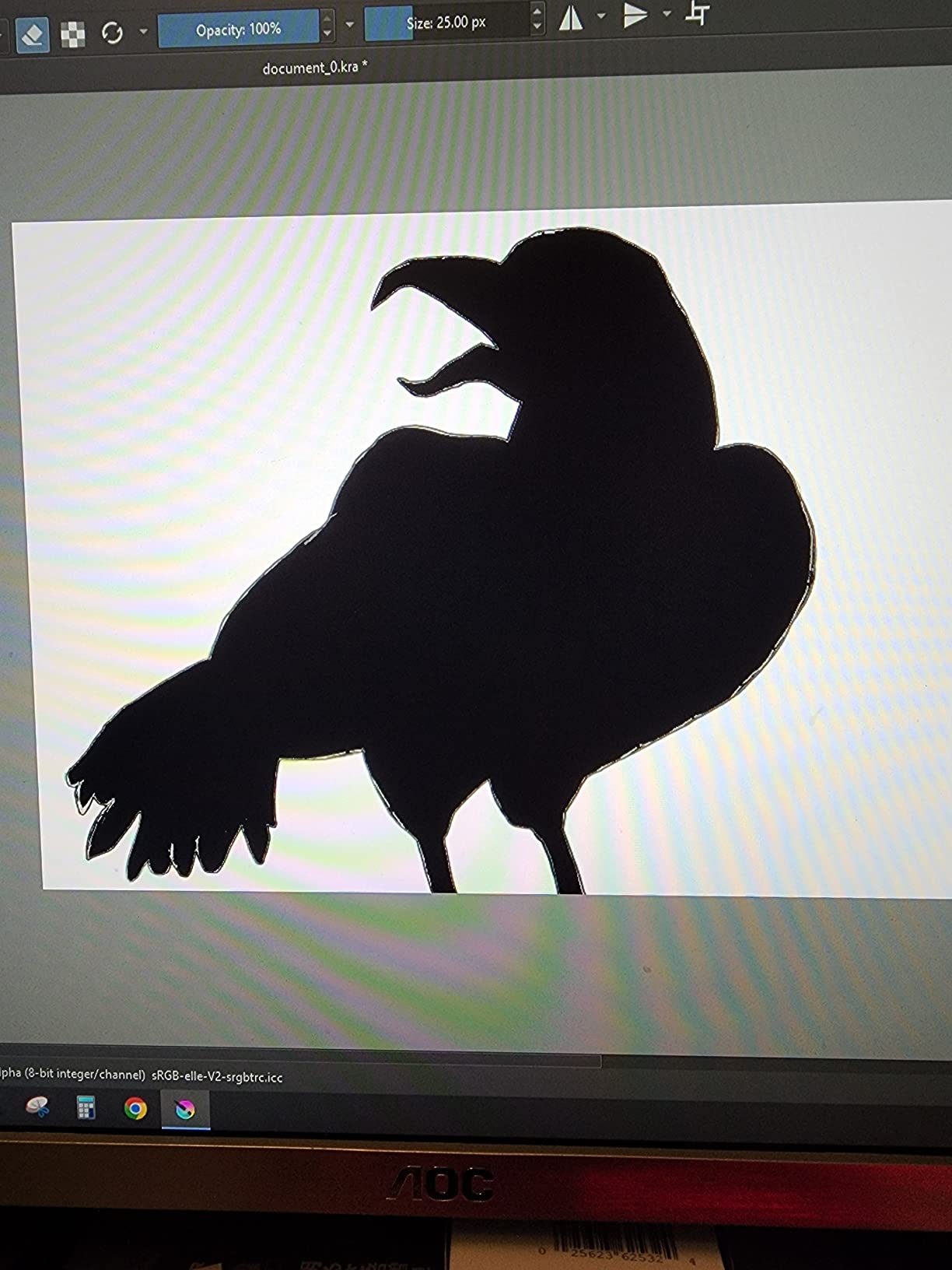
We kept the Intuos Small on the desk for the longest stretch of any model in this roundup, and it stayed the one we reached for. The first session felt ordinary in a good way: plug in the cable, install the small driver, draw. There is no app to launch and no pairing ritual, which matters more for a beginner than any spec on the sheet.
Pen feel is the reason this model shows up in nearly every beginner thread we read on r/drawingtablet and r/DigitalPainting. The EMR pen is passive, so there is no charging, no pairing and no battery anxiety. Pressure ramps smoothly from the lightest line to a solid mark, and the tilt response is forgiving rather than twitchy.
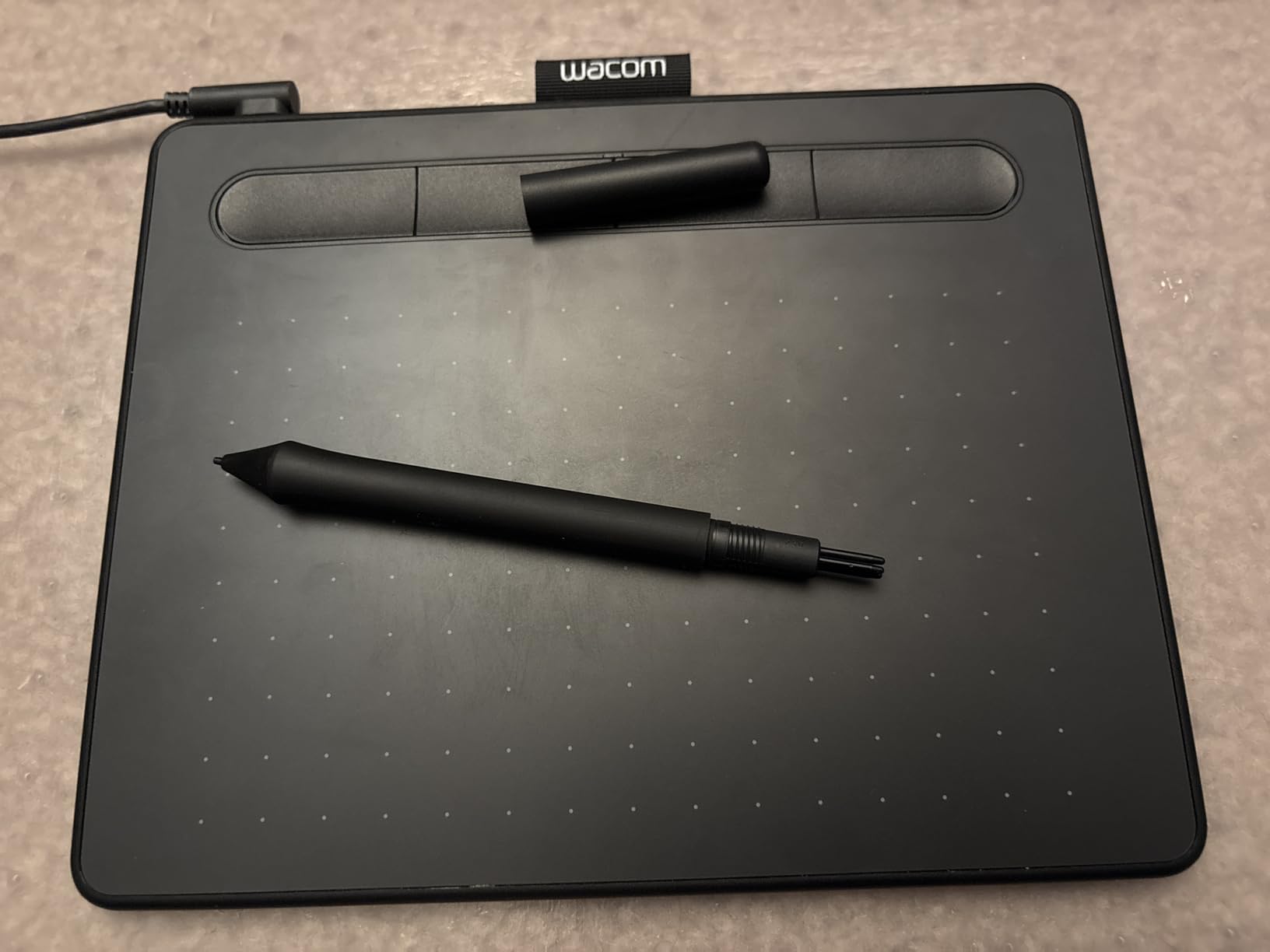
The four ExpressKeys are the quiet hero. Two of them map to undo and redo out of the box, and remapping them to your middle finger and ring finger turns an unfamiliar pad into a mouse replacement you stop thinking about. We mapped precision mode to one key within a minute, and that one change cut our zoom steps from tedious to automatic.
Pressure sensitivity sits at 4096 levels rather than the 8192 most rivals offer. In practice, on the gesture sketches and gradient tests we ran, we could not tell the difference. The extra levels on an 8192 tablet become visible in fine shading work, and most beginners spend their first six months on linework and flat colour instead.
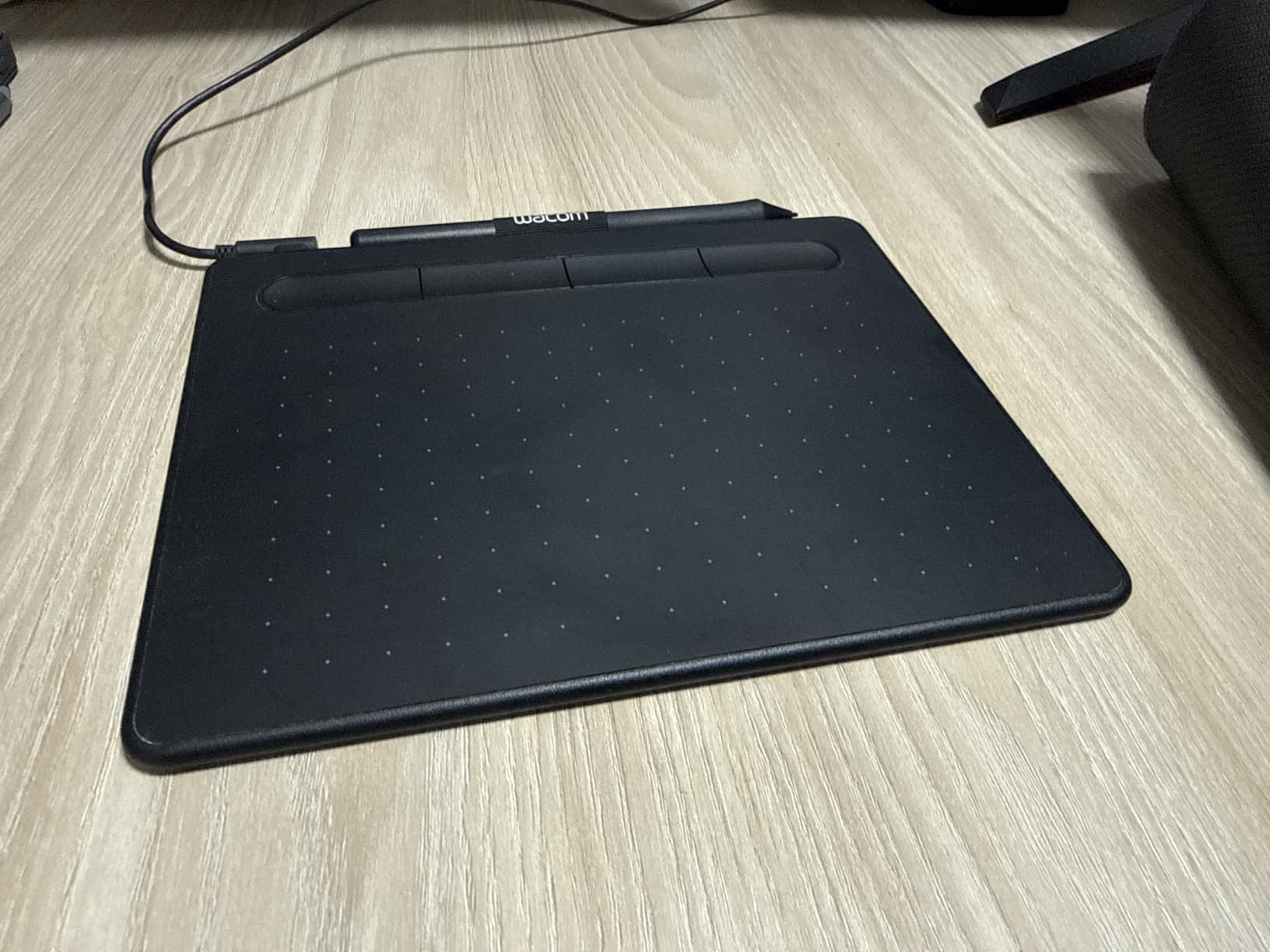
Who should buy the Wacom Intuos Small
Buy it if this is your first tablet and you want the shortest possible path from unboxing to drawing. The driver is the most polished in this guide, the software compatibility is the widest, and it is the model most beginners end up keeping for years rather than replacing once they outgrow it.
It is also the safest pick for a Chromebook or a mixed Windows and Mac household. Wacom drivers have existed for decades on both platforms, and the tablet shows up reliably in Linux drawing setups too. If your computer situation is unusual, start here.
Who should skip the Wacom Intuos Small
Skip it if you draw full-body figures or anything with a wide composition. The 6 x 3.7 inch active area means your whole drawing has to fit inside a postcard, and the canvas has to stay small. Reviewers report the same thing: the pen is excellent, the space is not.
Skip it if your laptop has no USB-A port and you dislike adapters. The cable is a wired micro-USB with an L-shaped connector, and on a modern laptop you will be carrying a small adapter permanently. Also expect to replace nibs. The three spares in the box wear down faster than most beginners expect.
2. HUION Inspiroy H640P: Best Value 6 x 4 Inch Drawing Tablet for Beginners
HUION Inspiroy H640P 6×4 inch Drawing Tablet 8192 Pen Pressure
6 x 4 inch active area
8192 pressure levels
5080 LPI and 233 PPS
6 press keys
Pros
- 8192 pressure levels with 5080 LPI resolution
- 6 customizable press keys with per-app profiles
- Battery-free PW100 stylus with side eraser
- Only 0.3 inch thin and 0.61 lbs
- Pen holder ships with 8 replacement nibs
Cons
- Small 6 x 4 inch area limits large work
- No iPhone or iPad support
- Press keys take time to learn
The H640P is the model we hand to people who want more pen than they can get from the Wacom at this tier. It doubles the pressure resolution to 8192 levels, adds tilt, and fits in a jacket pocket at 0.3 inch thin and just over half a pound. Six press keys sit along the top edge for eraser, zoom and undo.
Resolution and report rate are the quiet strengths here: 5080 LPI and 233 PPS. Those numbers translate to strokes that register cleanly even when you move fast, and on our line tests the pen kept up without the skipped dots we occasionally saw on cheaper models. Tilt support is a bonus for shading, letting you lay the pen over for a broader edge.
The six press keys are fully remappable and save as per-application profiles, which is more than several rivals at twice the price. We set a profile for Krita and another for Photoshop and switched between them without opening the driver. It took ten minutes of setup and saved time every day after.
This is also one of the few budget tablets that lists Linux and Android support alongside Windows and macOS, and the body is symmetrical so it works for either hand. If you draw with your left hand, rotate the tablet 180 degrees in the driver and the express keys follow.
Who should buy the HUION Inspiroy H640P
Buy it if you want the most capable pen per dollar and you work at a normal sketchbook scale. It is a strong fit for line art, character design, study sketches and note-taking, and the portability makes it easy to move between a dorm desk and a library desk.
Buy it if you are on Linux or Android, since it is one of the few in this list that supports both cleanly. The battery-free PW100 stylus also has an eraser on the side, which saves a trip through the brush menu mid-sketch.
Who should skip the HUION Inspiroy H640P
Skip it if you draw anything larger than a single character on the canvas. The 6 x 4 inch area is only slightly bigger than the Wacom, so the same limitation applies, and you will outgrow it at the same pace.
Skip it if you use an iPhone or iPad. There is no iOS support, and reviewers also mention that the press keys and tablet map confuse first-time pen tablet users for the first week. Budget a little setup time, or pick the slightly larger H1060P below if you are fussy about keys.
3. XP-Pen StarG640: Best for Note-Taking, Signing and Rhythm Games
Drawing Tablet XPPen StarG640 Digital Graphic Tablet 6×4 Inch Art Tablet with Battery-Free Stylus Pen Tablet for Mac, Windows and Chromebook (Drawing/E-Learning/Remote-Working)
6 x 4 inch active area
8192 pressure levels
2 mm thin body
Battery-free PN01 stylus
Pros
- Battery-free PN01 pen needs no charging
- 2 mm thin and light enough to travel with
- Plug-and-play on Windows Mac and Chromebook
- Works well for note-taking and OSU
- Plenty of replacement tips included
Cons
- Small 6 x 4 inch work area
- No express keys on the tablet
- Stylus feels light and plasticky
- Some users report dead spots over time
The StarG640 sits at 2 mm thin, which makes it the easiest model here to keep in a bag between classes. The body is narrower than the Wacom and the Huion, and the pen holder recess keeps the stylus from rolling off a dorm desk. For a student who moves around campus with one bag, that physical slimness matters as much as the spec sheet.
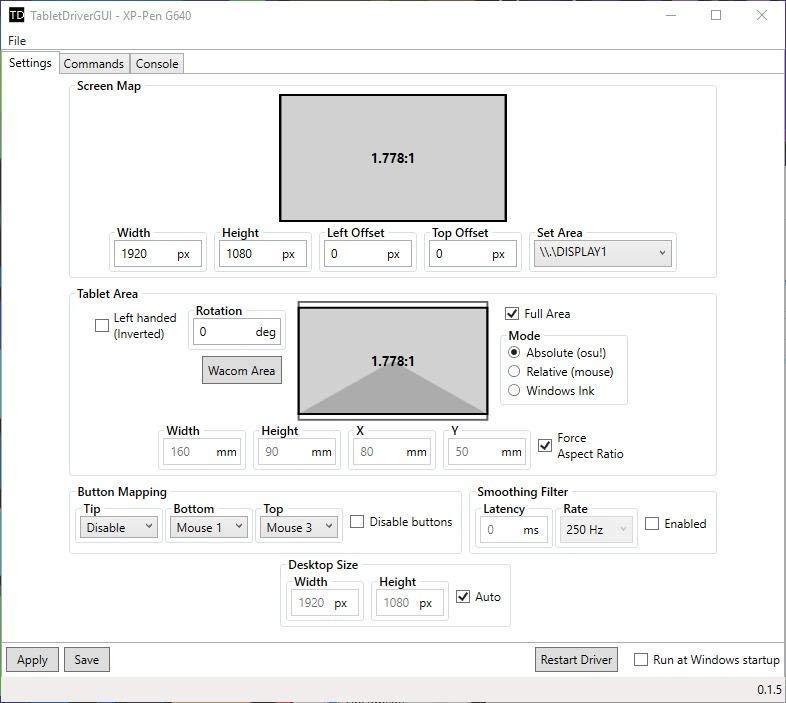
Pressure levels sit at 8192 and the pen is the passive PN01, so nothing needs charging. In note-taking, which is what most students actually use this for, it is excellent: the surface is matte enough to glide a forearm across while writing, and the pen buttons give you an eraser shortcut without opening a menu.
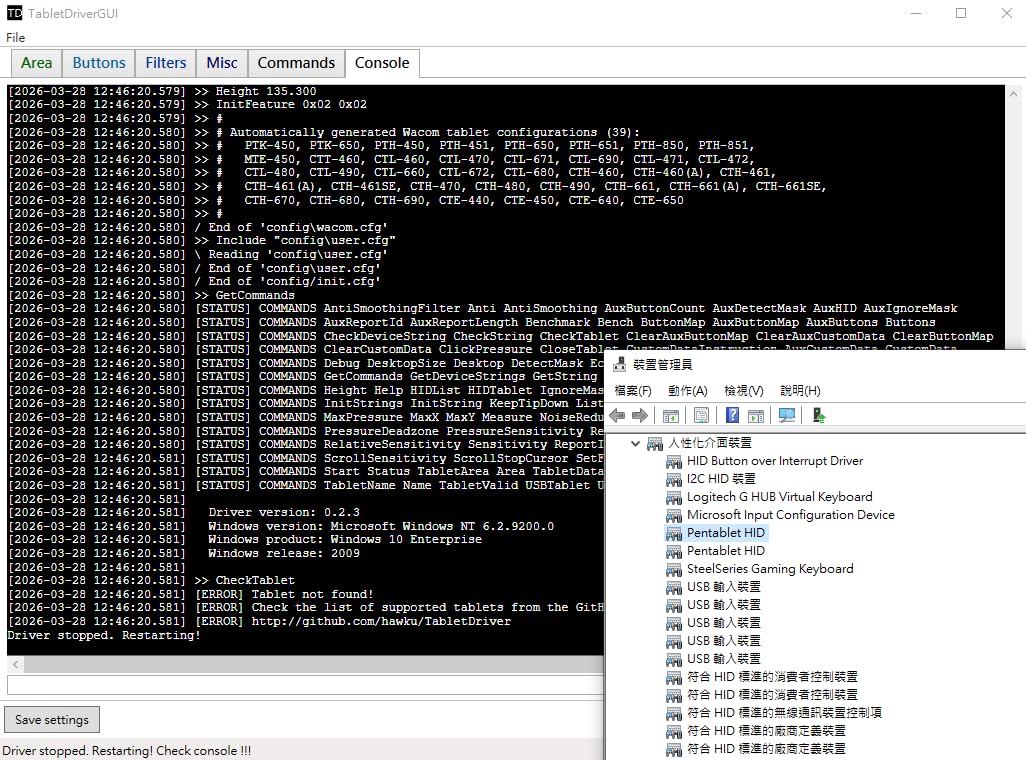
Its second life is as a mouse replacement. The 6 x 4 inch pad is a genuinely playable surface for rhythm games and clickers, and r/XPpen threads spend a lot of time on exactly that. If your art goal is a side project and your main goal is lecture notes and a gamepad-free session, this is the honest match.
Long-term durability is the one area where feedback is mixed. Reviewers praise XP-Pen support and the low entry point, but some report dead spots appearing after heavy use, and the stylus itself is described as light and plasticky. Buy it as a first step, not a ten-year investment.
Who should buy the XP-Pen StarG640
Buy it if your main tasks are note-taking, document signing, whiteboard work and general mouse replacement. It is also the lightest full drawing surface here, and the 2 mm body fits into a laptop sleeve without a case.
Buy it if you are on Chrome OS. Chrome OS 88 and later is listed as supported, and we had it drawing in a web-based whiteboard with no extra software installed. For school machines that get wiped every term, that matters.
Who should skip the XP-Pen StarG640
Skip it if you want express keys on the tablet. There are none here, only the two buttons on the pen, so every shortcut beyond undo and redo becomes a keyboard trip or a radial menu in your software.
Skip it for serious illustration. The glossy surface shows fingerprints and wears at high-traffic spots, and reviewers are more critical of durability than of price or setup. If you plan to draw daily for years, spend a little more on a model with a textured surface and a mat included.
4. HUION Inspiroy H1060P: Best Large Screenless Active Area for Beginners
HUION Inspiroy H1060P Graphics Drawing Tablet, 10 x 6.25 in, 12+16 Hot Keys
10 x 6.25 inch active area
8192 pressure levels
12 press keys plus 16 soft keys
60 degree tilt
Pros
- Large 10 x 6.25 inch area reduces wrist strain
- 12 press keys plus 16 soft keys for shortcuts
- Battery-free PW100 pen with 60 degree tilt
- Owners report 6+ years of daily use
- USB-C adapter included for MacBook
Cons
- Stylus side buttons press accidentally while drawing
- Micro-USB port fit is tight over long use
- Left-handed mode does not mirror key positions
- Driver configuration less polished than Wacom
The single biggest reason to move up from a 6 x 4 inch pad is the jump to 10 x 6.25 inches. The H1060P delivers that at a price point most people assume requires a premium brand, and it is the model we would tell someone who already knows they will stick with drawing to buy first.
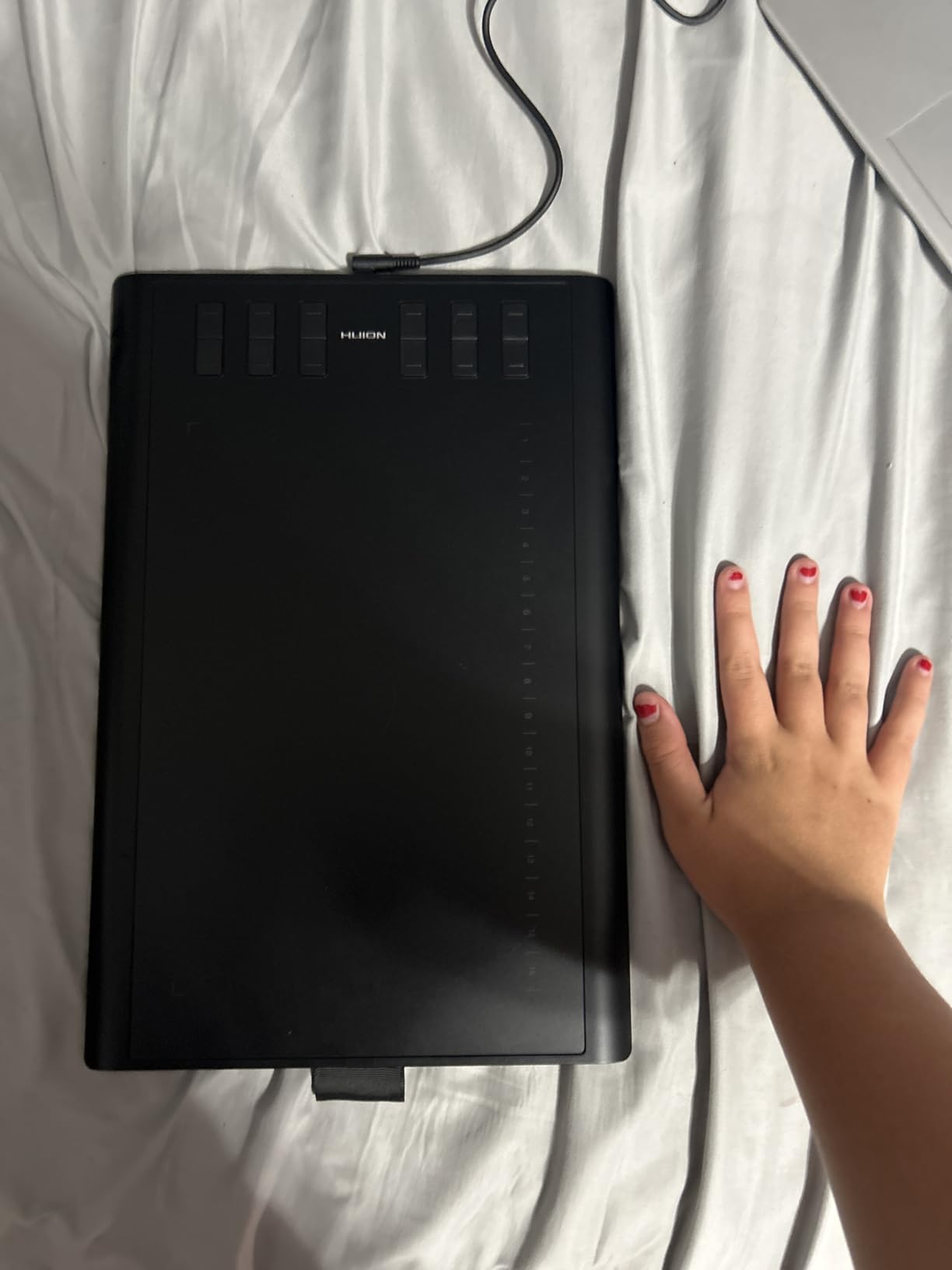
More surface area changes your posture, not just your canvas. With a full 10 inches of width you can lean your forearm on the desk and rest your wrist on the pad edge, which removes the tension that makes small tablets tiring after an hour. Our longest drawing sessions on the 6 x 4 inch models ended with a stiff wrist; on the H1060P they did not.
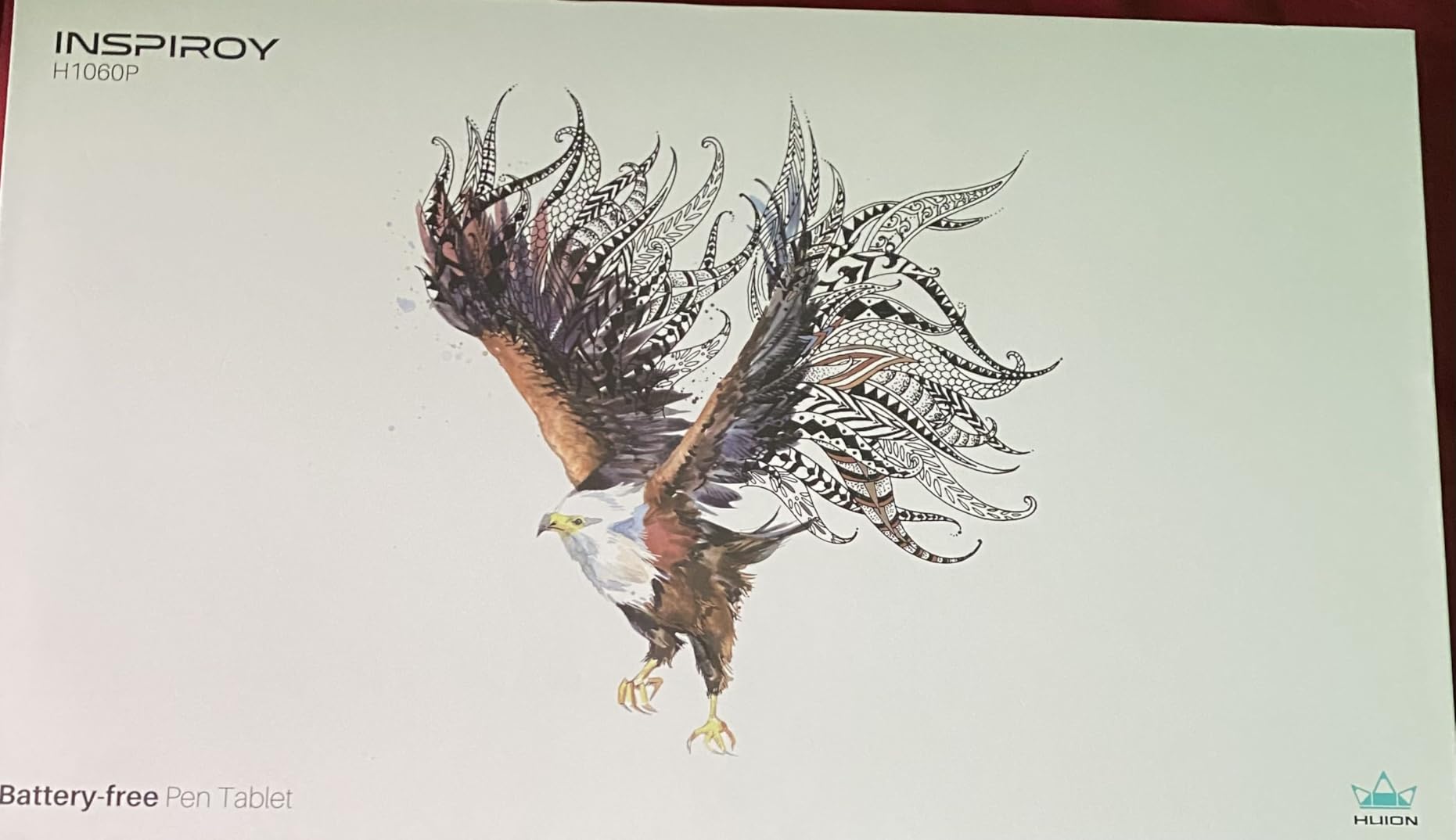
Shortcut coverage is the best in this guide. Twelve press keys run along the top and 16 soft keys appear on the driver, so you can bind a full toolbar to the tablet and work without reaching for the keyboard. The PW100 stylus is the same battery-free pen used on other Inspiroy models, so nibs and spares interchange across the range.
Reliability is the quiet story. Owners describe using this for six or more years of daily work, which is longer than most entry-level tablets survive. The included micro-USB cable and port are the weak point, and some report the fit loosening with age. A USB-C adapter is in the box for newer laptops.
Who should buy the HUION Inspiroy H1060P
Buy it if you draw characters, environments or anything that needs more than a postcard of space. At 10 x 6.25 inches you can sketch at close to a real drawing-board scale without resizing your canvas every few minutes.
Buy it if you have wrist or shoulder fatigue on small tablets, or if you plan long daily sessions. The larger surface lets you anchor your arm, and the deep shortcut set removes keyboard interruptions from your workflow.
Who should skip the HUION Inspiroy H1060P
Skip it if you want a tidy desk. This is the bulkiest screenless model in the guide, and on a small dorm desk it claims most of the available surface. If desk footprint is your real constraint, look at the thinner models above.
Skip it if you draw with your left hand and care about key placement. The body is symmetrical and works either way, but the left-handed mode does not mirror the function key positions, so you would remap them by hand. There is also no iPhone or iPad support, and the driver is less polished than Wacom’s.
5. XP-Pen Deco 01 V3: Best Pressure Range for Linework and Shading
XPPen Deco 01 V3 10×6 Drawing Tablet, 16K Battery-Free Stylus, 8 Keys
16384 pressure levels
10 x 6.25 inch active area
8 express keys
8 mm slim body
Pros
- 16384 pressure levels with 60 degree tilt
- 8 customizable express keys for either hand
- 10 x 6.25 inch area feels larger than expected
- Excellent Linux support with a good config tool
- Ships with glove film 10 nibs and a stand
Cons
- Stylus tip has noticeable give
- Pen side buttons trigger accidentally
- Nibs wear fairly quickly
- Very light strokes and small dots are hard to register
- Protective film scratches easily
The Deco 01 V3 is the pressure champion of this list at 16384 levels, double what most of the field offers. Combined with 60-degree tilt support, it gave us the smoothest line weight variation of anything we tested, particularly on long tapering strokes from a hairline to a solid black.
The 10 x 6.25 inch surface is the same generous size as the Huion H1060P, but the body is only 8 mm thin and lit around the drawing area so you can see your edges in a dim room. Eight express keys sit on the left and can be mapped for either hand, which makes it the best-equipped screenless option here for someone who wants shortcuts without the bulk.
The box is unusually complete: a glove, a protective film, ten nibs, a pen stand and both USB-C adapters. That bundle alone covers most of what a beginner would otherwise buy separately in the first month, including the first replacement nibs and a drawing glove.
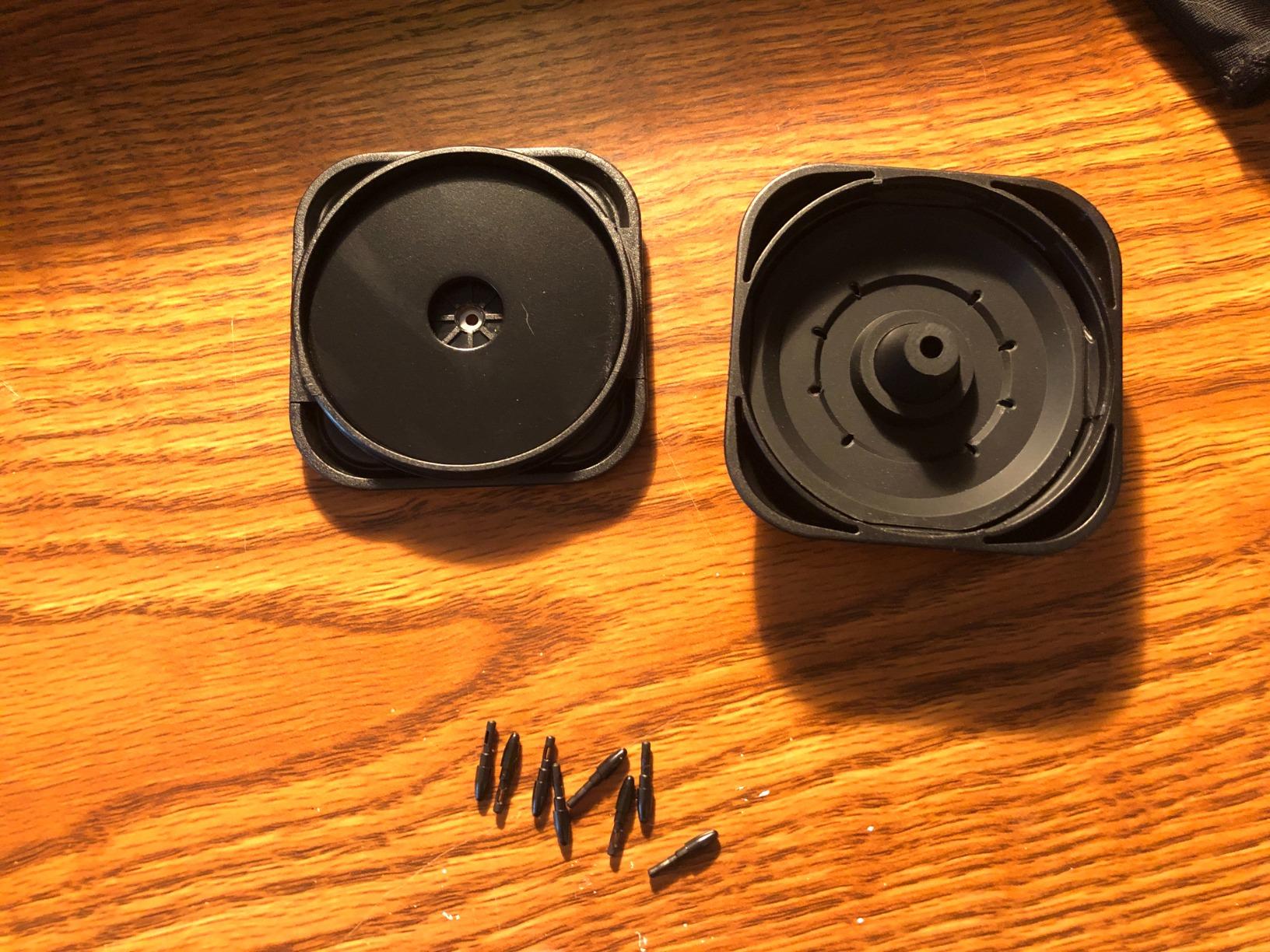
Where it gives ground is the pen itself. Reviewers describe noticeable give in the tip and a stylus that feels slightly soft, and pen side buttons are easy to catch while drawing a curved line. Very light strokes and single-pixel dots can also fail to register, which matters if you plan to do fine line art with a technical pen brush.
Who should buy the XP-Pen Deco 01 V3
Buy it if your interest is inking, linework, hatching and tonal shading rather than flat colour blocking. The 16384 pressure levels and tilt give you the widest control range in this guide, and the 10 x 6.25 inch surface means you are not resizing constantly.
Buy it if you want a full accessory kit on day one, or if you run Linux. The config tool is one of the better ones in this guide, and it covers mapping and key assignment properly rather than as an afterthought.
Who should skip the XP-Pen Deco 01 V3
Skip it if you paint with very light washes or rely on tiny detail dots. Light pressure strokes occasionally skip, and the soft tip takes some getting used to if you are coming from a firmer pen.
Skip it if you are hard on hardware. The bundled protective film scratches easily and the supplied cover does not stay on, so treat the active surface carefully for the first few months. The stylus buttons also catch easily, which we found irritating within the first hour.
6. UGEE M708: Best Paper-Like Textured Drawing Surface
UGEE M708 Drawing Tablet, 10×6 inch Large Space for Digital Drawing
10 x 6 inch textured surface
16384 pressure levels
60 degree tilt
8 customizable keys
Pros
- 10 x 6 inch textured surface gives a paper-like feel
- 16384 levels without bottoming out on light touch
- Light thin and sturdy-feeling build
- Works out of the box with minimal driver fuss
- USB-A to USB-C adapter snaps in securely
Cons
- Pen shortcut buttons trigger accidentally and are hard to disable
- Hot key settings sometimes reset to defaults
- Short USB cord limits desk setups
- Bulky pen tip is awkward at an angle
- Occasional loss of pen detection
The M708 is the one to try if the smooth plastic surfaces on most tablets feel wrong to you. The active area has a fine papery texture that adds a small amount of tooth under the pen tip, which slows the glide slightly and gives strokes a dry, pencil-adjacent quality. Users who came from paper describe it as the least alien-feeling surface at this tier.
Pressure sits at 16384 levels with 60-degree tilt, and reviewers specifically note that it does not bottom out under a light touch, which is a real problem on some cheaper pads. On our gradient test the response stayed linear down to the faintest marks, and the 10 x 6 inch active area is generous.
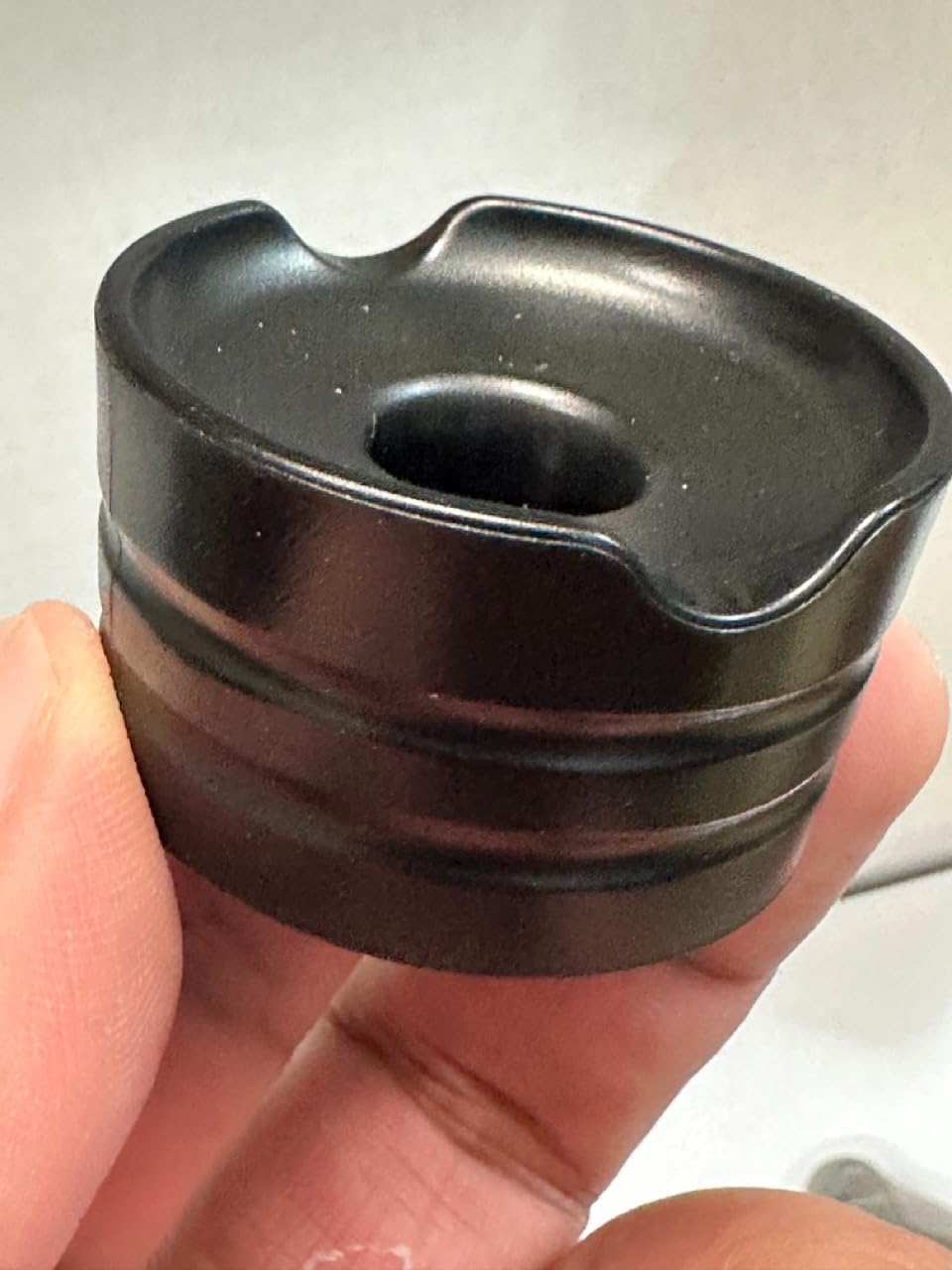
Setup was the least fussy of the large screenless models. It worked immediately on Windows and macOS, the USB-A to USB-C adapter clicks in securely rather than wobbling, and eight express keys plus two pen buttons cover eraser, zoom, scroll and undo out of the box.
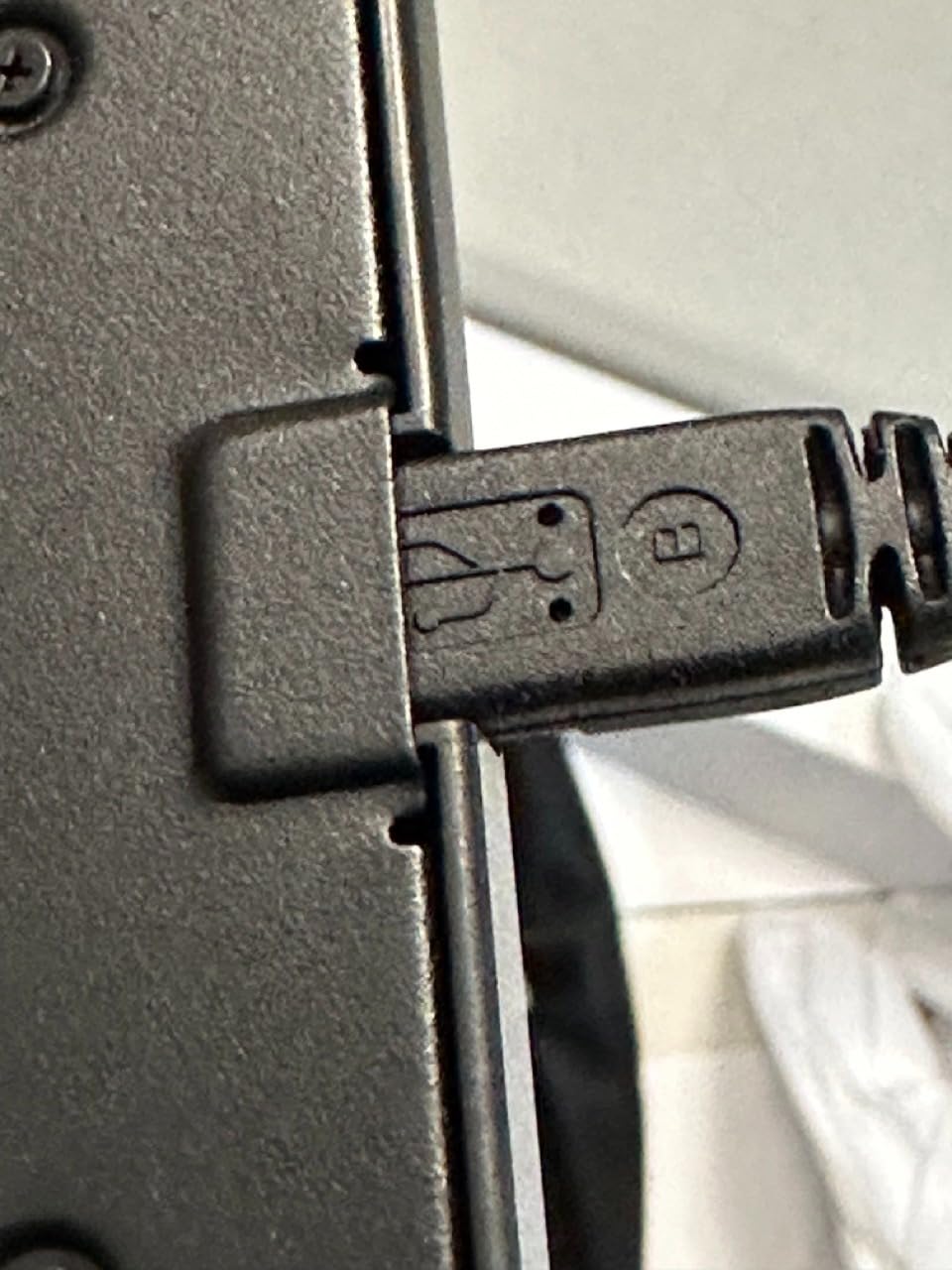
The recurring complaints are practical. Pen shortcut buttons fire easily and are hard to disable permanently, hot key settings occasionally reset to factory defaults between sessions, and the USB cord is short enough to restrict where you can put the tablet. A few owners report pen detection dropping and needing a replug.
Who should buy the UGEE M708
Buy it if you are transitioning from paper and want a surface that feels less slick. The texture is the reason to pick this over an equally priced smooth pad, and it pairs well with charcoal-style and pencil brushes.
Buy it if you want a large active area with minimal setup fuss. Eight keys, tilt and 16384 levels arrive configured, and the build feels sturdier than its weight suggests.
Who should skip the UGEE M708
Skip it if you draw with your forearm resting on the pad or prefer a slick surface for fast sketching strokes. The texture adds resistance, and some people find it slows long sweeping gestures.
Skip it if you are sensitive to accidental inputs or want tidy cable management. Pen buttons firing mid-stroke is a common complaint, hot keys have been known to reset, and the short cord and left-side port are awkward for right-handed desk layouts.
7. XP-PEN Artist12: Best Pen Display for Beginners Who Want No Hand-Eye Gap
XP-PEN Artist12 11.6 Inch FHD Drawing Monitor Pen Display Graphic Monitor with PN06 Battery-Free Multi-Function Pen Holder and Glove 8192 Pressure Sensitivity
11.6 inch 1920x1080 IPS screen
100% sRGB color
8192 pressure levels
Battery-free PN06 pen
Pros
- Draw directly on screen with no hand-eye gap
- Sharp FHD IPS display with 100% sRGB color
- Pencil-like stylus with eraser on the back
- Excellent palm rejection
- 6 keys plus a programmable touch strip
Cons
- Setup is more involved than a screenless tablet
- Needs both HDMI and USB-A ports
- Non-laminated glass creates a small parallax gap
- Pen right-click button sits under the grip
- No stand included
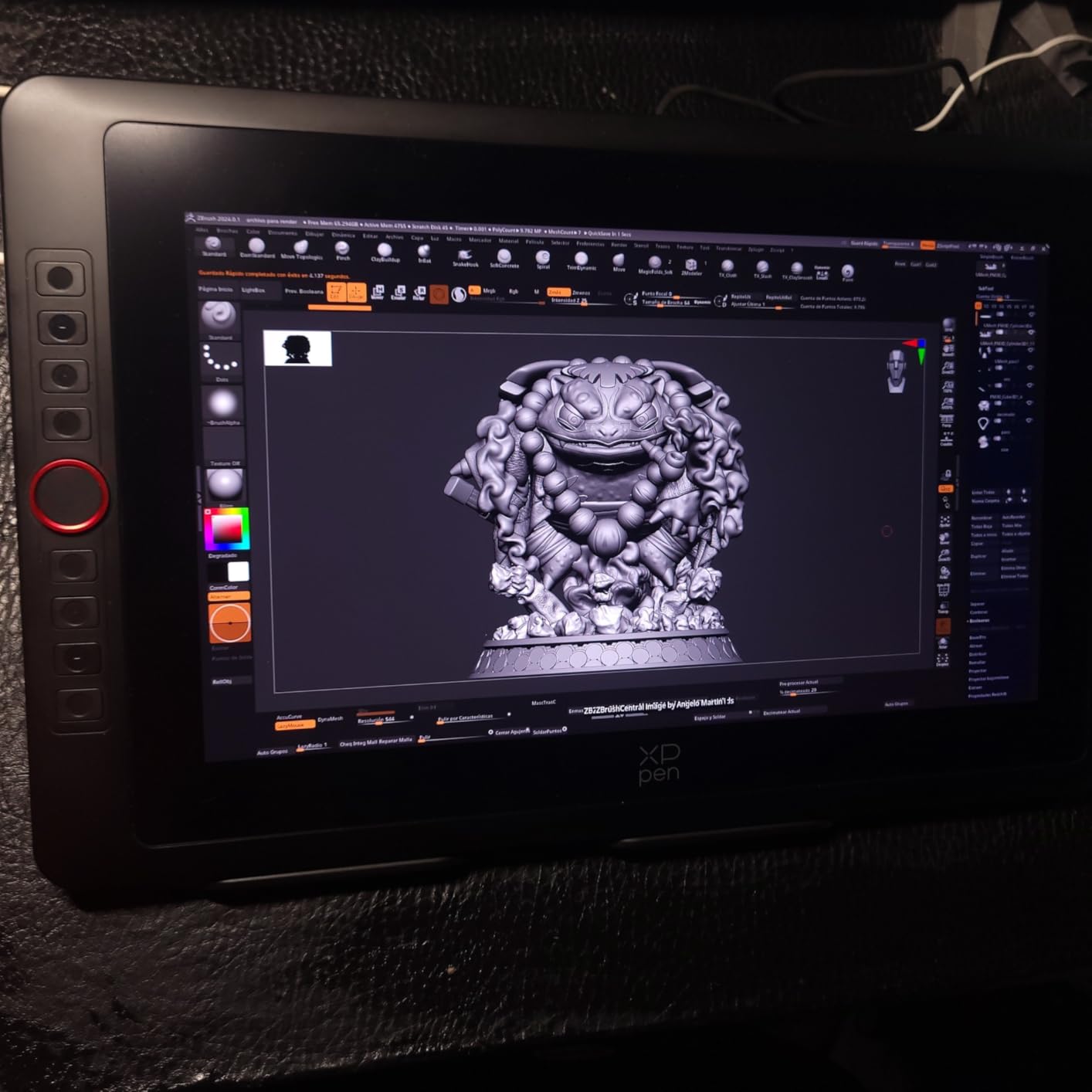
The Artist12 solves the one problem that makes beginners quit. You draw directly on the screen, so your hand and your line occupy the same place, and the disconnect that takes one to two weeks to fade on a screenless pad simply never appears. If you know that separation would end your motivation, this is the shortcut.
The 11.6 inch 1920×1080 IPS panel covers 100% sRGB and has noticeably better contrast and colour consistency than a typical laptop screen. For colour-critical work that matters, and for a beginner it means what you see on the pen display is close to what you see when you export.
The PN06 stylus is hexagonal and pencil-like, with an eraser on the back end, and the grip material is tacky so it does not slide out of your fingers in a long session. Palm rejection is good enough that the supplied glove was unnecessary in our testing, which is unusual for a pen display at this level.
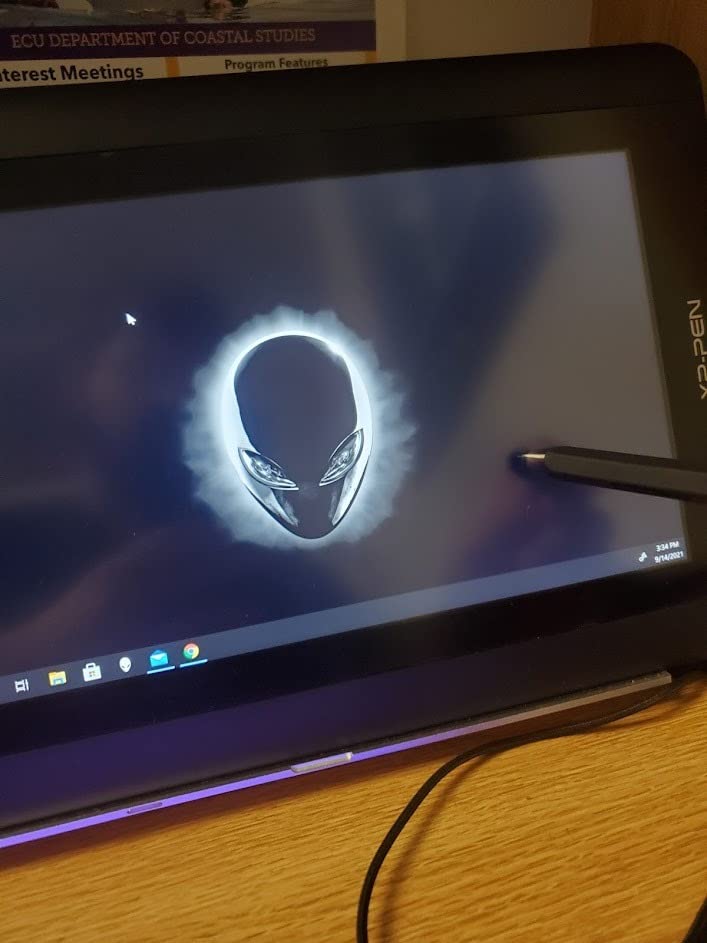
The trade-offs are honest. Setup takes longer than a screenless tablet because you are adding a display to your computer, and you need both HDMI and USB-A, so newer laptops need a converter. The glass is not laminated, which leaves a small parallax gap and picks up glare from overhead lights. No stand is included, so budget for one or a stack of books for the first week.
Who should buy the XP-PEN Artist12
Buy it if you have already tried a screenless tablet and could not adapt to the hand-eye gap, or if you know you will draw for years. The direct-on-screen feel removes a week of adjustment and a lot of frustration.
Buy it if you want a second display for reference work. Owners use it for reference images, 3D modelling viewports and general desktop work, and the brightness controls make it usable in a bright room despite the non-laminated glass.
Who should skip the XP-PEN Artist12
Skip it if you are buying your first tablet and have not tried a screenless one. It costs several times more, requires two ports and a proper setup, and the drawing skills you build here are the same skills you would build anywhere.
Skip it if your workspace is tight or your lighting is harsh. At 11.6 inches it is smaller than a typical laptop panel, and without lamination overhead lights reflect straight back at you. The missing stand also means your ergonomics are unresolved until you buy one.
8. HUION H420X: Best for Travel, Document Signing and Notes
HUION Drawing Tablet H420X Graphics Tablet with 8192 Level Pen Pressure
4.17 x 2.6 inch active area
167 g and 7 mm thick
8192 pressure levels
300 PPS report rate
Pros
- Extremely small and light at 7 mm and 167 g
- Battery-free pen with 8192 levels and 60 degree tilt
- No driver install needed for basic use
- 300 PPS report rate gives smooth fast lines
- Stylus side buttons switch right-click and eraser
Cons
- Very small 4.17 x 2.6 inch area suits signing and notes rather than drawing
- No iOS compatibility
- Software options more limited than larger tablets
The H420X is small enough to be honest about what it is: a signature, note-taking and mouse-replacement device. The active area is 4.17 x 2.6 inches, which fits a shopping list, a set of maths annotations or a rhythm game track, and it is 7 mm thin at 167 grams, about the weight of a paperback.
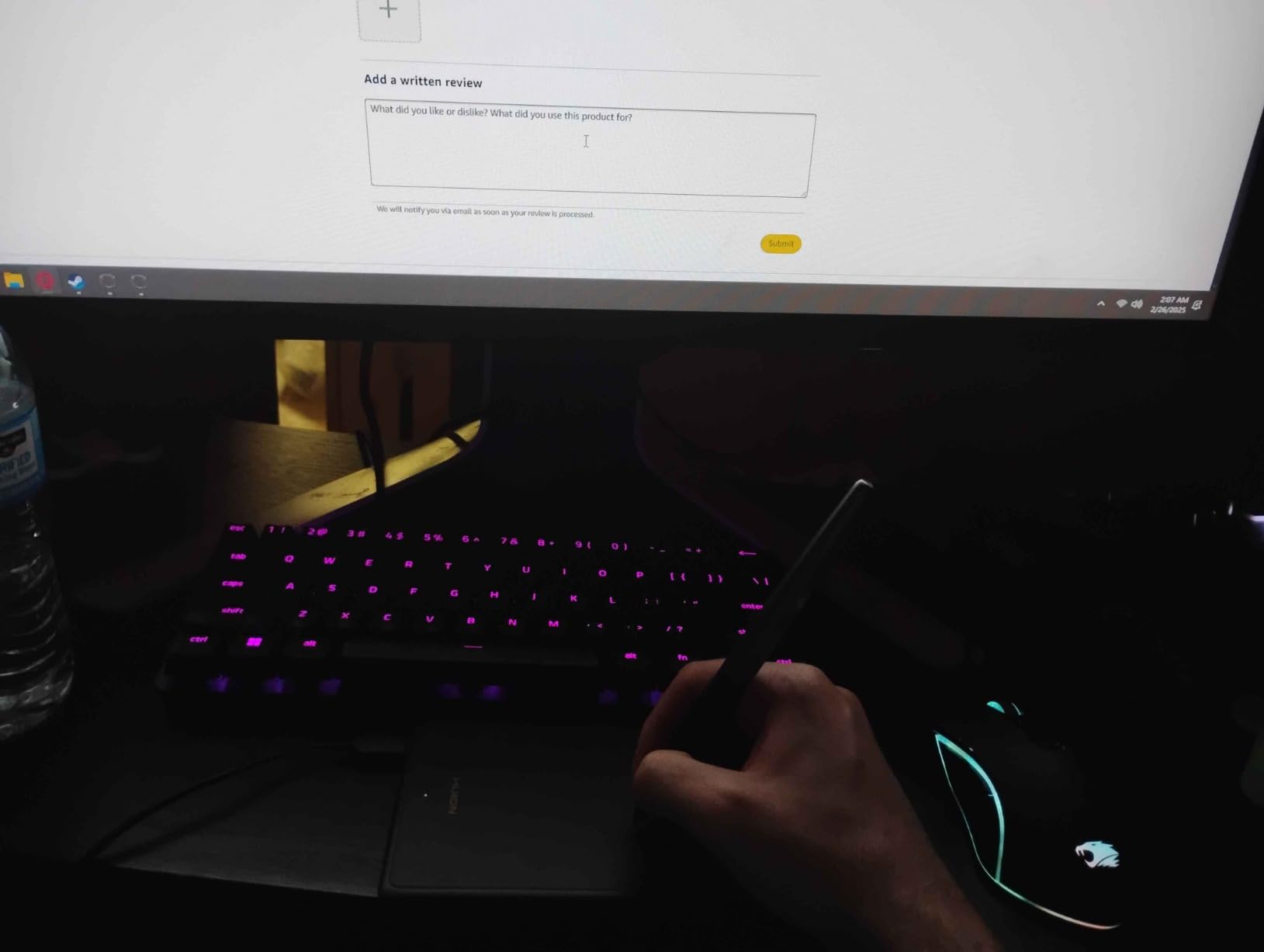
Setup is the fastest in this guide. There is no driver to install for basic use; you plug it in and it draws. The 300 PPS report rate is unusually high for the size, and on fast strokes the lines stayed smooth with fewer skipped dots than we expected from something this compact.
The battery-free pen still carries 8192 pressure levels and 60-degree tilt, which sounds excessive for the surface area and is exactly the point: nothing about the pen is compromised, only the space is. Two side buttons toggle between right-click and eraser instantly, which is the whole feature set a note-taker needs.
Because the tablet is that small, USB-C adapter and cable are included and the package also carries eight nibs and a nib clip. It is genuinely the easiest option here to keep in a laptop sleeve permanently.
Who should buy the HUION H420X
Buy it if you sign documents, annotate lecture slides or want a backup mouse for a shared computer. At this weight you can carry it without noticing, and the zero-setup behaviour means it works on a borrowed machine in seconds.
Buy it if you travel between a laptop and a library computer. It works with Windows, macOS, Linux and Android, and the surface is large enough for a quick sketch without being a real drawing pad.
Who should skip the HUION H420X
Skip it if you intend to draw artwork. A 4.17 x 2.6 inch active area is roughly a business card, and reviewers consistently describe it as a note-taking and game device rather than a drawing one. For actual illustration, every other model in this guide gives you far more room.
Skip it if you use Apple hardware. There is no iOS or iPad compatibility, and you cannot use the pen for anything Apple-side. The smaller surface also offers fewer shortcut options, since there is no room for keys beside it.
9. GAOMON PD1161: Best Anti-Glare Pen Display Under the Two-Tier Price Point
GAOMON PD1161 Drawing Tablet with Screen, Tilt, 8 Shortcut Keys, 11.6″ FHD
11.6 inch FHD IPS screen
8192 pressure levels with tilt
8 press keys
Matte anti-glare film
Pros
- Draw directly on an 11.6 inch FHD IPS screen
- Pre-installed matte film reduces glare and adds texture
- Battery-free AP50 stylus with 8192 levels and tilt
- 8 press keys plus 2 pen buttons
- 72% NTSC and 100% sRGB colour
Cons
- Not standalone and needs HDMI plus USB ports
- Laptop may need the included AC adapter
- Some 3-in-2 cable connection issues reported
- Larger and heavier than screenless tablets at 1.9 pounds
- Driver and display config can need troubleshooting
The PD1161 is the pen display to look at if your dorm room or studio has overhead lighting and you cannot control it. The 11.6 inch FHD IPS panel ships with a matte anti-glare film already fitted, and that film does two jobs: it cuts reflections that make other pen displays unreadable in bright rooms, and it adds a faint texture that gives the stylus some grip.
The AP50 stylus is battery-free with 8192 pressure levels and tilt, so the pen behaves like the ones on the cheaper screenless models. Eight programmable press keys and two pen buttons give you more shortcut capacity than most pen displays in this range, which matters when the screen is also your only reference.
Colour performance lands at 72% NTSC and 100% sRGB across 16.7 million colours. That is a working-grade panel rather than a calibrated one, so it is fine for illustration and teaching and not a reference monitor for print work.
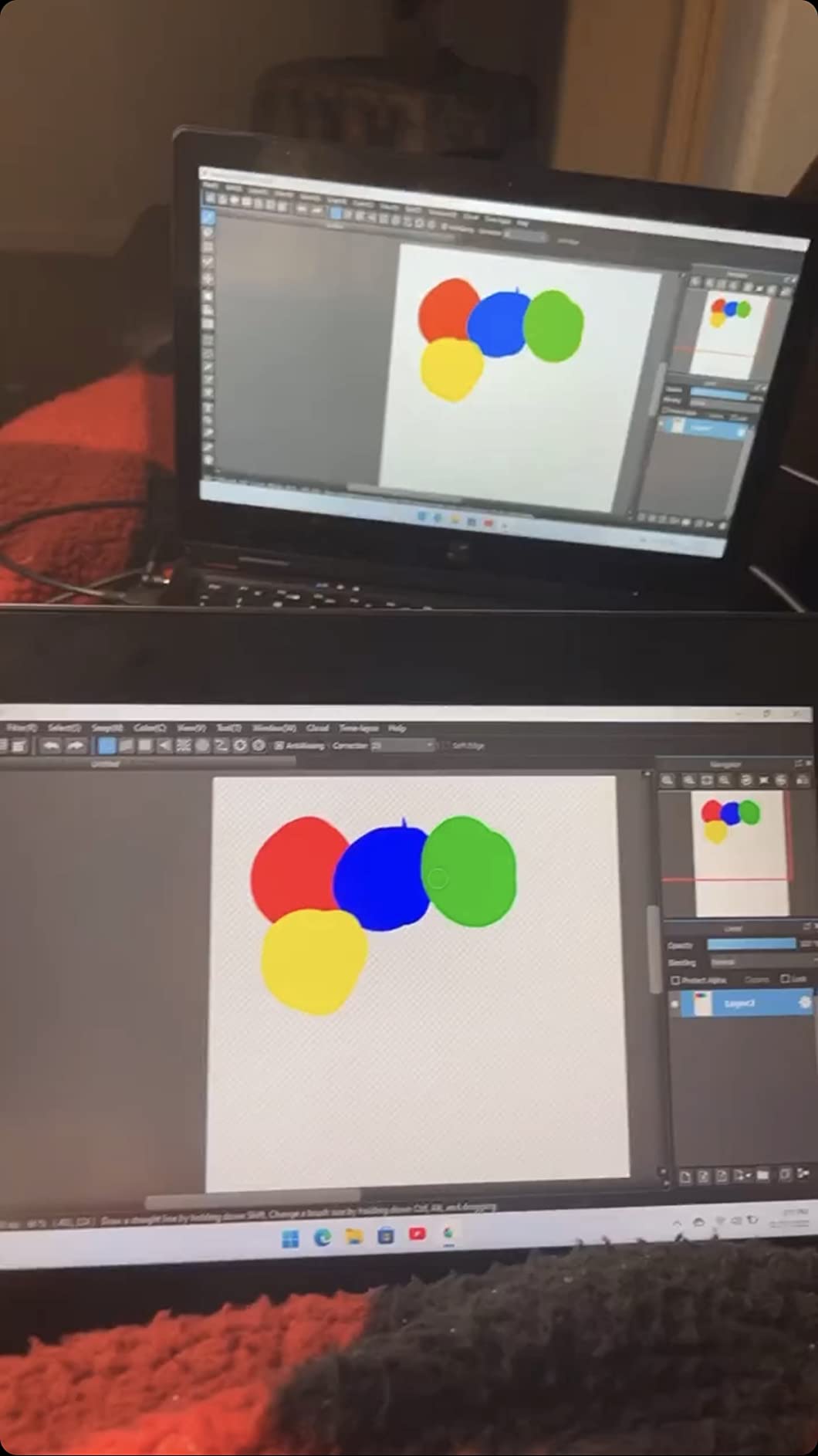
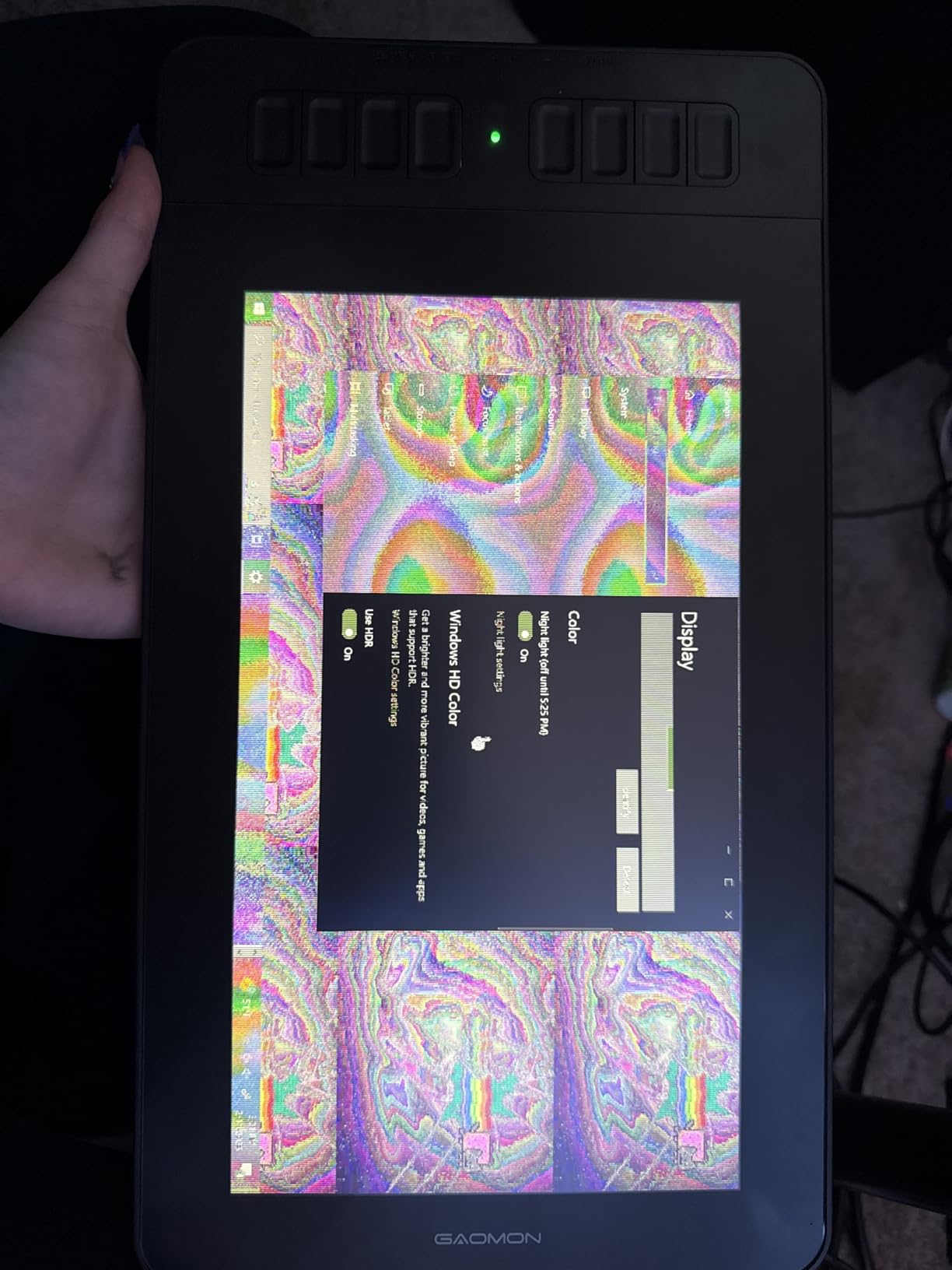
It is not standalone. You need a computer with both HDMI and USB, and some buyers report needing the included AC adapter because their laptop could not supply enough power. A few also hit connection problems with the 3-in-2 cable, and the display configuration can need troubleshooting on first connect. At 1.9 pounds it is also the heaviest item in this guide.
Who should buy the GAOMON PD1161
Buy it if you work in a brightly lit room or a shared dorm space where you cannot dim the lights. The matte film is the specific reason to pick this over another 11.6 inch pen display, and it also reduces the fatigue that comes from squinting at reflections.
Buy it if you teach, present or screen-share while drawing. Owners run Krita, Medibang, Blender, Photoshop, OneNote and Zoom on it, and the shortcut keys let you annotate without leaving the canvas.
Who should skip the GAOMON PD1161
Skip it if you want to draw without a computer or if your laptop has a single USB-C port and nothing else. This needs HDMI and USB, and possibly mains power, which is three things to arrange on a minimal desk. Pen displays generally demand more setup than screenless models.
Skip it if you need a portable kit. At 1.9 pounds it is heavy to carry daily, and the cable situation is fiddly. If desk footprint and weight matter, a large screenless pad such as the H1060P gives you more drawing area for a fraction of the bulk.
10. PicassoTab X11: Best Standalone Drawing Tablet With No Computer Needed
11″ Standalone Drawing Tablet, Portable PicassoTab, No Computer Needed -X11
11 inch laminated 2K screen
4096 pressure levels
6GB RAM and 128GB storage
No computer required
Pros
- Fully standalone so it works anywhere
- Full-laminated 2K screen greatly reduces parallax
- Preloaded drawing apps plus lifetime beginner tutorials
- Good battery life and quick charging
- Also works as a general tablet for browsing and video
Cons
- Included stylus is basic and disconnects mid-stroke
- Palm rejection imperfect even with the glove
- Some report ghost touches and skipped input
- Screen protector arrives with bubbles
- Performance can feel sluggish
The X11 is the only tablet here that needs no computer at all. It runs its own graphics tablet operating system, holds 6GB of RAM and 128GB of expandable storage, and draws wherever you sit. For a student in a room where the laptop is shared, or for anyone who draws on trains and planes, that removes the biggest practical constraint on the whole list.
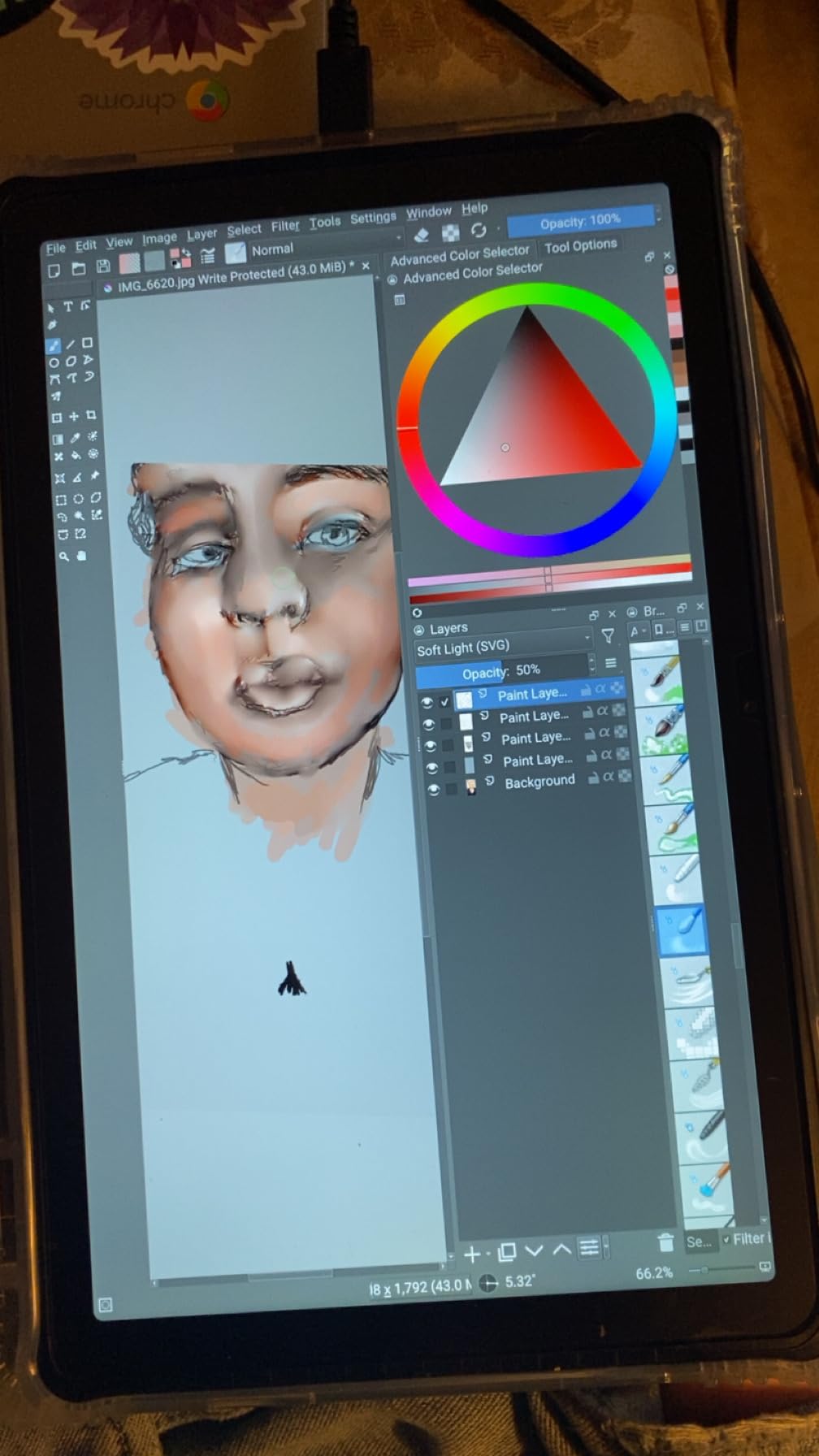
The display is fully laminated at 2560×1440, which is the standout spec. Lamination bonds the glass to the panel so there is almost no parallax gap between your pen tip and the line, and the resolution is higher than any other screen in this guide. The drawing feel is the closest to paper of anything we tested on screen.
It ships with preloaded drawing and animation apps and lifetime tutorial access, plus an upgrade path to Concepts Pro. Owners commonly report installing Krita or Clip Studio instead, which is the better long-term plan if you already know those tools.
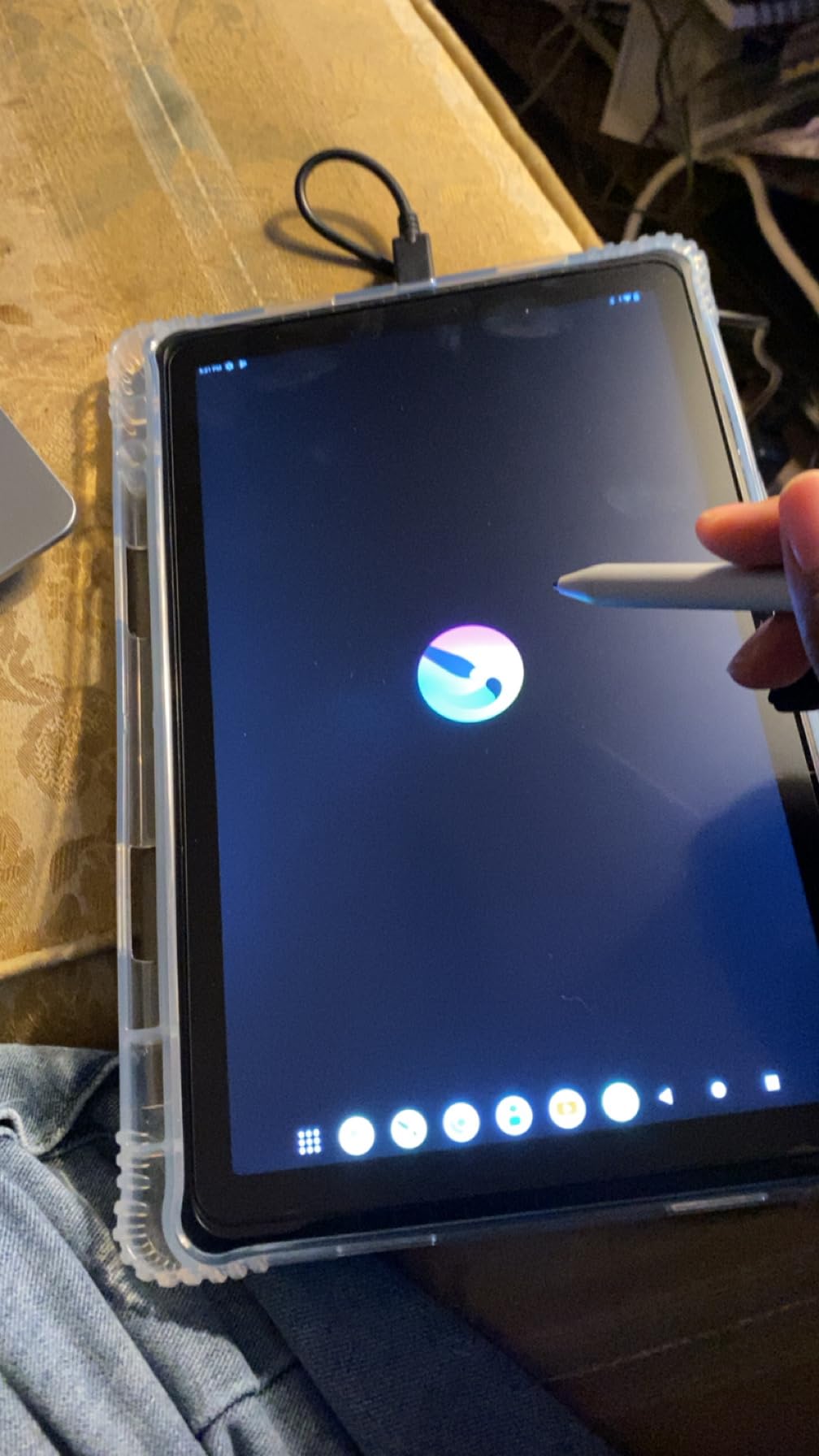
The stylus is the weak link. It is a 4096-level pen, the lowest in this guide, and it occasionally disconnects mid-stroke. Palm rejection is imperfect even with the supplied glove, ghost touches are reported, and the preinstalled screen protector arrives with bubbles. Performance is adequate rather than fast, and the oversized glove is a running joke in reviews.
Who should buy the PicassoTab X11
Buy it if you do not have a computer to draw on, or if you need to draw away from one. This is the only pick that works in a lecture hall, a library or a plane, and the laminated screen gives you the least parallax of anything here.
Buy it if you are buying for a child or a beginner who will not install software. The preloaded apps and tutorials mean there is something to draw on in the first minute, which removes the biggest hurdle when someone has never opened a drawing program.
Who should skip the PicassoTab X11
Skip it if you already own a decent laptop, because you are paying to replace it with something slower. Desktop software on a real computer remains the better platform for serious illustration, animation or photo work, and installing Krita or Clip Studio on the X11 blurs the line anyway.
Skip it if you draw fine linework or need strong palm rejection. The 4096-level stylus disconnects, ghost touches appear, and the screen protector ships with bubbles. It is the least precise pen in this guide, and the 4.2 rating is the lowest among these picks.
How to Choose a Drawing Tablet: A Beginner’s Buying Guide?
1. Start with the form factor, not the brand
Decide whether you need a screen before you compare brands. If you are learning on a computer you own, buy a screenless pen tablet. It is cheaper, it is more reliable, and every drawing skill transfers straight to a pen display or a standalone tablet later. Adding a screen before you know you will stick with drawing is the most common expensive mistake.
2. Pressure sensitivity: what 4096, 8192 and 16384 actually mean
Pressure sensitivity is how many distinct levels of force the tablet can detect between a feather touch and a hard press. More levels means finer control over line weight and opacity. In practice, 4096 levels is smooth enough for a first year, 8192 removes any stepping in gradients, and 16384 only shows a difference in heavy shading or fine hatching. Beginners should not pay a premium for the highest number.
Pressure is not the same as tilt. Tilt support detects the angle of the pen and lets a wider brush lay down more of its edge, which is what gives pencil-style shading. Any tablet with tilt is fine for a beginner; tilt is a nicer-to-have rather than a requirement.
3. Match the active area to the work you actually do
The active area is the usable drawing surface, and the number printed on the box is often the whole tablet rather than the drawing region. Our rule of thumb: 6 x 4 inches suits notes, thumbnails and single-character sketches; 10 x 6.25 inches suits full characters and compositions. Bigger is not automatically better, because a large pad claims desk space and forces a longer reach.
This is the constraint almost nobody mentions. On a small dorm desk, a 14 inch wide tablet leaves no room for a keyboard, a notebook or a drink. Measure the clear space in front of your monitor before you order, and add two inches of cable routing room.
4. Connectivity and the USB-A versus USB-C problem
Most budget tablets ship with a USB-A cable, which means USB-C only laptops need an adapter. Adapters are small, they get left at home, and they are the single most common reason a new tablet seems broken on day one. The XP-Pen Deco 01 V3 and HUION H1060P both include USB-C adapters and cables in the box, which is a detail worth paying attention to on a modern machine.
Check the operating system list before buying. Windows and macOS are universal here. Linux is supported on the H640P, H1060P, Deco 01 V3, M708 and Artist12. Chrome OS is listed for the StarG640, Deco 01 V3 and M708. Android support varies by version and usually needs an OTG adapter. No tablet in this guide supports iPhone or iPad, so Apple-only users need a different approach entirely.
5. Express keys, and the left-handed setup note
Express keys are the buttons on the tablet that map to undo, redo, eraser, zoom and brush switching. Four is a useful minimum; twelve or more is a genuine workflow improvement for long sessions. If you draw with your left hand, check the tablet is ambidextrous, then rotate it 180 degrees in the driver. Note that the Huion H1060P does not mirror its function key positions in that mode, so remap them by hand.
6. Budget for the extras nobody lists
Your first-year costs beyond the tablet are small but real: replacement nibs, a drawing glove if the tablet has no palm rejection, a screen protector for any pen display, and a stand if none is included. Several models here already ship nibs, a glove and adapters, which is why the XP-Pen Deco 01 V3 is better value than its sticker suggests. Over three years, expect to replace nibs every few months on heavy use and to consider a new tablet only when the driver stops updating.
7. Software: what to install in your first hour
None of these tablets comes with the software you will use forever. Install Krita first; it is free, complete and the most common recommendation across art communities for beginners. Add Clip Studio Paint if you want manga linework or a smoother brush engine, Photoshop if you already have an Adobe subscription, and Autodesk Sketchbook as a clean second option. OpenToonz handles 2D frame-by-frame animation if that is your interest. Every tablet here runs all of these.
Your First Hour: Setup and Lag Fixes
Before you blame the tablet for feeling wrong, work through these five steps. Most complaints about lag and disconnected drawing are configuration issues, not hardware faults.
Install the driver first, then plug the tablet in. Windows will find a generic device and map the full desktop instead of the drawing area.
Map the active area. Restrict it to the usable region, not the whole pad, or your cursor drifts off the edge of your drawing.
Set a gentle pressure curve. A hard curve makes light lines impossible for the first weeks; most drivers ship with a linear default that suits beginners.
Map two express keys to undo and redo, and one to a precision mode. This is the fastest perceived speed improvement available.
If strokes lag, close video calls and hardware-accelerated browser tabs. A Wi-Fi driver and a busy USB bus are the usual causes of cursor lag on an otherwise capable tablet.
If lag continues, try a different USB port directly on the computer rather than through a hub, and check whether a second monitor is set to a resolution the tablet struggles with. On pen displays, recalibrate the display alignment after any resolution change. Persistent ghost input on a standalone tablet is usually a screen protector problem rather than a firmware one.
Frequently Asked Questions
What is a good drawing tablet for beginners?
A good drawing tablet for beginners has a battery-free stylus, at least 8192 pressure levels, an active area of 6 x 4 inches or larger, and a driver that installs quickly on your operating system. Most people should start with a wired screenless pen tablet in the lower price tier rather than a pen display, because the drawing skills transfer to any device and the hand-eye gap fades within one to two weeks.
Is Wacom or Huion better?
Wacom is better for driver polish, long-term support and the widest software compatibility, which is why the Intuos Small is our top pick. Huion gives you more pressure levels and a larger active area for less money, so it is better value if you draw a lot. Wacom is the safer first purchase; Huion is the smarter second one once you know you will stick with drawing.
What is the difference between a graphic tablet and a drawing tablet?
There is no difference. The two terms describe the same device: a pressure-sensitive pad used with a stylus to draw, paint or sketch digitally. Retailers and brands use the words interchangeably, so a listing for a graphic tablet is a listing for a drawing tablet.
Do beginners need a drawing tablet with a screen?
No. Most beginners are better off on a screenless pen tablet, which costs less, uses one cable and never has parallax or glare. A pen display removes the hand-eye coordination gap entirely, which is valuable if you already know you will draw for years or if the disconnect would stop you practising. Buy the screen later, not first.
Why is my drawing tablet laggy?
Common causes are a busy USB bus, an active video call, hardware-accelerated browser tabs and an un-mapped drawing area that stretches across a second monitor. Close video and browser apps, plug the tablet directly into the computer rather than a hub, map the active area to the real drawing region, and try a different port. On pen displays, recalibrate alignment after any display resolution change.
What are the downsides of using a graphic tablet?
The main downsides are the hand-eye coordination gap on screenless models, a small active area on cheaper tablets, express keys that take time to learn, and nib wear that requires occasional replacement. Pen displays add a second cable, a larger desk footprint and glare unless the glass is laminated. None of these are dealbreakers; they are adjustment periods.
Why am I suddenly struggling to draw?
Most beginners hit a plateau that feels like a sudden loss of ability, and it is usually one of four things: a hard pressure curve that will not register light lines, a full-desktop mapping that makes strokes drift, an unmapped area of the pad being used constantly, or genuine hand strain from a too-small surface. Try Krita with a soft brush before you assume you have lost your touch.
How much does a good beginner drawing tablet cost?
A capable screenless pen tablet for beginners sits in the lower price tier, with the strongest options clustering at the cheap end of the range. Spending above that mainly buys a larger active area, more pressure levels or a screen, and none of those change how good you get at drawing in the first few months.
Final Verdict: The Best Drawing Tablets for Beginners in 2026
Buy the Wacom Intuos Small if you want the shortest route from opening the box to drawing something. It has the highest rating and the deepest review base in this roundup, the pen needs no charging, and the driver is the least likely to waste an evening of yours.
If you would rather have a bigger canvas for the money, take the HUION Inspiroy H1060P and its 10 x 6.25 inch surface. If your drawing is mostly notes, sign a document and a weekly rhythm game, the XP-Pen StarG640 is the lighter, thinner answer. The one upgrade path worth knowing: start screenless, and move to a pen display such as the Artist12 or PD1161 once drawing has become something you do most days.
Whichever you pick, install Krita, set a soft pressure curve and give the hand-eye adjustment a full two weeks before you judge it.